




 here!
here!
I’m your shopping assistant for PC builds, upgrades, and everything tech.
Got questions? Ask away!
Start a conversation
here!
I’m your shopping assistant for PC builds, upgrades, and everything tech.
Got questions? Ask away!
Start a conversation



Any questions? Ask CelesteSM will help you find out quickly.
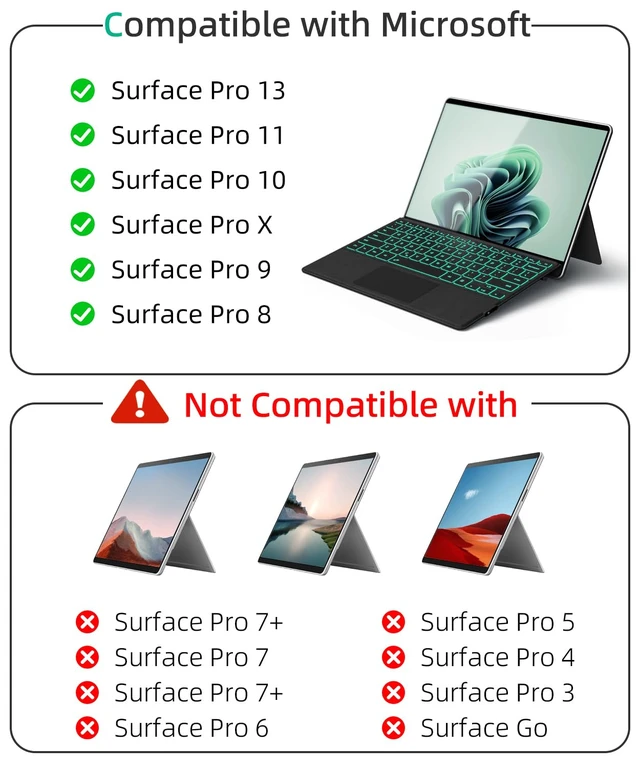
"Suitable models:
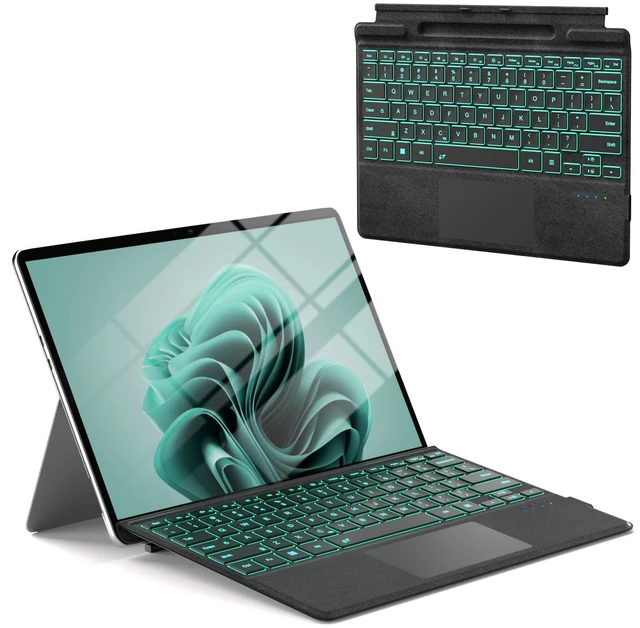
Wireless Bluetooth Keyboard for 13 inch Microsoft Surface Pro 13 / Microsoft Surface Pro 11 / Microsoft Surface Pro 10 / Microsoft Surface Pro 9 / Microsoft Surface Pro 8 / Microsoft Surface Pro X
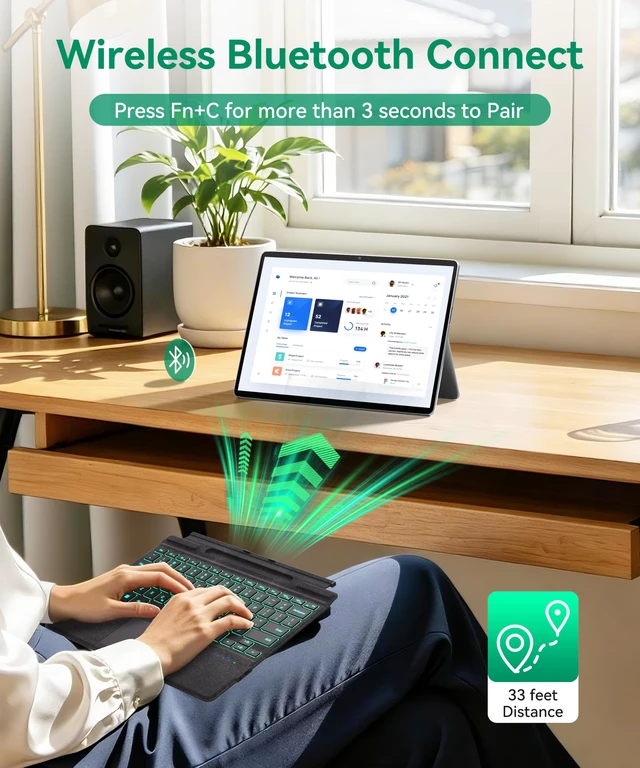
How to connect:
1.Turn on the keyboard power switch.
2.Press Fn+C for 1-3 seconds, the blue light flashes.
3.Open the surface settings, turn on the Bluetooth switch, and add a new Bluetooth device ""bluetooth keyboard"" and select connect.
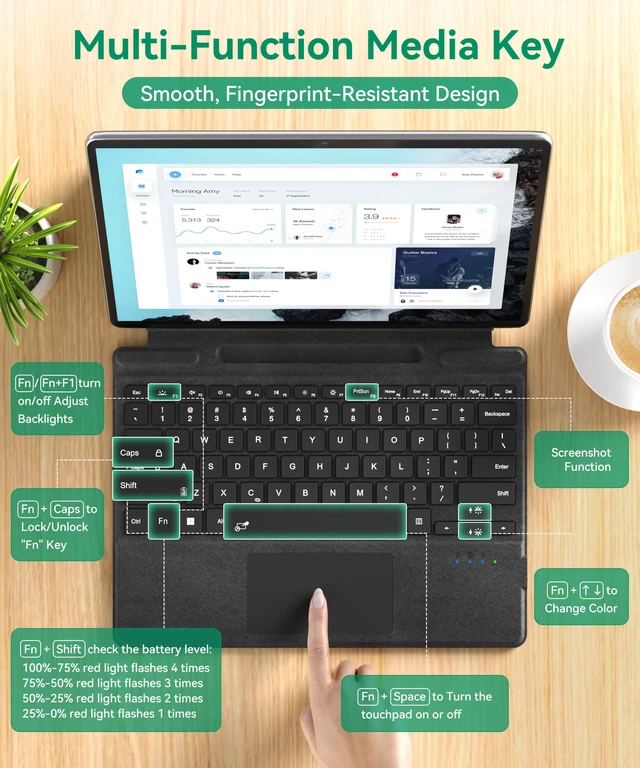
Q:How to lock/unlock the Fn button?
A:Fn + Caps
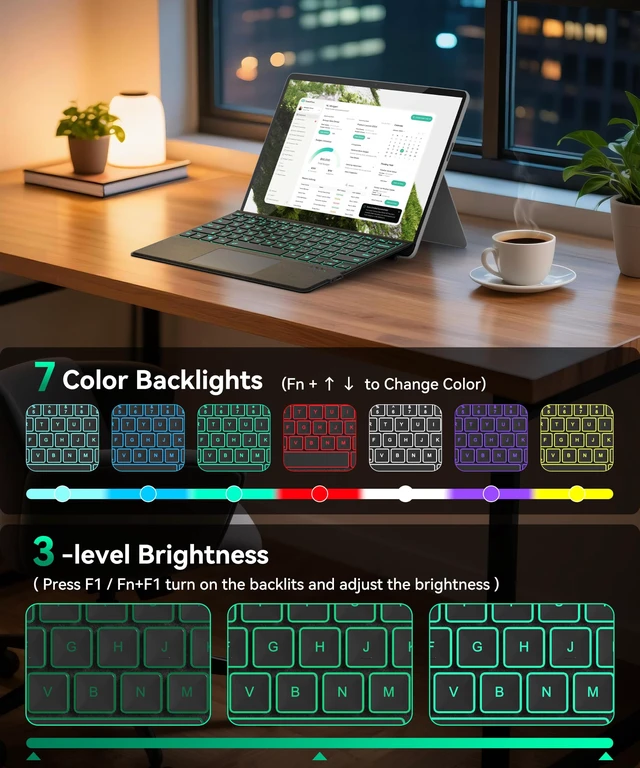
Q:How do I turn the backlight on/off and adjust the brightness?
A:""Fn + F1""/""F1"" to turn on/off and adjust 3 level brightness backlit,""Fn + """"Fn + "" to change color.(Note: Is the Fn key locked/off?)
Q:How to Adjust touchpad sensitivity?
A:Settings->Devices->Touchpad->Touchpad Sensitivity->Related Settings->Other Settings(mouse button/pointer options)
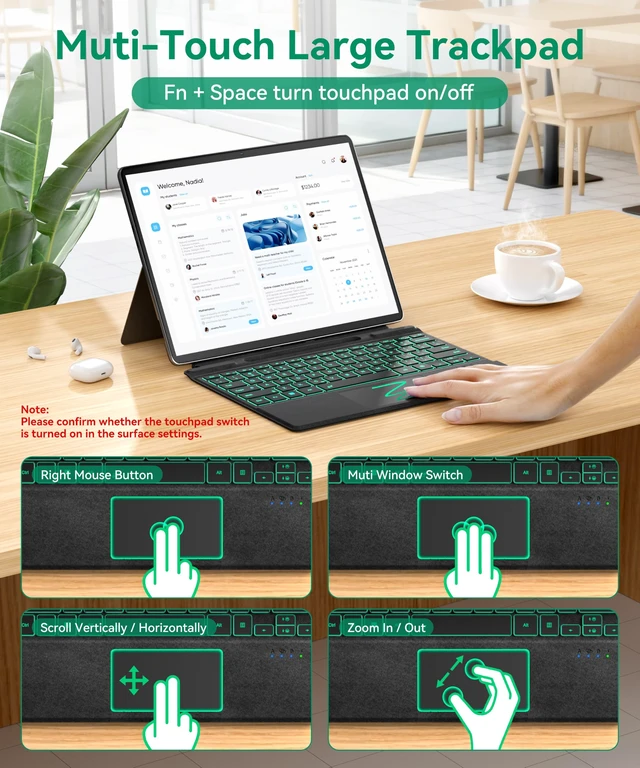
Q:How to turn on/off touchpad?
A:Fn + Space
(Please note that the touchpad switch button in the surface settings is turned on)
Q:Bluetooth Not Auto-Reconnecting?
A:Fn + F(Please turn on your Surface first, then switch on the keyboard; only then will it automatically reconnect.)
Q:How do I restore factory settings?
A:Fn + F + J
Q:What should I do if I can't type?
A:Open Surface Settings ----> Accessibility ----> Keyboard ----> Turn off "Sticky keys" ----> Turn off "Filter keys"
Note:
1.Only suitable for 13 inch surface pro 13/11/10/9/8/X and can connect to bluetooth phone/computer/tablet
2.The pen slot can only be used to magnetically place the pen, not to charge the pen
3.This keyboard can only be charged via Type-C and cannot be charged automatically
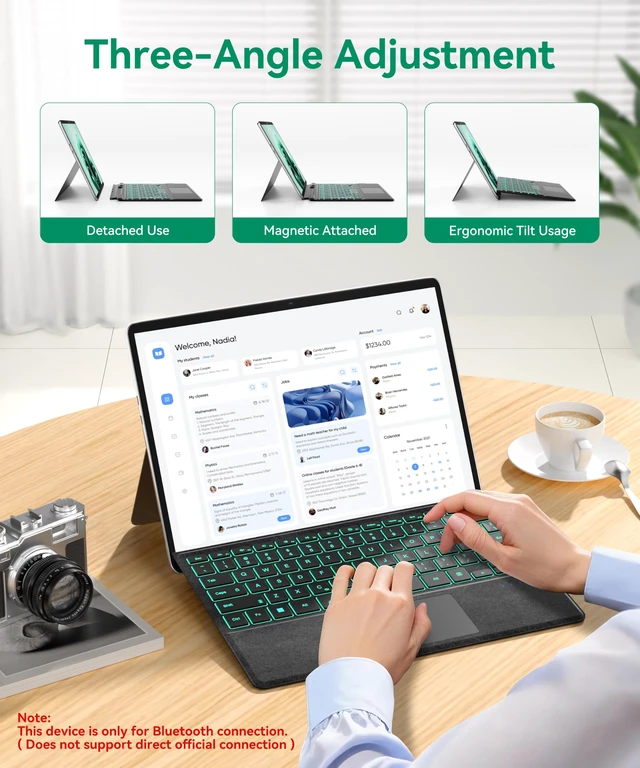
4.This device only supports Bluetooth connection and cannot be connected by other means
"
| Brand | BEESUFAR |
| Compatible Devices | Surface Pro 8/9/X/10/11/13 13 inch |
| Connectivity Technology | Bluetooth |
| Keyboard Description | Accessible |
| Recommended Uses For Product | Business, Education, Everyday Use, Gaming, Multimedia, Personal, Photo Editing, Programming, Student, Video Editing |
| Special Feature | Backlit, Ergonomic, Portable, Rechargeable, Silent |
| Color | Black |
| Keyboard backlighting color support | RGB |
| Style | Classic |
| Product Dimensions | 10.7"L x 7.8"W x 0.2"H |
| Additional Features | Backlit, Ergonomic, Portable, Rechargeable, Silent |
| Language | English |
| Power Source | Battery Powered |
| Keyboard Layout | QWERTY |
| Button Quantity | 78 |
| Compatible Operating System Family | Windows |
| Compatible Tablet Computer Models | Microsoft Surface Pro 10, Microsoft Surface Pro 11, Microsoft Surface Pro 8, Microsoft SurfacWarranty & ReturnsWarranty, Returns, And Additional InformationWarranty
Return Policies
Manufacturer Contact Info
LOADING... |


