




Installation steps
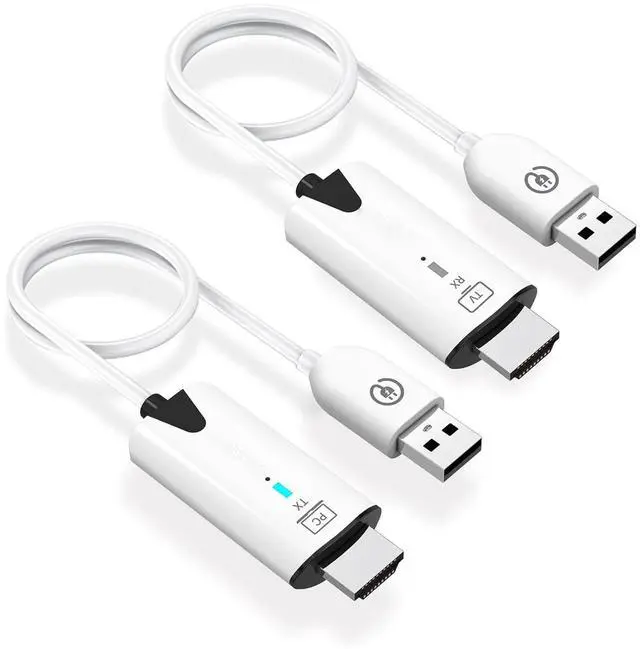
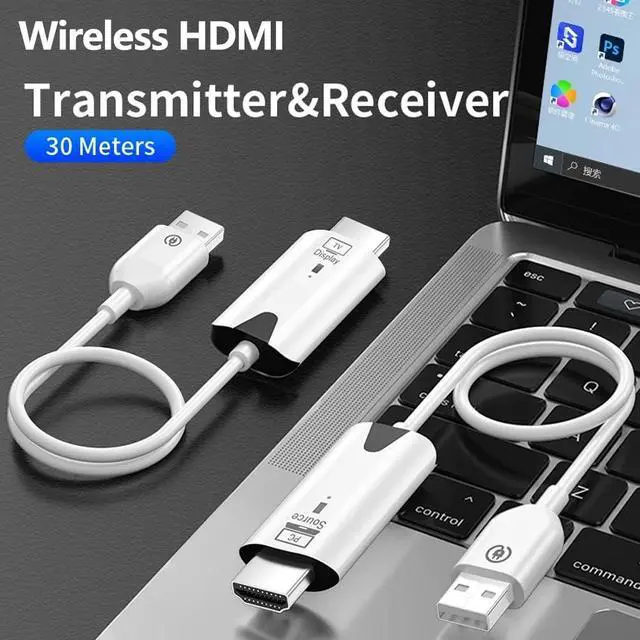
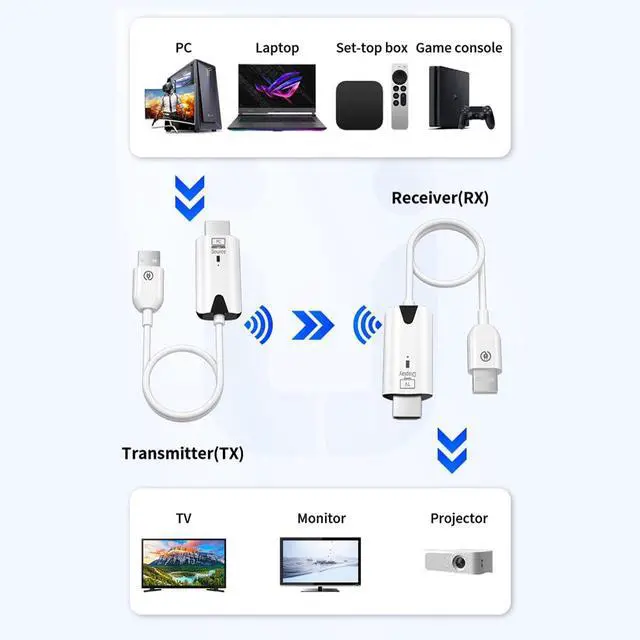
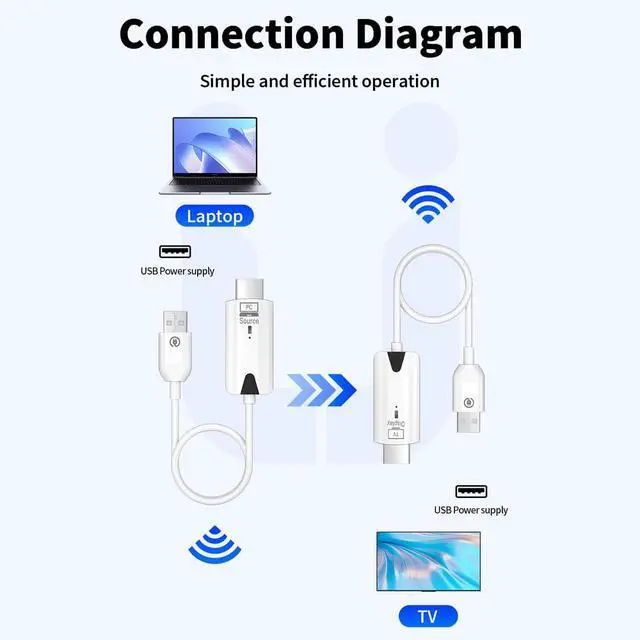
Step 1. Plug-in receiver to TV or Monitor: Connect the wireless HDMI display receiver (RX) to your display device and power it on by plugging the USB male port into a USB power source. Note: To power the receiver, you'll need an external USB-A power source with a minimum of 5V/0.5A output.
Step 2. Plug-in the transmitter to one of your any HDMI video sources, then connect the USB male port into a USB power source and wait for wireless screen mirroring/extension to establish automatically.
Step 3. Unplugging USB power port from the power source to stop screen mirroring/extension and plugging USB power back into the power source to restart.


Note: To power the receiver, you'll need an external USB-A power source with a minimum of 5V/0.5A output.

Note:the current for HDMI ports is lower on some computer,the power light on the transmitter will be weak or extinguished, please use the type c cable to support the transmitter powering it.


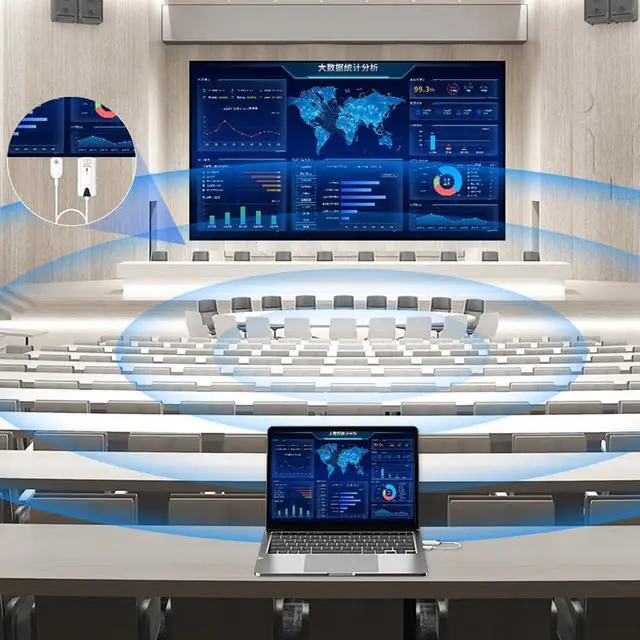
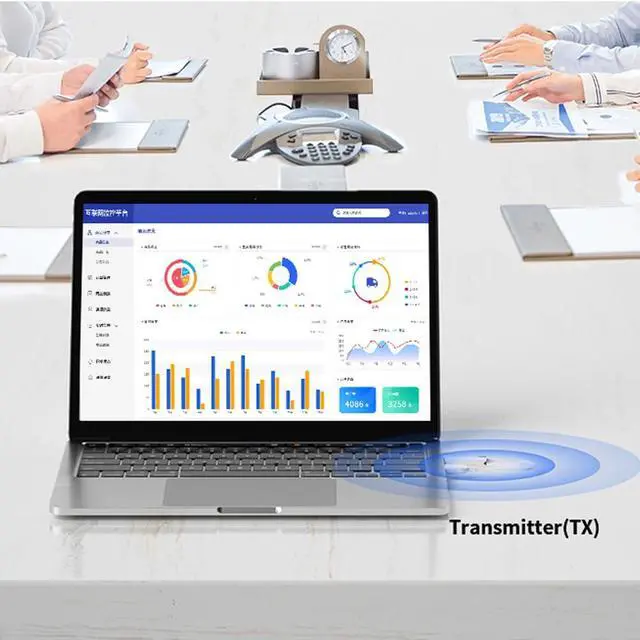
Business Meeting

Home Theater

Play Games
Installation steps
Step 1. Plug-in receiver to TV or Monitor: Connect the wireless HDMI display receiver (RX) to your display device and power it on by plugging the USB male port into a USB power source. Note: To power the receiver, you'll need an external USB-A power source with a minimum of 5V/0.5A output.
Step 2. Plug-in the transmitter to one of your any HDMI video sources, then connect the USB male port into a USB power source and wait for wireless screen mirroring/extension to establish automatically.
Step 3. Unplugging USB power port from the power source to stop screen mirroring/extension and plugging USB power back into the power source to restart.
Note: To power the receiver, you'll need an external USB-A power source with a minimum of 5V/0.5A output.
Note:the current for HDMI ports is lower on some computer,the power light on the transmitter will be weak or extinguished, please use the type c cable to support the transmitter powering it.
Business Meeting
Home Theater