




How do I know if my device supports DisplayPort over USB-C?
1.Check Your Computer’s Specifications:
Refer to your computer’s user manual or the manufacturer’s website for detailed information about your USB-C ports. Look for mentions of "DisplayPort Alt Mode" or "USB-C with video output."
2.Look for Symbols:
Some laptops and devices have symbols next to the USB-C port. A symbol that looks like a small monitor or a "DP" (for DisplayPort) indicates that the port supports video transmission.
3.Use a USB-C Adapter:
If you have a USB-C to DisplayPort adapter, you can test it by connecting it to your computer and an external display. If the display works, your USB-C port supports video transmission.
4.Contact the Manufacturer:
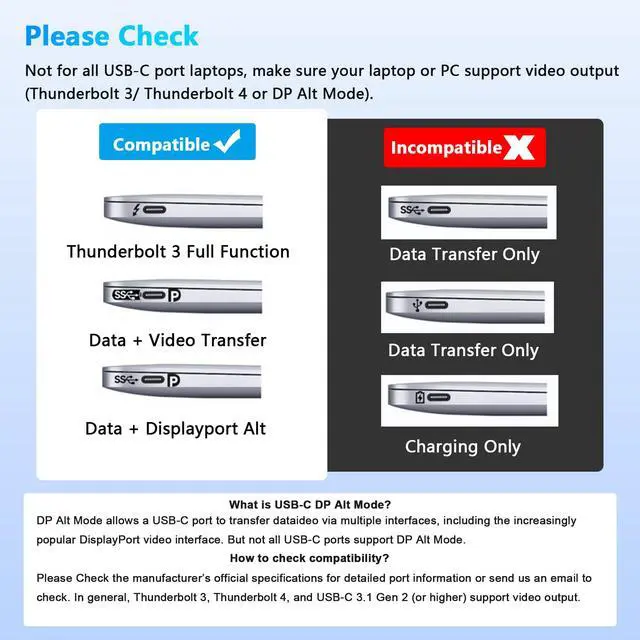
If you are still unsure, contact the manufacturer for confirmation. They can provide specific information about your device’s capabilities. Basically, Thunderbolt 3, Thunderbolt 4, and USB C 3.1 Gen 2 (or above) support video output. If you are not sure, you are welcome to ask us for a device compatibility check before purchase.

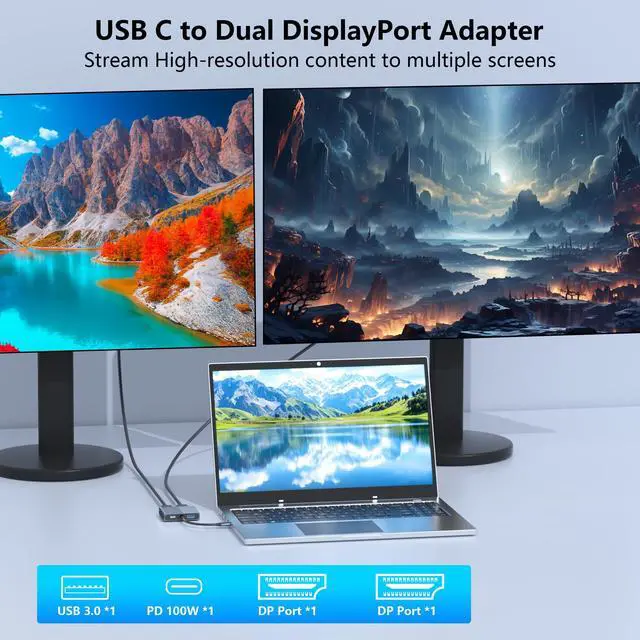
USB-C to Dual DisplayPort Adapter
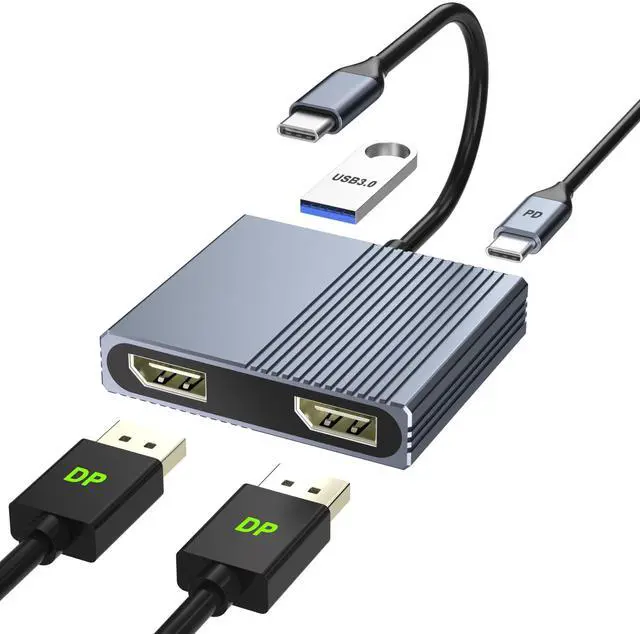
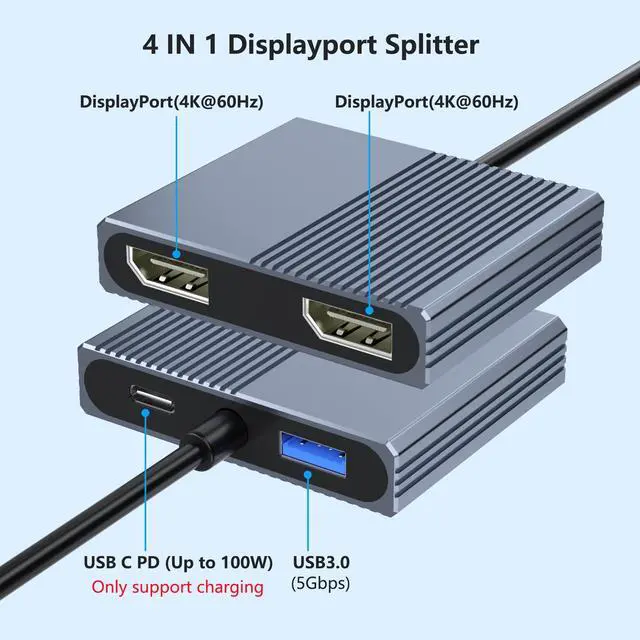
This 4-in-1 dual monitor adapter lets you connect your laptop to two DisplayPort monitor. It supports dual 4K@60Hz output for a smooth viewing experience.
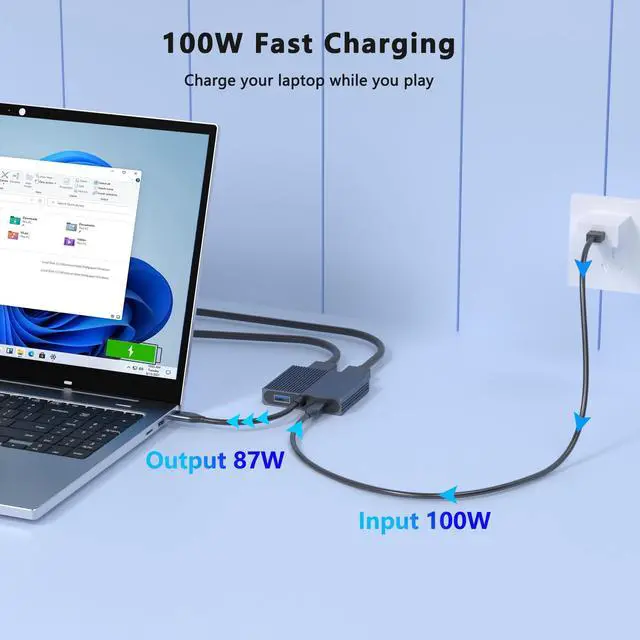
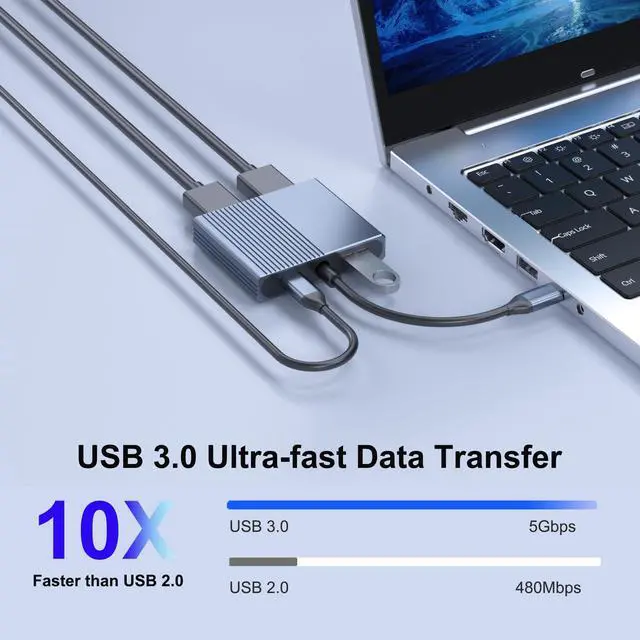
The USB-C(PD) port can charge your laptop, and the USB 3.0 port can connect keyboard, mouse, etc

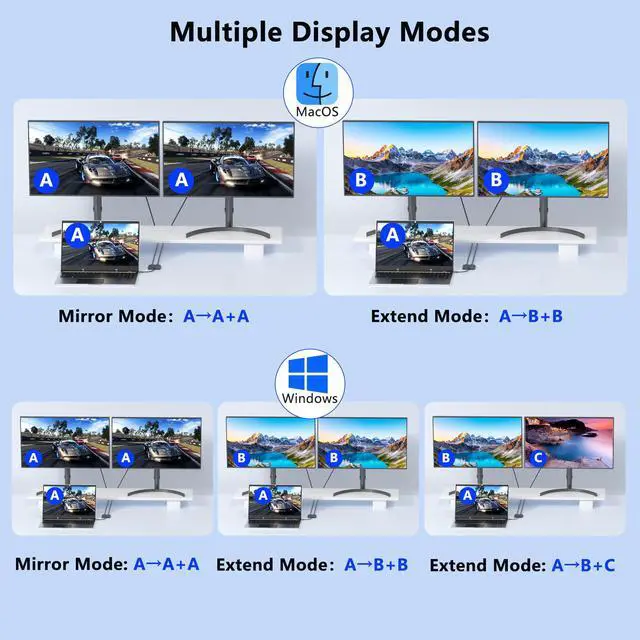
For MacOS system, only support mirror mode(AAA) and extend mode(ABB), not support extend 2 different screens.
How to connect Extend Mode for MacOS?
"Setting" ?"Display" ?check "mirror display" box to switch to Extend mode ?drag a window to the right edge of the screen until it appears on the monitor

For Windows: this monitor splitter for dual monitor support mirror mode(AAA) and extended mode(ABB mode and ABC mode).
How to connect Extend Mode for Windows OS?
Right-click desktop?select Intel display Settings ?pop-up Settings screen select display?select multi-screen display?expand the desktop


Please Note:Not For All USB C Laptop. Please Check If your laptop's USB Type-c port support video output function, Basically, Thunderbolt 3, Thunderbolt 4, and USB C 3.1 Gen 2 (or above) all support video output.
How do I know if my device supports DisplayPort over USB-C?
1.Check Your Computer’s Specifications:
Refer to your computer’s user manual or the manufacturer’s website for detailed information about your USB-C ports. Look for mentions of "DisplayPort Alt Mode" or "USB-C with video output."
2.Look for Symbols:
Some laptops and devices have symbols next to the USB-C port. A symbol that looks like a small monitor or a "DP" (for DisplayPort) indicates that the port supports video transmission.
3.Use a USB-C Adapter:
If you have a USB-C to DisplayPort adapter, you can test it by connecting it to your computer and an external display. If the display works, your USB-C port supports video transmission.
4.Contact the Manufacturer:
If you are still unsure, contact the manufacturer for confirmation. They can provide specific information about your device’s capabilities. Basically, Thunderbolt 3, Thunderbolt 4, and USB C 3.1 Gen 2 (or above) support video output. If you are not sure, you are welcome to ask us for a device compatibility check before purchase.

USB-C to Dual DisplayPort Adapter
This 4-in-1 dual monitor adapter lets you connect your laptop to two DisplayPort monitor. It supports dual 4K@60Hz output for a smooth viewing experience.
The USB-C(PD) port can charge your laptop, and the USB 3.0 port can connect keyboard, mouse, etc

For MacOS system, only support mirror mode(AAA) and extend mode(ABB), not support extend 2 different screens.
How to connect Extend Mode for MacOS?
"Setting" ?"Display" ?check "mirror display" box to switch to Extend mode ?drag a window to the right edge of the screen until it appears on the monitor

For Windows: this monitor splitter for dual monitor support mirror mode(AAA) and extended mode(ABB mode and ABC mode).
How to connect Extend Mode for Windows OS?
Right-click desktop?select Intel display Settings ?pop-up Settings screen select display?select multi-screen display?expand the desktop


Dual 4K@60Hz Display
This dual display adapter resolution up to 4K @60HZ, it also support 1440p and 1080p at 60Hz offered by the DisplayPort MST technology.
Note: For dual 4K@60Hz output, your Windows laptop must support DP 1.4 and use DP 1.2 cables no longer than 3 meters.


100W Power Delivery
Only laptops that support USB-C charging can be charged through this USB-C port.
Insufficient power may cause unstable video output. For best performance, please use a power adapter to charge your laptop. A 65W+ original charger is recommended.