




USB C to Dual DisplayPort Splitter for Dual Monitors Extended Display
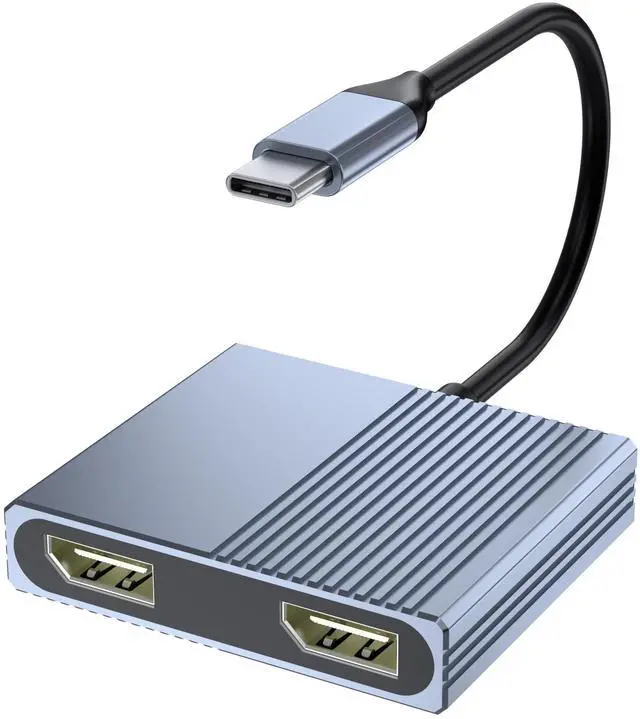
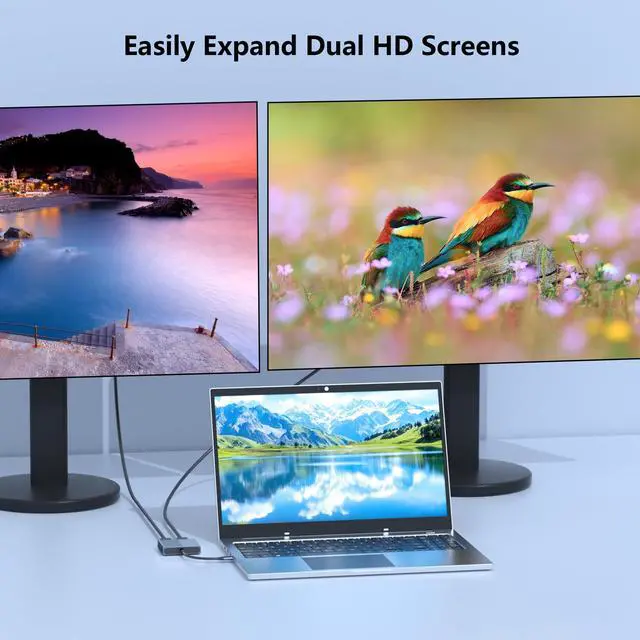
Connect this USB C to dual displayport adapter via a single USB-C port on your laptop to mirror or extend two additional monitors.
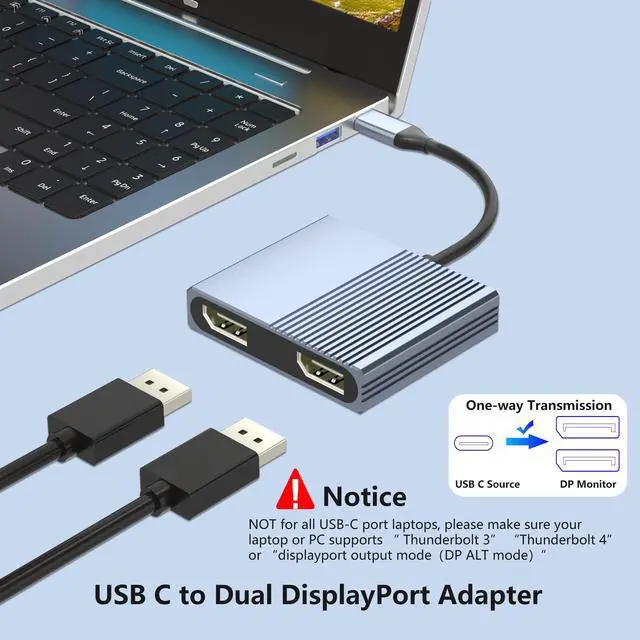
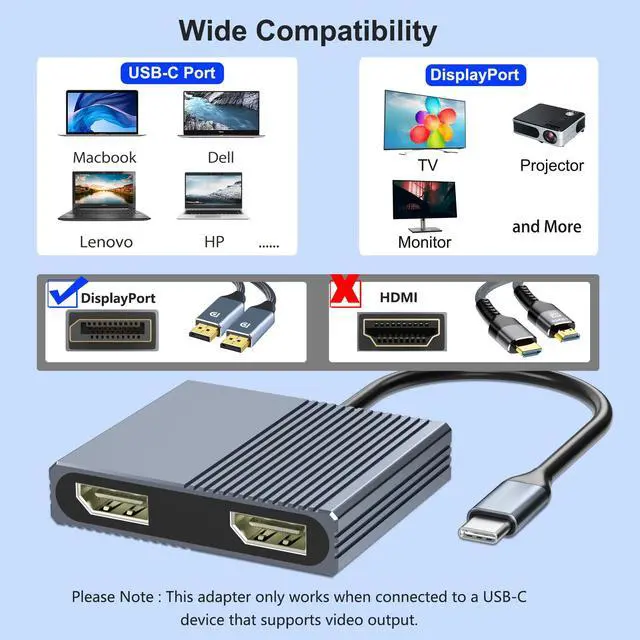
Please note: not for all usb-c port laptops, Make sure your laptop or PC support video output (Thunderbolt 3/ Thunderbolt 4 ) or DP Alt Mode, which decides the display port work or not.

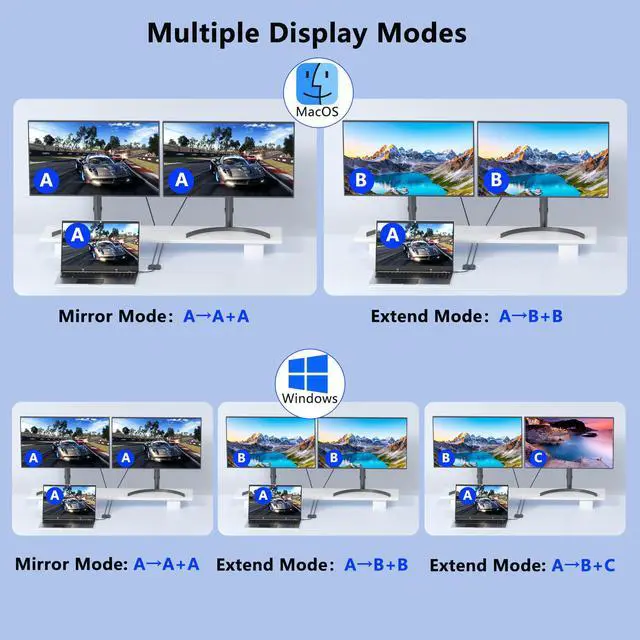
Multiple Display Modes
For Mac OS it support Mirror mode (AAA), and Extend mode (ABB), it can't extend two different Screen, due to Mac OS limitation.
For Windows OS it support Mirror mode (AAA), Extend mode (ABB), and Extend mode (ABC).
How to extend monitor on Windows: Right-click desktop? select Intel display Settings ? pop-up Settings screen select display? select multi-screen display? expand the desktop
How to extend monitor on Mac: Setting ? Display ?click the "mirror display" box to switch to Extend mode ? then you can drag a window of website/movie to the rightest side of your desktop screen until it disappear on your desktop screen and show up on the external monitor screen.
If one of display does not display, How to do?
Right click desktop > Graphics Settings > Select One or More Active Displays.


Dual 4K@60Hz Display Port
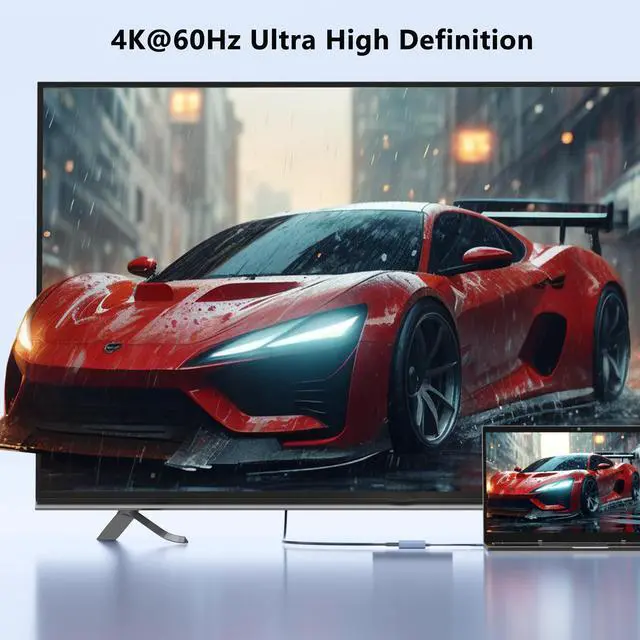
This displayport splitter resolution is up to 4K@60Hz, you can play games on screen without any delay.
* To get Dual 4K@60Hz displays, require your USB-C port support DP Alt Mode 1.4, monitors and HDMI cable must support corresponding resolution.


Note: NOT for all USB-C port laptop, such as this adapter CANNOT work with HP Pavilion/Lenovo IdeaPad, You need to confirm that your host device's C port supports video output or DP Alt Mode
What is USB-C DP ALT Mode?
DP Alt Mode allows USB-C ports to transfer dataideo via multiple interfaces, including the increasingly popular DisplayPort video interface. USB-C ports capable of transferring DisplayPort signals are either called USB-C DisplayPort or DP Alt Mode. They allow you to connect video sources (e.g. PCs, Blu-Ray players, etc.) and display devices (e.g. TVs, projectors, etc.) that support DisplayPort to each other via their USB-C ports to broadcast high-definition video.
But now not all USB-C ports feature DisplayPort Alt Mode functionality.
How do I know if my device supports DisplayPort over USB-C?
The best method to decipher whether your device supports DisplayPort over USB-C is to check either the product specs on the manufacturer’s official website or to check websites with in-depth product reviews and/or information. Within those sites you’ll be able to find detailed breakdowns of each port on the device.
Basically, Thunderbolt 3, Thunderbolt 4, and USB C 3.1 Gen 2 (or above) support video output. If you are not sure, you are welcome to ask us for a device compatibility check before purchase.

Dual 4K@60Hz USB-C to DisplayPort Adapter(MST)
DisplayPort offers higher bandwidth, providing smoother performance for multiple monitors, making it perfect for professionals in design, video editing, or gaming.
USB C to Dual DisplayPort Splitter for Dual Monitors Extended Display
Connect this USB C to dual displayport adapter via a single USB-C port on your laptop to mirror or extend two additional monitors.
Please note: not for all usb-c port laptops, Make sure your laptop or PC support video output (Thunderbolt 3/ Thunderbolt 4 ) or DP Alt Mode, which decides the display port work or not.
Multiple Display Modes
For Mac OS it support Mirror mode (AAA), and Extend mode (ABB), it can't extend two different Screen, due to Mac OS limitation.
For Windows OS it support Mirror mode (AAA), Extend mode (ABB), and Extend mode (ABC).
How to extend monitor on Windows: Right-click desktop? select Intel display Settings ? pop-up Settings screen select display? select multi-screen display? expand the desktop
How to extend monitor on Mac: Setting ? Display ?click the "mirror display" box to switch to Extend mode ? then you can drag a window of website/movie to the rightest side of your desktop screen until it disappear on your desktop screen and show up on the external monitor screen.
If one of display does not display, How to do?
Right click desktop > Graphics Settings > Select One or More Active Displays.
Dual 4K@60Hz Display Port
This displayport splitter resolution is up to 4K@60Hz, you can play games on screen without any delay.
* To get Dual 4K@60Hz displays, require your USB-C port support DP Alt Mode 1.4, monitors and HDMI cable must support corresponding resolution.
Note: NOT for all USB-C port laptop, such as this adapter CANNOT work with HP Pavilion/Lenovo IdeaPad, You need to confirm that your host device's C port supports video output or DP Alt Mode
What is USB-C DP ALT Mode?
DP Alt Mode allows USB-C ports to transfer dataideo via multiple interfaces, including the increasingly popular DisplayPort video interface. USB-C ports capable of transferring DisplayPort signals are either called USB-C DisplayPort or DP Alt Mode. They allow you to connect video sources (e.g. PCs, Blu-Ray players, etc.) and display devices (e.g. TVs, projectors, etc.) that support DisplayPort to each other via their USB-C ports to broadcast high-definition video.
But now not all USB-C ports feature DisplayPort Alt Mode functionality.
How do I know if my device supports DisplayPort over USB-C?
The best method to decipher whether your device supports DisplayPort over USB-C is to check either the product specs on the manufacturer’s official website or to check websites with in-depth product reviews and/or information. Within those sites you’ll be able to find detailed breakdowns of each port on the device.
Basically, Thunderbolt 3, Thunderbolt 4, and USB C 3.1 Gen 2 (or above) support video output. If you are not sure, you are welcome to ask us for a device compatibility check before purchase.
Dual 4K@60Hz USB-C to DisplayPort Adapter(MST)
DisplayPort offers higher bandwidth, providing smoother performance for multiple monitors, making it perfect for professionals in design, video editing, or gaming.