


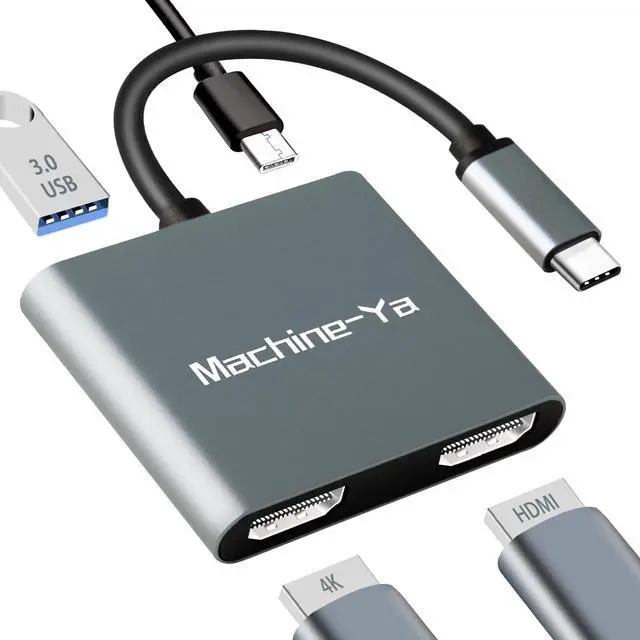
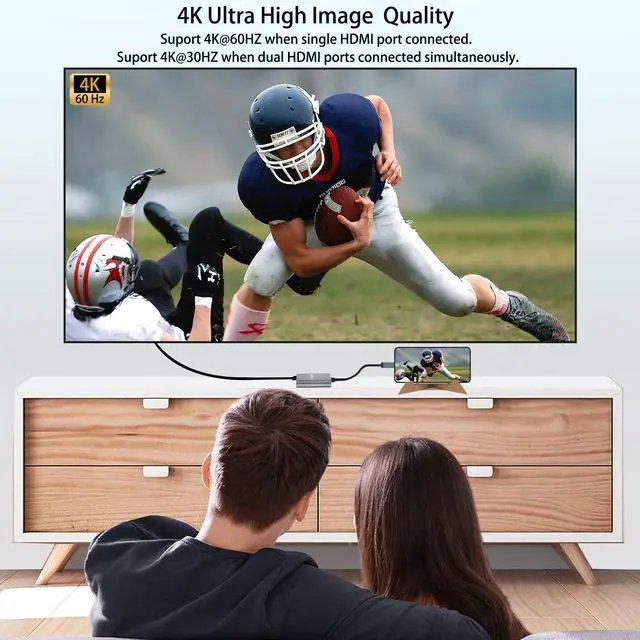


Support 4K@60HZ UHD more vivid display experience
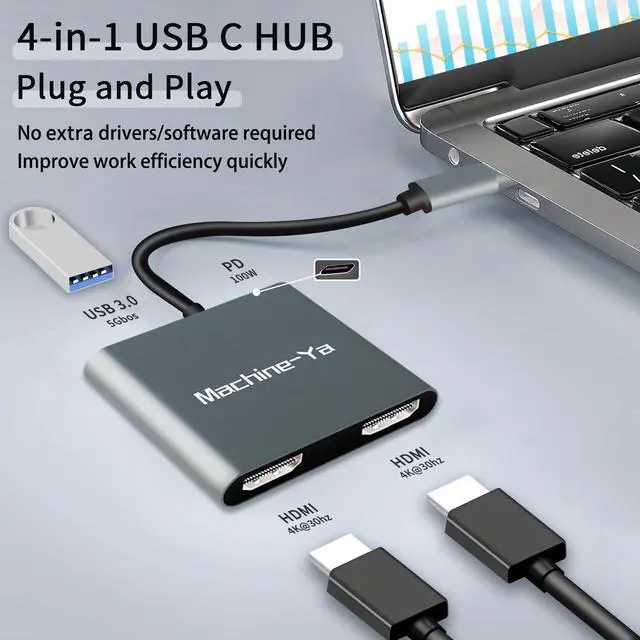
- Single hdmi port: up to 4K resolution (3840X2160P@60HZ)
- Dual hdmi port used simultaneously: resolution up to 4K(3840X2160P@30HZ), downward compatible with 2K (2560x1440@60Hz), 1080P(1920x1080)@60Hz
- Tip: The video output will only be 4K if your device supports 4K resolution.

- How do Mac devices connect to Mirrorded Mode?
"Setting" ? "Display" ? click the "mirror display" box to switch to Extend mode ? then you can drag a window of website/movie to the rightest side of your desktop screen until it disappear on your desktop screen and show up on the external monitor screen.
( Important Note: As Apple company itself limited, for Mac OS devices use in extend mode, the image on the two external screens will be the same.)
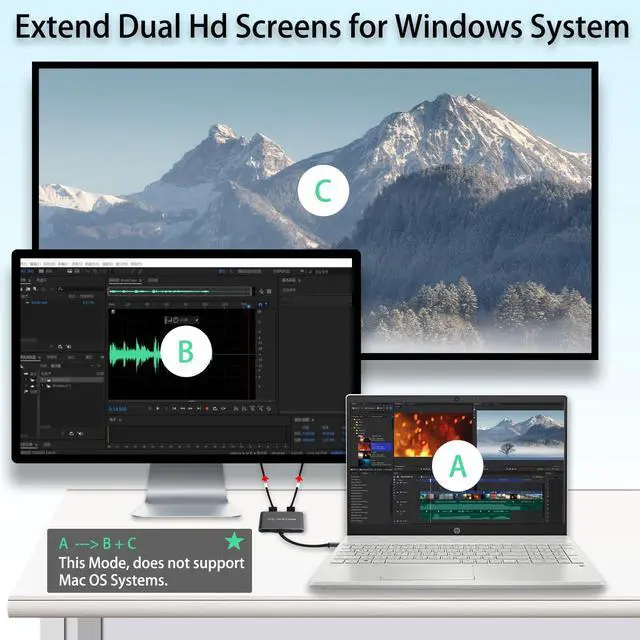
- How to connect Extend Mode for Windows OS?
Right-click desktop? select Intel display Settings ? pop-up Settings screen select display? select multi-screen display? expand the desktop
(If the display 3 is not display, please to manually select the display?click apply confirm can set OK).
- If one of display does not display, How to do?
Right click desktop > Graphics Settings > Select One or More Active Displays.

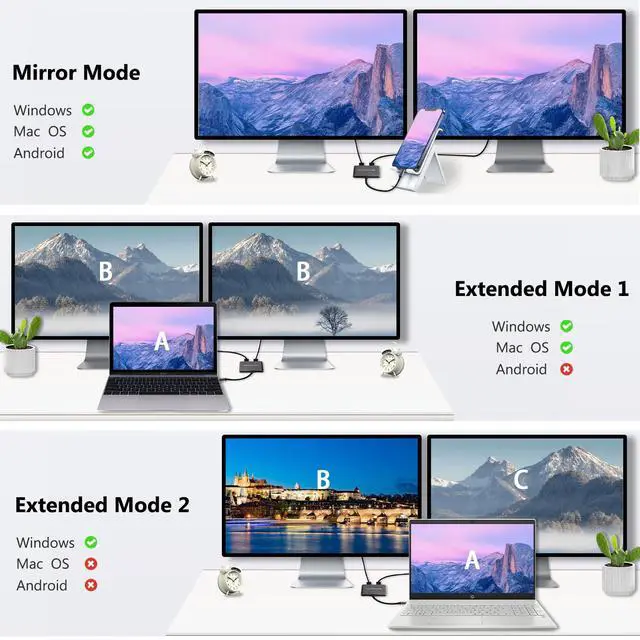
Mirror Mode
For Windows/Mac OS/Android/Mobile phone
Please supply power for Samsung cellphone when setting Samsung DeX Mod.

Extend Mode 1
For Windows/Mac OS
Does not support 2 external displays show different images for Apple computers in extend mode.

Extend Mode 2
For Windows
Only Windows laptops support Extend & MST mode simultaneously (Triple display).

Why is the screen flickering or going black?
1. Insufficient Power Supply
Some devices may have a weaker power supply capacity for the docking station, which can lead to insufficient power and screen flickering. Therefore, it is necessary to connect the charger for power supply when using it.
2. Check HDMI Port Connection
Because the HDMI interface has no locking mechanism, it is easy to cause the screen to blink due to poor contact. Check that the HDMI cable is firmly inserted into the port, and try to re-insert it to ensure good contact.
3. HDMI Cable Selection
Avoid using HDMI cables larger than 5 meters; Avoid using HDMI to VGA and HDMI to DP cables. Longer cables may result in more significant signal attenuation, mainly due to inadequate impedance and shielding. In addition, the use of other adapter cables constitutes a secondary conversion, which is likely to affect transmission power and stability.
4. Display Compatibility Issues
You can try replacing the display to see if the flickering issue persists, as some displays with weaker signal reception may exhibit flickering.
Support 4K@60HZ UHD more vivid display experience
- Single hdmi port: up to 4K resolution (3840X2160P@60HZ)
- Dual hdmi port used simultaneously: resolution up to 4K(3840X2160P@30HZ), downward compatible with 2K (2560x1440@60Hz), 1080P(1920x1080)@60Hz
- Tip: The video output will only be 4K if your device supports 4K resolution.
- How do Mac devices connect to Mirrorded Mode?
"Setting" ? "Display" ? click the "mirror display" box to switch to Extend mode ? then you can drag a window of website/movie to the rightest side of your desktop screen until it disappear on your desktop screen and show up on the external monitor screen.
( Important Note: As Apple company itself limited, for Mac OS devices use in extend mode, the image on the two external screens will be the same.)
- How to connect Extend Mode for Windows OS?
Right-click desktop? select Intel display Settings ? pop-up Settings screen select display? select multi-screen display? expand the desktop
(If the display 3 is not display, please to manually select the display?click apply confirm can set OK).
- If one of display does not display, How to do?
Right click desktop > Graphics Settings > Select One or More Active Displays.
Mirror Mode
For Windows/Mac OS/Android/Mobile phone
Please supply power for Samsung cellphone when setting Samsung DeX Mod.
Extend Mode 1
For Windows/Mac OS
Does not support 2 external displays show different images for Apple computers in extend mode.
Extend Mode 2
For Windows
Only Windows laptops support Extend & MST mode simultaneously (Triple display).
Why is the screen flickering or going black?
1. Insufficient Power Supply
Some devices may have a weaker power supply capacity for the docking station, which can lead to insufficient power and screen flickering. Therefore, it is necessary to connect the charger for power supply when using it.
2. Check HDMI Port Connection
Because the HDMI interface has no locking mechanism, it is easy to cause the screen to blink due to poor contact. Check that the HDMI cable is firmly inserted into the port, and try to re-insert it to ensure good contact.
3. HDMI Cable Selection
Avoid using HDMI cables larger than 5 meters; Avoid using HDMI to VGA and HDMI to DP cables. Longer cables may result in more significant signal attenuation, mainly due to inadequate impedance and shielding. In addition, the use of other adapter cables constitutes a secondary conversion, which is likely to affect transmission power and stability.
4. Display Compatibility Issues
You can try replacing the display to see if the flickering issue persists, as some displays with weaker signal reception may exhibit flickering.