





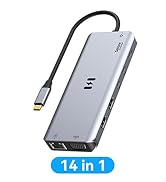
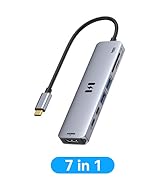
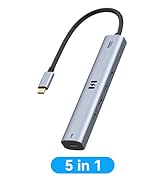
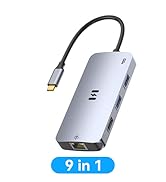
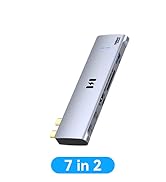
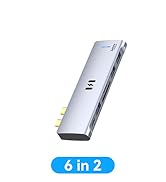
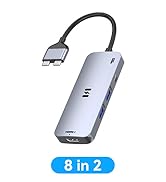
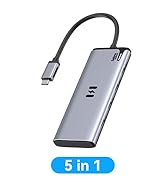
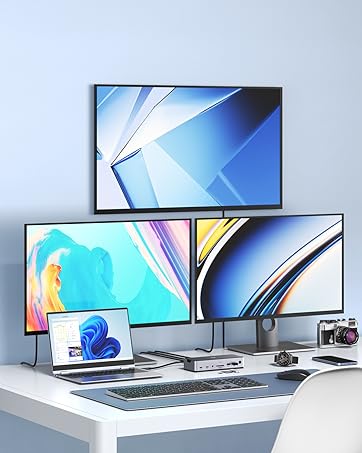
Please carefully read the tested compatible models before purchasing:
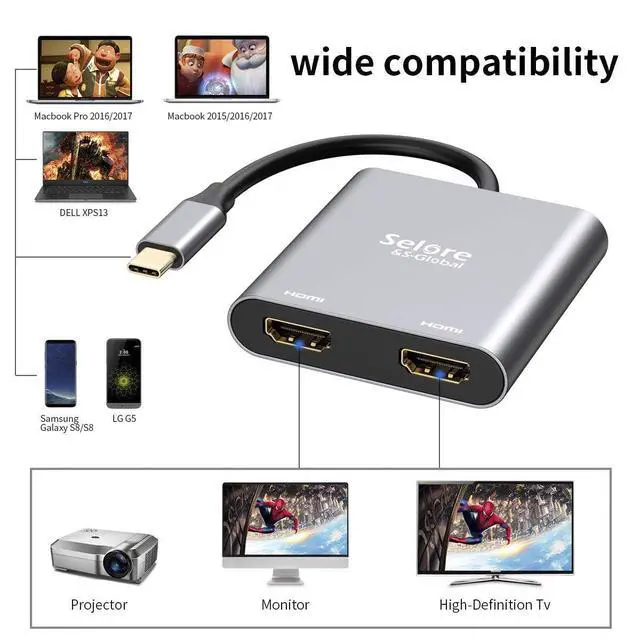
- ONLY support Mirror Mode For: MacBook/ MacBook Pro (2021/2020/2019/2018/2017/2016), Macbook Air 2018-2021,Mac mini 2018-2020, iPad Pro 2018
- For: Dell XPS12(9250) /Dell XPS13(9350) /Dell XPS15(9550), Dell Latitude 13 7000/Latitude 13 E7370
- For: Lenovo Yoga 720-13IKB/ Yoga 900-13ISK/ Yoga 910/ Yoga 920/ Yoga 930
- For: LG G5, LG gram 14Z990-V.AA52C
- For: HP Spectre Laptop 13-af001TU 13'' ASUS Zenbook UX330UA
- For: Microsoft Surface Book 2/ Surface Go/ Surface Laptop 3
- For: Huawei Macbook Mate10/ Mate10 pro/ Mate20/ Mate20 pro / Mate30/ Mate30Pro
- For: Samsung Galaxy S10+/S10/S9+ /S9 /S8+ /S8 Plus, Note 10 / 9 / 8
If your laptop not included in the list,please let us know, we are very gladly to help you check if the adapter can work with your device.

Compatibility: This docking station only compatible with those laptop with thunderbolt or full function USB C port.
Important Notice:
- Please verify that your laptop has a USB-C Thunderbolt 3 port and supports DisplayPort Alternate Mode before purchase.
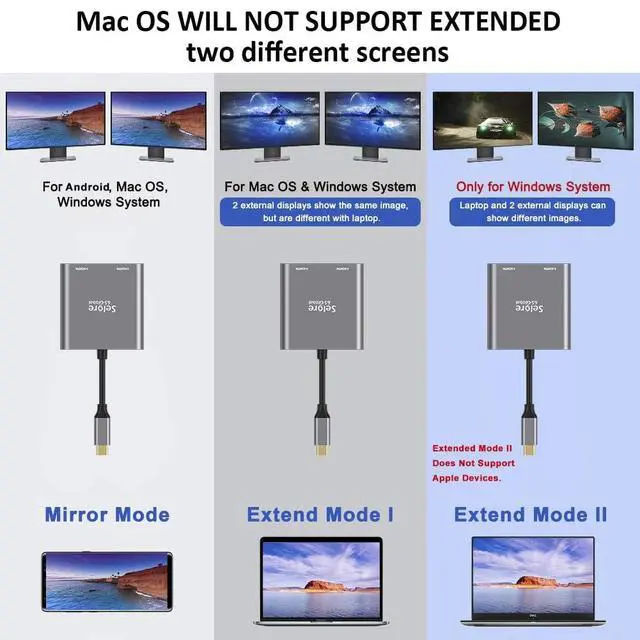
- For Mac devices: Only screen mirroring mode is supported. Extended mode with two different displays is NOT supported, due to inherent limitations of the macOS operating system.
Can NOT work with (Tested):
- HP EliteBook 745 G4 / HP Elitebook 820 G3 / HP EliteBook 828 G4 / HP 14s-be102TX / HP 14-ce1004TX 14 / HP Probook 650 G2 / HP Probook 455 G4 / HP Probook 430 G5 / HP Pavilion-14 bf116tx / HP Pavilion 15 ck009 / HP Pavilion Power Laptop 15-cb / Lenovo ideapad 340s, Tablets / Google Pixel phones / Nintendo Switch / Acer Aspire A5 / Oneplus 5T Phone

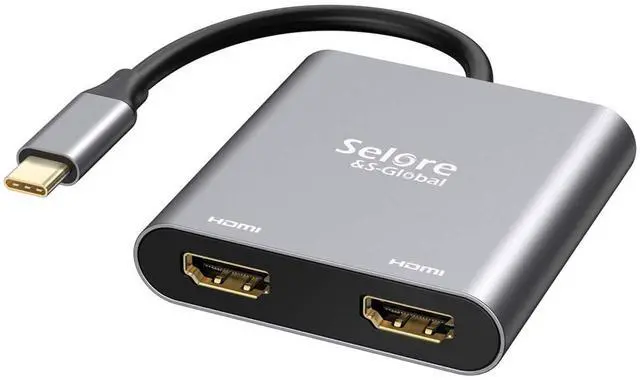
This Dual HDMI USB C Adapter ONLY work with those devices that the USB Type C Port supports video output or DP Alt Mode.Not for all USB C laptop.

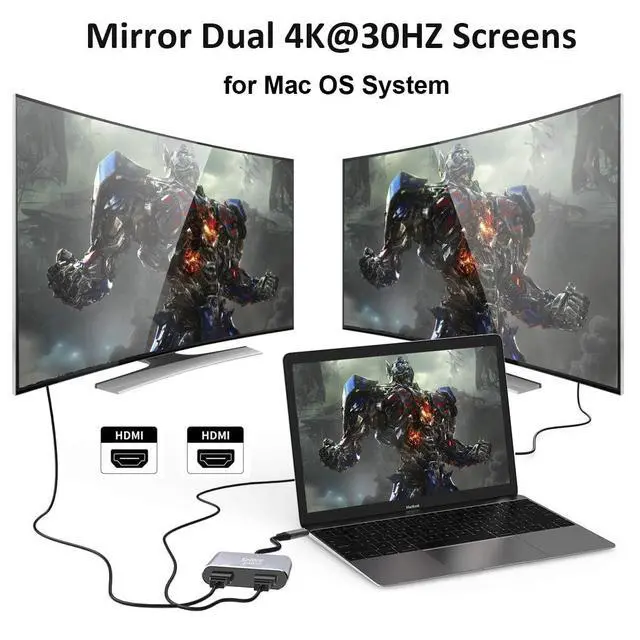
Mac OS ONLY Support Mirror Mode
- Mirror Mode:A-A/AA
( 3 Screens' image will be the same.)
- Mirror Mode:A-B/BB
( 2 monitors' image will be the same.)
Please Noted:
- Does not support 2 external displays show different images for Apple computers in extend mode.

Support Windows 10 OS
- Mirror Mode:A-A/AA
( 3 Screens' image will be the same.)
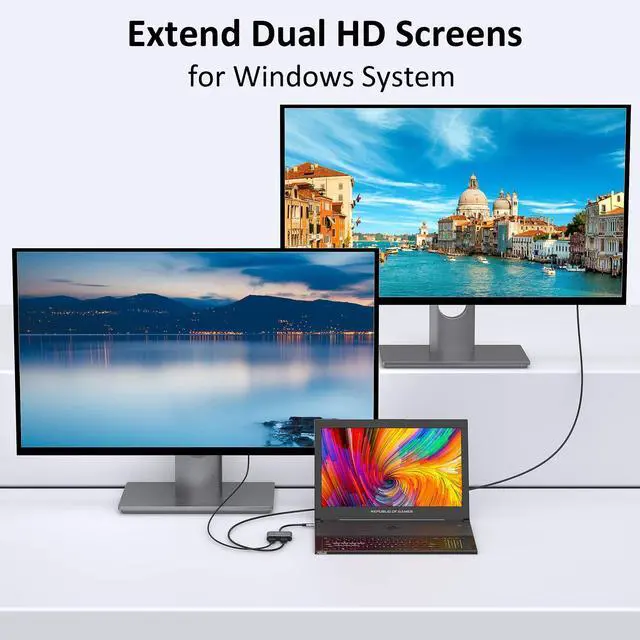
- Extend Mode: A-B/BB/BC
( 2monitors' image can be same or different.)
Please Noted:
- For different modes if you are not clear how to setting, we can help you.

Important Noted
- For Mac OS it support Mirror mode (AAA), and Extend mode (ABB)
- For Windows OS it support Mirror mode (AAA), Extend mode (ABB), and Extend mode (ABC)
Please Noted:
- For Apple device, it doesn't support extend 3 different screens.

Support Android OS
- Mirror Mode:A-A/AA
( 3 Screens' image will be the same.)
Please Noted:
- Please supply power for Samsung cellphone when setting Samsung DeX Mode.


Dual Video Resolution Configurations:
3840x2160@60Hz = 1 display / 3840x2160@30Hz = 2 displays / 2560x1440@60Hz = 2 displays / 1920x1080@60Hz = 2 displays
Please Noted: The final resolution of HDMI output depends on your host devices, (Only when your devices support 4K resolution, the video output will be 4K).
FAQ:
- How to switch Mac device to Extend Mode?
"Setting" ? "Display" ? click the "mirror display" box to switch to Extend mode ? then you can drag a window of website/movie to the rightest side of your desktop screen until it disappear on your desktop screen and show up on the external monitor screen.
( Important Note: As Apple company itself limited, for Mac OS devices use in extend mode, the image on the two external screens will be the same.)
- How to connect Extend Mode for Windows OS?
Right-click desktop? select Intel display Settings ? pop-up Settings screen select display? select multi-screen display? expand the desktop
(If the display 3 is not display, please to manually select the display?click apply confirm can set OK).
- If one of display does not display, How to do?
Right click desktop > Graphics Settings > Select One or More Active Displays.
Friendly Reminders:
- Different systems' setting may be slightly different,If you are not sure how to operate, please feel free to let us know ,we are very gladly to help you; or you can download the (User Guide) in Product information>Technical Specification.
- Make sure the Type C port of your host device supports video output (some for data only), Please reset the default audio output device if you want to play audio via the HDMI devices.
- Not Support Mac devices to output two split screens, including: MacBook Air / Pro, iMac, etc.
 2 in 1 Dual HDMI Adapter |  7 IN 1 USB C to Dual HDMI Adapter |  8 IN 1 USB C Docking Station |  9 IN 1 USB C Docking Station | |
|---|---|---|---|---|
| Customer Reviews | — | — | — | — |
| Price | — | — | — | — no data |
| Video Output Port | 2*HDMI | 2*HDMI+1*VGA+1*DP | 2*HDMI | 1*HDMI+2DP |
| USB Port | no data | 3*USB 2.0 | 2*USB 3.0 | 3*USB 3.0 |
| USB C Data Port | no data | no data | ? | no data |
| Charging Port | no data | no data | ? | ? |
| SD/Micro SD | no data | no data | ? | ? |
Please carefully read the tested compatible models before purchasing:
- ONLY support Mirror Mode For: MacBook/ MacBook Pro (2021/2020/2019/2018/2017/2016), Macbook Air 2018-2021,Mac mini 2018-2020, iPad Pro 2018
- For: Dell XPS12(9250) /Dell XPS13(9350) /Dell XPS15(9550), Dell Latitude 13 7000/Latitude 13 E7370
- For: Lenovo Yoga 720-13IKB/ Yoga 900-13ISK/ Yoga 910/ Yoga 920/ Yoga 930
- For: LG G5, LG gram 14Z990-V.AA52C
- For: HP Spectre Laptop 13-af001TU 13'' ASUS Zenbook UX330UA
- For: Microsoft Surface Book 2/ Surface Go/ Surface Laptop 3
- For: Huawei Macbook Mate10/ Mate10 pro/ Mate20/ Mate20 pro / Mate30/ Mate30Pro
- For: Samsung Galaxy S10+/S10/S9+ /S9 /S8+ /S8 Plus, Note 10 / 9 / 8
If your laptop not included in the list,please let us know, we are very gladly to help you check if the adapter can work with your device.
Compatibility: This docking station only compatible with those laptop with thunderbolt or full function USB C port.
Important Notice:
- Please verify that your laptop has a USB-C Thunderbolt 3 port and supports DisplayPort Alternate Mode before purchase.
- For Mac devices: Only screen mirroring mode is supported. Extended mode with two different displays is NOT supported, due to inherent limitations of the macOS operating system.
Can NOT work with (Tested):
- HP EliteBook 745 G4 / HP Elitebook 820 G3 / HP EliteBook 828 G4 / HP 14s-be102TX / HP 14-ce1004TX 14 / HP Probook 650 G2 / HP Probook 455 G4 / HP Probook 430 G5 / HP Pavilion-14 bf116tx / HP Pavilion 15 ck009 / HP Pavilion Power Laptop 15-cb / Lenovo ideapad 340s, Tablets / Google Pixel phones / Nintendo Switch / Acer Aspire A5 / Oneplus 5T Phone
This Dual HDMI USB C Adapter ONLY work with those devices that the USB Type C Port supports video output or DP Alt Mode.Not for all USB C laptop.
Mac OS ONLY Support Mirror Mode
- Mirror Mode:A-A/AA
( 3 Screens' image will be the same.)
- Mirror Mode:A-B/BB
( 2 monitors' image will be the same.)
Please Noted:
- Does not support 2 external displays show different images for Apple computers in extend mode.
Support Windows 10 OS
- Mirror Mode:A-A/AA
( 3 Screens' image will be the same.)
- Extend Mode: A-B/BB/BC
( 2monitors' image can be same or different.)
Please Noted:
- For different modes if you are not clear how to setting, we can help you.
Important Noted
- For Mac OS it support Mirror mode (AAA), and Extend mode (ABB)
- For Windows OS it support Mirror mode (AAA), Extend mode (ABB), and Extend mode (ABC)
Please Noted:
- For Apple device, it doesn't support extend 3 different screens.
Support Android OS
- Mirror Mode:A-A/AA
( 3 Screens' image will be the same.)
Please Noted:
- Please supply power for Samsung cellphone when setting Samsung DeX Mode.
Dual Video Resolution Configurations:
3840x2160@60Hz = 1 display / 3840x2160@30Hz = 2 displays / 2560x1440@60Hz = 2 displays / 1920x1080@60Hz = 2 displays
Please Noted: The final resolution of HDMI output depends on your host devices, (Only when your devices support 4K resolution, the video output will be 4K).
FAQ:
- How to switch Mac device to Extend Mode?
"Setting" ? "Display" ? click the "mirror display" box to switch to Extend mode ? then you can drag a window of website/movie to the rightest side of your desktop screen until it disappear on your desktop screen and show up on the external monitor screen.
( Important Note: As Apple company itself limited, for Mac OS devices use in extend mode, the image on the two external screens will be the same.)
- How to connect Extend Mode for Windows OS?
Right-click desktop? select Intel display Settings ? pop-up Settings screen select display? select multi-screen display? expand the desktop
(If the display 3 is not display, please to manually select the display?click apply confirm can set OK).
- If one of display does not display, How to do?
Right click desktop > Graphics Settings > Select One or More Active Displays.
Friendly Reminders:
- Different systems' setting may be slightly different,If you are not sure how to operate, please feel free to let us know ,we are very gladly to help you; or you can download the (User Guide) in Product information>Technical Specification.
- Make sure the Type C port of your host device supports video output (some for data only), Please reset the default audio output device if you want to play audio via the HDMI devices.
- Not Support Mac devices to output two split screens, including: MacBook Air / Pro, iMac, etc.
2 in 1 Dual HDMI Adapter | 7 IN 1 USB C to Dual HDMI Adapter | 8 IN 1 USB C Docking Station | 9 IN 1 USB C Docking Station | |
|---|---|---|---|---|
| Customer Reviews | — | — | — | — |
| Price | — | — | — | — no data |
| Video Output Port | 2*HDMI | 2*HDMI+1*VGA+1*DP | 2*HDMI | 1*HDMI+2DP |
| USB Port | no data | 3*USB 2.0 | 2*USB 3.0 | 3*USB 3.0 |
| USB C Data Port | no data | no data | ? | no data |
| Charging Port | no data | no data | ? | ? |
| SD/Micro SD | no data | no data | ? | ? |
MST for Windows
USB C Hub
MacBook Adapter
Docking Station
Power Bank
