




?????????? ???????????????????????? ??????????

STEP1.
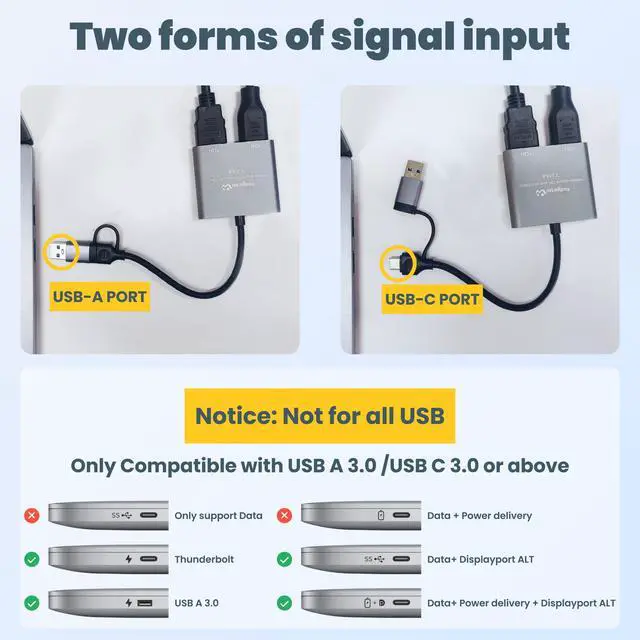
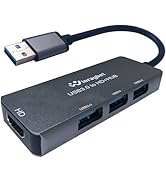
Insert the adapter into the USB/Type-C port of the PC/laptop, a dialog box will pop up As shown in the picture above:
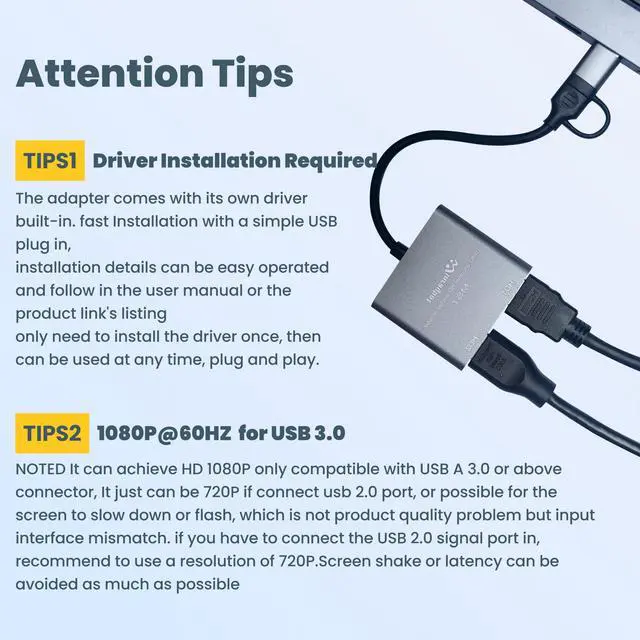
Note: make sure your antivirus program does not block the installation. Computer needs to restart to complete the installation.
We use the WIIN system as a demonstration for installation

STEP2.
Click and open the folder. You will see two driver application files,
USBDisplay_Windows_V3.1.4.68.exe
UsbDisplay_macOS_V3.0.4.25_20230915_1340.dmg

STEP3.
INSTALL:
Double click the right application file follow your system(Different Windows and Mac OS),and the driver will start installing.
After you double-click on the Matched file, You can see the follow step
STEP4: Restart the computer now
STEP5:Check the installation:
After restart the computer, If the driver is installed correctly, the computer can automatically recognize this product and link to the screen after restarting

?????????? ???????????????????????? ??????????
STEP1.
Insert the adapter into the USB/Type-C port of the PC/laptop, a dialog box will pop up As shown in the picture above:
Note: make sure your antivirus program does not block the installation. Computer needs to restart to complete the installation.
We use the WIIN system as a demonstration for installation
STEP2.
Click and open the folder. You will see two driver application files,
USBDisplay_Windows_V3.1.4.68.exe
UsbDisplay_macOS_V3.0.4.25_20230915_1340.dmg
STEP3.
INSTALL:
Double click the right application file follow your system(Different Windows and Mac OS),and the driver will start installing.
After you double-click on the Matched file, You can see the follow step
STEP4: Restart the computer now
STEP5:Check the installation:
After restart the computer, If the driver is installed correctly, the computer can automatically recognize this product and link to the screen after restarting
USB to HD display
WinRaybot
Improve work efficiency,
expand entertainment experience,
win-win your work and entertainment