




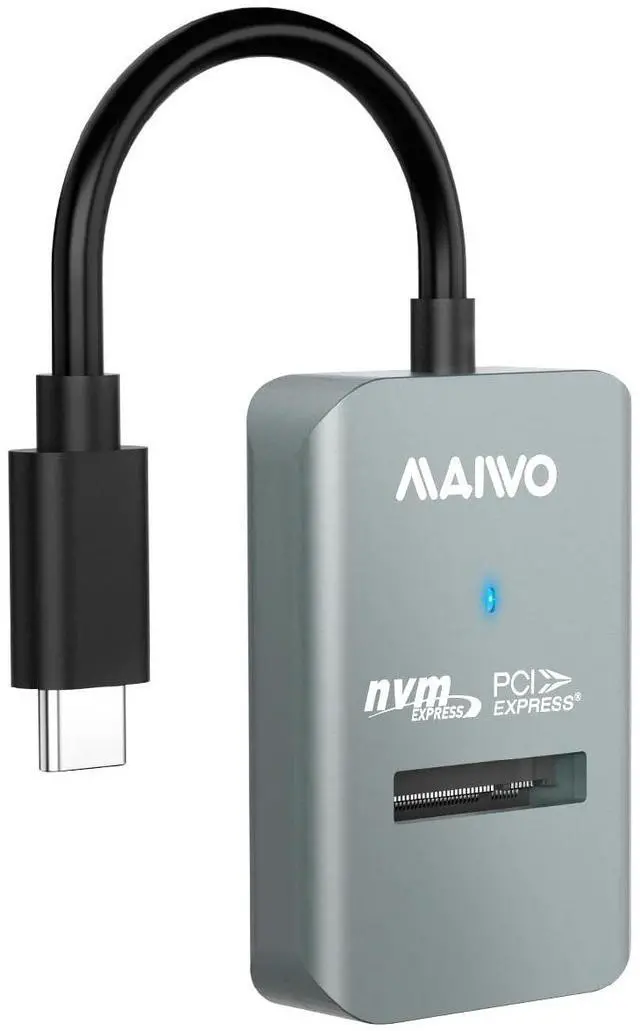


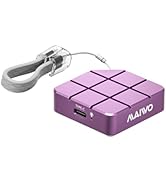
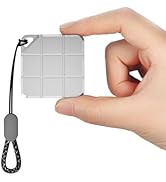
Portable Mini External SSD
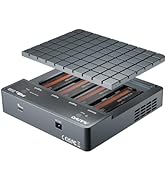
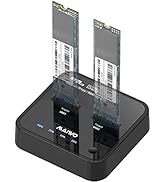
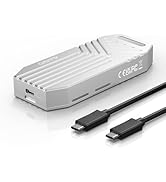
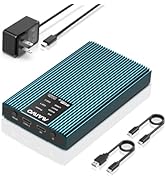
PCIe NVMe Enclosure Duplicator
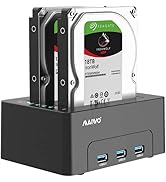
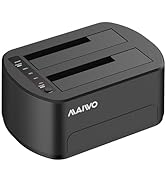
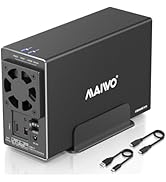
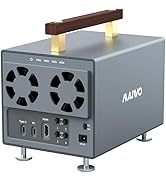
HDD RAID Enclosure/Cloner
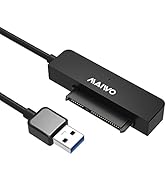
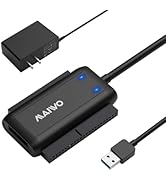
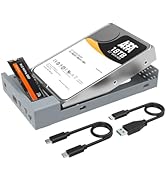
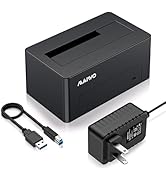
SATA/SAS Drive to USB Adapter

Founded in 2005, MAIWO is dedicated to designing and manufacturing innovative data storage solutions such as External Portable SSD, HDD Enclosure, Docking Station, Duplicator and USB Hub with the mission of helping users "Enjoy Digital Life." The company specializes in creating simple, user-friendly, and high-performance computer peripherals, offering consumers reliable, efficient, and seamless solutions for managing and storing their data.


10GBPS FAST SPEED
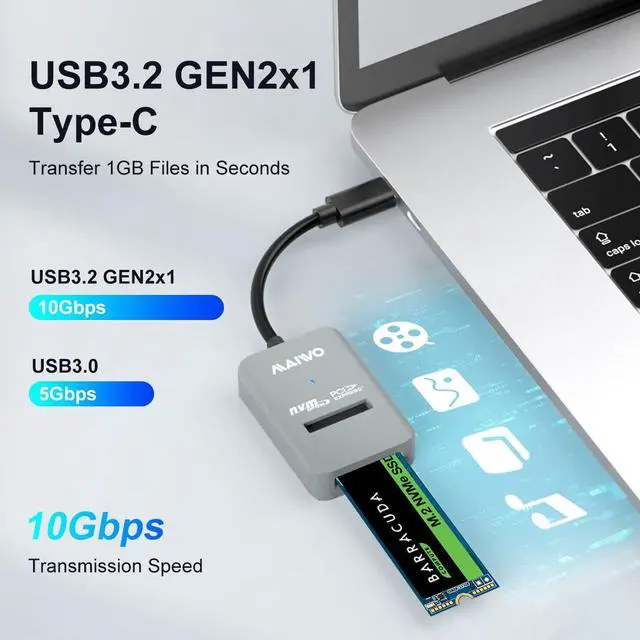
- The USB3.2 GEN2x1 output interface provides 10Gbps transfer speed, transfer 1GB files in one second, support UASP and TRIM if using this docking station with Windows 8 or above system.
COMPATIBILITY
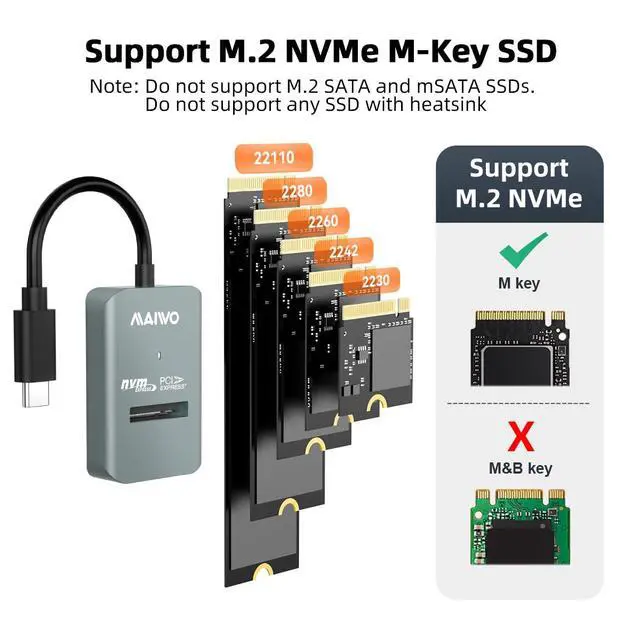
- This adapter is for M.2 NVMe PCIe M Key 2230/2242/2260/2280/22110mm SSD.
- DO NOT SUPPORT M.2 SATA B+M KEY
CAPACITY
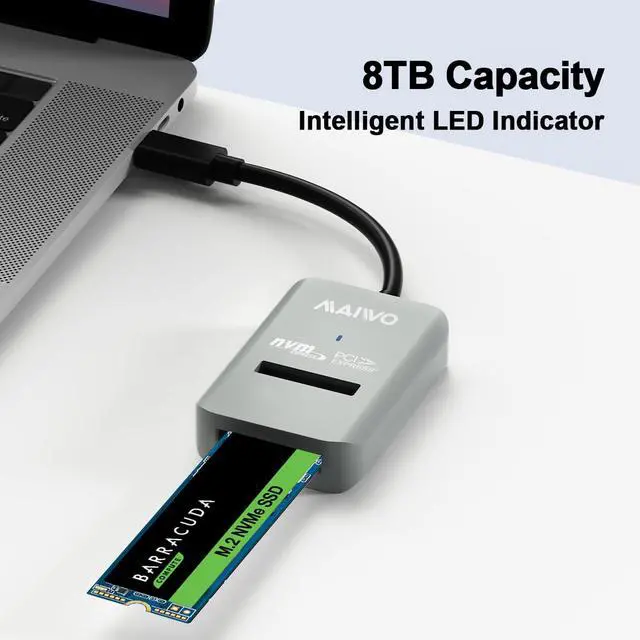
- 8TB Capacity
INNOVATIVE DESIGN
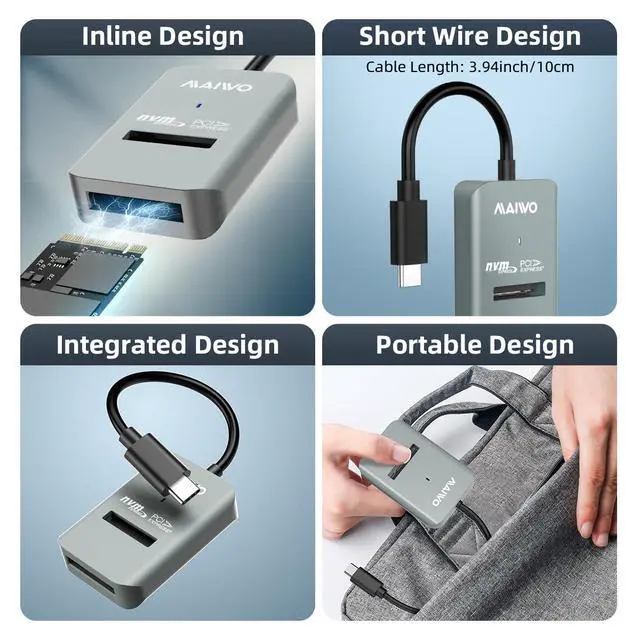
- 10CM Short-Cable Design, Prevent Winding.
- Tool-Free, Semi-Open and In-Line Design.
- One-Piece Design, Prevent Wire Loss.
APPLICABLE SYSTEM
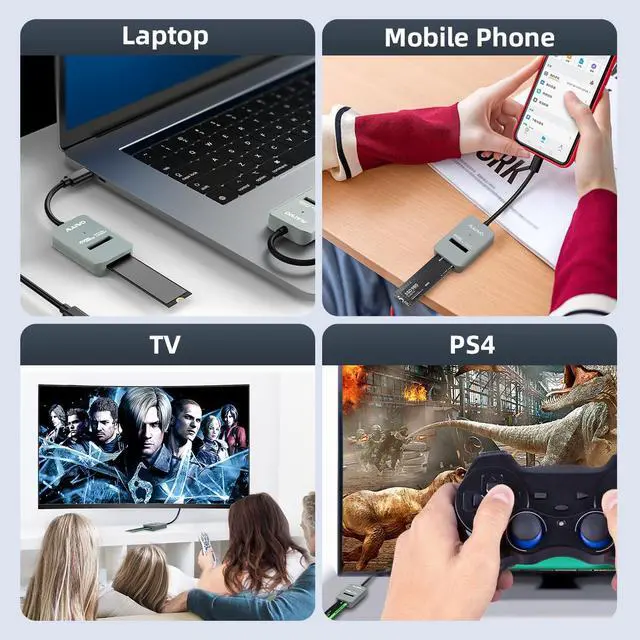
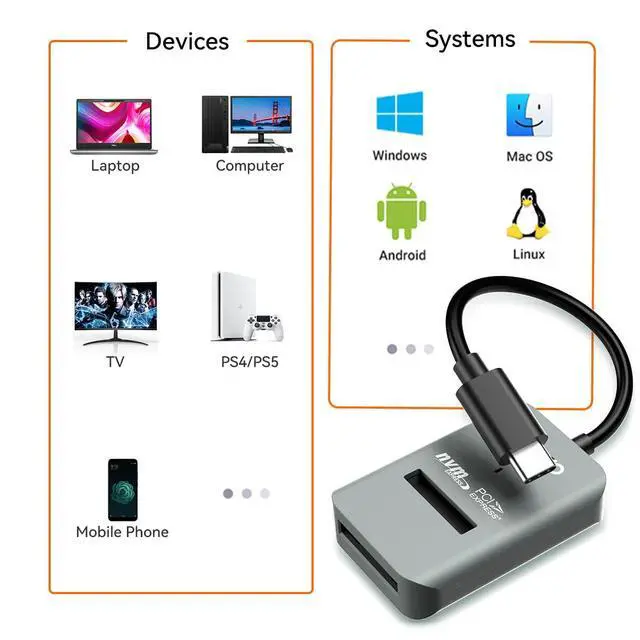
- Support Mac OS, Windows, Linux
DIMENSION/WEIGHT
- Item Size: 2.36x1.45x0.47inch
- Cable Length: 4.0inch/10cm
- Item Weight: 0.05lbs (22g)
- Material: High-Strength ABS Plastic
PACKAGE CONTENT
- 1x M.2 NVMe to Type-C Adapter
- 1x User Manual
If your drive is new, please follow below steps to make the enclosure work:
- Insert drive and connect the enclosure to PC.
- Hard Disk Initialization: Computer----Manage---Disk Management---find new disk and initialize (NOTE: Please choose MBR if the capacity of your disk is less than 2TB, choose GPT if larger than 2TB.)
- Disk Partition and Format: New disk will become “Disk 1” after initialization, right click “Disk 1” and choose “New Simple Volume” to do partition, choose the capacity you need and choose “Formatting”.
10GBPS FAST SPEED
- The USB3.2 GEN2x1 output interface provides 10Gbps transfer speed, transfer 1GB files in one second, support UASP and TRIM if using this docking station with Windows 8 or above system.
COMPATIBILITY
- This adapter is for M.2 NVMe PCIe M Key 2230/2242/2260/2280/22110mm SSD.
- DO NOT SUPPORT M.2 SATA B+M KEY
CAPACITY
- 8TB Capacity
INNOVATIVE DESIGN
- 10CM Short-Cable Design, Prevent Winding.
- Tool-Free, Semi-Open and In-Line Design.
- One-Piece Design, Prevent Wire Loss.
APPLICABLE SYSTEM
- Support Mac OS, Windows, Linux
DIMENSION/WEIGHT
- Item Size: 2.36x1.45x0.47inch
- Cable Length: 4.0inch/10cm
- Item Weight: 0.05lbs (22g)
- Material: High-Strength ABS Plastic
PACKAGE CONTENT
- 1x M.2 NVMe to Type-C Adapter
- 1x User Manual
If your drive is new, please follow below steps to make the enclosure work:
- Insert drive and connect the enclosure to PC.
- Hard Disk Initialization: Computer----Manage---Disk Management---find new disk and initialize (NOTE: Please choose MBR if the capacity of your disk is less than 2TB, choose GPT if larger than 2TB.)
- Disk Partition and Format: New disk will become “Disk 1” after initialization, right click “Disk 1” and choose “New Simple Volume” to do partition, choose the capacity you need and choose “Formatting”.
Portable Mini External SSD
PCIe NVMe Enclosure Duplicator
HDD RAID Enclosure/Cloner
SATA/SAS Drive to USB Adapter
Founded in 2005, MAIWO is dedicated to designing and manufacturing innovative data storage solutions such as External Portable SSD, HDD Enclosure, Docking Station, Duplicator and USB Hub with the mission of helping users "Enjoy Digital Life." The company specializes in creating simple, user-friendly, and high-performance computer peripherals, offering consumers reliable, efficient, and seamless solutions for managing and storing their data.