How to switch out of S mode in Windows 11
1. On your Windows 11 PC in S mode, open Settings > Update & security > Activation.
2. In the Switch to Windows 11 Home or Switch to Windows 11 Pro section, select Go to the Store. (If you also see an "Upgrade your edition of Windows" section, be careful not to click the "Go to the Store" link there. ):
3. On the Switch out of S mode (or similar) page that appears in the Microsoft Store, select the Get button. After you see a confirmation message on the page, you can install apps from outside the Microsoft Store.
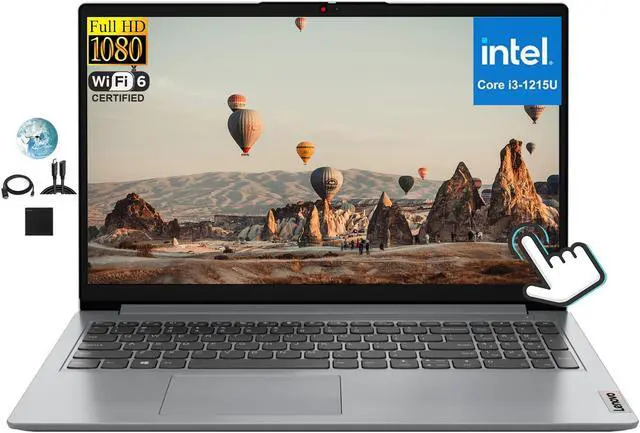
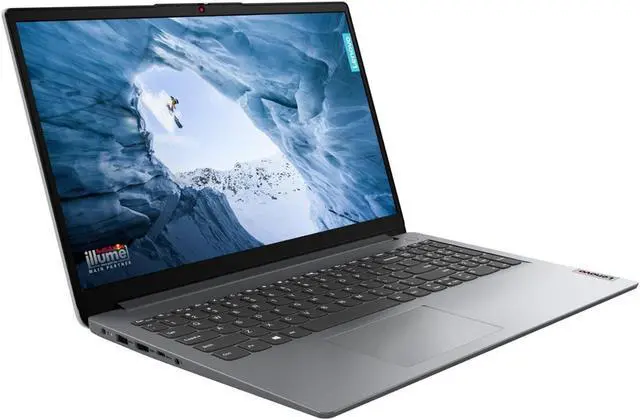
Performance Processor: Intel Core i3-1215U, 6C (2P + 4E) / 8T, P-core 1.2 / 4.4GH z, E-core 0.9 / 3.3GH z, 10MB
Graphics: Integrated Intel Iris Xe Graphics / Intel UHD Graphics (Single
Channel) Memory: Upgraded to 16GB
DDR4-3200 Storage: Upgraded to a 1TB PCIe NVMe M. 2 Solid State
Drive Optical: None
Speakers: Stereo speakers, 1.5W x2, Dolby
Audio Camera: HD 720p with privacy shutter
Battery: Up to 10 hours of battery life, power adapter Integrated 42Wh, 65W Round Tip (3-pin)
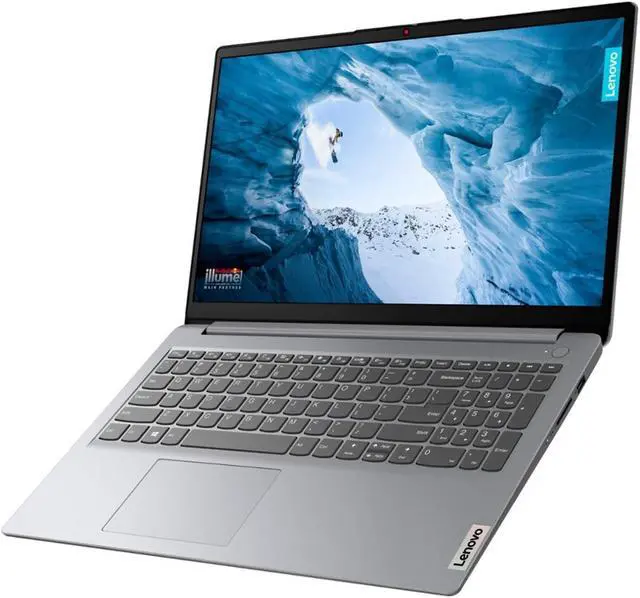
DESIGN Display: 15.6 -inch FHD (1920 x 1080) IPS 300 nits Anti-Glare, 10-point
Multi-Touch Keyboard: Non-backlit, English
Case Color: Gray Dimensions (W x D x
H): 14.181 x 9.291 x 0.70 in ( 14.18 x 9.29 x 0.70 in)
Weight: Starting at 3.6 lbs ( 3.59 lbs)
SOFTWARE OS: Windows 11 Home in S mode, English
CONNECTIVITY Ethernet: No Ethernet On board
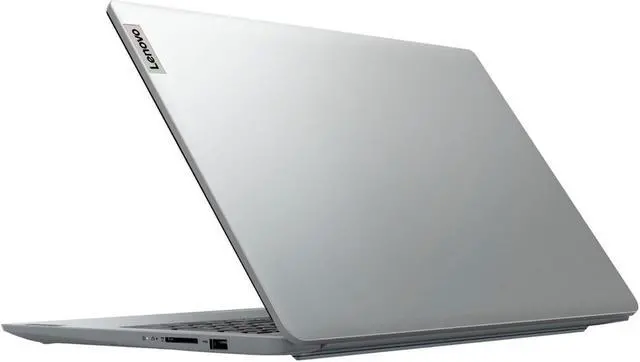
WLAN + Bluetooth: Wi-Fi 6, 11ax 2x2 + BT 5.2 Standard ports 1 USB 2.0. 1 USB 3.2 Gen 1. 1 USB-C 3.2 Gen 1 (data transfer only supported). 1 HDMI 1.4 b. 1 headphone/microphone combo jack ( 3.5 mm) 1 card reader. 1 power connector.
Fingerprint reader: none