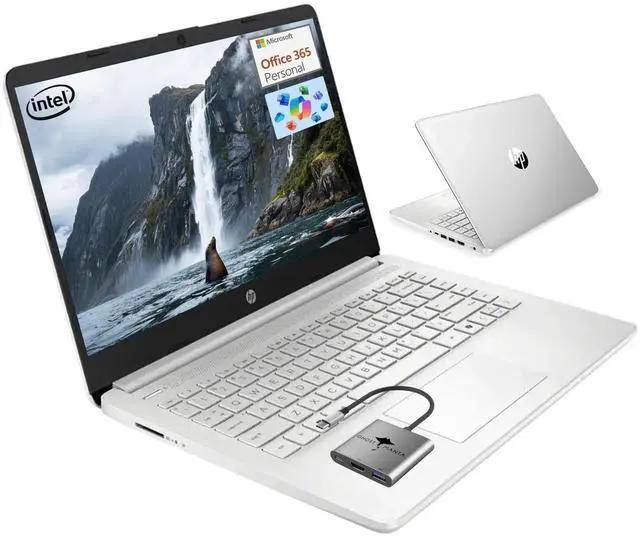
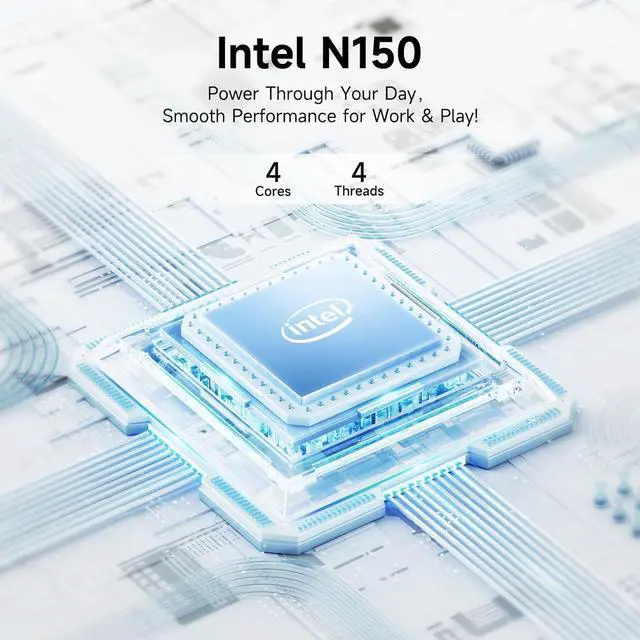
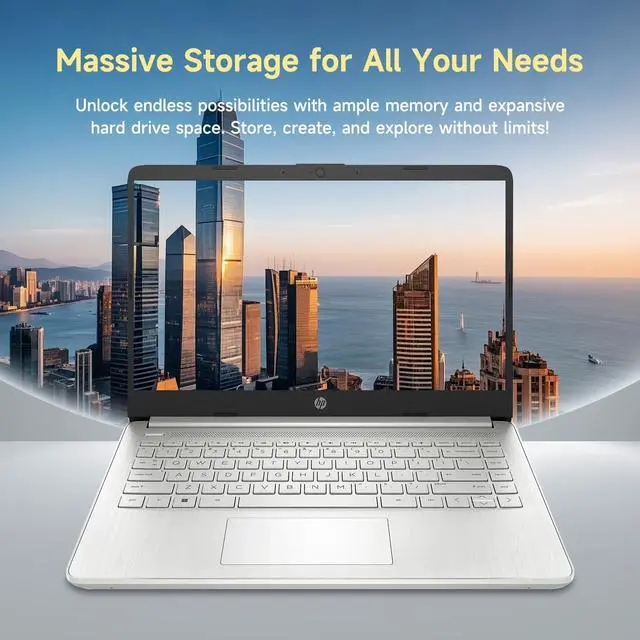
Microprocessor: Intel Processor N150 (4 Cores, up to 3.6
GHz)Graphics Type: IntegratedMemoryUpgraded to 4GB DDR4 RAM
Video graphics: Intel
UHD GraphicsDisplay: 14"HD (1366 x 768), micro-edgeWireless
connectivity: Wi-Fi 6 and
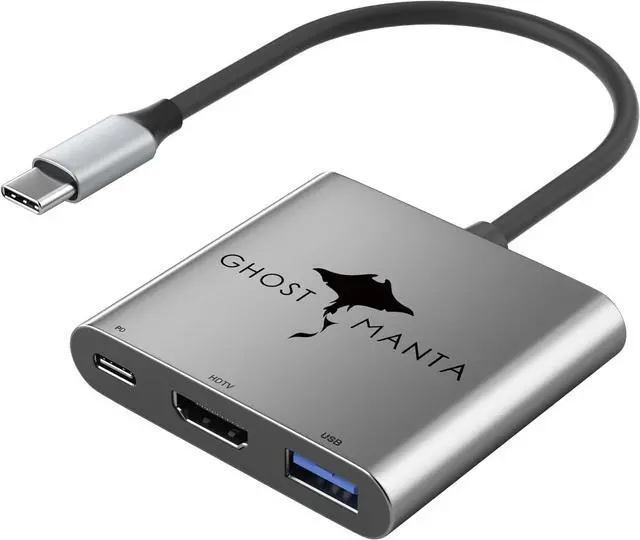
Bluetooth 5 comboExternal ports: 1 x SuperSpeed USB Type-C 3.02 x SuperSpeed USB Type-A 3.0M inimum dimensions (W x D x
H): 12.76 x 8.86 x 0.71 inchesWeight: 3.24
LBPower supply type: 45
W AC power adapterBattery type: 3-cell, 45 Wh Li-ion polymerBattery life mixed usage: Up
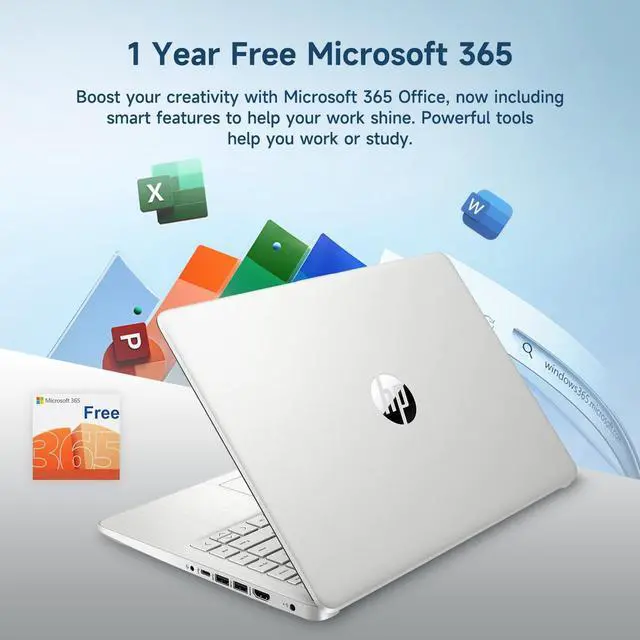
to 11 hoursWebcam: HP Wide Vision 720p HD camera with camera shutter and integrated dual array digital microphonesOperating system: Windows 11 HomeHow to switch s mode to windows 11On your PC running Windows 11 in S mode, open Settings > Update & Security > Activation. In the Switch to Windows 11 Home or Switch to Windows 11 Pro section, select Go to the Store. (If you also see an "Upgrade your edition of Windows" section, be careful not to click the "Go to the Store" link that appears there. )On the Switch out of S mode (or similar) page that appears in the Microsoft Store, select the Get button. After you see a confirmation message on the page, you'll be able to install apps from outside of the Microsoft Store. Activate 1 Year MS office 365Activate pre-installed
Office: 1. Launch any Office app > 2. Start your activation by signing in with your Microsoft account(Create a account if you don't have one yet) > 3. Click "Activative Office" > 4. Sign in your account and follow the next prompts. > 5. Complete Step 1, 2 and 3 > 6. Click on Refresh once Office is ready > 7. Open a document and accept the license agreement.