Your Browsing History
- Free 30-day Returns
$118.99
Meet Your Seller
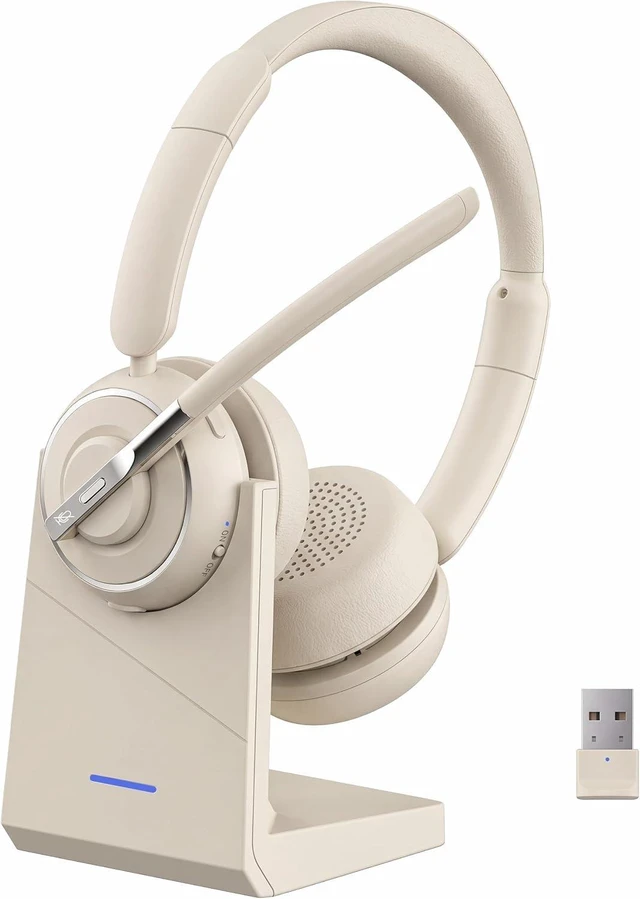
PrancyBt Wireless Headset with Noise Cancelling Microphone, Bluetooth Headset with Mic for Work, Wireless Headphones with Mute & USB Dongle for Work from Home/PC/Computer/Call Center (Be
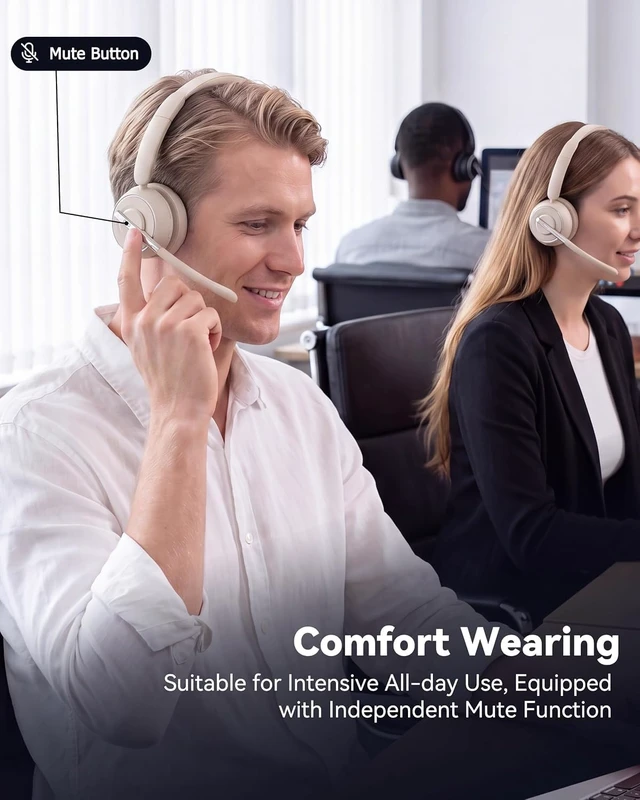
- Advanced Noise Canceling for Clear CallsEquipped with premium noise reduction technology, this Bluetooth headset filters out 99.9% surrounding background noise. It keeps your voice loud and clear for online meetings no matter you are at office, cafe or on the go. Built-in one-touch mute allows you to mute your mic easily anytime.NOTEMute function exclusively active during calls or meetings
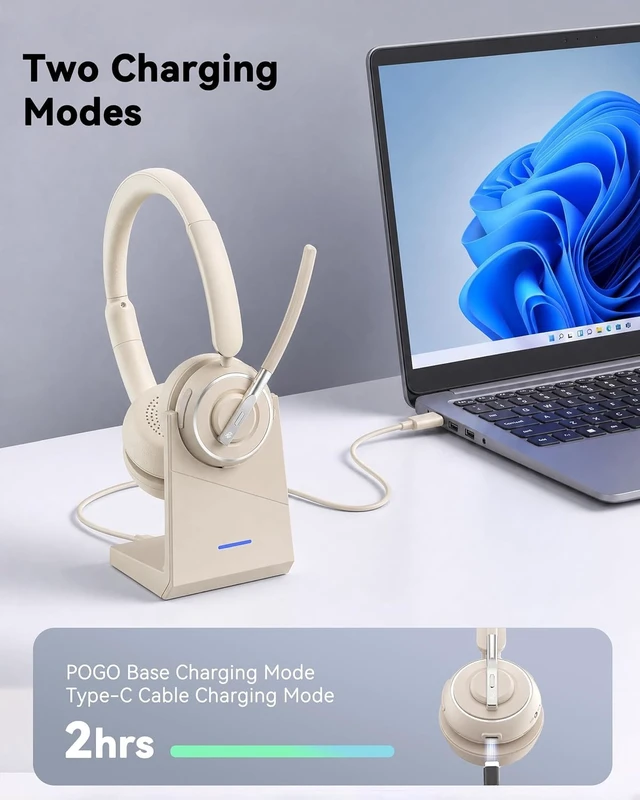
- All-Day Long Battery PerformancePowered by high-density built-in battery, this wireless headset offers up to 35 hours continuous runtime. It suits non-stop meetings, long work shifts and long-distance travel perfectly. Featuring fast charging function, it greatly cuts charging waiting time, letting you stay online steadily without worrying about low power all week long.NOTEPlease power off the headset prior to charging
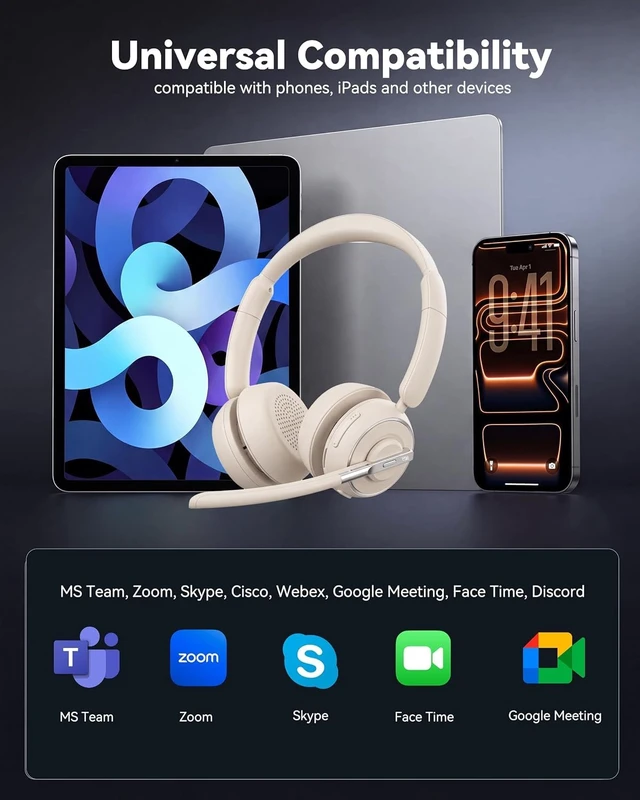
- Dual Stable Connection TechnologyBuilt with upgraded Bluetooth chip, this office wireless headset delivers steady transmission and ultra-low latency. You can enjoy
+
+
Overview
Specs
Reviews
Any questions? Ask CelesteSM will help you find out quickly.
Try me now
If you find that KH120M headset microphone has no sound after pair KH120M to a computer via USB port, please
follow the steps below: 1. Make sure the headset and port are paired successfully (port display light is fixed blue) If pairing is not successful, please
try the steps below: 1) Reset the headset (please refer to the reset section of the manual). 2) Unplug the port and plug it into another USB port. 2. After the headset and port are paired successfully, please
follow the steps below: 1) Right-click the Speakers icon at the bottom right, then click "Open Sound settings". 2) Make sure that [KH120M port] has been selected as both the output and input device. Then close Settings. If there is still no sound, the microphone of the headset may be disabled or [KH120M port] is not set as the default device on your computer. 1) Right-click the Speakers icon at the bottom right, then click "Sound ". 2) Click "Recording"and "Playback", then set [KH120M port] as default device and make sure it is enabled. 3. Make sure apps have access to the microphone. If your microphone isn't detected, you may need to give your apps permission to use it. (Take windows 10 as example) 1) To let apps access the microphone, select Start, then select Settings> Privacy> Microphone. Select Change, then turn on Allow apps to access your microphone. 2) After allowing access to the microphone, you can choose which Microsoft Store apps can access these features under Choose which Microsoft Store apps can access your microphone, and give access to non-Microsoft-Store desktop apps by ensuring that the switch beneath Allow desktop apps to access your microphone is set to On.
Package Contents: 1 x Bluetooth Headphones KH120M1 x Type-C Charging Cable1x User Manual1x Charging Base1x USB Dongle
follow the steps below: 1. Make sure the headset and port are paired successfully (port display light is fixed blue) If pairing is not successful, please
try the steps below: 1) Reset the headset (please refer to the reset section of the manual). 2) Unplug the port and plug it into another USB port. 2. After the headset and port are paired successfully, please
follow the steps below: 1) Right-click the Speakers icon at the bottom right, then click "Open Sound settings". 2) Make sure that [KH120M port] has been selected as both the output and input device. Then close Settings. If there is still no sound, the microphone of the headset may be disabled or [KH120M port] is not set as the default device on your computer. 1) Right-click the Speakers icon at the bottom right, then click "Sound ". 2) Click "Recording"and "Playback", then set [KH120M port] as default device and make sure it is enabled. 3. Make sure apps have access to the microphone. If your microphone isn't detected, you may need to give your apps permission to use it. (Take windows 10 as example) 1) To let apps access the microphone, select Start, then select Settings> Privacy> Microphone. Select Change, then turn on Allow apps to access your microphone. 2) After allowing access to the microphone, you can choose which Microsoft Store apps can access these features under Choose which Microsoft Store apps can access your microphone, and give access to non-Microsoft-Store desktop apps by ensuring that the switch beneath Allow desktop apps to access your microphone is set to On.
Package Contents: 1 x Bluetooth Headphones KH120M1 x Type-C Charging Cable1x User Manual1x Charging Base1x USB Dongle
Warranty & Returns
Warranty, Returns, And Additional Information
Warranty
- Please contact the Seller directly for warranty information. Warranty information may also be found on the Manufacturer's website.
- CONTACT
Return Policies
- Return for refund within: 30 days
- Return for replacement within: 30 days
- This item is covered by Detail Driven Return Policy
Manufacturer Contact Info
- For a directory of all our manufacturers, please click below.
- Manufacturers Directory
LOADING...