Your Browsing History
Meet Your Seller
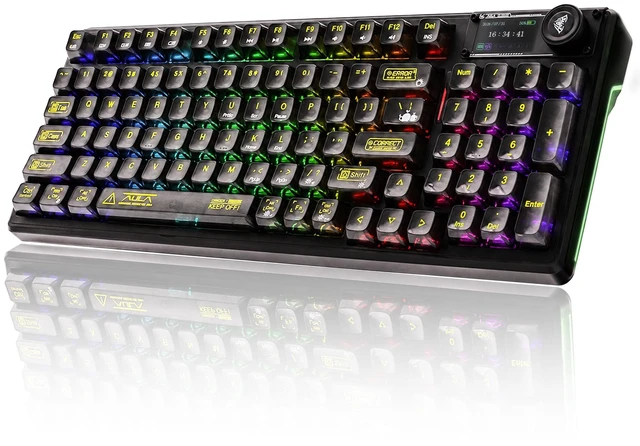
Aula Transparent Mechanical Keyboard with Display & Knob, 95-Key Hot-Swappable, Tri-Mode Wireless Keyboard Gaming, RGB Backlit,10000mAh Battery, Gasket Mount,for Windows, macOS, iOS & Android,
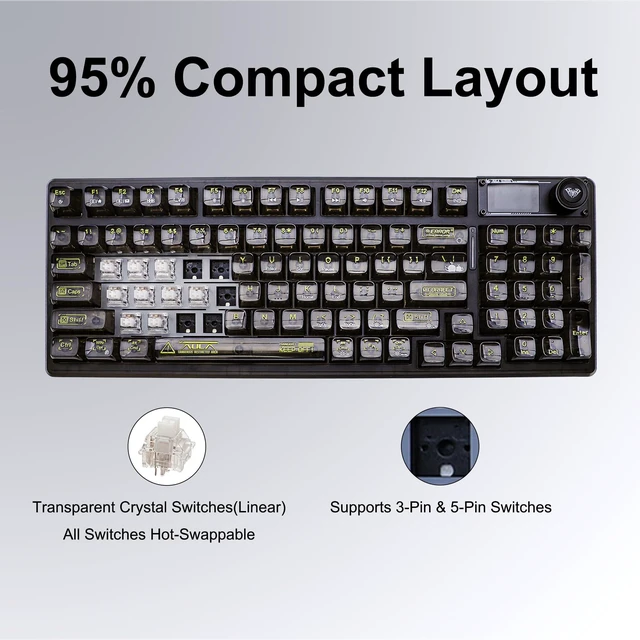
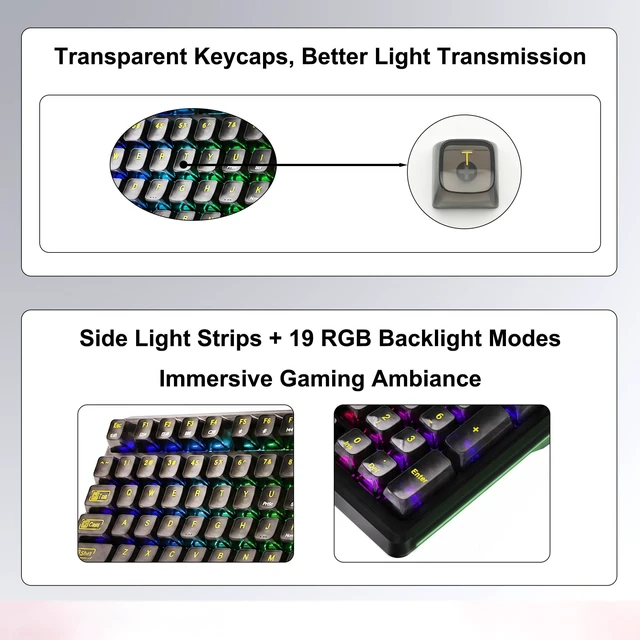
- 95-Key Hot-Swappable Transparent Keyboard This mechanical transparent keyboard features a compact 95% layout, equipped with the buttons use on a daily basis while saving desktop space. And equipped with transparent ice crystal switches, it delivers a premium and stylish visual appearance. It supports 3-pin and 5-pin hot-swappable switches, allowing you to freely replace switches and DIY your ideal keyboard.
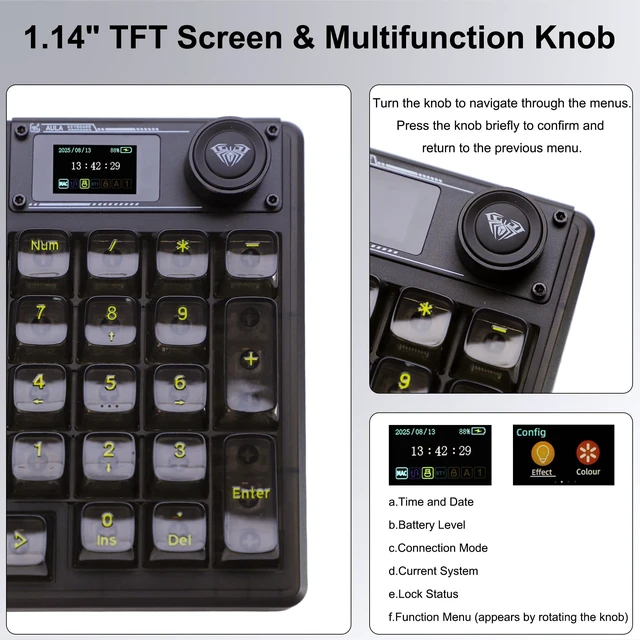
- F98pro V3 with Multifunction Knob & Smart Display Built-in 1.14-inch TFT display clearly shows battery level, time, date, connection mode and system status. You can customize favorite images and GIF dynamic wallpapers (Image and GIF settings only support Windows driver software under wired connection mode). The multifunction knob supports rotation and pressing, easily switching backlight modes, adjusting brightness/speed, controlling volume, switching languages and more.
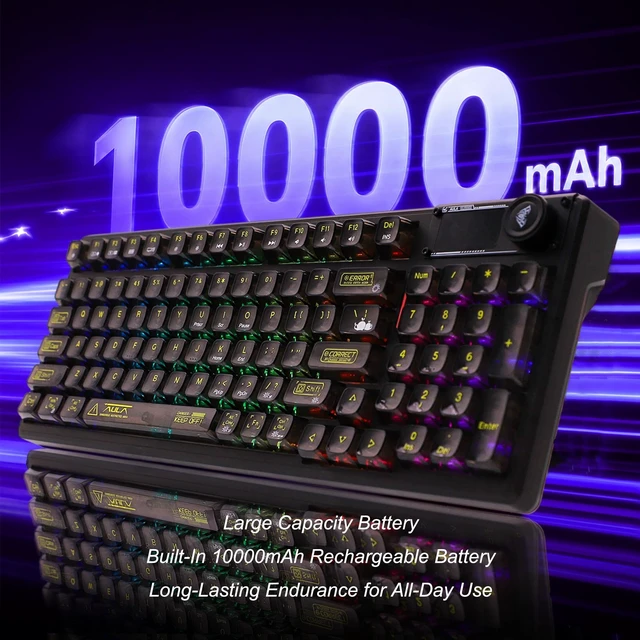
- 10000mAh Large Capacity Battery Built-in 10000mAh high-capacity rechargeable battery offers ultra-long batt
+
+
Overview
Specs
Reviews
Any questions? Our AI mode will help you find out quickly.
Try me now
1. How to connect the keyboard? 1) BluetoothTurn on Bluetooth on the device you want to connect to the keyboard. The connection mode switch is on the side above the keyboard. Slide the switch to the BT position. Press the FN + 1! /2@/3# keys (1! /2@/3# correspond to Bluetooth F98Pro V3-1/F98Pro V3-2/F98Pro V3-3, respectively) for 3 to 5 seconds. The keyboards display will show Pairing. Locate the corresponding Bluetooth name on your device, tap Pair, and the connection will be established once pairing is successful. 2) 2.4GH zMove the switch on the upper side of the keyboard to the 2.4G position.
Remove the included 2.4G wireless receiver from the side of the keyboard and plug it into the device you wish to connect to the keyboard. Press and hold the FN +, ~ keys for 35 seconds to establish a connection. 3) Type-CMove the switch on the upper side of the keyboard to the USB position. Connect the device to the keyboard using the included Type-C cable to begin using it. 2. About the DriverThe driver is only compatible with Windows; drivers for other operating systems are not currently available. The driver allows you to customize RGB backlighting, macro programming, music synchronization (lights that pulse to the beat of the music), screen wallpapers, and other features.
To set the display wallpaper (dynamic or static), you must use the Windows driver while connected via a wired connection. Settings configured via the driver are stored in the keyboard. When switching to a Mac, tablet, or smartphone connection, the configuration will be carried over automatically; however, if you need to make changes, you must use a device running Windows to do so. The driver interface supports only Chinese and English as display languages. Other languages have not been loaded yet.

Remove the included 2.4G wireless receiver from the side of the keyboard and plug it into the device you wish to connect to the keyboard. Press and hold the FN +, ~ keys for 35 seconds to establish a connection. 3) Type-CMove the switch on the upper side of the keyboard to the USB position. Connect the device to the keyboard using the included Type-C cable to begin using it. 2. About the DriverThe driver is only compatible with Windows; drivers for other operating systems are not currently available. The driver allows you to customize RGB backlighting, macro programming, music synchronization (lights that pulse to the beat of the music), screen wallpapers, and other features.
To set the display wallpaper (dynamic or static), you must use the Windows driver while connected via a wired connection. Settings configured via the driver are stored in the keyboard. When switching to a Mac, tablet, or smartphone connection, the configuration will be carried over automatically; however, if you need to make changes, you must use a device running Windows to do so. The driver interface supports only Chinese and English as display languages. Other languages have not been loaded yet.
Warranty & Returns
Warranty, Returns, And Additional Information
Warranty
- Please contact the Seller directly for warranty information. Warranty information may also be found on the Manufacturer's website.
- CONTACT
Return Policies
- Return for refund within: 30 days
- Return for replacement within: 30 days
- This item is covered by NorthFlow Smart Store Return Policy
Manufacturer Contact Info
- For a directory of all our manufacturers, please click below.
- Manufacturers Directory
LOADING...