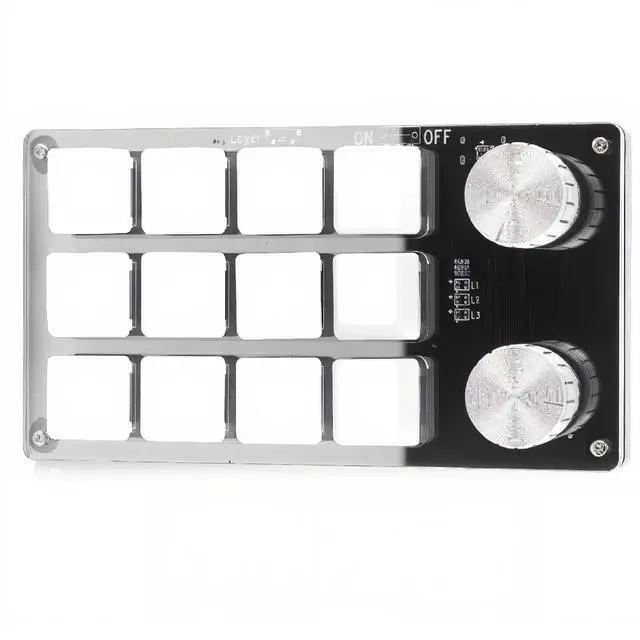
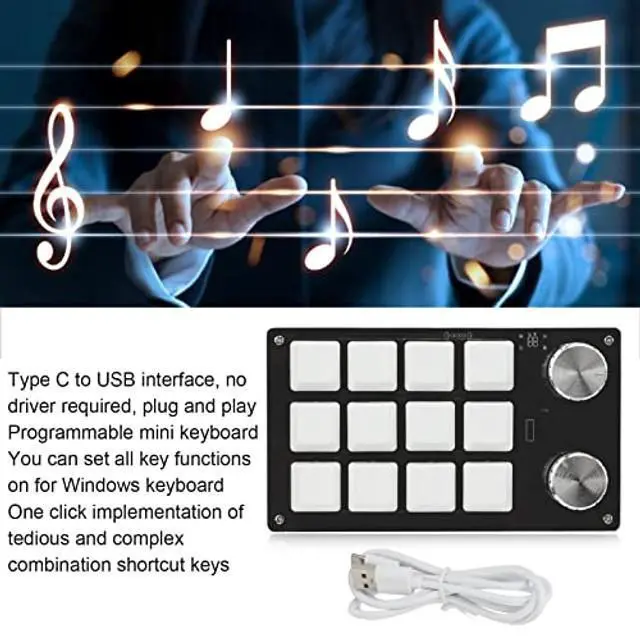
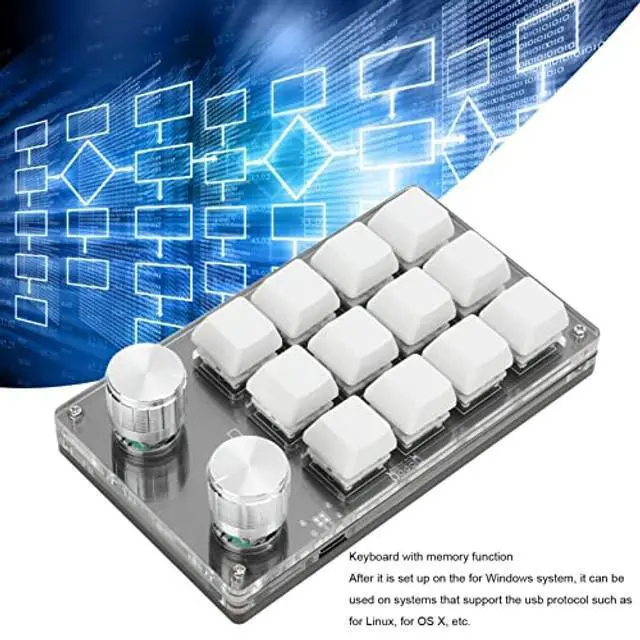
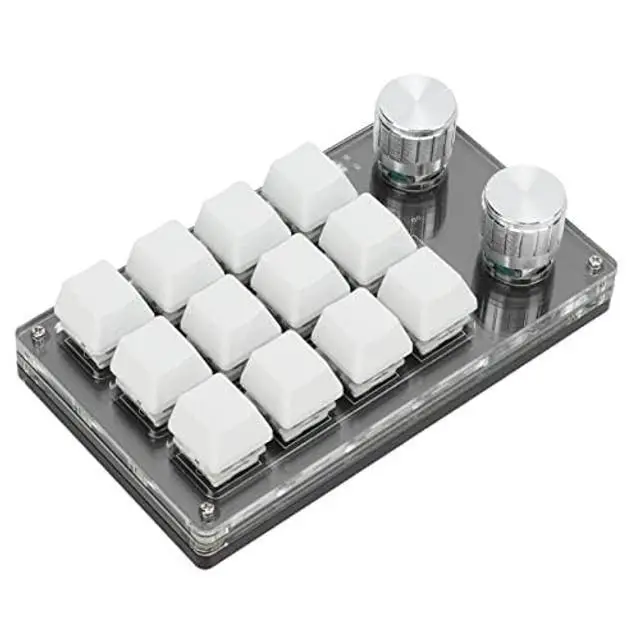
Specification: Item
Type: Macro
Mechanical KeyboardMaterial: Acrylic, PCB
Usage: Suitable for office, games, music, media, industrial control, laboratory, production line testing and other fieldsSystem
Support:, for VISTA, forLinux, for
OS XButton Life: Up to 50
Million TimesType: Green ShaftQuantity of
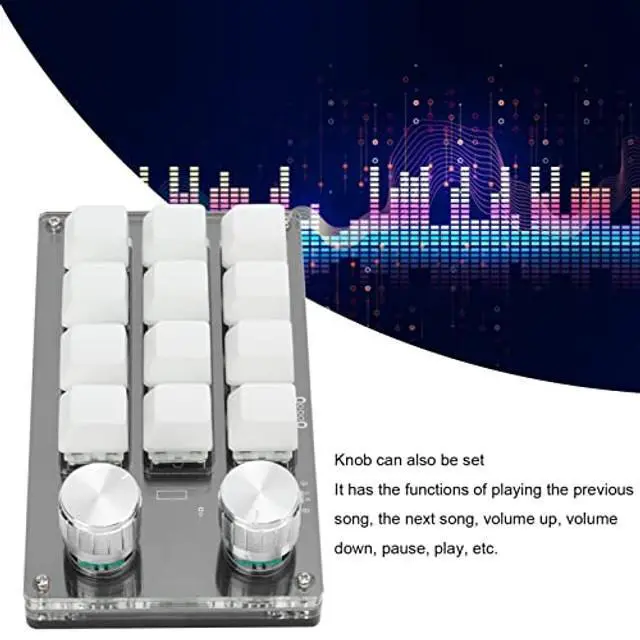
Keys: 12
KeysSize: Approx. 132 x 77 x 38mm / 5.2 x 3 x 1.5 in (L x W x H)
Current and Voltage: DC 5V/1AWorking
Temperature: -10? -50?
Package List: 1 x Keyboard1 x
USB CableNote: This software can only be run on for system temporarily, try to download it on the PC side of the computer, the setting software does not need to be installed, it can be run directly after opening it, and it will be automatically stored on the chain disk after setting, and then plug it into the USB protocol that supports the USB protocol. Use on forLinux, for OS X and other systems (the first time you run it, pay attention to the release of antivirus software and set it as a trusted file)! How to
Use: 1. Small keyboard, open the custom software on the computer. 2. On the custom software, click the 'key setting area"or 'Knob setting area" (yellow area) and then click the key key1-key12 or any key of knob 1 or knob 2 (green area) to be set: If selected, it will appear red. 3. Click the function key corresponding to the simulated keyboard on the custom software, click download, prompting download success, the custom keypad can beused. For example. if you want to set small keyboard key 1 as the shortcut key of c(+C). click "Key Setting area"on the software. click 'KEY1", then click and C on the software simulation keyboard, click Download, and the message "nload successful"is displayed.
Common troubleshooting methods: Problem
1: When the keyboard is connected to the computer, there is no responseor a message indicating that the device is





 here!
here!