• $80.99
  • Free 30-day Returns
  • Price alert
    Shop it at NeweggBusiness.

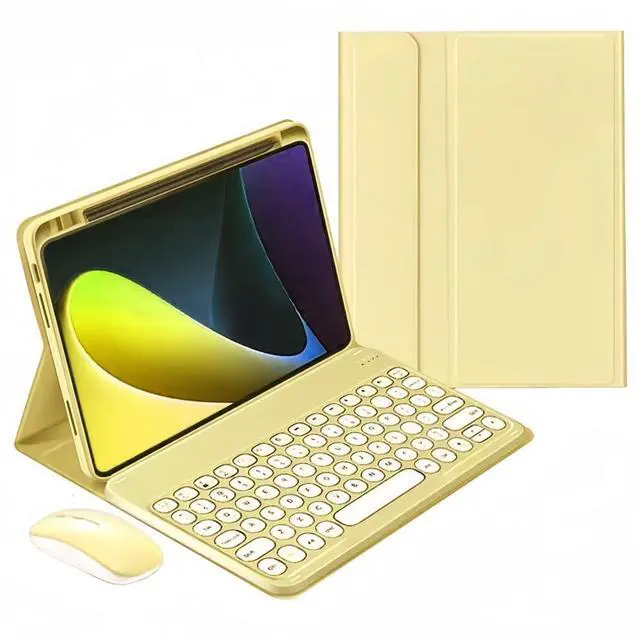
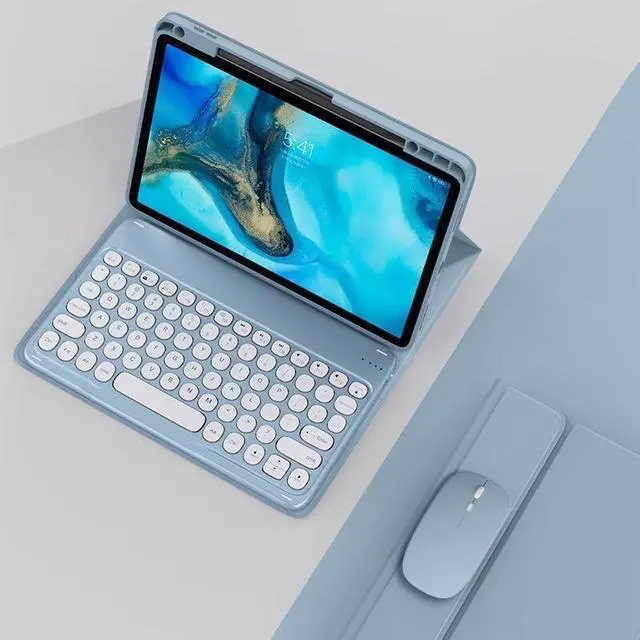
    kaidisen Keyboard Case for iPad 9th 8th 7th Generation 10.2 inch iPad Air 10.5-inch iPad Pro 10.5 inch Case with Keyboard and Bluetooth Mouse, Detachable Candy Color Keyboard Cover Round Key,Yellow

    • [(Keyboard Case with Mouse for iPad 10.2 /10.5 Inch)] This color keyboard case mouse is compatible with IPad 9th Generation 10.2 inch 2021 Model number on the back cover : A2602/A2603/A2604/A2605, IPad 8th Generation 2020 : A2430/A2270/A2428/A2429, IPad 7th Generation 2019 : A2197/A2198/A2200,iPad Air 3rd generation 10.5 inch : A2152/A2123/A2153, iPad Pro 10.5 inch : A1701/A1709
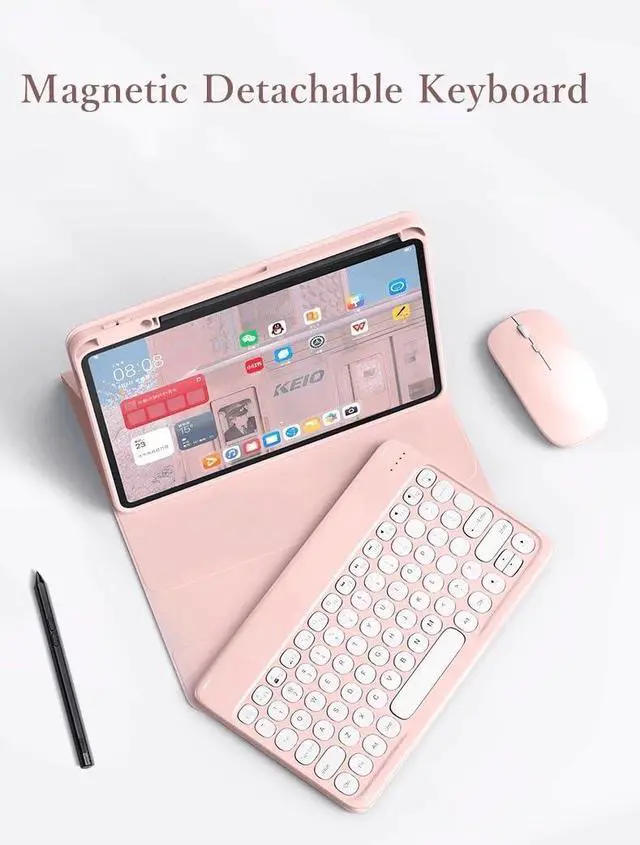
    • [(Round key color keyboard)] Magnetic detachable rechargeable cute round key color keyboard , not only can be used for iPad, but also It can used for other tablets, phones, and computers with Bluetooth functionality.
    • [(Bluetooth mouse)] Cute color bluetooth mouse,support Bluetooth connection and 2.4GH wireless connection,The color Bluetooth mouse can be charged, No need to replace the battery,Suitable for various tablets, laptops, and desktop computers.
    • [(Case with Pencil Holder )] :The protective case comes with Pencil Holder ,which can be used to store your pen
    • [(Cute Design)] Cute lo
    +
    +
    Overview
    Specs
    Reviews
    avatar

    Any questions? Our AI beta will help you find out quickly.

    How to connect this keyboard to iPad:
    1: turn on the power button on the right side of the keyboard.
    (The power indicator will go out after flashing. This is to save power, not fault)
    2: Press the "FN" key in the lower left corner of the keyboard, do not release it, and then press the "C" key.
    (Note: You need to press FN+C at the same time)
    At this time, you can see the Bluetooth indicator flashing,
    This turns on the Bluetooth of the keyboard.
    3: From the tablet's home screen, tap Settings. Tap on Bluetooth.
    Make sure Bluetooth is set to On, then let it search for devices.
    Tap on a Bluetooth keyboard, when it appears, to pair.
    4: if an authentication (PIN) code appears on the iPad screen,
    Enter the number with the keyboard and press"Enter" key.
    5: When the connection is complete, the Bluetooth indicator will go out,
    6: This is a 3-system keyboard,
    If you are using this keyboard on your iPad,
    Please press "FN" key first, don't release it, then press "E" key,
    This is a system for the iPad

    Warranty & Returns

    Warranty, Returns, And Additional Information

    Warranty

    • Please contact the Seller directly for warranty information. Warranty information may also be found on the Manufacturer's website.
    • CONTACT

    Return Policies

    Manufacturer Contact Info

    LOADING...