Your Browsing History
- Free 30-day Returns
$50.99
Meet Your Seller
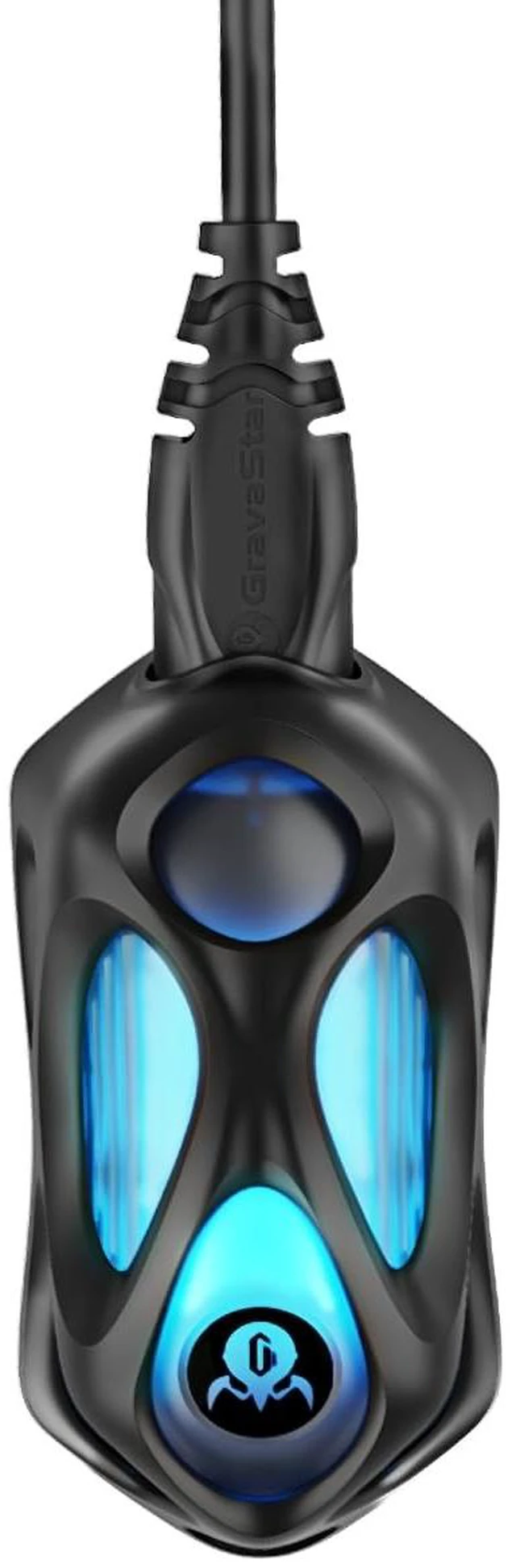
GravaStar Mercury M1 Pro 4K Wireless Dongle
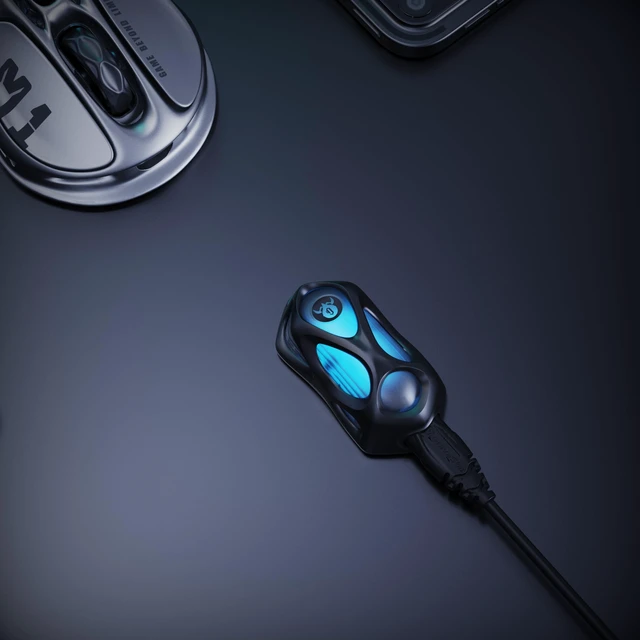
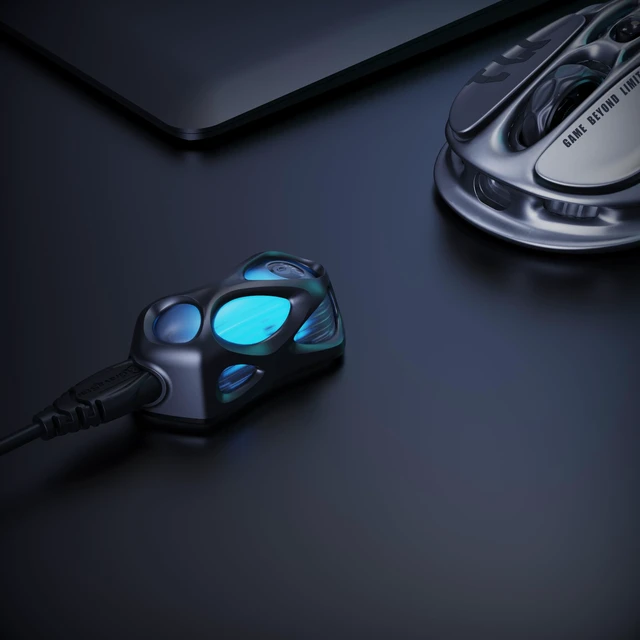
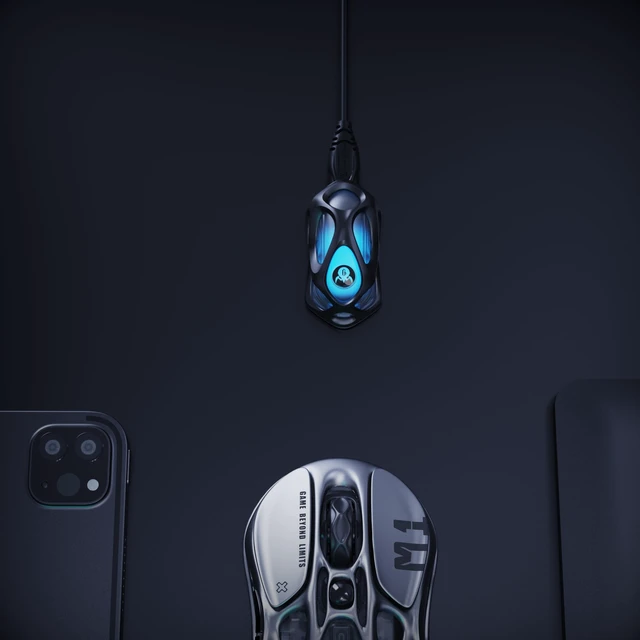
- Cool appearance with a hollow design and skeletal structure, enriching desktop aesthetics.
- Ambient indicator light for real-time monitoring of mouse battery level.
- 0.25ms imperceptible delay for a more comfortable and seamless operation.
+
+
Overview
Specs
Reviews
Any questions? Our AI mode will help you find out quickly.
Try me now
M1 Pro
Tech Spec:
Model: GRAVASTAR 4KInterface
Type: Type-CPolling
Rate: 4K
HzCompatible Systems: Windows XP and aboveProduct
Dimensions: 53.5 *27* 21.3 mmProduct
Weight: 13gAmbient
Lighting: Pairing
Status: Blue light flashing, duration 20S, 1 time/1SWorking
Status (Mouse Movement): Displays mouse battery level 3.54V ~ 4.2V (>30% battery): Green light constant 3.0V ~ 3.54V (30% battery): Red light constantStandby
Status (Mouse Sleep): Light offUnconnected Status (Inserted into
Computer): Blue breathing lightUser
Guide: Requires driver software installation for useFor driver download:
https: //www. gravastar. com/pages/downloadOn the homepage interface of the software, connect the receiver to the computer, which will read the model of the receiver and show the corresponding offline status of the mouse. Press the spacebar on the keyboard to pop up the "Pairing Window. " Click to start pairing or press the spacebar again, the receiver enters pairing mode (lasting 20 seconds). >Switch the mouse to 2.4G mode at the bottom, press and hold the "left, middle, right" buttons of the mouse. The mouse enters pairing mode (light effect: blue light flashes 1S/1 time, lasting 20 seconds). The interface will display "Pairing Successful, " indicating the mouse has successfully paired with the 4K receiver. Default report rate is 4000Hz/1ms (A higher report rate ensures better performance without causing issues like cursor teleportation. However, too high a report rate can also consume more CPU power and affect battery life).

Tech Spec:
Model: GRAVASTAR 4KInterface
Type: Type-CPolling
Rate: 4K
HzCompatible Systems: Windows XP and aboveProduct
Dimensions: 53.5 *27* 21.3 mmProduct
Weight: 13gAmbient
Lighting: Pairing
Status: Blue light flashing, duration 20S, 1 time/1SWorking
Status (Mouse Movement): Displays mouse battery level 3.54V ~ 4.2V (>30% battery): Green light constant 3.0V ~ 3.54V (30% battery): Red light constantStandby
Status (Mouse Sleep): Light offUnconnected Status (Inserted into
Computer): Blue breathing lightUser
Guide: Requires driver software installation for useFor driver download:
https: //www. gravastar. com/pages/downloadOn the homepage interface of the software, connect the receiver to the computer, which will read the model of the receiver and show the corresponding offline status of the mouse. Press the spacebar on the keyboard to pop up the "Pairing Window. " Click to start pairing or press the spacebar again, the receiver enters pairing mode (lasting 20 seconds). >Switch the mouse to 2.4G mode at the bottom, press and hold the "left, middle, right" buttons of the mouse. The mouse enters pairing mode (light effect: blue light flashes 1S/1 time, lasting 20 seconds). The interface will display "Pairing Successful, " indicating the mouse has successfully paired with the 4K receiver. Default report rate is 4000Hz/1ms (A higher report rate ensures better performance without causing issues like cursor teleportation. However, too high a report rate can also consume more CPU power and affect battery life).
Warranty & Returns
Warranty, Returns, And Additional Information
Warranty
- Please contact the Seller directly for warranty information. Warranty information may also be found on the Manufacturer's website.
- CONTACT
Return Policies
- Return for refund within: 30 days
- Return for replacement within: non-replaceable
- This item is covered by Aptly Tech Return Policy
Manufacturer Contact Info
- For a directory of all our manufacturers, please click below.
- Manufacturers Directory
LOADING...