Your Browsing History
- Free 30-day Returns
$74.49
Ships from China.
Meet Your Seller
YEEHi Keyboard Case for iPad Pro 12.9 6th Generation 2022, iPad 12.9 inch 5th 4th 3rd Generation Keyboard Case Cute Color Keyboard Detachable Bluetooth Keyboard Cover with Pencil Holder (LightBlue)
- Compatible Models:iPad Pro 12.9 inch 6th generation 2022 & iPad Pro 12.9-inch (5th generation) 2021 Model number (on the back cover): A2378 A2461 A2379 A2462 & iPad Pro 12.9-inch (4th generation) 2020 Model number (on the back cover): A2229 A2069 A2232 A2233 & iPad Pro 12.9-inch (3rd generation) 2018 Model number (on the back cover): A1876 A2014 A1895 A1983
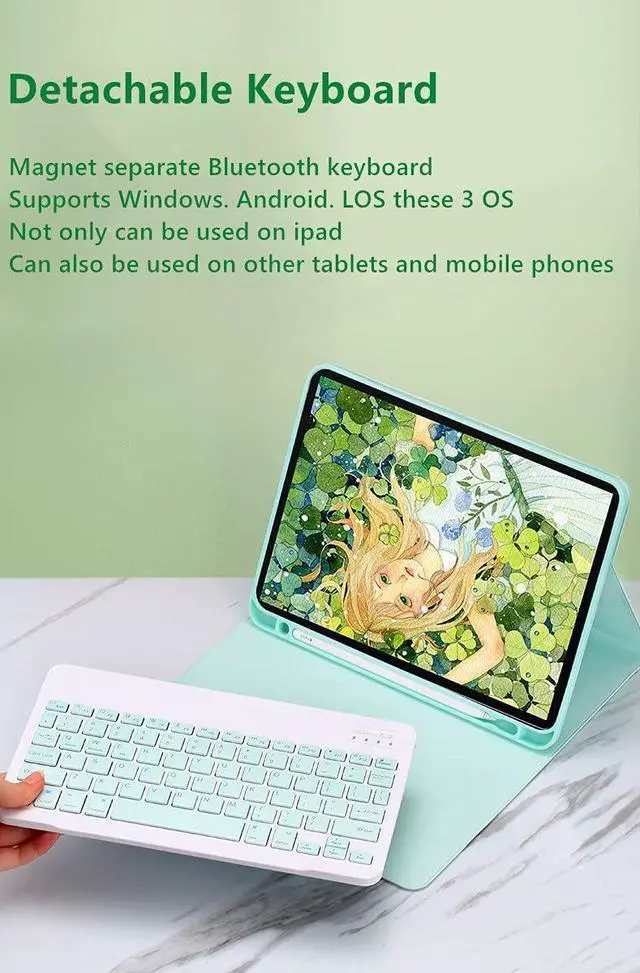
- Detachable Bluetooth keyboard: new design in 2021, colorful buttons are very cute and stylish, make your iPad more colorful, and make your work and study happier , The magnetic separate keyboard is suitable for 3 systems of WindowsAndroidiOS, Not only can be used with iPad, It can also be used with other tablet computers and mobile phones.
- Soft TPU back cover :The soft TPU back cover adopts non-slip design, Easy to install, Can support the tablet at multiple angles . Outside is a softer material ,Give you a very comfortable feel !
- Built-in Pencil Holder :The protective case comes with pencil holder ,It i
+
+
Overview
Specs
Reviews
Any questions? Our AI beta will help you find out quickly.
Try me now
How to connect this
Bluetooth keyboard to iPad:
1: turn on the power button of the keyboard.
(The power indicator will go out after flashing. This is to save power, not fault)
2: Long press the "Connect" button next to the power button until the Bluetooth indicator flashes
This turns on the Bluetooth of the keyboard.
3: From the iPad's home screen, tap Settings. Tap on Bluetooth.
Make sure Bluetooth is set to On, then let it search for devices.
Tap on a Bluetooth keyboard, when it appears, to pair.
4: if an authentication (PIN) code appears on the iPad screen,
Enter the number with the keyboard and press"Enter" key.
5: When the connection is complete, the Bluetooth indicator will go out,
6: This is a 3-system keyboard,
If you are using this keyboard on your iPad,
Please press "FN" key first, don't release it, then press "E" key,
This is a system for the iPad

Bluetooth keyboard to iPad:
1: turn on the power button of the keyboard.
(The power indicator will go out after flashing. This is to save power, not fault)
2: Long press the "Connect" button next to the power button until the Bluetooth indicator flashes
This turns on the Bluetooth of the keyboard.
3: From the iPad's home screen, tap Settings. Tap on Bluetooth.
Make sure Bluetooth is set to On, then let it search for devices.
Tap on a Bluetooth keyboard, when it appears, to pair.
4: if an authentication (PIN) code appears on the iPad screen,
Enter the number with the keyboard and press"Enter" key.
5: When the connection is complete, the Bluetooth indicator will go out,
6: This is a 3-system keyboard,
If you are using this keyboard on your iPad,
Please press "FN" key first, don't release it, then press "E" key,
This is a system for the iPad
Warranty & Returns
Warranty, Returns, And Additional Information
Warranty
- Please contact the Seller directly for warranty information. Warranty information may also be found on the Manufacturer's website.
- CONTACT
Return Policies
- Return for refund within: 30 days
- Return for replacement within: 30 days
- This item is covered by Fashion Technology Return Policy
Manufacturer Contact Info
- For a directory of all our manufacturers, please click below.
- Manufacturers Directory
LOADING...