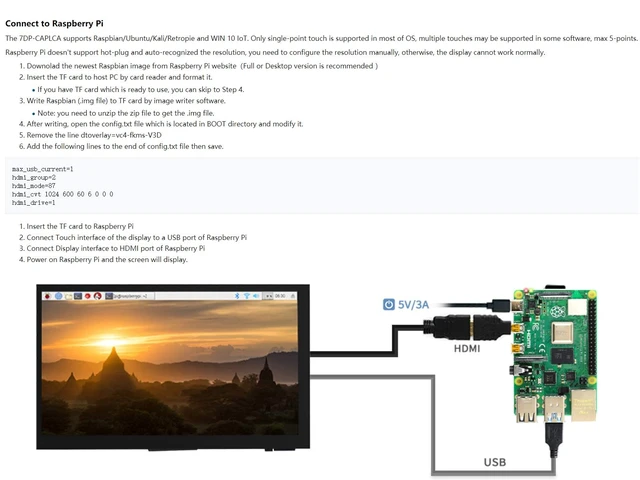
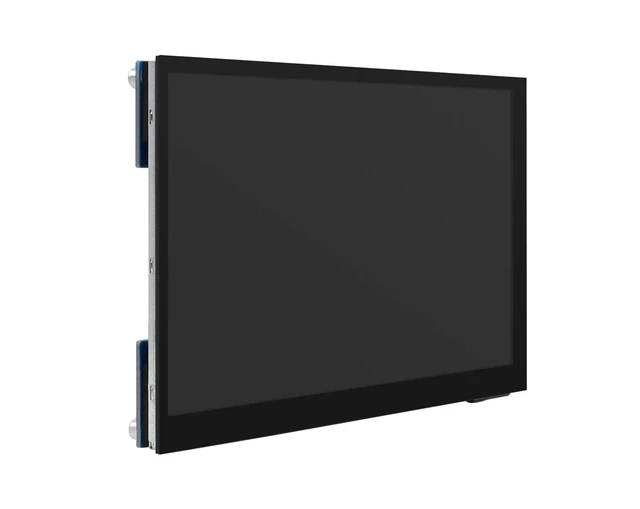
Connect to Raspberry PiThe 7DP-CAPLCA supports Raspbian/Ubuntu/Kali/Retropie and WIN 10 IoT. Only single-point touch is supported in most of OS, multiple touches may besupported in some software, max 5-points. Raspberry Pi doesn't support hot-plug and auto-recognized the resolution, you need to configure the resolution manually, otherwise, the display cannot work normally. 1. Downolad the newest Raspbian image from Raspberry Pi websiteFull or Desktop version is recommended 2. Insert the TF card to host PC by card reader and format it. If you have TF card which is ready to use, you can skip to Step 4.3.
Write Raspbian (. img file) to TF card by image writer software.
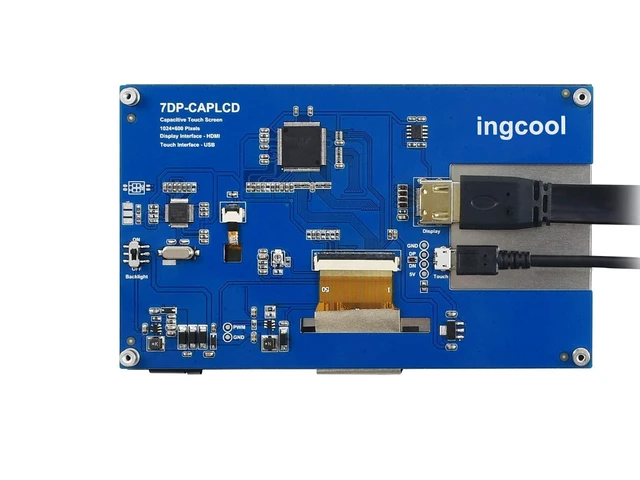
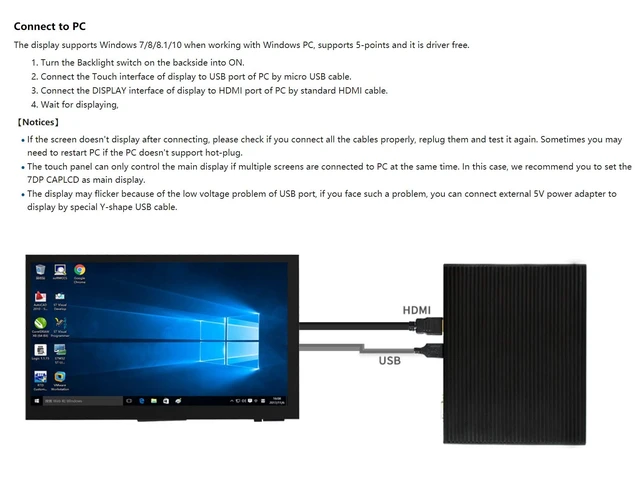
Note: you need to unzip the zip file to get the. img file. 4. After writing, open the config. txt file which is located in BOOT directory and modify it. 5. Remove the line dtoverlay=vc4-fkms-V3D6. Add the following lines to the end of config. txt file then save. max_usb_current=1hdmi_group=2hdmi_mode=87hdmi_cvt 1024 600 60 6 0 0 0hdmi_drive=11. Insert the TF card to Raspberry Pi2. Connect Touch interface of the display to a USB port of Raspberry Pi3. Connect Display interface to HDMI port of Raspberry Pi4. Power on Raspberry Pi and the LCD will display. Connect to PCThe display supports Windows 7/8/ 8.1 /10 when working with Windows PC, supports 5-points and it is driver free. 1. Turn the Backlight switch on the backside into ON. 2. Connect the Touch interface of display to USB port of PC by micro USB cable. 3. Connect the DISPLAY interface of display to HDMI port of PC by standard HDMI cable. 4.
Wait for displayingDevelopment Resourceshttp: //www. ingcool.
com/wiki/7DP-CAPLCD?
Note: Technical Support is provided. Please contact with us first if you have any problem.




 here!