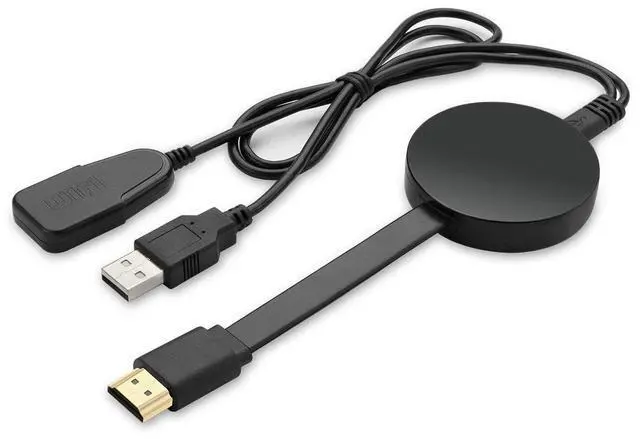
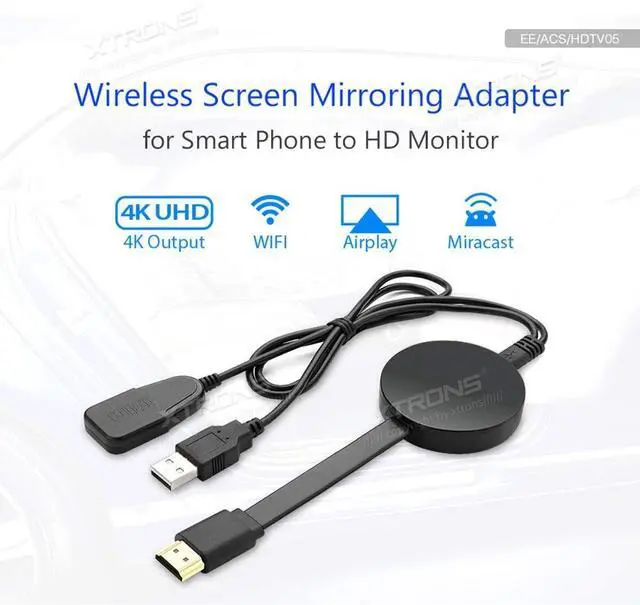
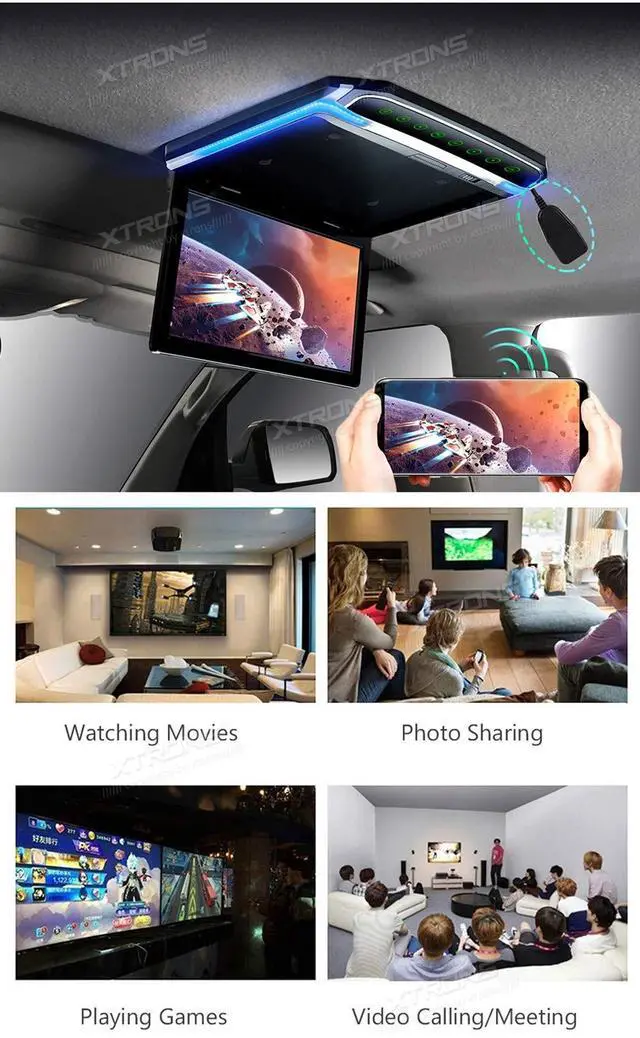
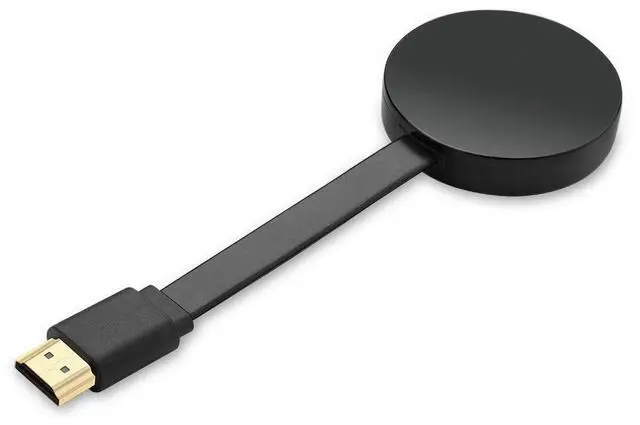
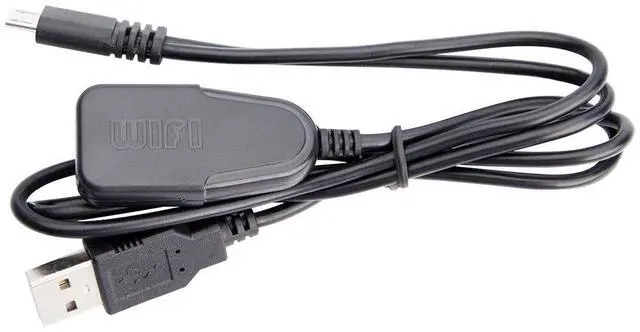
NOTEConnected HD monitor must have HDMI input function. The HDTV05 does NOT support Netflix, Prime videos, Hulu, Comcast TV, DIRECTV and any encrypt paid video apps, due to unauthorized sharing for third-party software. For Android Devices Connection1. Connect WiFi Antenna (micro USB head) to HDTV 05.2. Plug the HDTV05 into the HDMI port of your HD monitor and switch to the right input source. 3. Plug the USB cable into an external USB power adapter. 4. The HD monitor will show Setup page. 5. Find Miracast (or wireless display/smartview/screen mirroring/play to) on your Android device, and select the SSID name.
For iOS Devices Connection1. Connect WiFi Antenna (micro USB head) to HDTV 05.2. Plug the HDTV05 into the HDMI port of your HD monitor and switch to the right input source. 3. Plug the USB cable into an external USB power adapter. 4. The HD monitor will show Setup page. 5. Open your iOS devices camera to scan the first QR code on the setup page. 6. Click Join when pop-up shows up. 7. Turn on Airplay in iOS devices and select HDTV05s SSID (it is on the setup info).
For iOS Devices Connection + DLAN1. Connect WiFi Antenna (micro USB head) to HDTV 05.2. Plug the HDTV05 into the HDMI port of your HD monitor and switch to the right input source. 3. Plug the USB cable into an external USB power adapter. 4. The HD monitor will show the Setup page. 5. Open iOS devices camera to scan the first QR code on the setup page. 6. Click Join when pop-ups show up. 7. Wait 3s till the second QR code shows, scan it and click the pop-ups8.
Safari will be opened automatically, select your home Wi-Fi and enter password (Not SSID on the monitor, but the Wi-Fi you usually use)9. Turn on Airplay in iOS devices and select HDTV05s SSID (it is on the setup info)
Package Includes: 1 x Screen Mirroring Adapter1 x USB Cable (with receiver)





 here!
here!