

Your Browsing History
- Free 30-day Returns
$64.99


Meet Your Seller

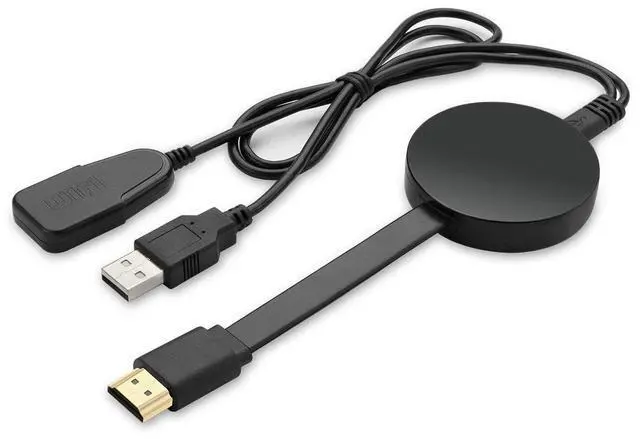
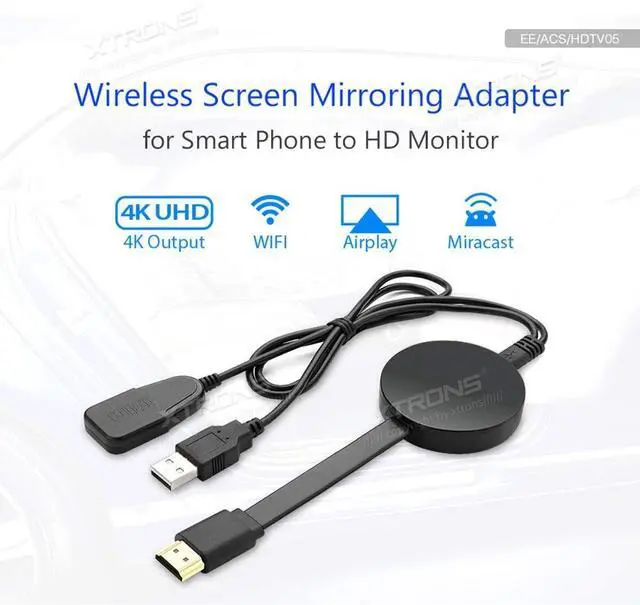
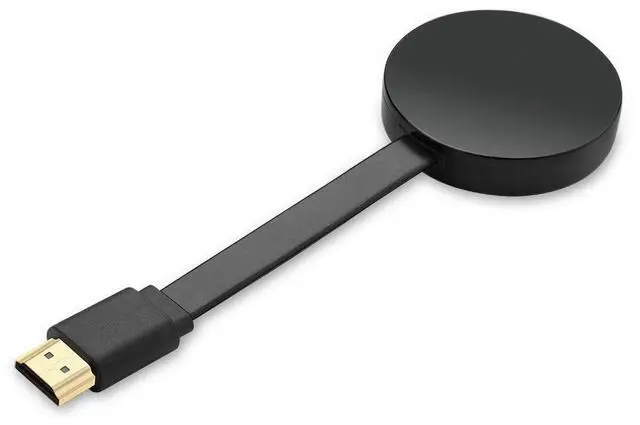
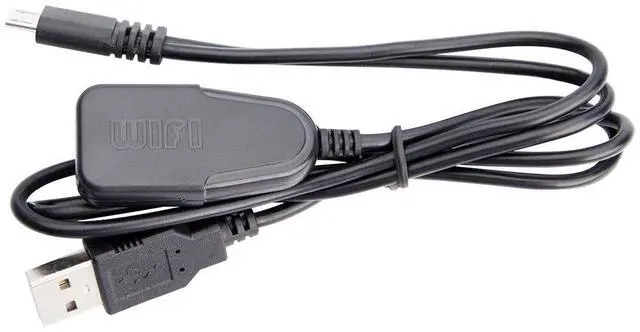


XTRONS 4K Wireless Display Adapter Airplay Miracast Dongle for TV, WiFi Display Dongle Wireless HDMI Dongle TV Receiver Screen Mirroring Adapter for iOS/Android/Monitor/Projector
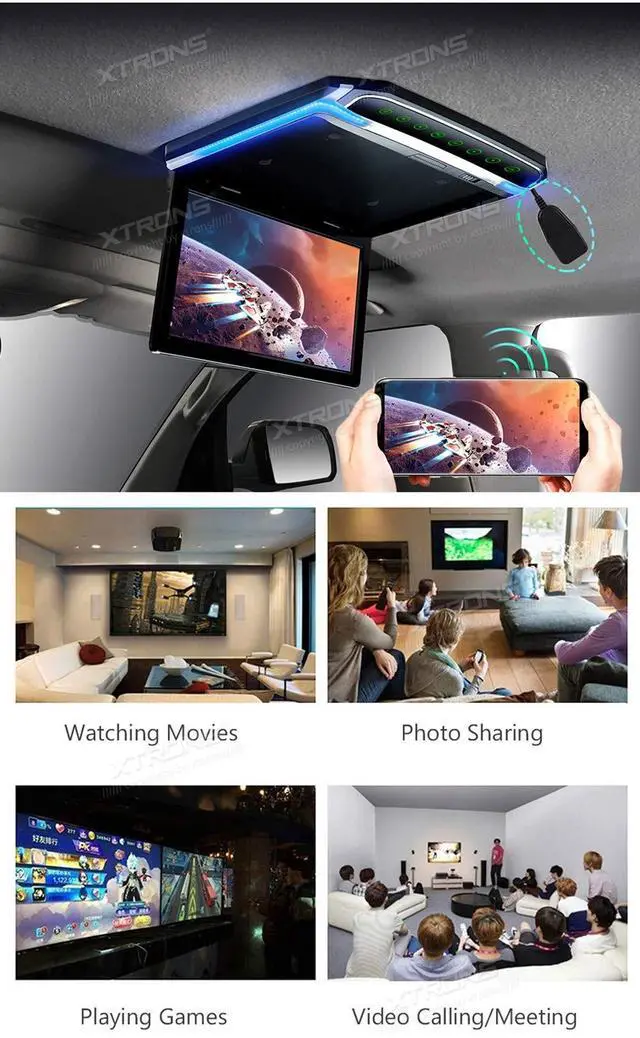
- SHARE CONTENT TO BIG SCREEN WIRELESSLY With this mirroring device, you can cast photos, videos, office files, web browsers, live cameras, and APPs from smartphones to a large screen like TV, projector and any HD monitor.
- 4K UHD OUTPUT - This TV cast device supports 4K resolution video graphic sound output, providing you excellent audio-visual feast on big screen. Now you can create your own exclusive cinema at home or in your car.
- WIDE COMPATIBILITY The wireless display receiver supports Airplay (for iOS) and Miracast (for Android). Its compatible with iOS 8.0+ OS and Android 4.3+ version for your smart devices.
- PORTABLE MINI SIZE - The pocket-size design enables important business conferences, office routine meetings, and multimedia campus education in school, home theater entertainment. Simple and convenient for you.
- XTRONS GUARANTEE - XTRONS provides a 3-month warranty for this item and technical support. If you still have questions about this product, please feel free
+
+
Overview
Specs
Reviews

Any questions? Our AI mode will help you find out quickly.
Try me now
NOTEConnected HD monitor must have HDMI input function. The HDTV05 does NOT support Netflix, Prime videos, Hulu, Comcast TV, DIRECTV and any encrypt paid video apps, due to unauthorized sharing for third-party software. For Android Devices Connection1. Connect WiFi Antenna (micro USB head) to HDTV 05.2. Plug the HDTV05 into the HDMI port of your HD monitor and switch to the right input source. 3. Plug the USB cable into an external USB power adapter. 4. The HD monitor will show Setup page. 5. Find Miracast (or wireless display/smartview/screen mirroring/play to) on your Android device, and select the SSID name.
For iOS Devices Connection1. Connect WiFi Antenna (micro USB head) to HDTV 05.2. Plug the HDTV05 into the HDMI port of your HD monitor and switch to the right input source. 3. Plug the USB cable into an external USB power adapter. 4. The HD monitor will show Setup page. 5. Open your iOS devices camera to scan the first QR code on the setup page. 6. Click Join when pop-up shows up. 7. Turn on Airplay in iOS devices and select HDTV05s SSID (it is on the setup info).
For iOS Devices Connection + DLAN1. Connect WiFi Antenna (micro USB head) to HDTV 05.2. Plug the HDTV05 into the HDMI port of your HD monitor and switch to the right input source. 3. Plug the USB cable into an external USB power adapter. 4. The HD monitor will show the Setup page. 5. Open iOS devices camera to scan the first QR code on the setup page. 6. Click Join when pop-ups show up. 7. Wait 3s till the second QR code shows, scan it and click the pop-ups8.
Safari will be opened automatically, select your home Wi-Fi and enter password (Not SSID on the monitor, but the Wi-Fi you usually use)9. Turn on Airplay in iOS devices and select HDTV05s SSID (it is on the setup info)
Package Includes: 1 x Screen Mirroring Adapter1 x USB Cable (with receiver)
For iOS Devices Connection1. Connect WiFi Antenna (micro USB head) to HDTV 05.2. Plug the HDTV05 into the HDMI port of your HD monitor and switch to the right input source. 3. Plug the USB cable into an external USB power adapter. 4. The HD monitor will show Setup page. 5. Open your iOS devices camera to scan the first QR code on the setup page. 6. Click Join when pop-up shows up. 7. Turn on Airplay in iOS devices and select HDTV05s SSID (it is on the setup info).
For iOS Devices Connection + DLAN1. Connect WiFi Antenna (micro USB head) to HDTV 05.2. Plug the HDTV05 into the HDMI port of your HD monitor and switch to the right input source. 3. Plug the USB cable into an external USB power adapter. 4. The HD monitor will show the Setup page. 5. Open iOS devices camera to scan the first QR code on the setup page. 6. Click Join when pop-ups show up. 7. Wait 3s till the second QR code shows, scan it and click the pop-ups8.
Safari will be opened automatically, select your home Wi-Fi and enter password (Not SSID on the monitor, but the Wi-Fi you usually use)9. Turn on Airplay in iOS devices and select HDTV05s SSID (it is on the setup info)
Package Includes: 1 x Screen Mirroring Adapter1 x USB Cable (with receiver)
Warranty & Returns
Warranty, Returns, And Additional Information
Warranty
- Please contact the Seller directly for warranty information. Warranty information may also be found on the Manufacturer's website.
- CONTACT
Return Policies
- Return for refund within: 30 days
- Return for replacement within: 30 days
- This item is covered by Detail Driven Return Policy
Manufacturer Contact Info
- For a directory of all our manufacturers, please click below.
- Manufacturers Directory
LOADING...