

Your Browsing History

Meet Your Seller

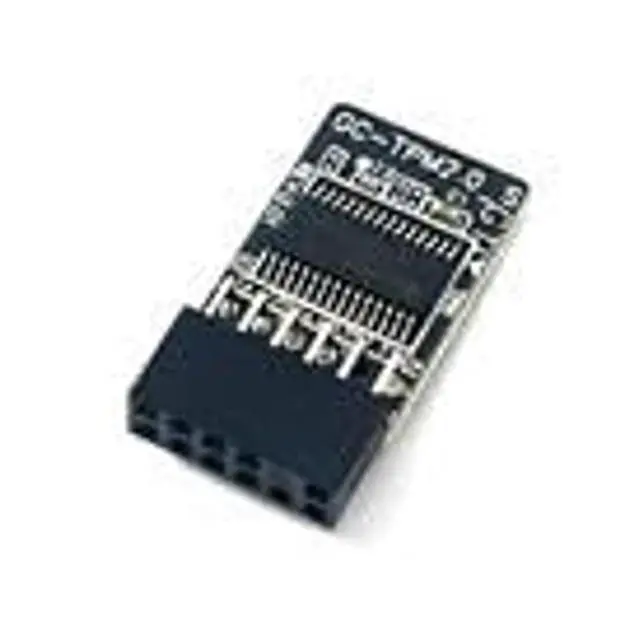
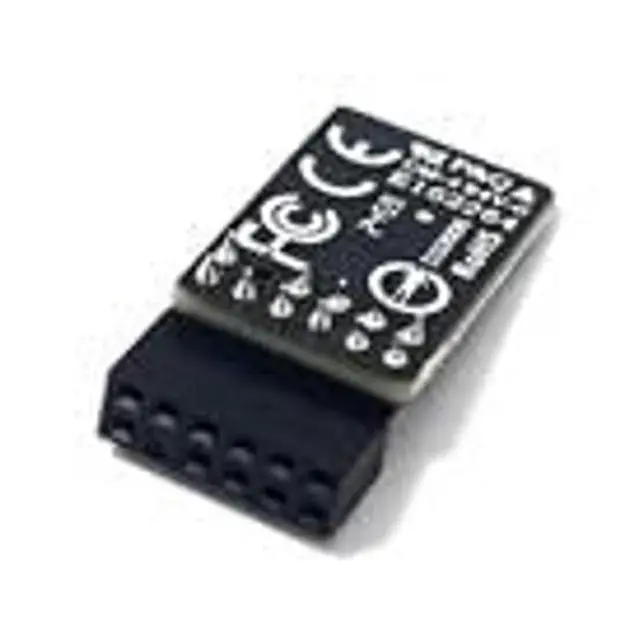
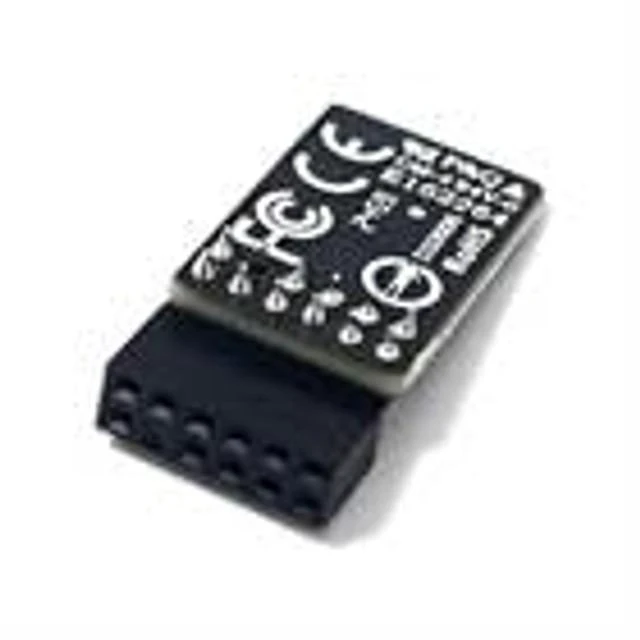


IFIXAI Security Module GC-TPM2.0_S Module LPC 12Pin SLB9665 for GIGABYTE Z390 UD rev. 1.0/rev. 1.1,Z390 Gaming X/I PRO WiFi Elite Ultra PRO/WiFi
- TPM 2.0 GC-TPM2.0_S (12pin-1)Module TPM LPC 12Pin Module,TPM LPC Trusted Platform Module Replacement for GIGABYTE Z390 UD (rev. 1.0),Z390 UD (rev. 1.1),Z390 GAMING X,Z390 I PRO WIFI,Z390 ELITE,Z390 ULTRA,Z390 PRO,Z390 PRO WIFI,Z390 MASTER,Z390 MASTER G2 Edition,Z390 XTREME,Z390 XTREME WATERFORCE,Z390 XTREME WATERFORCE 5G,Z390 M Compute Securely Bus Header Key
- Important: The minimum hardware requirements for upgrading to Windows 11 via TPM 2.0 are as follows: 1 GHz or faster 64-bit processor (dual-core/multi-core), 4 GB of memory, 64 GB of storage space, firmware that supports UEFI Secure Boot and TPM 2.0, DirectX 12-compatible graphics card, and a display with a resolution of 720p or higher.
- Purpose a: Resolve the TPM 2.0 verification issue when upgrading to Windows 11, enabling it to function as an independent encryption chip, providing secure storage for sensitive data, and enhancing security;
- Use case b: Hardware encryption acceleration, such as improving game lag is
+
+
Overview
Specs
Reviews

Any questions? Our AI mode will help you find out quickly.
Try me now
Important Notes: 1. This product is only compatible with older motherboards such as Intel and AMD. It is not compatible with newer motherboard models featuring firmware TPM, all-in-one PCs, or laptops. 2. The minimum hardware requirements for upgrading to Windows 11 via
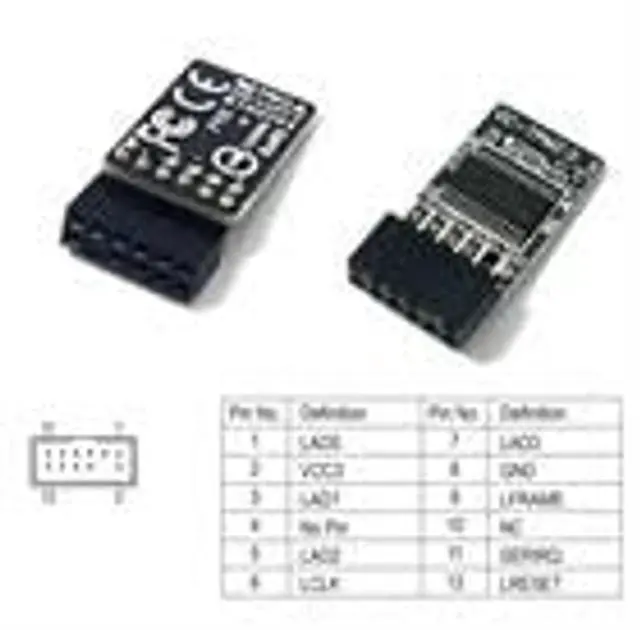
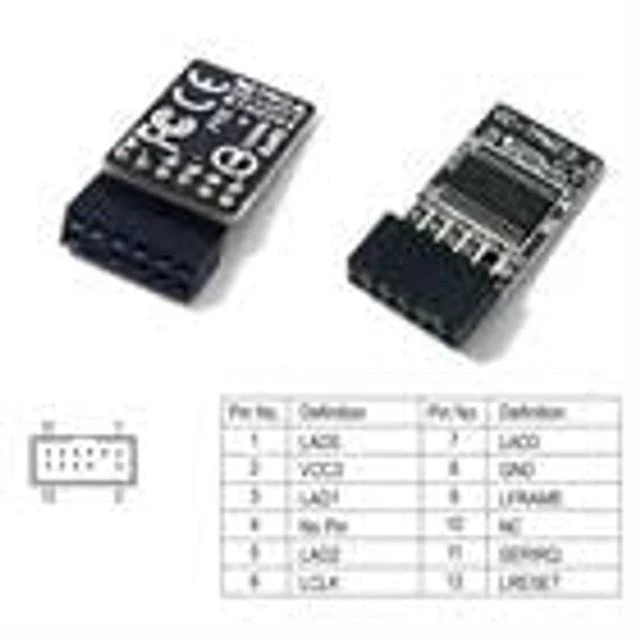
TPM 2.0 are as follows: a 1 GHz or faster 64-bit processor (dual-core/multi-core), 4 GB of memory, 64 GB of storage space, firmware supporting UEFI Secure Boot and TPM 2.0, a DirectX 12-compatible graphics card, and a display with a resolution of 720p or higher. 3. This product has a 12pin-1 connector. Please carefully check the pin positions in the image to ensure compatibility with your motherboard before purchasing. Compatible with GIGABYTE MotherboardZ390 UD (rev. 1.0 )Z390 UD (rev. 1.1 )Z390 GAMING XZ390 I AORUS PRO WIFIZ390 AORUS ELITEZ390 AORUS ULTRAZ390 AORUS PROZ390 AORUS PRO WIFIZ390 AORUS MASTERZ390 AORUS MASTER G2 EditionZ390 AORUS XTREMEZ390 AORUS XTREME WATERFORCEZ390 AORUS XTREME WATERFORCE 5GZ390 MCompatible with TPM-M R 2.012 pin-1
Chipset: Infineon
SLB9665PIN DEFINE:
12PinInterface: LPC
How to select and install a security module: 1. Confirm whether the host has TPM 2.0 or if TPM 2.0 is enabled. 2.
Click Run,
enter: tpm. msc (Win+R keys), and check if the TPM version is ready. 3. If version 2.0 is displayed but not ready, you need to configure settings in the BIOS; consult the motherboard manufacturer's customer service. 4. Open the host and inspect the TPM pins on the motherboard. 5. When installing the module, ensure the chip-side faces inward, align with the pins, and insert fully to prevent loosening. (See image for direction)
TPM 2.0 are as follows: a 1 GHz or faster 64-bit processor (dual-core/multi-core), 4 GB of memory, 64 GB of storage space, firmware supporting UEFI Secure Boot and TPM 2.0, a DirectX 12-compatible graphics card, and a display with a resolution of 720p or higher. 3. This product has a 12pin-1 connector. Please carefully check the pin positions in the image to ensure compatibility with your motherboard before purchasing. Compatible with GIGABYTE MotherboardZ390 UD (rev. 1.0 )Z390 UD (rev. 1.1 )Z390 GAMING XZ390 I AORUS PRO WIFIZ390 AORUS ELITEZ390 AORUS ULTRAZ390 AORUS PROZ390 AORUS PRO WIFIZ390 AORUS MASTERZ390 AORUS MASTER G2 EditionZ390 AORUS XTREMEZ390 AORUS XTREME WATERFORCEZ390 AORUS XTREME WATERFORCE 5GZ390 MCompatible with TPM-M R 2.012 pin-1
Chipset: Infineon
SLB9665PIN DEFINE:
12PinInterface: LPC
How to select and install a security module: 1. Confirm whether the host has TPM 2.0 or if TPM 2.0 is enabled. 2.
Click Run,
enter: tpm. msc (Win+R keys), and check if the TPM version is ready. 3. If version 2.0 is displayed but not ready, you need to configure settings in the BIOS; consult the motherboard manufacturer's customer service. 4. Open the host and inspect the TPM pins on the motherboard. 5. When installing the module, ensure the chip-side faces inward, align with the pins, and insert fully to prevent loosening. (See image for direction)
Warranty & Returns
Warranty, Returns, And Additional Information
Warranty
- Please contact the Seller directly for warranty information. Warranty information may also be found on the Manufacturer's website.
- CONTACT
Return Policies
- Return for refund within: 30 days
- Return for replacement within: 30 days
- This item is covered by Ruian Bazaar Return Policy
Manufacturer Contact Info
- For a directory of all our manufacturers, please click below.
- Manufacturers Directory
LOADING...
LOADING...