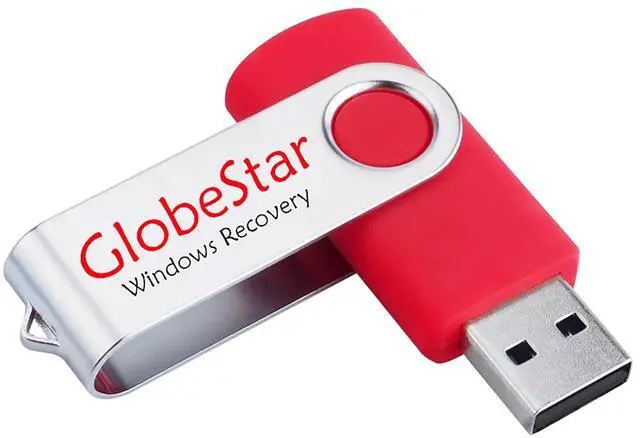
PLEASE READ BEFORE ORDERInstructions for Using a USB Flash DriveYoull need to boot your computer from a USB flash drive via the BIOS or UEFI settings. The process may vary slightly depending on your computers manufacturer and model.
Follow these general steps: Step
1: Boot from the USB Flash Drive1. Insert the USB flash drive into an available USB port on your computer. 2. Turn on your computer or restart it if its already on. 3. As the computer starts, press the key that opens the boot menu. This key varies by manufacturer and model, but its often F2, F10, Esc, or Delete.
Tip: If unsure which key to press, refer to your computers manual or search online (e. g., How to boot from USB on HP Pavilion 15). 4. In the BIOS/UEFI setup menu, locate the Boot Options or Boot Order section. 5. Use the arrow keys to select your USB drive and move it to the top of the boot priority list. 6. Save your changes and exit the BIOS/UEFI setup. Your computer will now boot from the USB flash drive. 32GB - Bootable Windows 10 and 11 USB for Reinstall Windows and password reset, Compatible All BrandsTo use USB you need to boot USB from bios (if you don't know how to do it, there is available instruction, also you can contact with me)Bootable USB Drive Windows 10 and 11 Pro/Home, All 64bit, not
key includeIncluded: 32GB Bootable USB Drive includestutorial for booting from BIOS. Windows 11 Pro/Home/Education, 64BitWindows 10 Pro/Home/Education, 64BitLogin Password Reset Tool for All Windows