Your Browsing History
- Free 30-day Returns
$51.14
Ships from China.
Meet Your Seller
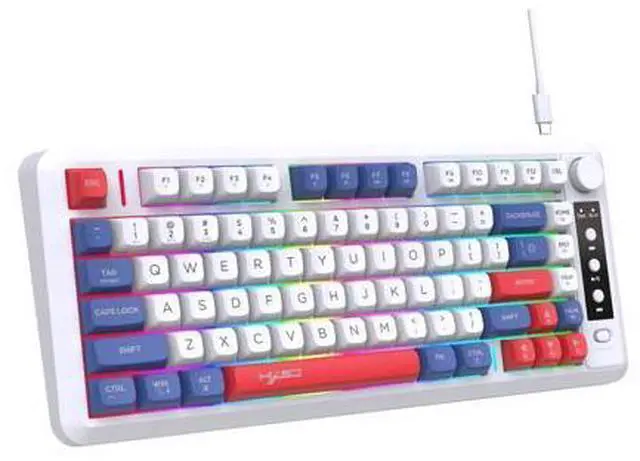
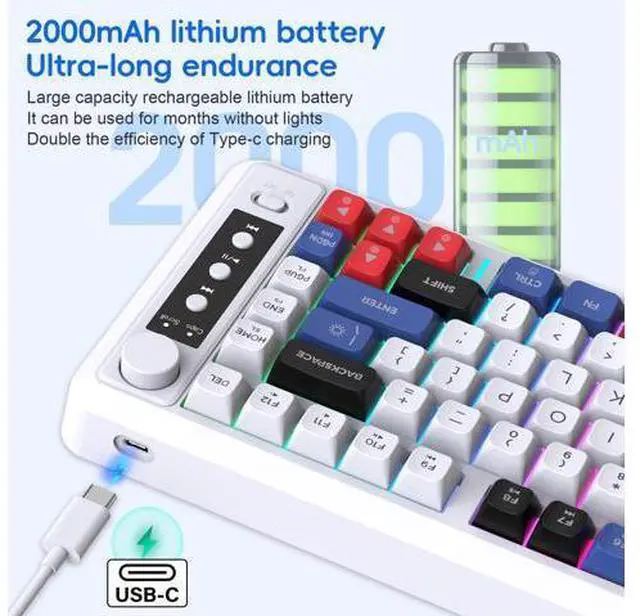
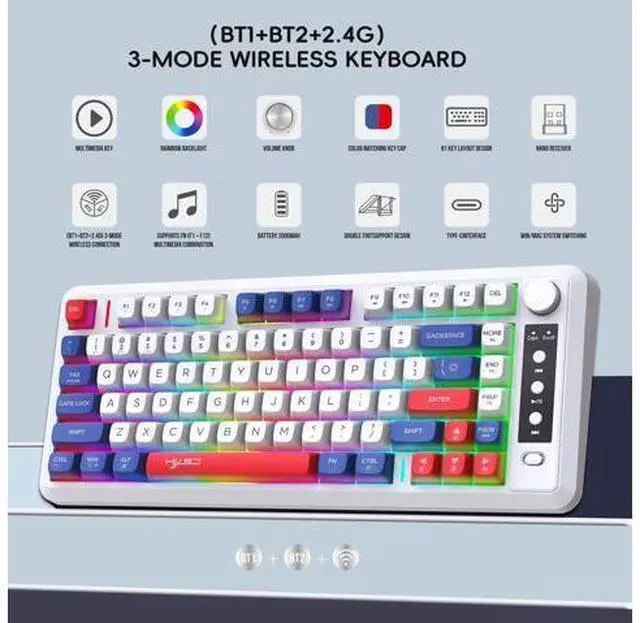
Three-mode Bluetooth wireless film keyboard with dual colors, 81 keys, rechargeable, colorful, office and gaming keyboard
Limited time offer, ends 08/01 By CoreDepot
- System Requirements:; Windows 98/Me/2000/XP/Vista/ Win 7/Win8/Win10/Win11 or Mac IOS and Linux latest.; Sleep mode:; The backlight remains on during normal use, and automatically turns off after 60 seconds of no one using it, entering an idle state (triggering any key to turn on the backlight).; After 10 minutes, it will enter sleep mode and needs to be awakened to use.
+
+
Overview
Specs
Reviews
Any questions? Our AI mode will help you find out quickly.
Try me now
How to use: First, turn the power switch to the "ON" position and turn on the power switch
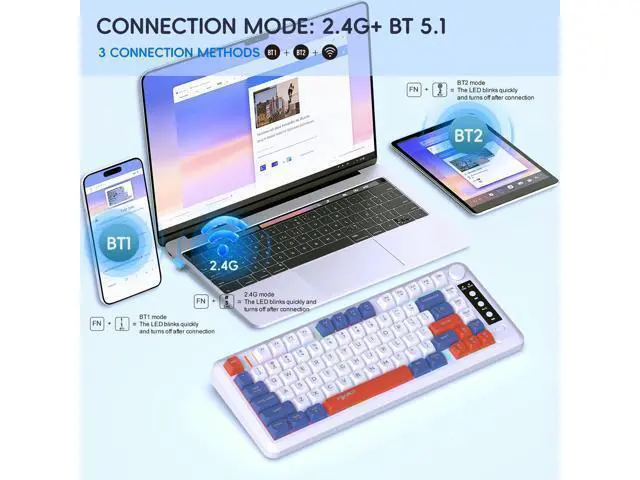
BT1 mode wireless connection: After pressing the FN+1 button, connect to the BT1 wireless connection mode. The red indicator light in the upper right corner will flash rapidly, and you can search for the connection name "BT Keyboard". Click to connect to the "BT Keyboard", the indicator light will turn off after connection, the keyboard light will light up normally, and the keyboard can be used normally.
BT2 mode wireless connection: After pressing the FN+2 button, connect to the BT2 wireless connection mode. The blue indicator light in the upper right corner flashes rapidly, and the connection name can be searched for as "BT keyboard". Click to connect to the "BT keyboard", the indicator light will turn off, the keyboard light will be on normally, and the keyboard can be used normally.
2.4G mode wireless connection: Press FN+3 to switch to 2.4G wireless connection mode, and the green indicator light in the upper right corner will flash quickly. After inserting the blue USB receiver into the computer, the 2.4G indicator light will turn off and the keyboard light will light up normally. The keyboard can be used normally.

BT1 mode wireless connection: After pressing the FN+1 button, connect to the BT1 wireless connection mode. The red indicator light in the upper right corner will flash rapidly, and you can search for the connection name "BT Keyboard". Click to connect to the "BT Keyboard", the indicator light will turn off after connection, the keyboard light will light up normally, and the keyboard can be used normally.
BT2 mode wireless connection: After pressing the FN+2 button, connect to the BT2 wireless connection mode. The blue indicator light in the upper right corner flashes rapidly, and the connection name can be searched for as "BT keyboard". Click to connect to the "BT keyboard", the indicator light will turn off, the keyboard light will be on normally, and the keyboard can be used normally.
2.4G mode wireless connection: Press FN+3 to switch to 2.4G wireless connection mode, and the green indicator light in the upper right corner will flash quickly. After inserting the blue USB receiver into the computer, the 2.4G indicator light will turn off and the keyboard light will light up normally. The keyboard can be used normally.
Warranty & Returns
Warranty, Returns, And Additional Information
Warranty
- Please contact the Seller directly for warranty information. Warranty information may also be found on the Manufacturer's website.
- CONTACT
Return Policies
- Return for refund within: 30 days
- Return for replacement within: non-replaceable
- This item is covered by CoreDepot Return Policy
Manufacturer Contact Info
- For a directory of all our manufacturers, please click below.
- Manufacturers Directory
LOADING...