Your Browsing History
- Free 30-day Returns
$74.44
Ships from China.
Meet Your Seller
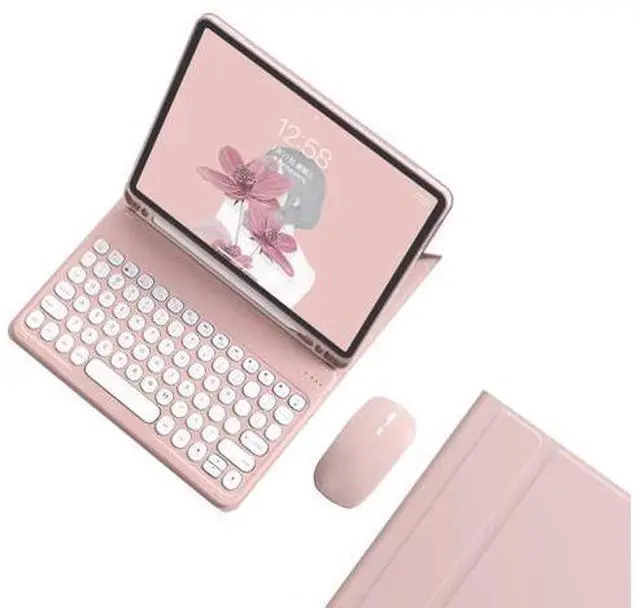
kaidisen Keyboard Case for Galaxy Tab S6 Lite 10.4 inch Case with Keyboard and Bluetooth Mouse, Detachable Candy Color Keyboard Cover Round Key,Pink
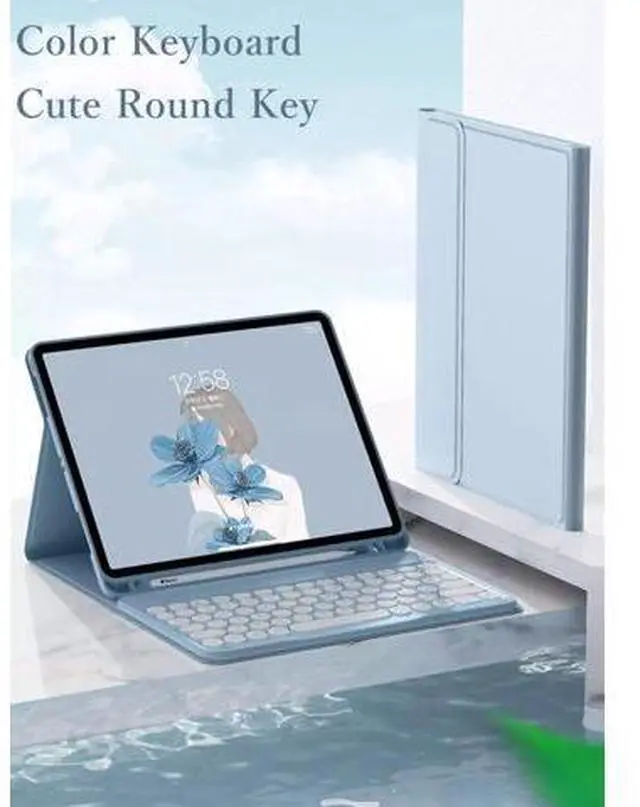
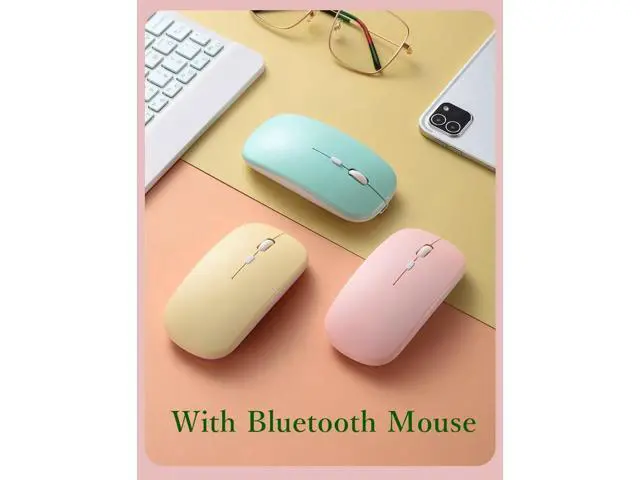
- [(Keyboard Case with Mouse for Galaxy Tab S6 Lite 10.4 Inch)] This color keyboard case mouse is compatible with Galaxy Tab S6 Lite 10.4 inch Model SM-P610/P613/P615/P619 2022/2020 Release Tablet.; [(Round key color keyboard)] Magnetic detachable rechargeable cute round key color keyboard , not only be used for Galaxy tablet, It can also be used for other tablets, phones, and computers with Bluetooth functionality.; [(Bluetooth mouse)] Cute color bluetooth mouse,support Bluetooth connection and 2.4GH wireless connection,The color Bluetooth mouse can be charged, No need to replace the battery,Suitable for various tablets, laptops, and desktop computers.; [(Case with S Pen Holder )] :The protective case comes with S pen holder ,which can be used to store S pen; [(Cute Design)] Cute lovely colorful keyboard case and mouse set, Make Your Tablet Unique, Suitable for women, girls and students
+
+
Overview
Specs
Reviews
Any questions? Our AI mode will help you find out quickly.
Try me now
How to connect this keyboard to
Galaxy tablet:
1: turn on the power button on the right side of the keyboard. (The power indicator will go out after flashing. This is to save power, not
fault) 2: Press the "FN" key in the lower left corner of the keyboard, do not release it, and then press the "C" key.
(Note: You need to press FN+C at the same time) At this time, you can see the Bluetooth indicator flashing, This turns on the Bluetooth of the keyboard.
3: From the tablet's home screen, tap Settings. Tap on Bluetooth. Make sure Bluetooth is set to On, then let it search for devices. Tap on a Bluetooth keyboard, when it appears, to pair.
4: if an authentication (PIN) code appears on the iPad screen, Enter the number with the keyboard and press"Enter" key.
5: When the connection is complete, the Bluetooth indicator will go out, 6: This is a 32-system keyboard, If you are using this keyboard on your Galaxy tablet, Please press "FN" key first, don't release it, then press "Q" key, This is a system for the Galaxy tablet

Galaxy tablet:
1: turn on the power button on the right side of the keyboard. (The power indicator will go out after flashing. This is to save power, not
fault) 2: Press the "FN" key in the lower left corner of the keyboard, do not release it, and then press the "C" key.
(Note: You need to press FN+C at the same time) At this time, you can see the Bluetooth indicator flashing, This turns on the Bluetooth of the keyboard.
3: From the tablet's home screen, tap Settings. Tap on Bluetooth. Make sure Bluetooth is set to On, then let it search for devices. Tap on a Bluetooth keyboard, when it appears, to pair.
4: if an authentication (PIN) code appears on the iPad screen, Enter the number with the keyboard and press"Enter" key.
5: When the connection is complete, the Bluetooth indicator will go out, 6: This is a 32-system keyboard, If you are using this keyboard on your Galaxy tablet, Please press "FN" key first, don't release it, then press "Q" key, This is a system for the Galaxy tablet
Warranty & Returns
Warranty, Returns, And Additional Information
Warranty
- Please contact the Seller directly for warranty information. Warranty information may also be found on the Manufacturer's website.
- CONTACT
Return Policies
- Return for refund within: 30 days
- Return for replacement within: 30 days
- This item is covered by NovaStar Tech Return Policy
Manufacturer Contact Info
- For a directory of all our manufacturers, please click below.
- Manufacturers Directory
LOADING...