









Technical Specifications
-
My monitor shows No Signal then goes into power saving mode. How do I fix this?
There is a shortcut key that allows you to enter the input selection menu, even when the monitor is in Power Saving mode. The key is different for each model, so please consult the manual to find the input selection shortcut key for your monitor.
-
How do I turn off/on my monitor?
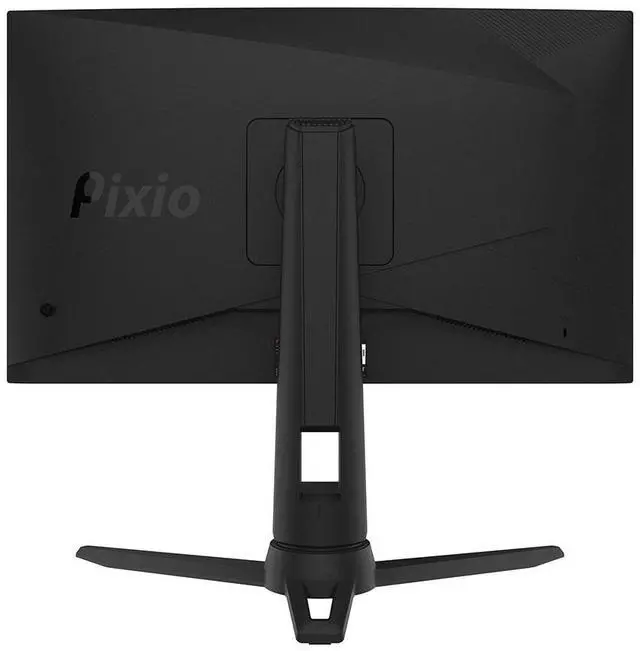
There is usually a jog button behind the monitor or a power button along the bottom-bezel of the monitor. While it is off, pressing the button once will turn on the monitor. To turn it off, press and hold the button for about 3-5 seconds.
-
Where can I find firmware updates for my monitor?
Check our website for monitor firmware updates. If not found, contact customer support. Do not use another model's firmware to avoid issues we cannot assist with.
-
How do I set my resolution or refresh rate?
Every device you connect the monitor to should have some sort of Display Settings where you can change the refresh rate or resolution to what the monitor supports. Please contact customer support if you need further assistance.
-
My monitor is showing a black screen, but the power LED is blue. What’s wrong?
Swap display cables and try different ports on your computer. Test the monitor on various devices. If the issue persists, contact our customer support for assistance.


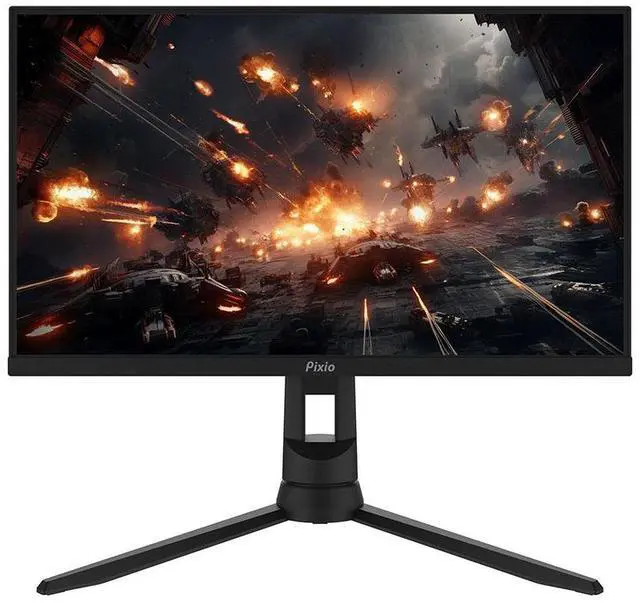
Technical Specifications
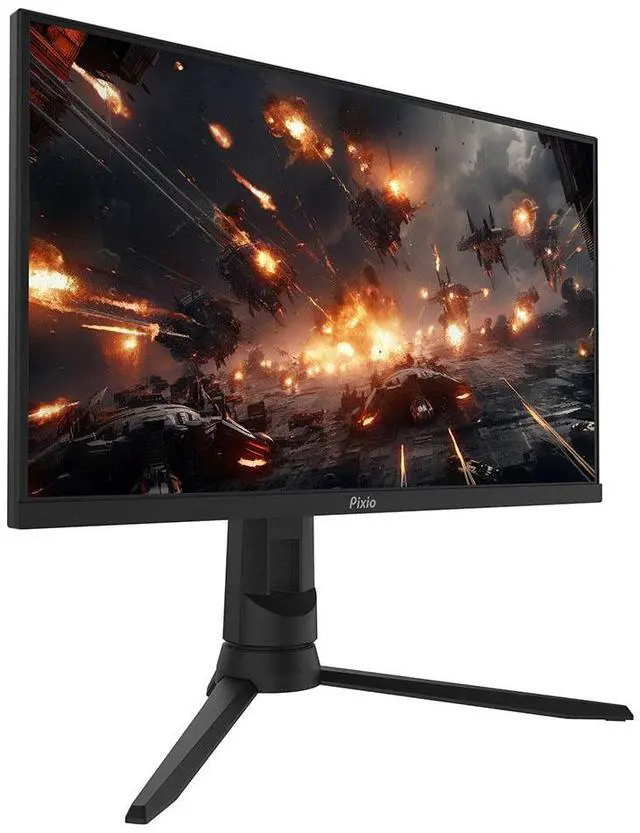
| Screen Size | 24" |
|---|---|
| Panel Type | Fast-IPS |
| Resolution | 2560x1440p |
| Frequency | 180Hz |
| Brightness | 350nits (Max) |
| Aspect Ratio | 16:9 |
| Viewing Angle | H:178º,V:178º (CR>10) |
| Response Time | 1ms (GTG) |
| Contrast Ratio | 1000:1 |
| Color Gamut | 133.85% sRGB | 97.95% DCI-P3 | 95.62% NTSC | 98.45% ARGB |
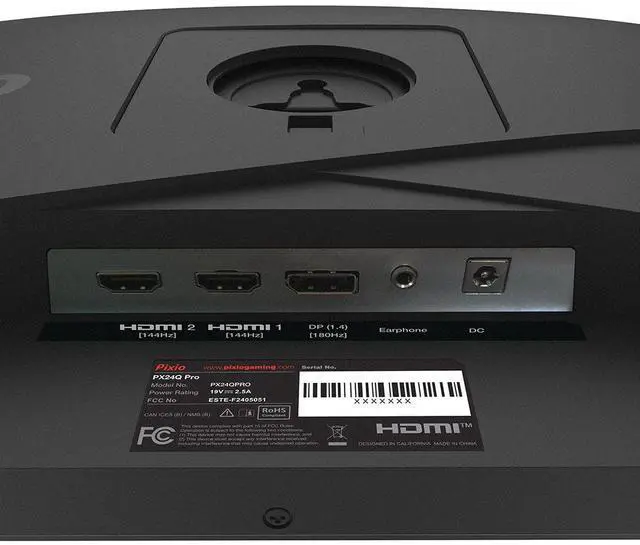
| Connectivity | DisplayPort1.4(180Hz) x1 | HDMI2.0(144Hz) x2 | Earphone Jack x1 |
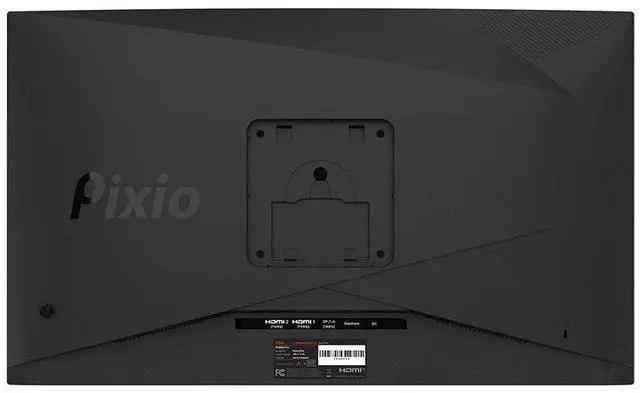
| Mount Pattern | 100x100mm |
| Mount Screw Size | M4*8mm |
| Speakers | Yes |
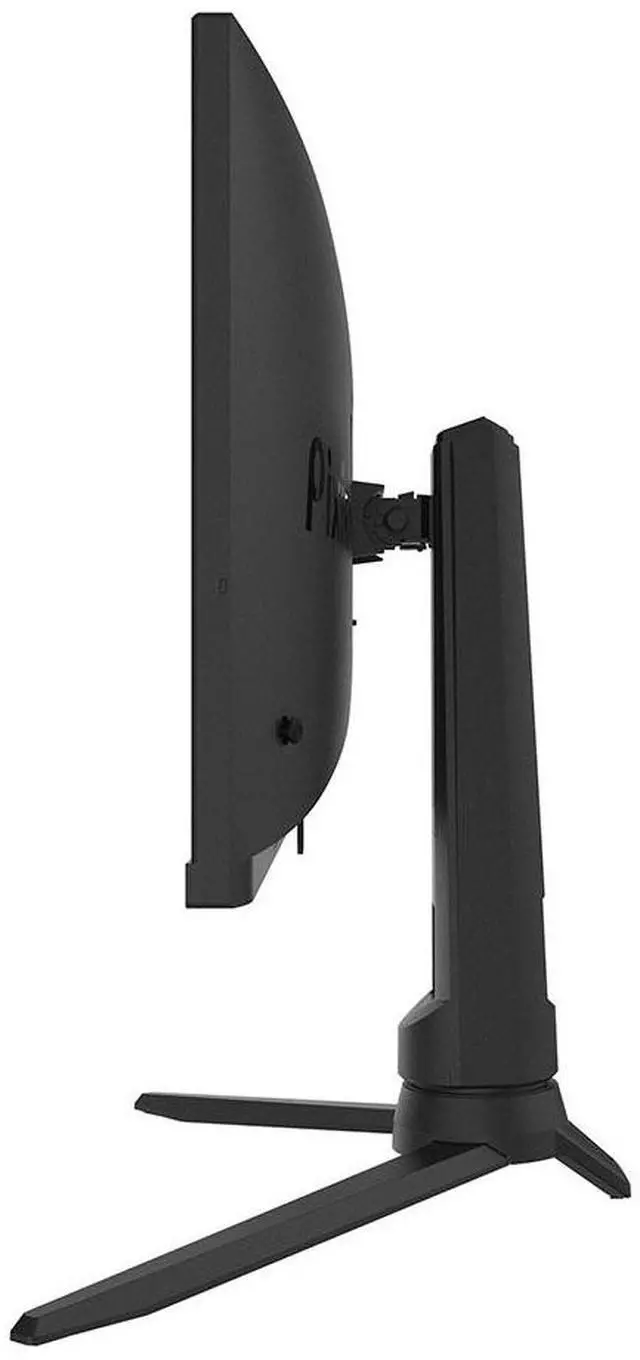
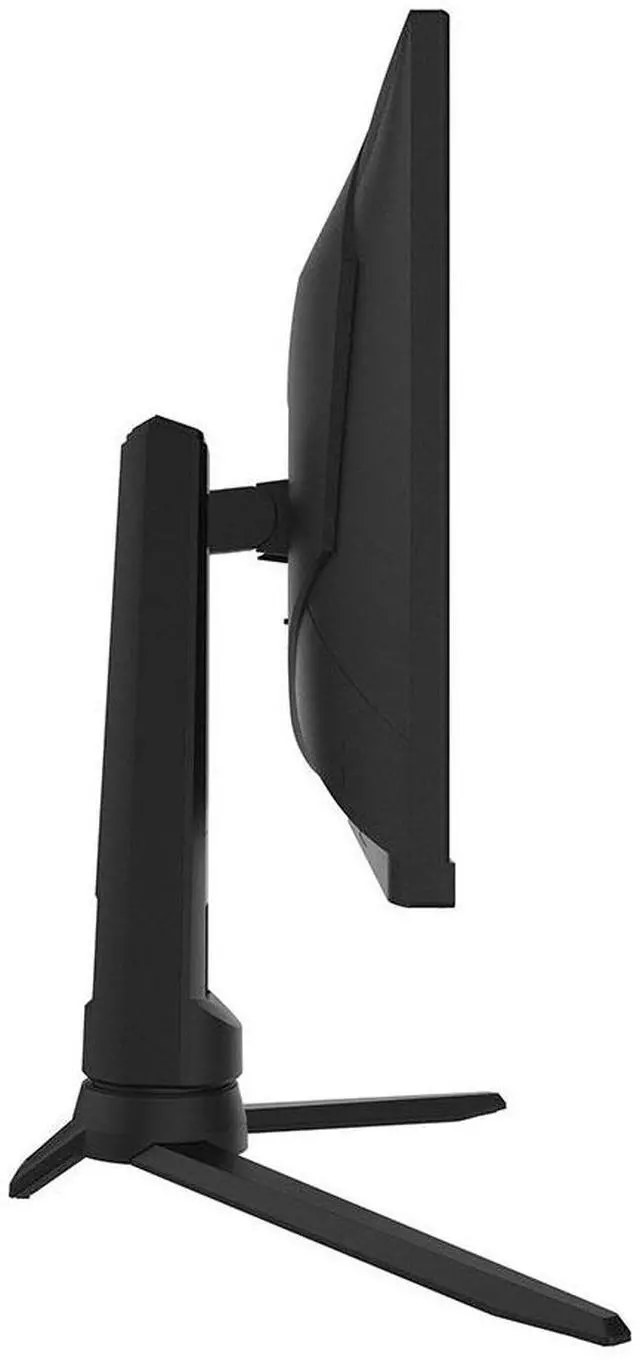
| Dimensions (W x H x D) | 21.33" x 19.44" x 10.46" (With Stand) |
| Dimensions (W x H x D) | 21.33" x 12.69" x 2.36" (Without Stand) |
-
My monitor shows No Signal then goes into power saving mode. How do I fix this?
There is a shortcut key that allows you to enter the input selection menu, even when the monitor is in Power Saving mode. The key is different for each model, so please consult the manual to find the input selection shortcut key for your monitor.
-
How do I turn off/on my monitor?
There is usually a jog button behind the monitor or a power button along the bottom-bezel of the monitor. While it is off, pressing the button once will turn on the monitor. To turn it off, press and hold the button for about 3-5 seconds.
-
Where can I find firmware updates for my monitor?
Check our website for monitor firmware updates. If not found, contact customer support. Do not use another model's firmware to avoid issues we cannot assist with.
-
How do I set my resolution or refresh rate?
Every device you connect the monitor to should have some sort of Display Settings where you can change the refresh rate or resolution to what the monitor supports. Please contact customer support if you need further assistance.
-
My monitor is showing a black screen, but the power LED is blue. What’s wrong?
Swap display cables and try different ports on your computer. Test the monitor on various devices. If the issue persists, contact our customer support for assistance.