




 here!
here!
I’m your shopping assistant for PC builds, upgrades, and everything tech.
Got questions? Ask away!
Start a conversation
here!
I’m your shopping assistant for PC builds, upgrades, and everything tech.
Got questions? Ask away!
Start a conversation
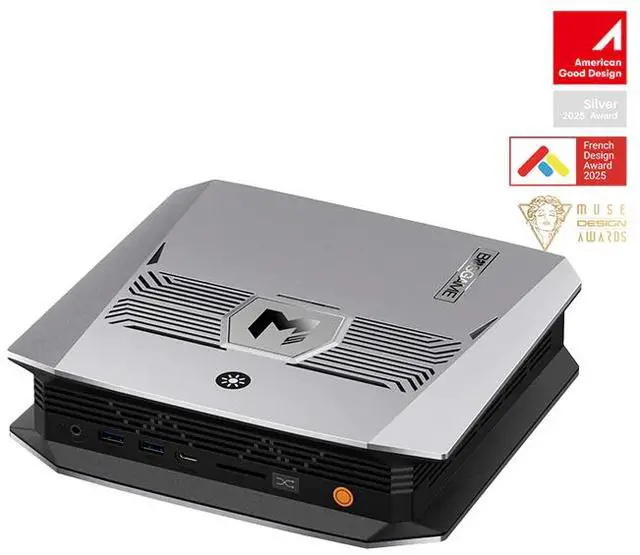
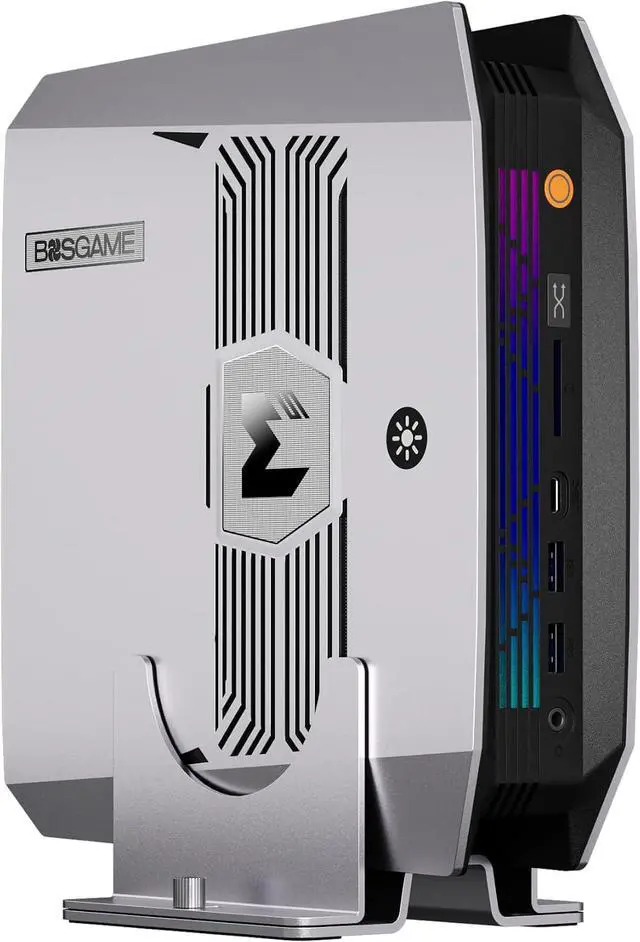
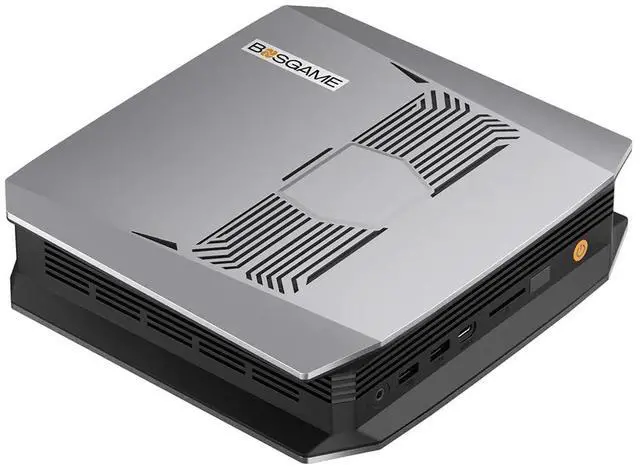
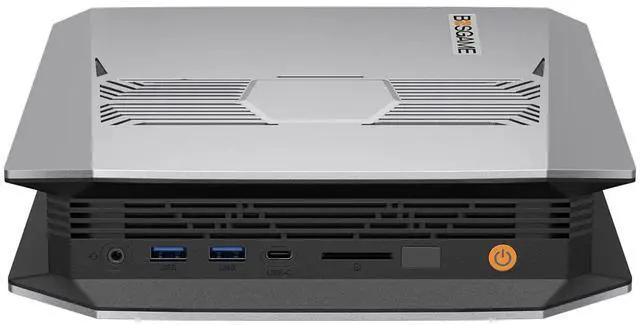










Any questions? Ask CelesteSM will help you find out quickly.


Why is the M5 fan a bit noisy?
The device features multi-mode performance configurations, where the CPU adjusts performance and operational noise based on the active mode. The three main modes are as follows:
Green Mode: Prioritizes quiet operation, suitable for daily office tasks and light usage.
Green (Quiet Mode): Focuses on quiet operation and battery life, ideal for office work and low-load scenarios.
Yellow (Balanced Mode): Automatically balances performance and noise for everyday multitasking.
What is the significance of the three lights on the M5?
The lights represent the different modes the device operates in, indicating the active performance and noise settings based on the light color.
Removing the screws ensures that the Oculink interface on the motherboard is aligned with our port. Once your port can connect the Oculink cable, tighten the screws.
How should M5 memory be configured?
This product supports flexible cache allocation configuration with the following rules:
If the system memory is 96GB, a maximum of 48GB can be allocated as cache.
If the system memory is 128GB, a maximum of 96GB can be allocated as cache.
To achieve better heat dissipation, we recommend the following when using it:
To achieve better heat dissipation, we recommend the following when using it:
Place the device on a well-ventilated desktop, avoiding placing it in a closed cabinet or where it is obstructed by clutter;
Regularly clean the dust from the vents and fans;
If needed, consider using it with a small cooling pad.
What should I do if I'm unable to enter my PIN code?
Based on your description, here are two common issues and their solutions:
Issue 1: Only numbers can be entered when setting a PIN code.
Cause: The option to input letters and symbols may not be enabled by default in the PIN code settings interface.
Solution: In the PIN code settings interface, find and check the "Include letters and symbols" checkbox to set a complex PIN code that includes letters and symbols.
Issue 2: PIN code input has no effect at startup or system interface.
Solution: First, please try using a commonly used numeric PIN code for verification. If you still cannot unlock after multiple attempts, please note: Computers usually support both PIN codes and user passwords for verification. If you have forgotten your PIN code, you can log in to the system using your previously set system user password.
How can I find the integrated graphics card configuration (shared GPU memory)?
Press "Delete" to enter the BIOS. Then, under "Advanced," find "GFX configuration set to specified value" and the option will be unlocked.
How do I restore the internal SSD to factory settings?
Perform a System Restore Using the Video Guide: If you wish to restore your existing system, please refer to our video SOP specifically designed for system restore. The process is clear and intuitive. Video Link: https://www.youtube.com/watch?v=qvgVn5OcKAc
Download and Install a Fresh Operating System: If you find the restore process complex, or if your system has many problems, we recommend downloading and installing a fresh E2 system, which usually provides a cleaner experience. Download Address: Please visit the official support page: https://www.bosgame.com/pages/download-center. Installation Guide: You can find a detailed illustrated installation tutorial at the bottom of this page.
What should I do if I'm unable to enter BIOS?
Method 1: Rebooting from within Windows
On the Windows desktop, press and hold the Shift key on your keyboard.
While holding down the Shift key, click the "Start" menu, then select the "Power" button, and click "Restart".
After the computer restarts, you will enter a blue "Options" menu.
Select: Troubleshoot ? Advanced options ? UEFI firmware settings.
Finally, click the Restart button. The computer will directly enter the BIOS/UEFI settings interface upon the next startup.
Method 2: Entering via a key during startup
Completely shut down the computer.
After pressing the power button to turn it on, immediately begin rapidly and continuously pressing the Delete key (or F2, F10, or Esc key on some brands of computers).
Continue pressing until you enter the BIOS/UEFI settings interface.


