
 here!
I’m your shopping assistant for PC builds, upgrades, and everything tech.
Got questions? Ask away!
Start a conversation
here!
I’m your shopping assistant for PC builds, upgrades, and everything tech.
Got questions? Ask away!
Start a conversation




Any questions? Ask CelesteSM will help you find out quickly.


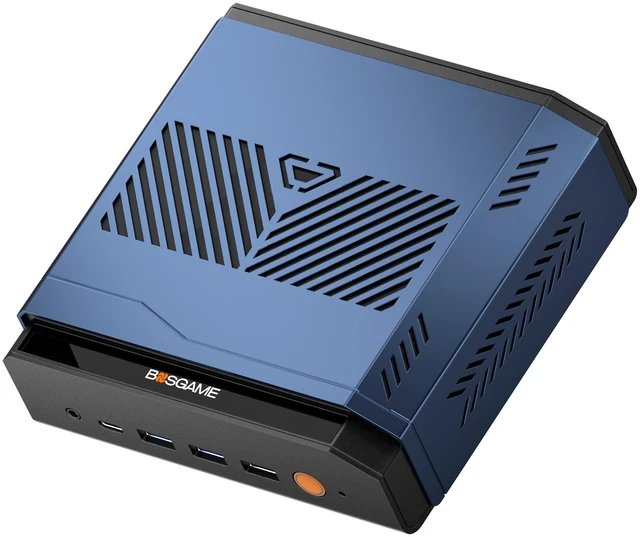
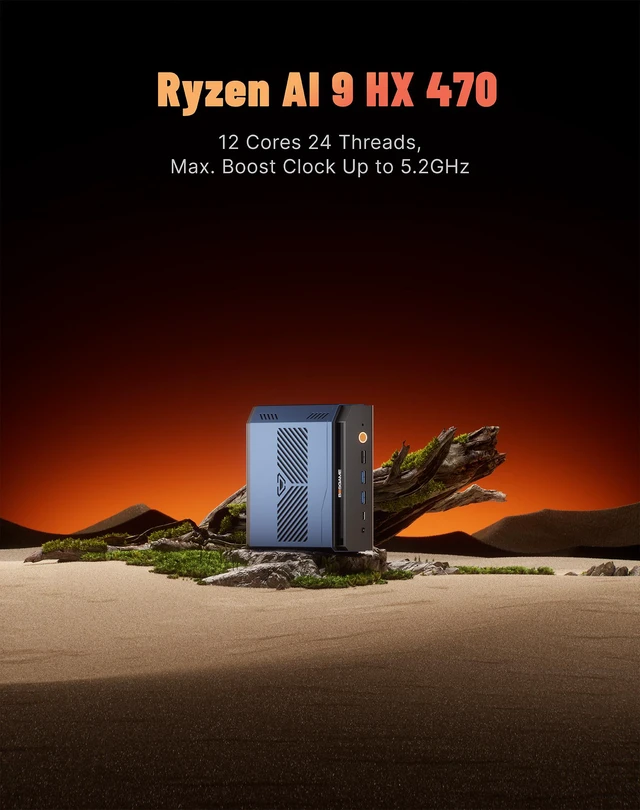
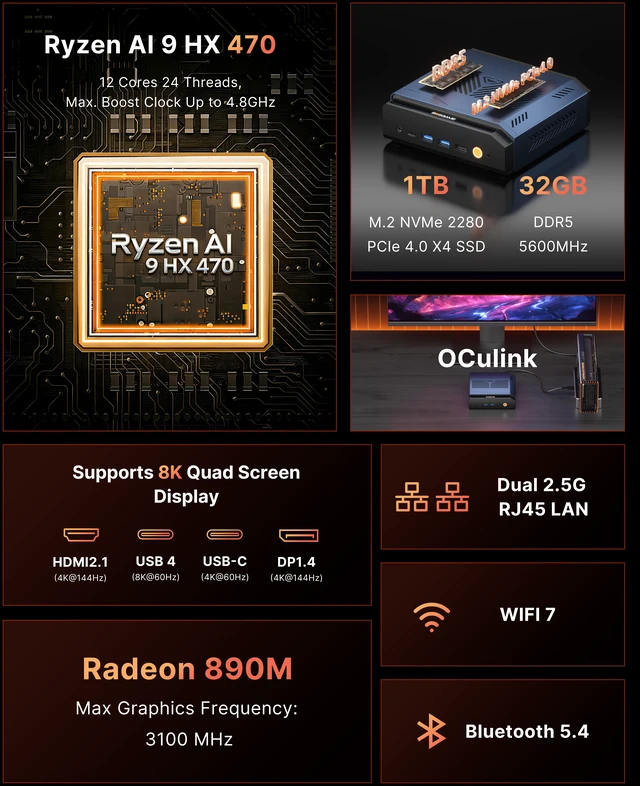
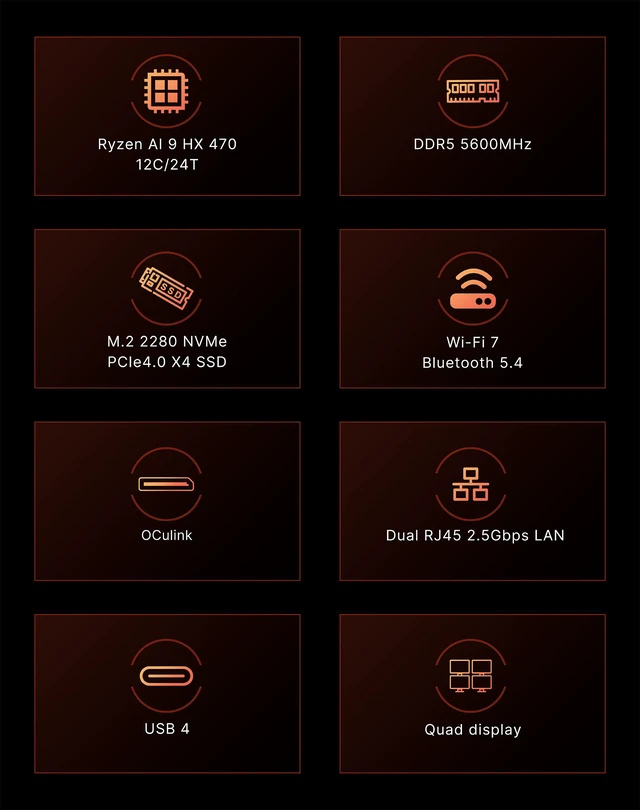
Powered by the Ryzen AI 9 HX 470, featuring 12 cores, 24 threads, and up to 4.8GHz boost clock for smooth multitasking and demanding workloads.
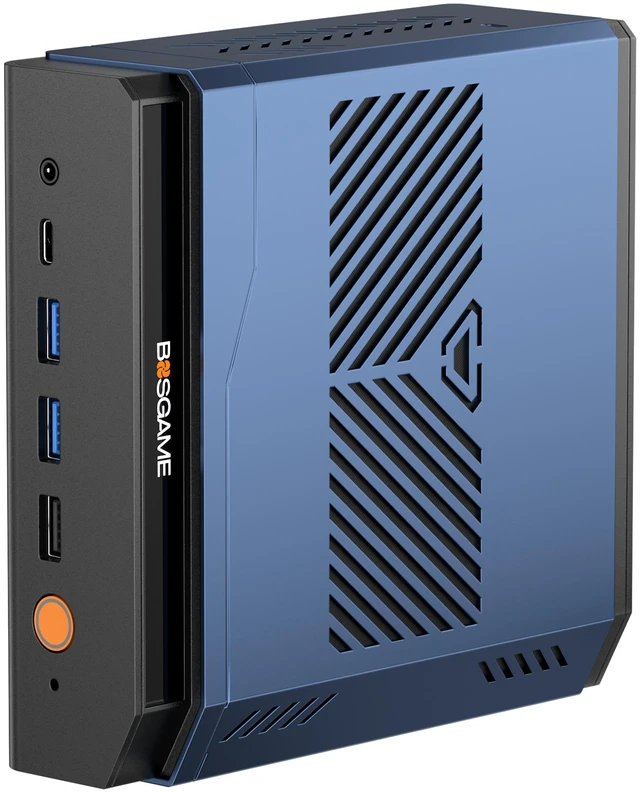
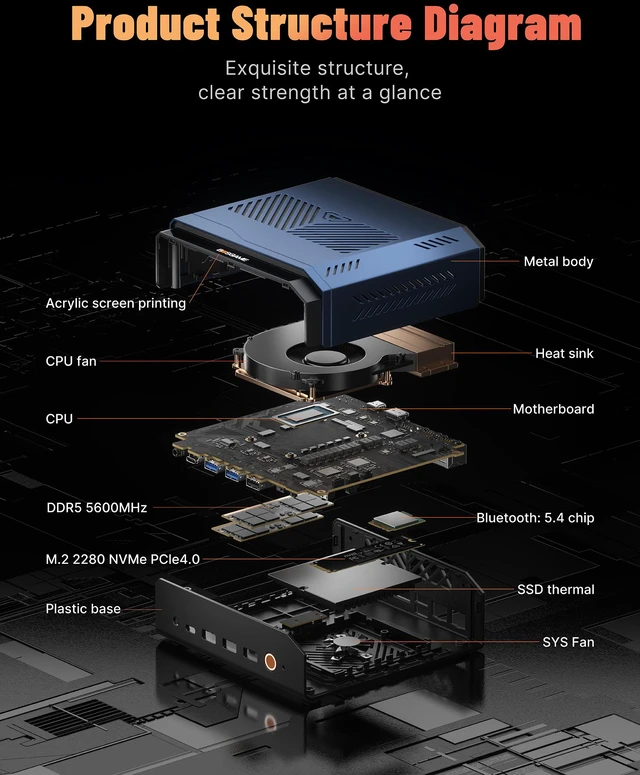
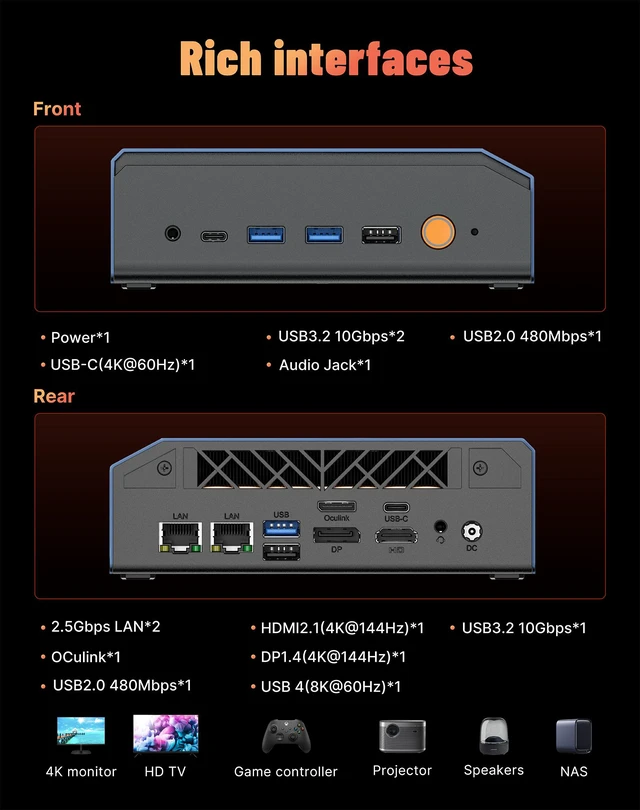
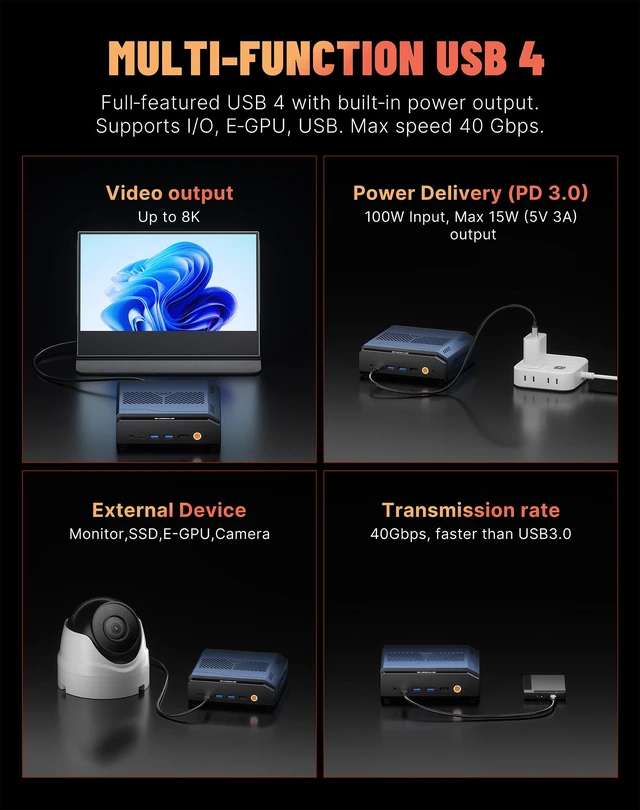
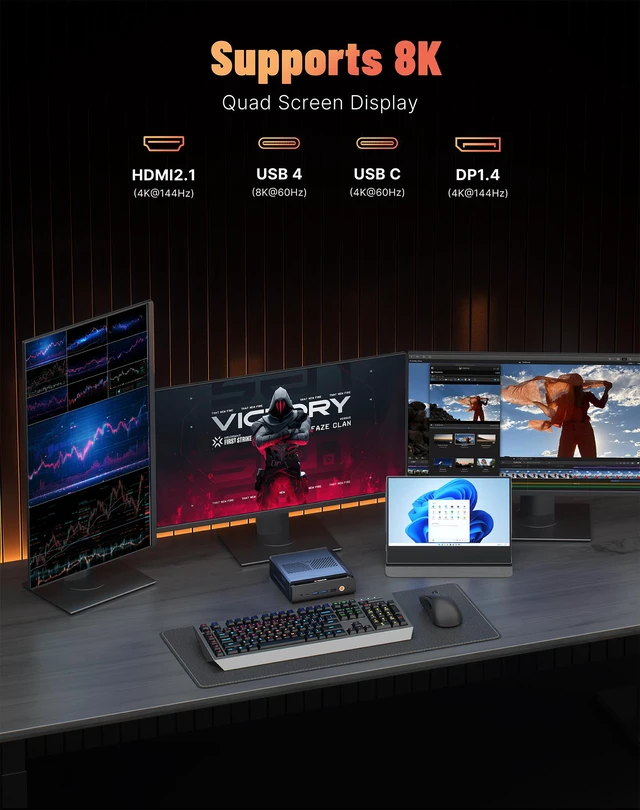
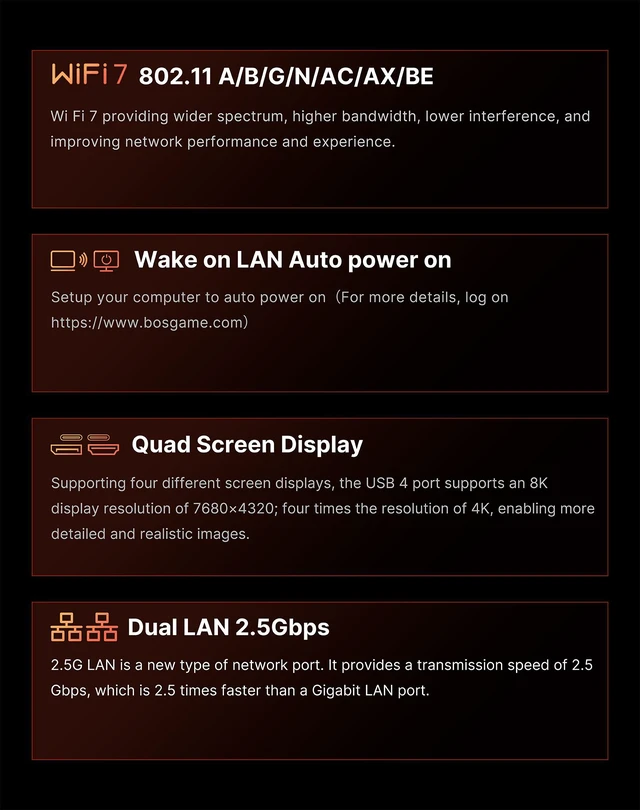
This mini PC features rich, high-performance interfaces including dual 2.5G LAN, USB4, and HDMI 2.1 for versatile connectivity, paired with an advanced dual-fan cooling system and premium components to ensure stable, sustained performance under heavy loads.


How do I automatically update drivers?
In "Settings - Windows Update", after connecting to the network, Windows Update will usually push the latest drivers. Just click to update.
Why can't I plug the Oculink cable into the Oculink port, and how can I fix it?
We believe that the device's port may have slightly sagged during use due to external force or other reasons, causing misalignment and preventing proper connection of Oculink cables. We recommend that you unscrew the motherboard screws to readjust the position, and then carefully adjust the Oculink interface to ensure the cable connector is aligned flush.
Removing the screws ensures that the Oculink interface on the motherboard is aligned with our port. Once your port can connect the Oculink cable, tighten the screws.
How can I improve heat dissipation on my mini PC?
Regarding your question about heat dissipation, please note the following: This mini PC is designed with portability as its core advantage, resulting in a compact internal space. Therefore, under high loads (such as demanding games or multitasking), its heat dissipation capacity is slightly less than that of a traditional desktop PC. This is a common characteristic of mini PCs.
To achieve better heat dissipation, we recommend the following when using it:
What should I do if I'm unable to enter my PIN code?
Based on your description, here are two common issues and their solutions:
Issue 1: Only numbers can be entered when setting a PIN code.
Cause: The option to input letters and symbols may not be enabled by default in the PIN code settings interface.
Solution: In the PIN code settings interface, find and check the "Include letters and symbols" checkbox to set a complex PIN code that includes letters and symbols.
Issue 2: PIN code input has no effect at startup or system interface.
Solution: First, please try using a commonly used numeric PIN code for verification. If you still cannot unlock after multiple attempts, please note: Computers usually support both PIN codes and user passwords for verification. If you have forgotten your PIN code, you can log in to the system using your previously set system user password.
How can I find the integrated graphics card configuration (shared GPU memory)?
Press "Delete" to enter the BIOS. Then, under "Advanced," find "GFX configuration set to specified value" and the option will be unlocked.
How do I restore the internal SSD to factory settings?
Perform a System Restore Using the Video Guide: If you wish to restore your existing system, please refer to our video SOP specifically designed for system restore. The process is clear and intuitive.
Video Link: https://www.youtube.com/watch?v=qvgVn5OcKAc
Download and Install a Fresh Operating System: If you find the restore process complex, or if your system has many problems, we recommend downloading and installing a fresh E2 system, which usually provides a cleaner experience.
Download Address: Please visit the official support page: https://www.bosgame.com/pages/download-center
Installation Guide: You can find a detailed illustrated installation tutorial at the bottom of this page.
What should I do if I'm unable to enter BIOS?
Method 1: Rebooting from within Windows
On the Windows desktop, press and hold the Shift key on your keyboard.
While holding down the Shift key, click the "Start" menu, then select the "Power" button, and click "Restart".
After the computer restarts, you will enter a blue "Options" menu.
Select: Troubleshoot ? Advanced options ? UEFI firmware settings.
Finally, click the Restart button. The computer will directly enter the BIOS/UEFI settings interface upon the next startup.
Method 2: Entering via a key during startup
Completely shut down the computer.
After pressing the power button to turn it on, immediately begin rapidly and continuously pressing the Delete key (or F2, F10, or Esc key on some brands of computers).
Continue pressing until you enter the BIOS/UEFI settings interface.
We want to ensure your holiday shopping this year is hassle-free. That’s why we’re automatically extending our return policies on almost every product! For purchases placed between November 1st, 2026 and December 31, 2026 you will have until January 31, 2027 to return your product.
The BOSGAME VTA-439 is a compact mini PC with an AMD Ryzen AI 9 HX 470 processor, 32GB DDR5 memory, a 1TB PCIe 4.0 SSD, and Radeon 890M graphics, suited to creators and professionals handling demanding multitasking, content creation, and AI-focused workloads.
| Attribute | Value |
|---|---|
| Best For | Mini PC for business, workstation, content creation, gaming, and everyday use, with AI-ready capability |
| Processor And Core Count | AMD Ryzen AI 9 HX 470 with 12 cores, 24 threads, and boost speeds up to 4.8GHz |
| Graphics | Integrated AMD Radeon 890M graphics with a maximum graphics frequency of 3100MHz |
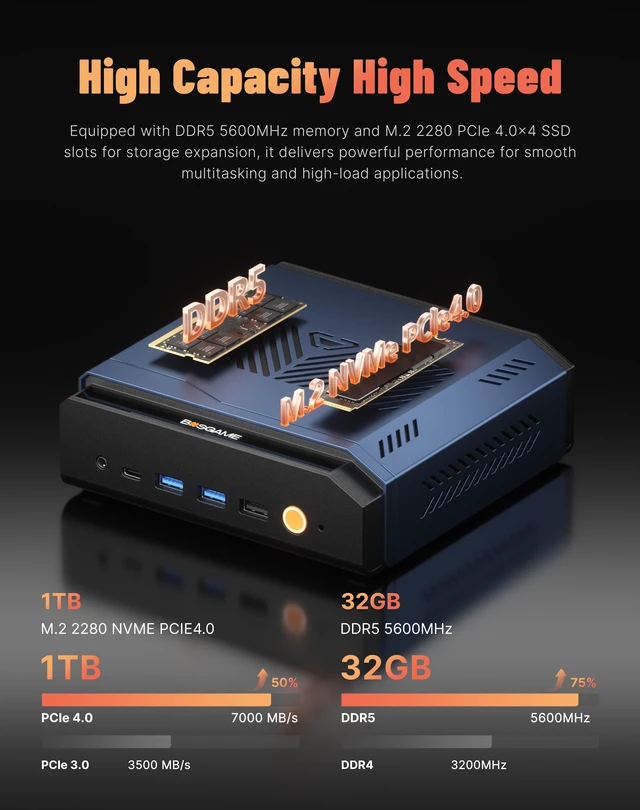
| Memory Configuration | 32GB DDR5 SODIMM memory at 5600MHz |
| Storage And Expansion | 1TB M.2 2280 NVMe SSD with a PCIe 4.0 x4 interface |
| Cache | 12MB L2 cache and 24MB L3 cache |
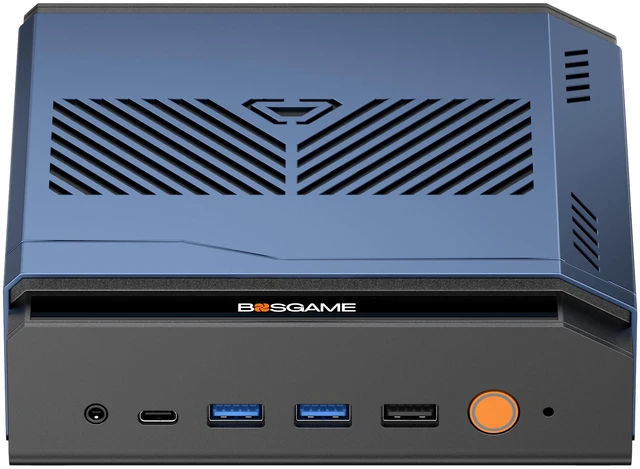
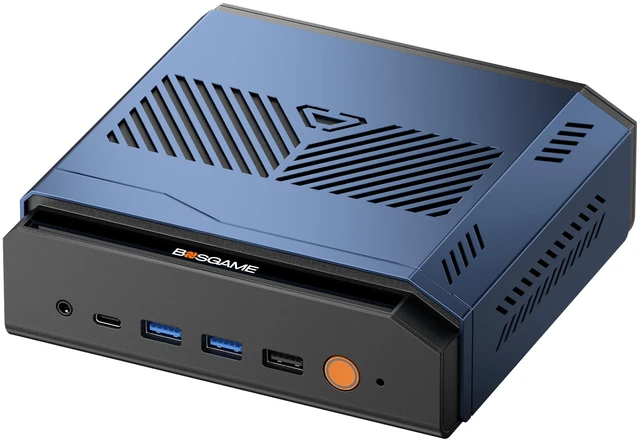
| Ports And Connectivity | Front: 2 USB 3.2 Gen 2, 1 USB 2.0, 1 USB-C, and 1 audio port. Rear: 1 USB 3.2 Gen 2, 1 USB 2.0, 1 USB4, and 1 audio port; also includes an OCuLink connection |
| Display Connections | DisplayPort 1.4 and HDMI 2.1 |
| Wired And Wireless Networking | Dual 2.5GbE RJ45 ports, Wi-Fi 7 (802.11be), and Bluetooth 5.4 |
| Model Identifiers | BOSGAME VTA-439 |
| Color | Black/Blue |