Your Browsing History
- In Stock
- Sold by Newegg
- AI Ready
- Make an Offer
- New

Any questions? Our AI mode will help you find out quickly.
Try me now
Quick View
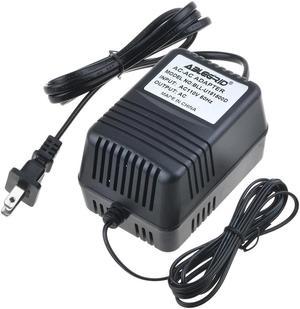
ABLEGRID 9V AC-AC Adapter For A30910C Alesis 3630 Compressor 9V AC Power Supply Cord Cable Wall Charger Mains PSU
- Model #: 484CC32C98
- $18.99 –
- Free Shipping
Quick View
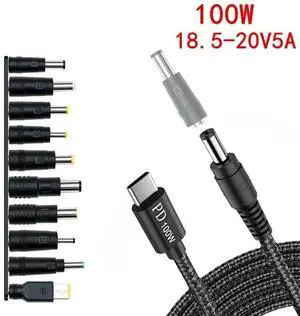
100W TypeC DC Power Adapter Kits Universal 5.5 mm x 2.1 mm DC AC Power Adapter 10 Tips Connector For Laptop Power Supply Plug
- Model #: BBYJJ-353
- $15.64 –
- Free Shipping
Quick View

- Part Number: PA-1450-55LL
- Color: Black
- Model #: PA-1450-55LL_3
- $29.99
- See price in cart
- More options from $19.98 - $24.98
- Free Shipping
Quick View
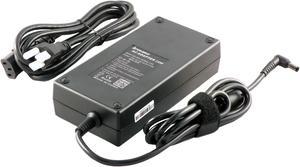
iTEKIRO 230W AC Adapter for MSI Creator 15 A10UG-286, Creator 15 A10UGT, Creator 15 A10UGT-465, Creator 15 A10UH, Creator 15 A10UHT, Creator 15 A11UE, Creator 15 A11UE-491, Creator 15 A11UH A11UH-492
- Type: AC Adapter
- Battery Type: Lithium-Ion
- AC Adapter Voltage: 19.5V
- AC Adapter Current: 11.8A
- Model #: MSI.TAC230WT4.N3

Quick View
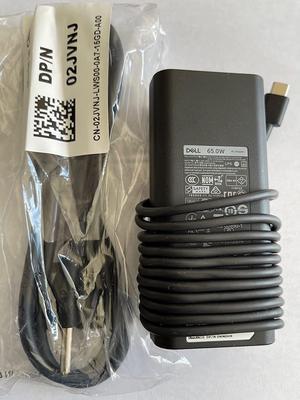
Dell Laptop Charger 65W Watt USB Type C AC Power Adapter LA65NM190/HA65NM190/DA65NM190 Include Power Cord for Dell XPS 12 9250, XPS 13 9350 Compatible with XPS Series and Latitude 5000 Series
- Battery Type: Lithium-Ion
- Model #: CHNBCHGRAPR19036
- $33.74 –
- More options from $33.64 - $39.00
- Free Shipping
Quick View

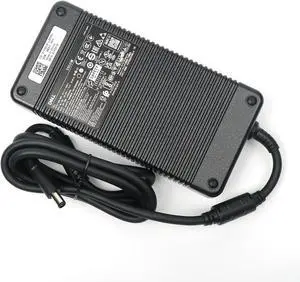
- Model #: LIUB0D127W48H
- $58.95 –
- More options from $58.94 - $113.99
- Free Shipping
Quick View
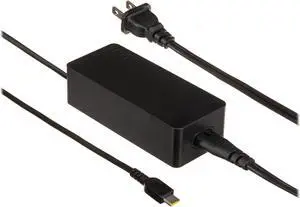
- Model #: 9046581008388
- $71.66 –
- More options from $71.66 - $99.99
- Free Shipping
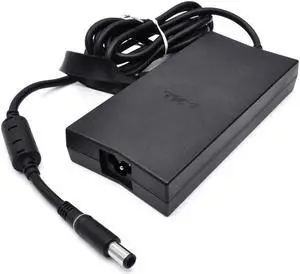
Quick View
- Model #: LA130PM121 0VJCH5
- $31.99 –
- Free Shipping
Quick View
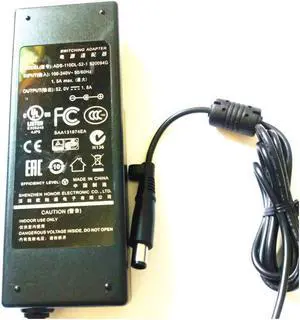
AC Adapter for 52V 1.8A ADS-110DL-52-1 520094G 7.4MM with Pin
- Battery Type: Lithium-Ion
- Model #: Anicorn z27
- $39.99 –
- Free Shipping
Quick View
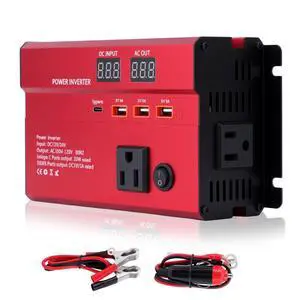
600W Car Power Inverter, 12V/24V Car Plug Adapter Outlet Converter with 1 Type C Port, 3 USB Ports, Dual AC Outlets for Cars Trucks US Plug (Red)
- Model #: 880176622578
- $62.99 –
- $5.99 Shipping

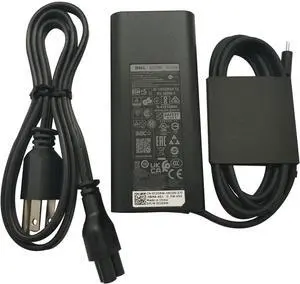
Quick View
- Model #: LA65NM190
- $37.99 –
- More options from $37.96
- Free Shipping
Quick View
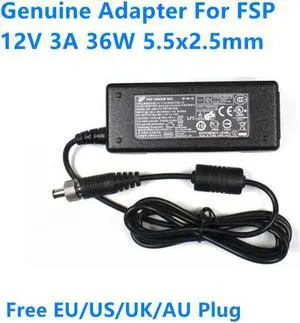
12V 3A 36W 5.5x2.5mm FSP FSP036-RAB FSP036-RBBN2 Switching Power Supply AC Adapter For Monitor Charger
- Model #: ZZL-RNU-ASD1711988
- $25.24 –
- More options from $25.24 - $79.99
- Free Shipping
Quick View
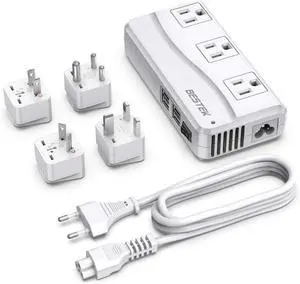
Universal Travel Adapter 100-220V to 110V Voltage Converter 250W with 6A 4-Port USB Charging 3 AC Sockets and EU/UK/AU/US/India Worldwide Plug Adapter
Limited time offer, ends 10/06
- Model #: 327873433880
- $64.49 –
- Free Shipping
Quick View
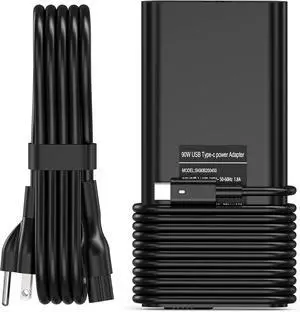
90W USB C Laptop Charger Replacement for Dell XPS 13 15 9500 17 9700 Latitude 3400 3500 5289 5300 Latitude 7420 7320 7390 2in1 Precision 3540 3470 Type C AC Adapter Power Cord
- Type: Chargers & Adapters
- Model #: B0DRN7BVL9CharS
- $37.28 –
- More options from $37.18 - $38.28
- Free Shipping
Quick View
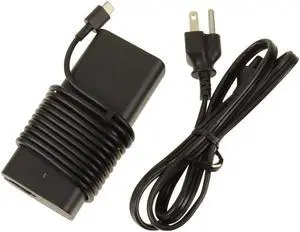
- Battery Type: Lithium-Ion
- Model #: VT148
- $25.95 –
- More options from $25.95 - $45.00
- Free Shipping
Quick View
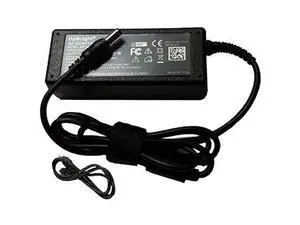
Global 48V 1.25A 60W Ac/Dc Adapter Replacement For Passive Poe Box Power Over Ethernet Injector Kit 48Vdc 1.25Amp 60 Watts Power Supply Cord Cable Ps Battery Charger Mains Psu
Limited time offer, ends 10/15
- Model #: LJ13-1131-C731
- $56.99 –
- More options from $56.41
- Free Shipping
Quick View

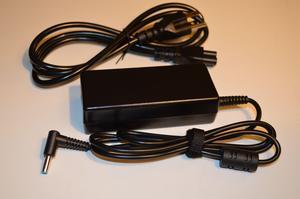
- Model #: H654530-73
- $16.85 –
- More options from $16.85
- Free Shipping
Quick View
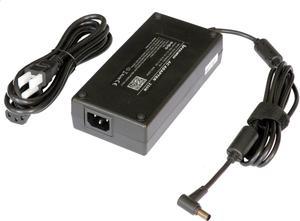
iTEKIRO 230W AC Adapter Charger for Asus GX701GWR GX701GX GX701GX-XB78 GX701GX-XH76 GX701GX-XH78 GX701GX-XS76 GX701GXR GZ700GX GZ700GX-XB98K H500GV H500GV-XS76 H700GV H700GV-XS76
- Type: AC Adapter
- Battery Type: Lithium-Ion
- AC Adapter Voltage: 19.5V
- AC Adapter Current: 11.8A
- Model #: Asus.TAC230WASN.N11
Quick View
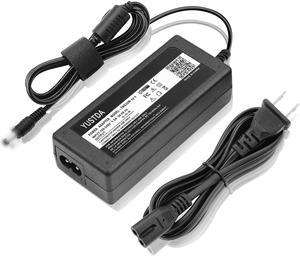
AC Adapter for Dell S Series S2415H S2415Hb 23.8" IPS LED Monitor Power Supply
- Battery Type: N/A
- Model #: 4741640636322
- $14.99 –
- $6.99 Shipping
Quick View
iTEKIRO 230W AC Adapter for CyberPowerPC Tracer III 15R Slim VR 800, Tracer III 15Z Slim VR 300 400 500 600, Tracer III 17S Slim VR 300 400 500, CyberPowerPC Tracer III 17S Slim VR 600 700 800
- Type: AC Adapter
- Battery Type: Lithium-Ion
- AC Adapter Voltage: 19.5V
- AC Adapter Current: 11.8A
- Model #: GB.TAC230WT4.N25
Quick View
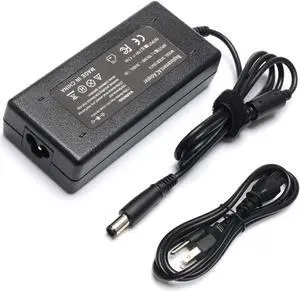
New 90W AC Adapter Laptop Charger for HP Elitebook 8440p 8570p 6930p 2540p 8470p 2560p 6930p 8560p 8540w 2570p 8540p 2760p 2170p 8530w HP Pavilion G4 G6 G7 M6 DM4 DV4 DV5 Laptop Power Supply Cord
- Battery Type: N/A
- Model #: SAB08B3R6MQB
- $10.49 –
- More options from $10.49 - $19.00
- Free Shipping
Quick View
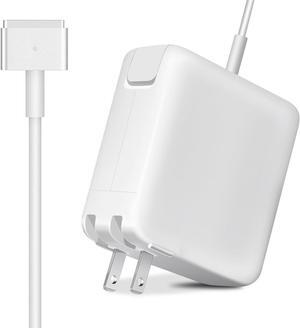
aibileec Mac book Air Charger Replacement for Mac Air AC 45W Power T-tip Shape Connector Power Adapter for 11 inch and 13 inch (Between 2012-2017)
- Type: A/V
- Color: White
- Model #: 1436
- $24.00 –
- $3.00 Shipping
Quick View
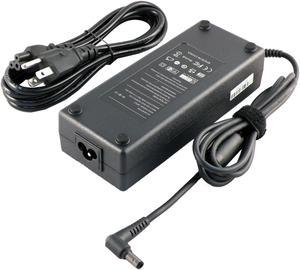
iTEKIRO 120W AC Adapter Charger for CyberpowerPC A15-120P1A; Fangbook III BX6 HX6, Fangbook 4 SX6-SE SX7-SE, Tracer III 15 Slim 100, Tacer III 15 Slim 200, Xplorer X5-6300 (5.5 mm Plug Tip)
- Type: AC Adapter
- Battery Type: Lithium-Ion
- AC Adapter Voltage: 19.5V
- AC Adapter Current: 6.15A
- Model #: CP.TAC120WT4.NP1
Quick View
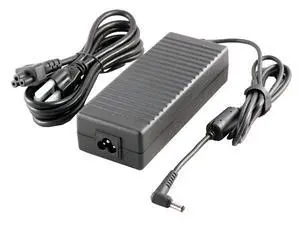
135W AC Adapter for Acer AN517-52 AN517-52-52T3 AN715 AN715-51 AN715-51-70TG AN715-51-73BU AN715-51-752B AN715-51-752B NX.KFPAA.001, AK.135AP.020 V5-591G VN7-592G VN7-792G AN517-52-5744
- Type: AC Adapter
- Battery Type: Lithium-Ion
- AC Adapter Voltage: 19V
- AC Adapter Current: 7.1A
- Model #: Acer.TAC135WT7.10
Quick View
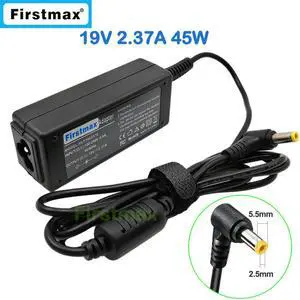
19V 2.37A laptop AC adapter charger for Toshiba Satellite S55-B5266 S55-B5268 S55-B5269 S55-B5280 S55-B5289 S55-B5292 S55-C5248
- Model #: ooc-0138855
- $36.67 –
- Free Shipping
Quick View
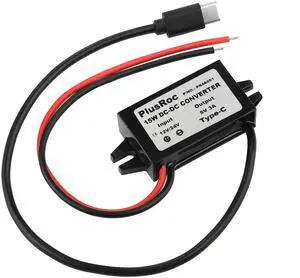
Waterproof 12V/24V to 5V Converter DC-DC Step Down Module Power Adapter Compatible with Raspberry Pi 4, Cellphone, Car (USB Type-C Connector)
- Brand: PlusRoc
- Part Number: PR-4A061
- Type: USB Type-C Connector
- Color: Black
- Model #: 884736693660
- $26.99 –
- Free Shipping
Quick View
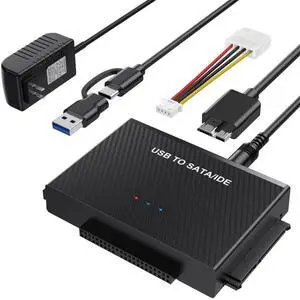
Hard Drive Reader USB 3.0 to SATA IDE Adapter,IDE SATA to USB + Type C External Hard Drive Adapter Data Recovery Converter Kit for Universal 2.5 3.5 HDD SSD Hard Drive Disk, with 12V/2A Power Adapter
Limited time offer, ends 10/04
- Part Number: AD-STAIDE
- Type: Enclosure
- AC Adapter: Yes
- Material: abs plastic
- Model #: AD-STAIDE
- $37.99 –
- Free Shipping
Quick View
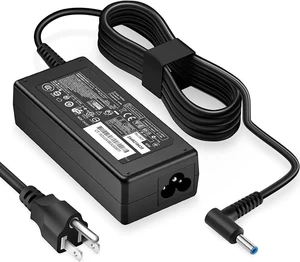
- $21.07 –
- Free Shipping
![[3-Pack] USA 3-Prong Male AC Plug, Right Angle ETL Nema 6-20P 3 Pole DIY Rewirable, 20A 250V USA 3Pin AC Connector, 8 Direction Rotatable](https://c1.neweggimages.com/productimage/nb300/C73VD26081306WAKF1F.jpg "[3-Pack] USA 3-Prong Male AC Plug, Right Angle ETL Nema 6-20P 3 Pole DIY Rewirable, 20A 250V USA 3Pin AC Connector, 8 Direction Rotatable")
Quick View
[3-Pack] USA 3-Prong Male AC Plug, Right Angle ETL Nema 6-20P 3 Pole DIY Rewirable, 20A 250V USA 3Pin AC Connector, 8 Direction Rotatable
Limited time offer, ends 10/07
- Brand: LORDWORLD
- Model #: 26-8CXY13-308
- $45.57 –
- Free Shipping
![[2-Pack] USA 3-Prong Male AC Plug, Right Angle ETL Nema 6-20P 3 Pole DIY Rewirable, 20A 250V USA 3Pin AC Connector, 8 Direction Rotatable Plug](https://c1.neweggimages.com/productimage/nb300/C73VD26081306WI8G3F.jpg "[2-Pack] USA 3-Prong Male AC Plug, Right Angle ETL Nema 6-20P 3 Pole DIY Rewirable, 20A 250V USA 3Pin AC Connector, 8 Direction Rotatable Plug")
Quick View
[2-Pack] USA 3-Prong Male AC Plug, Right Angle ETL Nema 6-20P 3 Pole DIY Rewirable, 20A 250V USA 3Pin AC Connector, 8 Direction Rotatable Plug
Limited time offer, ends 10/07
- Brand: LORDWORLD
- Model #: 26-8CXY13-310
- $37.02 –
- Free Shipping
![[3-Pack] Nema 5-15P Male Plug, ETL Listed 15AMP/125VOLT,15A Straight DIY Plug, USA/Canada 3-Prong Connector, Household AC Industrial Grade Black ANG White Color](https://c1.neweggimages.com/productimage/nb300/C73VD26081307KASNCE.jpg "[3-Pack] Nema 5-15P Male Plug, ETL Listed 15AMP/125VOLT,15A Straight DIY Plug, USA/Canada 3-Prong Connector, Household AC Industrial Grade Black ANG White Color")
Quick View
[3-Pack] Nema 5-15P Male Plug, ETL Listed 15AMP/125VOLT,15A Straight DIY Plug, USA/Canada 3-Prong Connector, Household AC Industrial Grade Black ANG White Color
Limited time offer, ends 10/07
- Brand: LORDWORLD
- Model #: 26-8CXY13-413
- $45.57 –
- Free Shipping
Quick View
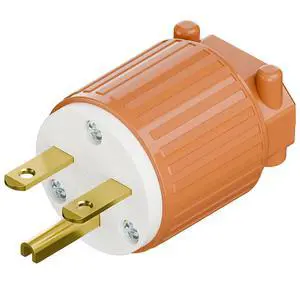
NEMA 6-15P Male Plug, ETL Listed 15AMP/250VOLT,15A Straight DIY Male, USA/Canada 3-Prong Connector, 15A/250V Plug Household AC Industrial Grade Plug Orange Color
Limited time offer, ends 10/07
- Brand: LORDWORLD
- Model #: 26-8CXY13-406
- $22.77 –
- Free Shipping