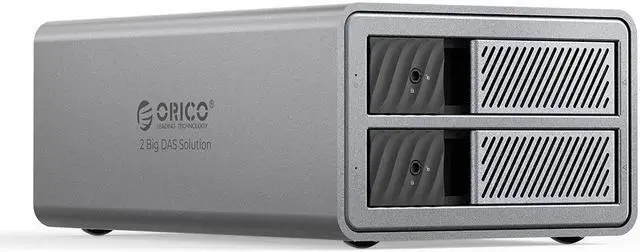
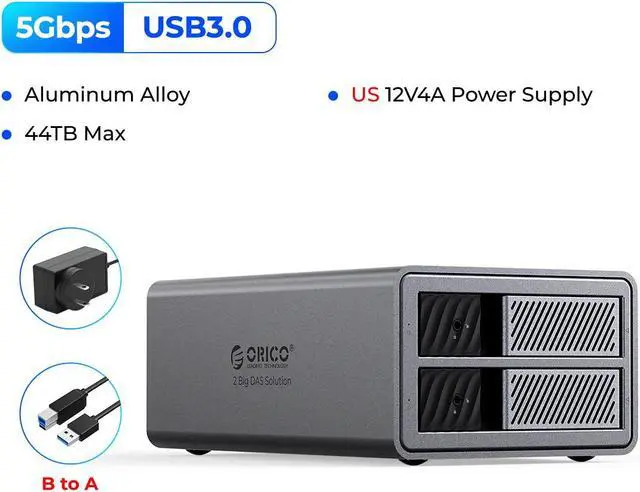
Massive Storage Capacity: With a maximum capacity of 44TB (22TB per single bay)-2 Bay , users have ample space to manage extensive work documents or entertainment content libraries with ease.
Note: This version does not support RAID, if you need to bring RAID, please buy the version with RAID
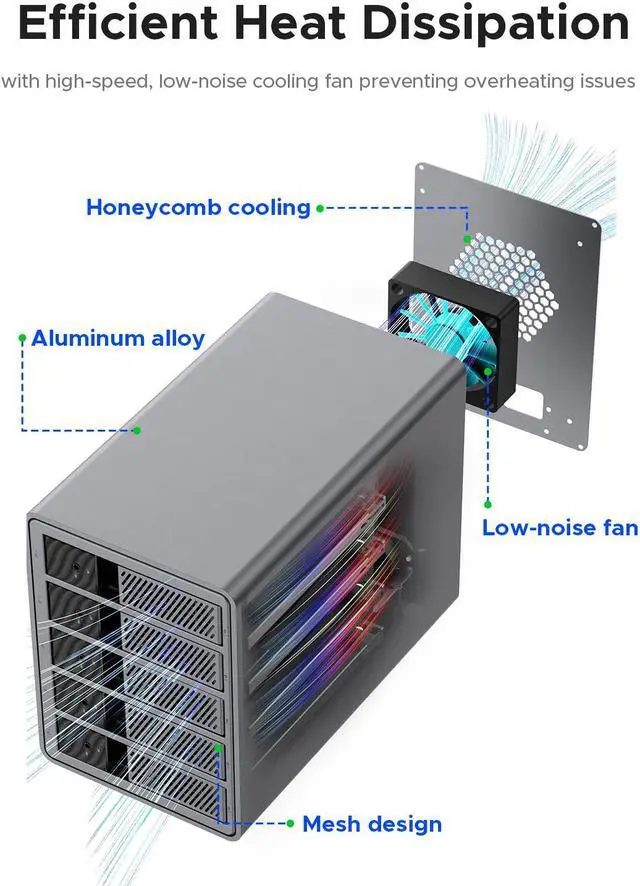
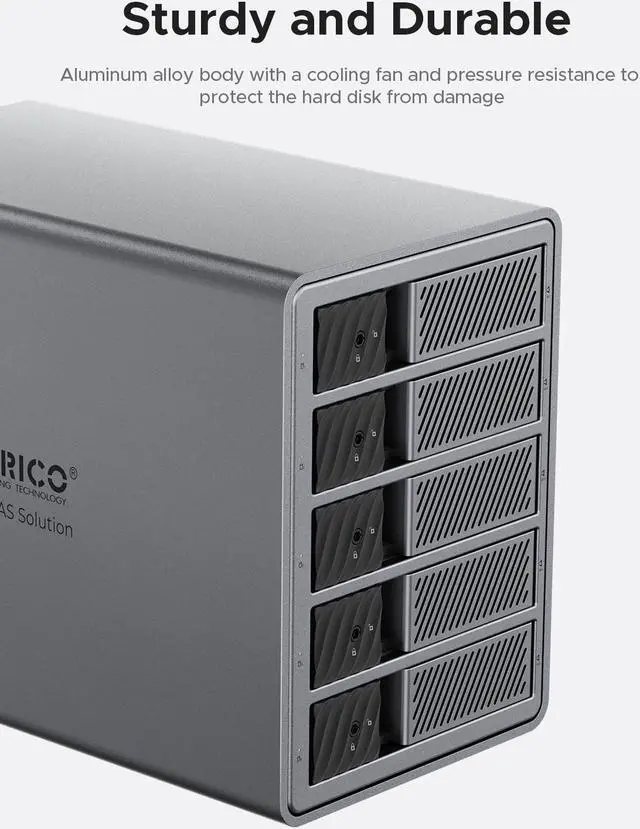
Efficient Heat Dissipation: The all-aluminum alloy body, high-speed silent fan, and heat dissipation design ensure professional heat dissipation, vital for stable device operation over extended periods.
Reliable Power Supply: Equipped with a external 48W power supply, uninterrupted power is guaranteed for continuous business and data processing operations.
Secure Data Protection: The enclosure includes an independent latch-type door with a safety lock, providing secure hard drive protection to prevent accidental ejection and falling, ensuring data safety.
+
+
Overview
Specs
Reviews (1)
Any questions? Our AI beta will help you find out quickly.
Try me now
Max up to 22TB
Occasional Applications
ORICO multi-bay hard drive enclosure, the preferred choice for small and medium-sized enterprise storage! With flexible layout and efficient backup, the 44TB (2Bay ) space meets all your needs. The all-aluminum body ensures professional heat dissipation, guaranteeing stable 24/7 operation. Equipped with an independent security lock for worry-free data safety. Choose ORICO for robust protection of your data, and enjoy convenience and reliability!
Model: ORICO-9828U3
Material: Aluminum Alloy
Output: USB 3.0 Type-B
Speed: USB 3.0 5Gbps
Size: 233.3 mm"143mm*90mm
Power Supply: External 48TB
Maximum Capacity: 44TB (Single bay 22TB)
Install ways: Tool free
What will you get?
01. Packaging box
02. Products
03. Power adapter
04. A to B data cable
05. Screws
06. Screwdriver
07. User Manual
You may have the following questions:
1. How do I know if my hard drive is malfunctioning?
If one of the hard drives is damaged or malfunctions, the corresponding LED indicator will turn red, and the hard drive enclosure will emit a warning sound.
2. How do I replace a hard drive or add a hard drive to the enclosure while in use?
Eject the hard drive from the computer, then power off the hard drive enclosure and remove the hard drive. (Make sure to eject the hard drive from the computer first to avoid data loss! )
3. Can I connect my devices to my computer through a hub?
We recommend connecting the hard drive enclosure directly to the computer as connecting through a hub may be unstable.
4. Why does the hard drive show as dynamically invalid in disk management after being removed from an old computer?
This is due to a system issue. Reinstall the hard drive into the original computer motherboard, back up the data, format it, or if your old computer is no longer functional or cannot boot into the system, you can download dynamic disk conversion software to convert it to basic disk directly.
5. The hard drive is detected but does not have a drive letter?
Add a disk name for use. In disk management, right-click on the disk partition section and select "Change Drive Letter and Paths. "
6. The connection is automatically disconnected during transmission, then reconnects after a while?
In such cases, it could be due to issues with the computer's USB interface, USB data cable, computer USB driver, hard drive, or hard drive enclosure. Contact our technical support to troubleshoot each one.
7. Why can't I find the hard drive after connecting a brand new one to the computer, and it doesn't show a drive letter?
A brand new hard drive must be formatted for the system to recognize and use it.
Instructions: Right-click on "Computer, " then click on "Manage, " open "Disk Management, " find the newly added hard drive, right-click on it, select "Initialize" and choose "MBR (for hard drives up to 2TB) " or "GPT (over 2TB), " then "Create Simple Volume, " proceed with default partition formatting, once formatted, the hard drive will be usable and display the new drive letter.
8. When a hard drive appears as RAW format in disk management due to improper ejection or power failure, what should be done?
To recover, use the chkdsk command; the operation method is as follows: run cmd as an administrator, enter
CHKDSK i: /f (where i is the disk drive letter), press Enter, once the scan and repair are complete, restart the computer to display the results.
Learn more about the Orico ORICO-9858RU3-US-GY-BP
Model
Brand
ORICO
Series
ORICO DAS Pro 98 Series
Model
ORICO-9858RU3-US-GY-BP
Part Number
6942227108692
Details
Type
Dock
AC Adapter
External 48W
Material
Aluminum
Internal Interface
SATA
External Interface
USB 3.0
Maximum Capacity (per Bay)
22TB
Fan
Yes
Dimensions & Weight
Dimensions
259mm*146mm*196mm
Additional Information
First Listed on Newegg
May 31, 2024
Customer Reviews of the Orico ORICO-9858RU3-US-GY-BP
There are no reviews yet.
Do you own this product?
Warranty & Returns
Warranty, Returns, And Additional Information
Warranty
Please contact the Seller directly for warranty information. Warranty information may also be found on the Manufacturer's website.