here!
here!
I’m your shopping assistant for PC builds, upgrades, and everything tech.
Got questions? Ask away!
Start a conversation
here!
I’m your shopping assistant for PC builds, upgrades, and everything tech.
Got questions? Ask away!
Start a conversation



Any questions? Ask CelesteSM will help you find out quickly.


Focuses on trading high-quality electronic products. We primarily sell display solutions such as TFT LCD, OLED, and AMOLED panels.
Our experienced sourcing and quality control teams work closely with international suppliers to deliver dependable products and responsive service.
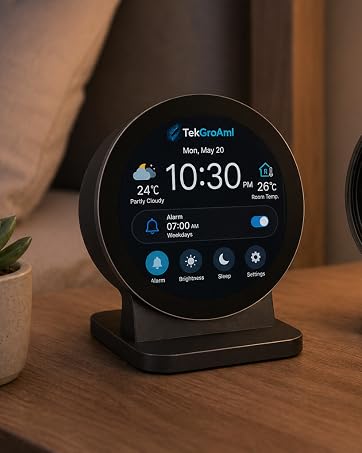
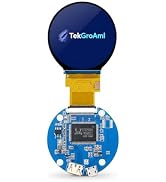
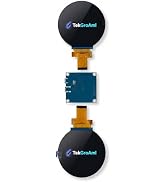
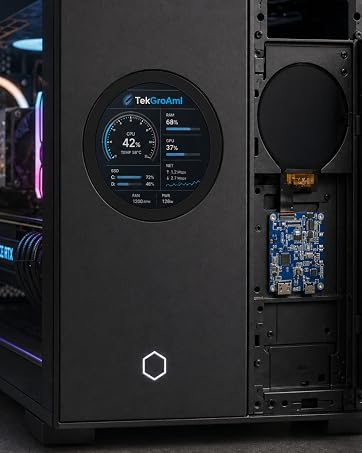
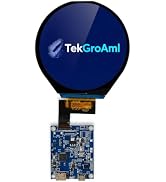

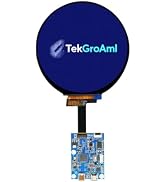

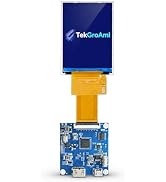
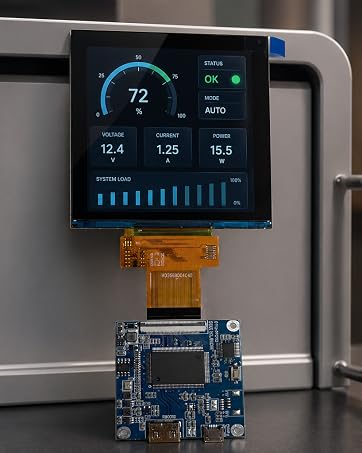
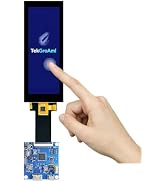
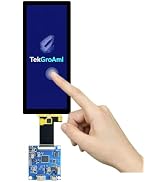
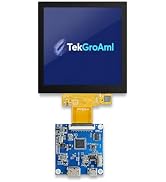
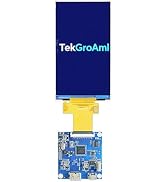


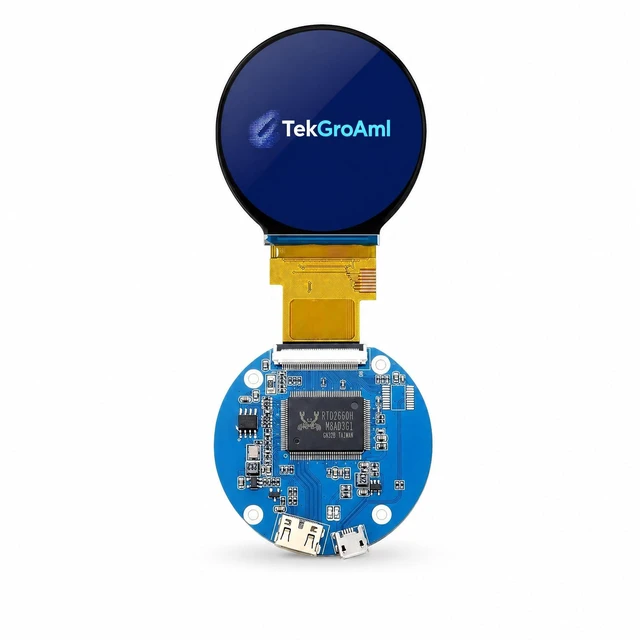
TekGroAml 2.1 Inch Round LCD Screen, 480x480 400 nits IPS Circle Display with...
|

TekGroAml 2.8 inch Mini IPS PC Case LCD Round Display,480x480 330 nits | Circ...
|

TekGroAml 2.1 Inch Round Touch LCD Display with H/D Controller Board, 480x480...
|

TekGroAml 2.8 inch Dual TFT IPS Round Circular LCD Display 480x480,with H/D C...
|

3.4 Inch Round 330nit LCD Display & HDMI Board, 800x800 IPS Circular Screen |...
|

TekGroAml 4 Inch Round LCD Display with Micro H/D Controller Board 720x720 | ...
|
|
|---|---|---|---|---|---|---|
| Customer Reviews | — | — |
—
|
—
|
— |
—
|
| Price | — | — | — | — | — | — |
| Screen size | 2.1 inch | 2.8 inch | 2.1 inch | 2.8 inch | 3.4 inch | 4 inch |
| Video input | mini H/D 1.4 | mini H/D 1.4 | mini H/D 1.4 | Micro H/D 1.4 | mini H/D 1.4 | mini H/D 1.4 |
| Resolution | 480x480 | 480x480 | 480x480 | 480x480 | 800x800 | 720x720 |
| Touch | NO | NO | ? | NO | NO | NO |

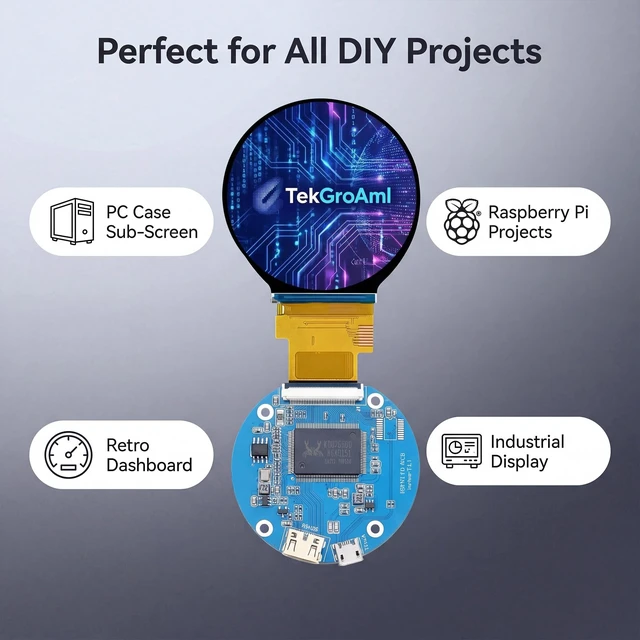
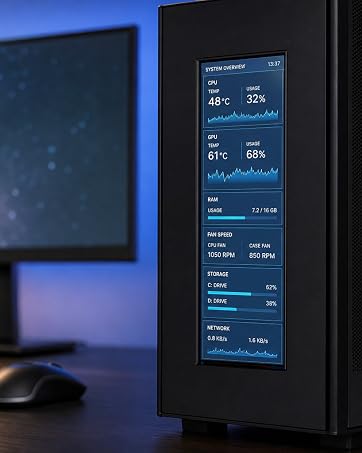
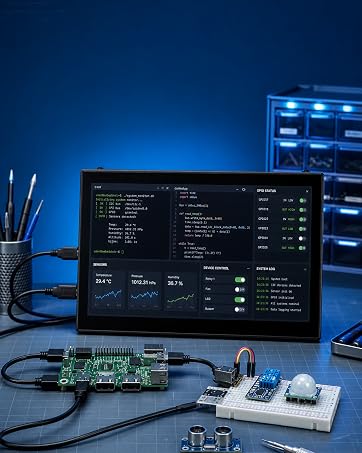
This display is a fantastic fit for all sorts of projects, including:


Windows Quick Setup
Single-Board-Computer Setup Notes
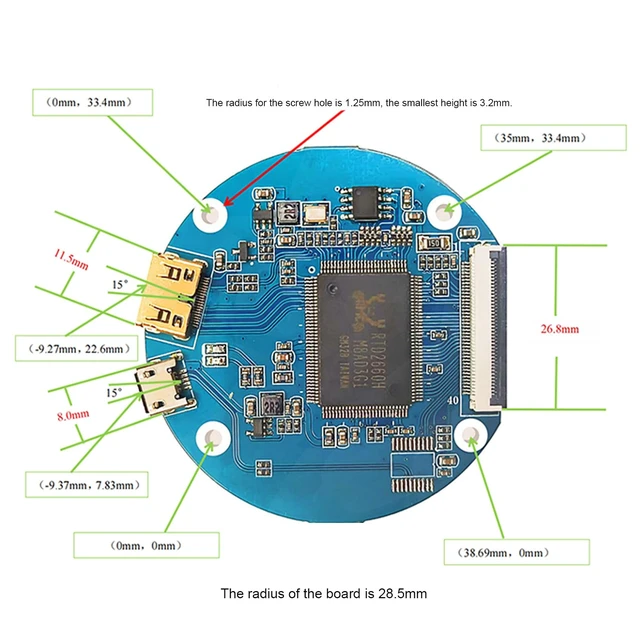
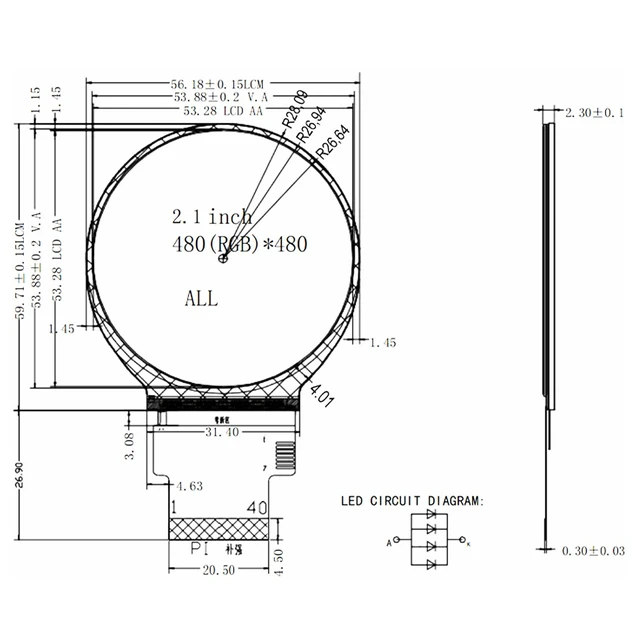
| Screen size | 2.1 inch / 2.8 inch |
| Resolution | 480 (RGB) x 480 |
| Display Type | a-Si TFT |
| Display Mode | Normally Black |
| Viewing Angle | ALL |
| Outline Dimensions | 56.18x59.71x2.3//73.03x76.58x2.3(W×H×D)mm |
| Active Area | 53.28 x 53.28 mm//70.13 (H) x 70.13 (V) mm |
| Brightness | 300 nits / 330 nits |
| Operating Voltage (VDD) | 2.5V (Min) / 2.8V (Typ) / 4.8V (Max) |
| Feature | No OSD ,can't adjust the brightness or setting menu |
|
TekGroAml 2.1 Inch Round LCD Screen, 480x480 400 nits IPS Circle Display with...
|
TekGroAml 2.8 inch Mini IPS PC Case LCD Round Display,480x480 330 nits | Circ...
|
TekGroAml 2.1 Inch Round Touch LCD Display with H/D Controller Board, 480x480...
|
TekGroAml 2.8 inch Dual TFT IPS Round Circular LCD Display 480x480,with H/D C...
|
3.4 Inch Round 330nit LCD Display & HDMI Board, 800x800 IPS Circular Screen |...
|
TekGroAml 4 Inch Round LCD Display with Micro H/D Controller Board 720x720 | ...
|
|
|---|---|---|---|---|---|---|
| Customer Reviews | — | — |
—
|
—
|
— |
—
|
| Price | — | — | — | — | — | — |
| Screen size | 2.1 inch | 2.8 inch | 2.1 inch | 2.8 inch | 3.4 inch | 4 inch |
| Video input | mini H/D 1.4 | mini H/D 1.4 | mini H/D 1.4 | Micro H/D 1.4 | mini H/D 1.4 | mini H/D 1.4 |
| Resolution | 480x480 | 480x480 | 480x480 | 480x480 | 800x800 | 720x720 |
| Touch | NO | NO | ? | NO | NO | NO |
This display is a fantastic fit for all sorts of projects, including:
Windows Quick Setup
Single-Board-Computer Setup Notes
Focuses on trading high-quality electronic products. We primarily sell display solutions such as TFT LCD, OLED, and AMOLED panels.
Our experienced sourcing and quality control teams work closely with international suppliers to deliver dependable products and responsive service.
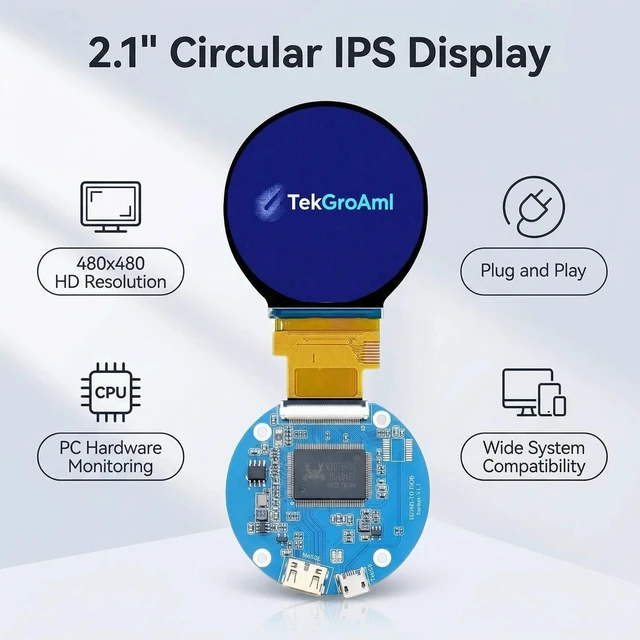
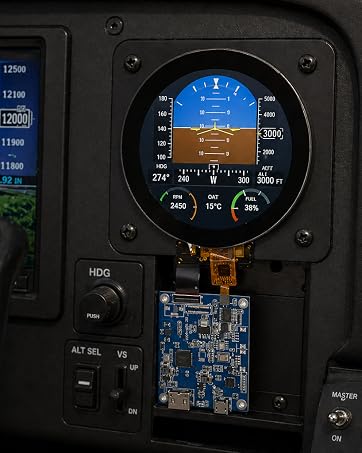
The TekGroAml 2.1-inch round LCD module is a compact 480×480 display with an included driver board, mini H/D video input, and USB power; it suits PC builders who want a circular in-case screen for system monitoring or custom visuals.
| Attribute | Value |
|---|---|
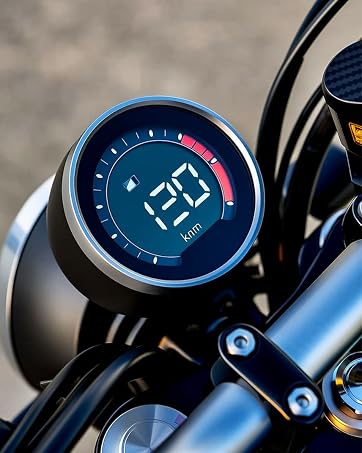
| Best For | Custom PC sensor panels, flight-sim dashboards, and other compact display projects using Windows or Raspberry Pi |
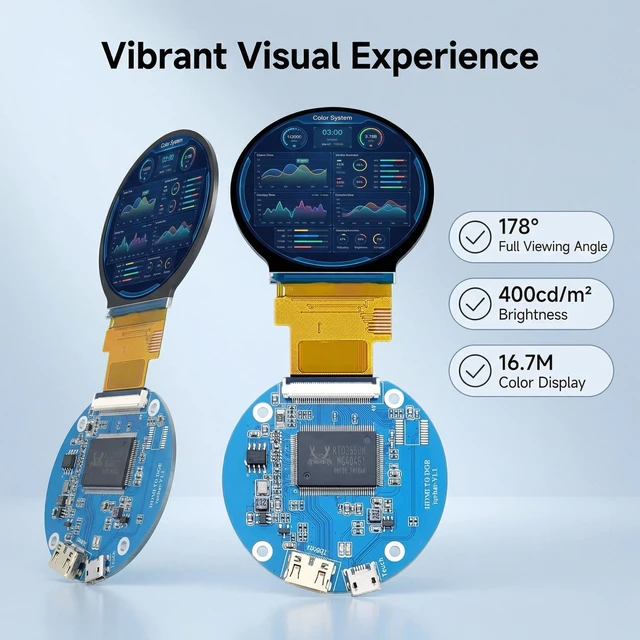
| Panel And Resolution | 2.1-inch round IPS display with 480 × 480 native resolution, 16.7 million colors, 400 cd/m² brightness, and a 178° viewing angle |
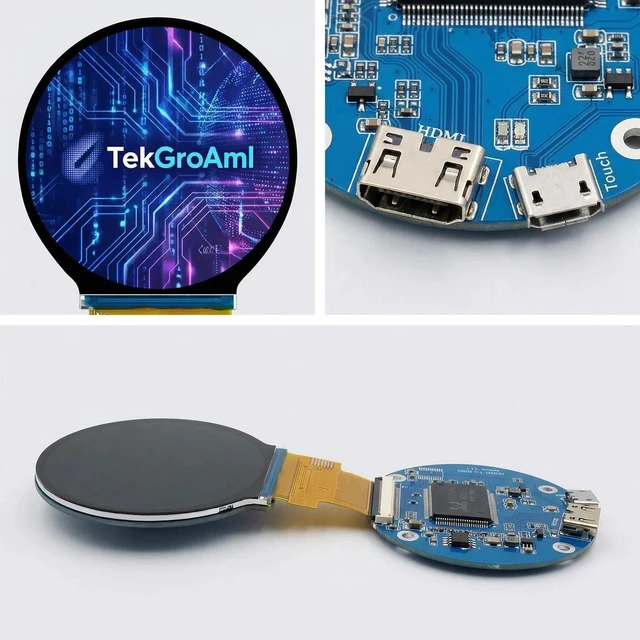
| Ports And Compatibility | Mini H/D video interface and USB power; compatible with Windows and Raspberry Pi, and supports AI-DA64 |
| Physical Specifications | 6.0 × 5.0 × 0.3 inches; 0.18 lb |
| Model Identifiers | TekGroAml TGA250303SC0001-2136 |



![AOACE Gaming PC AMD Ryzen 7 5700X [8-Core 4.6GHz], RTX 5060 8GB GDDR7, DLSS 4, VR Ready, WiFi 6E, 32GB DDR4, 1TB PCIe4 NVMe, 6 ARGB, Win11 Home](https://c1.neweggimages.com/ProductImageCompressAll125/C545S2607150J6GDT09.jpg "AOACE Gaming PC AMD Ryzen 7 5700X [8-Core 4.6GHz], RTX 5060 8GB GDDR7, DLSS 4, VR Ready, WiFi 6E, 32GB DDR4, 1TB PCIe4 NVMe, 6 ARGB, Win11 Home")