Important Notice for Customers
Recommended use scenarios
- 1) Home Theater: Watching movies and TV shows in dimly lit rooms. 2) Outdoor Activities: Watching a match outdoors at dusk or nighttime. 3) Meeting Rooms: Delivering presentations and meetings, ensuring participants can clearly see the projected content.
About 4K Supported?
- Please note that the native resolution of the K11 is 1920 x 1080P, and some 4K video formats may not be decodable.
About the projection and distance:
- The recommended projection distance for the K11 projector is 6.5 to 10 feet. The image size depends on the distance and the projector's throw ratio, which is 1.25:1. Additionally, the projector offers a 50% zoom out feature.
About Streaming Apps
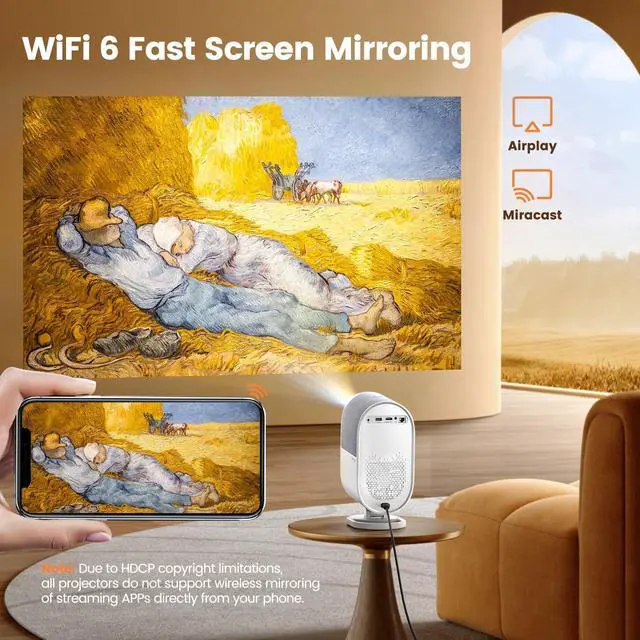
- Screen mirroring requires a strong wireless WiFi signal, ensure that your home network is functioning well. The video resolution will dynamically adjust based on the strength of your Wi-Fi signal. If the projector can not connect your WiFi at all, it might be related to Wi-Fi router encryption, contact JAYSUING Support for assistance.
- Due to copyright restrictions, all projectors do not support wireless mirroring of streaming apps like Netflix or Disney directly from your phone, which may result in a black screen while the sound continues. To watch these streaming apps, you'll need a TV stick or a projector with a built-in Android TV system. Even Android TV projectors may have technical limitations with certain streaming apps. For the best experience, we suggest using a TV stick (not included) connected to our projector via HDMI.
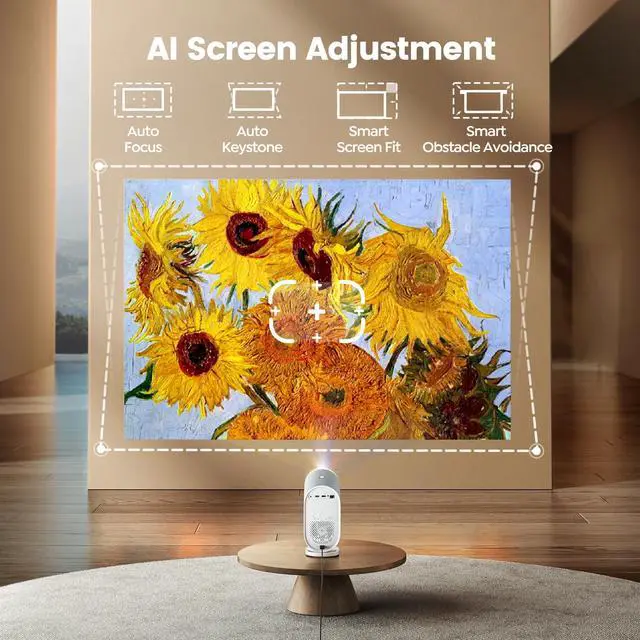
About Auto Focus & Keystone
- Auto-focus and auto-keystone work best when the projector is within 15° of the wall. Greater angles may affect performance.
- Use electric focus and 4P keystone correction for large deviations. AttentionEnsure the focus receiver at the front is not obstructed to avoid focus failure.
About Intelligent Screen Alignment and Obstacle Avoidance:
- Make sure the auto focus function is turned on.
- The edge of the screen is clearly visible and the projected screen is larger than the screen size.
Adjust Setting During Playback
- If the initial image quality is unsatisfactory, adjust the parameters in user mode. To modify image settings during video playback, press and hold the menu button for 3 seconds to access the settings menu.
System version and OTA updates
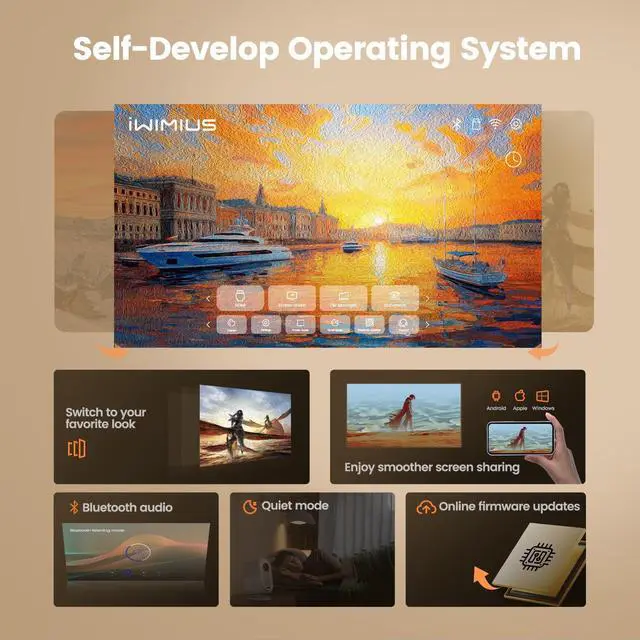
- Our product is continuously upgraded and optimized for the best performance. You can check the product version in the settings and update to the latest software version if available.
Product information
| Brand | JAYSUING |
| Recommended Uses For Product | Business, Education, Gaming, Home Cinema |