


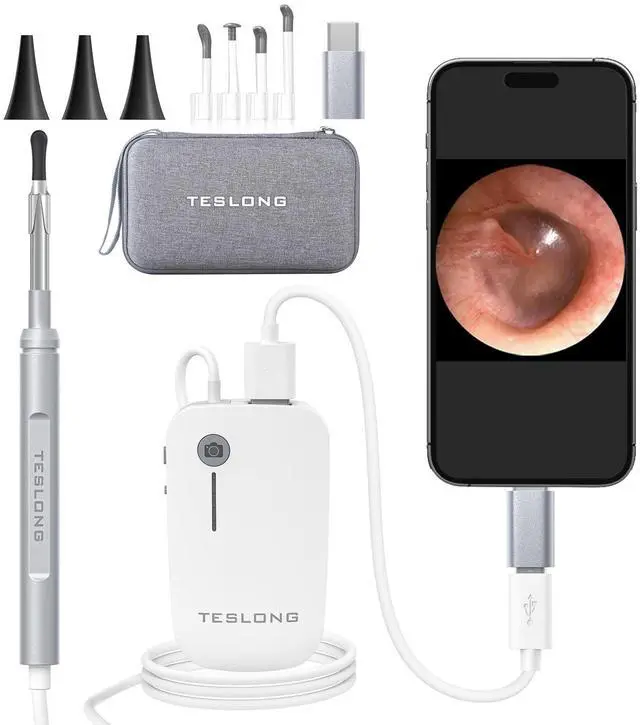






Please be aware that our product app requires access to some permissions on your mobile phone for better use, including data, voice, files, and conversations. If you mind it, please kindly do not take this product. Thank you.
Safety Warning :
- You must read the instruction manual carefully before using.
- Keep out of reach of children. Children are not allowed to use this product.
- You must put the protective cover onto the otoscope before using, then sanitize all the areas that contact the skin.
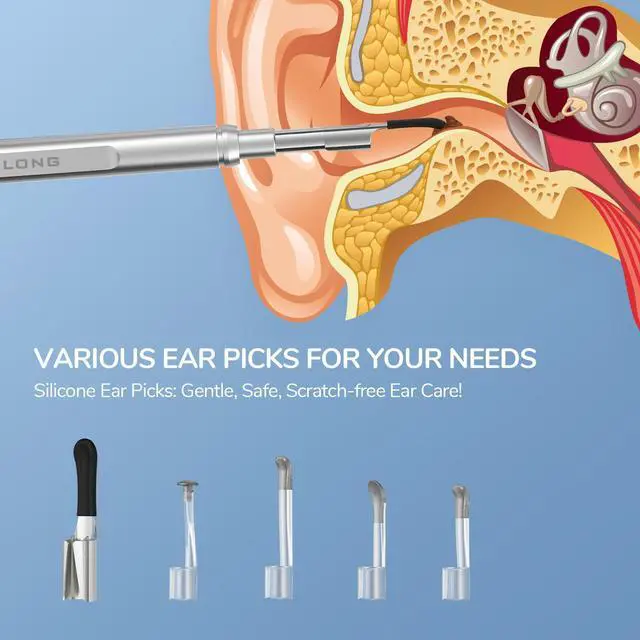
- Please take great care when using ear picks or ear spoon accessories to clean earwax. DO NOT insert them too far into the ear canal.
- Don't clean your ear canal excessively. Prolonged use may cause discomfort or damage to the ear canal.
- Stop using the otoscope if it overheats.
- When using this product be aware of people around you. Be careful that nobody bumps into your hand while holding the device in your ear.
- Stop using this product immediately if you experience any discomfort.
This product can not replace a doctor or medical provider's diagnosis or treatment. Contact your doctor immediately if you experience any discomfort.


Steps for Troubleshooting
1.Camera light doesn't turn on when connect the mobile phone
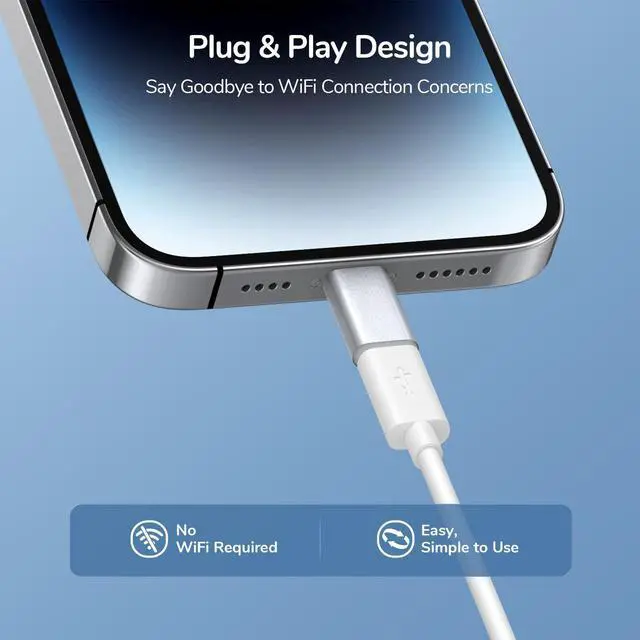
1.1 Repeatedly plug and unplug the connector and ensure it is properly inserted.
1.2 If there's dirt or foreign objects in the connector causing poor contact, clean the connector and then try again.
1.3 Try inserting the connector in different orientations (front and back insertion), including the Type-C.
2. No Prompt or Image When Connecting to a Phone. After installing the app correctly and the initial device connection, Android may prompt you to select an app for the USB device. If there's no prompt or no image, please check the following:
2.1 Ensure that you've installed the app before use.
2.2 Android phones may require enabling the OTG function. Some Android phones come with OTG enabled by default, while others may require manual activation. The settings may vary from phone to phone; you can search for OTG in the settings or refer to your phone's manual.
2.3 Try inserting the connector in different orientations (front and back insertion), including the Type-C .
2.4 Set the default app to open USB devices as USEE. To do this, connect the device and then open the USEE app. In the prompt, select "Always use this app to open the device" and click "OK" to display the image.
3. Blurred Imaging
3.1 If the lens has dust or dirt, use a soft cloth dampened with water to clean the lens.
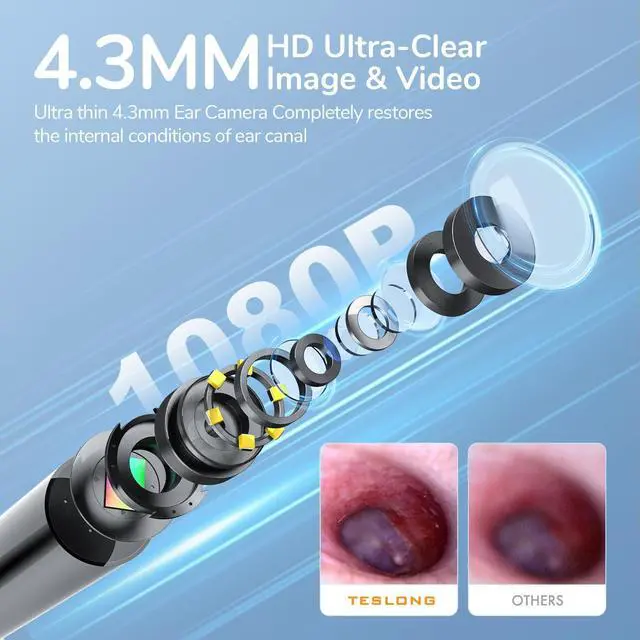
3.2 Ensure that the object you're capturing is within the camera's focal range:Otoscope Ear Camera: Images are clearest within 1-3cm.
4. Automatic Opening of Other Apps After Inserting the Device
4.1 Clear the default settings of other apps. You can do this in Settings > Applications > Find the other app > Clear Defaults.
4.2 After connecting the device, open the USEE app. In the prompt, select "Always use USEE app to open the device" and click "OK."
5. Image Tinted Green or Red
5.1 Ensure that the camera is used within the specified temperature range. Using the camera outside of the working temperature range may result in green or red-tinted images (green in low temperatures, red in high temperatures). Prolonged use outside this range may damage the camera permanently.
6. Lens Heating
6.1 Lens heating is a normal occurrence (the LED light gets hotter with increased brightness). It does not affect the device's functionality or lifespan.
Clenning is necessary for a hygienic and healthy living environment, and we'll make it more convenient and better. Our dedicated design team and production department aim to provide you with high quality and satisfactory products.


Please be aware that our product app requires access to some permissions on your mobile phone for better use, including data, voice, files, and conversations. If you mind it, please kindly do not take this product. Thank you.
Safety Warning :
- You must read the instruction manual carefully before using.
- Keep out of reach of children. Children are not allowed to use this product.
- You must put the protective cover onto the otoscope before using, then sanitize all the areas that contact the skin.
- Please take great care when using ear picks or ear spoon accessories to clean earwax. DO NOT insert them too far into the ear canal.
- Don't clean your ear canal excessively. Prolonged use may cause discomfort or damage to the ear canal.
- Stop using the otoscope if it overheats.
- When using this product be aware of people around you. Be careful that nobody bumps into your hand while holding the device in your ear.
- Stop using this product immediately if you experience any discomfort.
This product can not replace a doctor or medical provider's diagnosis or treatment. Contact your doctor immediately if you experience any discomfort.


Steps for Troubleshooting
1.Camera light doesn't turn on when connect the mobile phone
1.1 Repeatedly plug and unplug the connector and ensure it is properly inserted.
1.2 If there's dirt or foreign objects in the connector causing poor contact, clean the connector and then try again.
1.3 Try inserting the connector in different orientations (front and back insertion), including the Type-C.
2. No Prompt or Image When Connecting to a Phone. After installing the app correctly and the initial device connection, Android may prompt you to select an app for the USB device. If there's no prompt or no image, please check the following:
2.1 Ensure that you've installed the app before use.
2.2 Android phones may require enabling the OTG function. Some Android phones come with OTG enabled by default, while others may require manual activation. The settings may vary from phone to phone; you can search for OTG in the settings or refer to your phone's manual.
2.3 Try inserting the connector in different orientations (front and back insertion), including the Type-C .
2.4 Set the default app to open USB devices as USEE. To do this, connect the device and then open the USEE app. In the prompt, select "Always use this app to open the device" and click "OK" to display the image.
3. Blurred Imaging
3.1 If the lens has dust or dirt, use a soft cloth dampened with water to clean the lens.
3.2 Ensure that the object you're capturing is within the camera's focal range:Otoscope Ear Camera: Images are clearest within 1-3cm.
4. Automatic Opening of Other Apps After Inserting the Device
4.1 Clear the default settings of other apps. You can do this in Settings > Applications > Find the other app > Clear Defaults.
4.2 After connecting the device, open the USEE app. In the prompt, select "Always use USEE app to open the device" and click "OK."
5. Image Tinted Green or Red
5.1 Ensure that the camera is used within the specified temperature range. Using the camera outside of the working temperature range may result in green or red-tinted images (green in low temperatures, red in high temperatures). Prolonged use outside this range may damage the camera permanently.
6. Lens Heating
6.1 Lens heating is a normal occurrence (the LED light gets hotter with increased brightness). It does not affect the device's functionality or lifespan.