

Your Browsing History
- In Stock
- Sold by Newegg
- New

Any questions? Our AI mode will help you find out quickly.
Try me now
Quick View
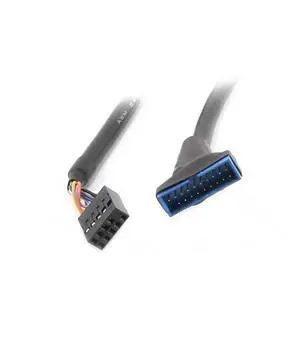
Portable USB 3.0 20-Pin Header Male to USB 2.0 9-Pin Female Adapter, Black
Limited time offer, ends 10/09
- Model #: C472-L7071
- $13.20 –
- Free Shipping
Quick View
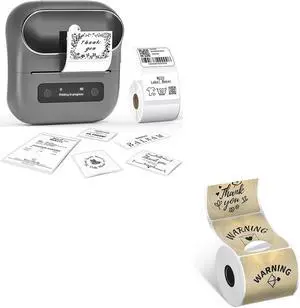
Phomemo M220 Label Maker & 1 Roll Thermal Round Gold + 1 Roll Labels, Label Makers Upgrade,3.14 Inch Portable Thermal Printer Support 20-80mm Width Label
- Model #: ENGEB0D48ZBC31
- $113.99 –
- Free Shipping
Quick View
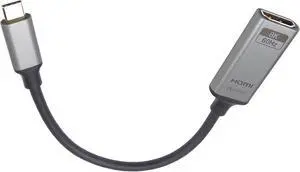
PremiumCord 8K USB-C to HDMI Adapter M/F, HDMI 2.1, UHD 8K 4320p 60Hz, 4K 2160p 144Hz, HDR10+, HDCP 2.3, 48 Gbps, Aluminium Housing, Space Grey, 20 cm
- Model #: TOLKB0DT1L33BV
- $101.99 –
- Free Shipping
Quick View
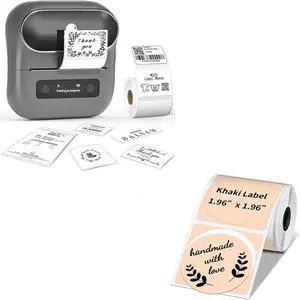
Phomemo M220 Label Maker & 1 Roll Thermal Round Khaki + 1 Roll Labels, Label Makers Upgrade,3.14 Inch Portable Thermal Printer Support 20-80mm Width Label
- Model #: ENGEB0D48P1ZQX
- $112.99 –
- Free Shipping
Quick View
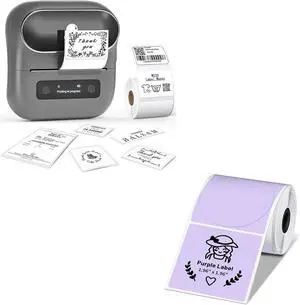
Phomemo M220 Label Maker & 1 Roll Thermal Round Purple + 1 Roll Labels, Label Makers Upgrade,3.14 Inch Portable Thermal Printer Support 20-80mm Width Label
- Model #: ENGEB0D48PJ6MC
- $112.99 –
- Free Shipping
Quick View
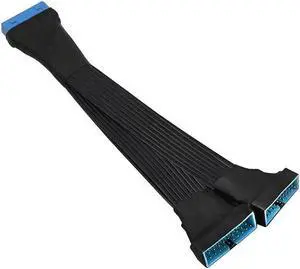
Aomoproing USB 3.0 Header Extension Cable 19/20 Pin 1 to 2 Y Splitter, Internal USB 3.0 Header Multiplier Extension Adapter for PC Motherboard DIY, 5.9 Inch
Limited time offer, ends 10/09
- Model #: Aomoproing-wyx82
- $14.00 –
- Free Shipping
Quick View
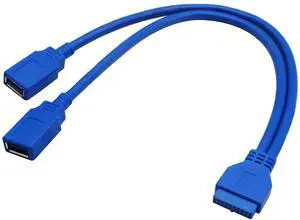
omoproing 20 Pin Y Splitter Cable, USB 3.0 A Female to 20 Pin Female Motherboard Header Cable, 30cm, Backward Compatible with USB 2.0/1.0 (30cm-USB F)
Limited time offer, ends 10/09
- Model #: Aomoproing-wyx577
- $15.70 –
- Free Shipping
Quick View
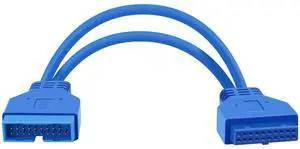
Aomoproing USB 3.0 Motherboard Extension Cable, 19/20 Pin Male to Female Internal Adapter, Blue 1FT
Limited time offer, ends 10/09
- Model #: Aomoproing-wyx194
- $15.70 –
- Free Shipping
Quick View
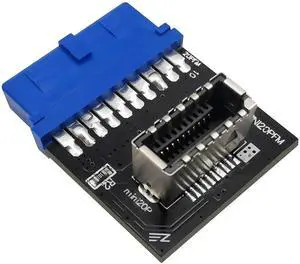
Aomoproing USB 3.0 (3.1 Gen 1) Internal 19-Pin Header to USB 3.1/3.2 Type-C (20-Pin) A-Key Front Panel Adapter
Limited time offer, ends 10/09
- Model #: Aomoproing-wyx537
- $21.54 –
- Free Shipping
Quick View
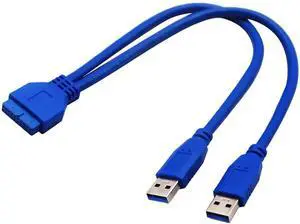
Aomoproing 2 Port USB 3.0 Splitter Adapter Cable, Dual Port USB 3.0 A Male to 20 Pin Motherboard Header Extension Cable, 30cm/12inch, Directly Connect USB Ports to Computer Motherboard
Limited time offer, ends 10/09
- Model #: Aomoproing-wyx448
- $15.70 –
- Free Shipping
Quick View
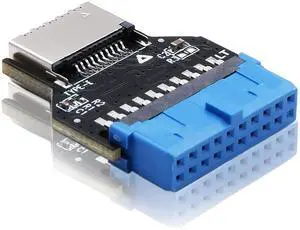
Aomoproing USB 3.0 (USB3.1 Gen 2) 19-Pin to 20-Pin A-Key Type-C Front Panel 180 Degrees Adapter, Extend USB Type E Ports
Limited time offer, ends 10/09
- Model #: Aomoproing-234
- $19.70 –
- Free Shipping
Quick View
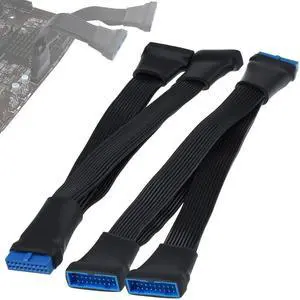
Aomoproing 2Pcs USB 3.0 Header Splitter Extension Cable, 19/20 Pin 1 to 2 Y Internal Hub Splitter, Internal Adapter DIY Cable for Motherboard, 5.9 Inch
Limited time offer, ends 10/09
- Model #: Aomoproing-wyx105
- $30.54 –
- Free Shipping
Quick View
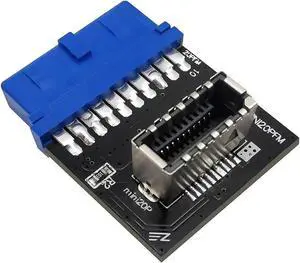
Aomoproing USB 3.0 (3.1 Gen 2) 19-Pin Internal Header to USB 3.1/3.2 Type-C 20-Pin A-Key Front Panel Adapter
Limited time offer, ends 10/09
- Model #: Aomoproing-wyx192
- $20.00 –
- Free Shipping
Quick View
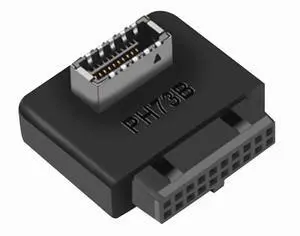
Aomoproing USB 3.2 Gen 1 to USB 3.2 Gen 2 Header Adapter, USB 3.1 Type-E Key-A to USB 3.0 20 Pin Header Converter for Type C Motherboard (Reverse Type)
Limited time offer, ends 10/09
- Model #: Aomoproing-wyx112
- $16.70 –
- Free Shipping
Quick View
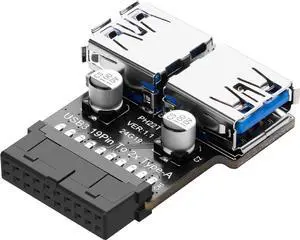
Aomoproing USB 3.0 Front Panel Header Adapter, 19/20-Pin to Dual USB A Motherboard Header Converter, 19-Pin Female to Double USB Type-A Female Front Connector
Limited time offer, ends 10/09
- Model #: C472-C125
- $17.70 –
- Free Shipping
Quick View
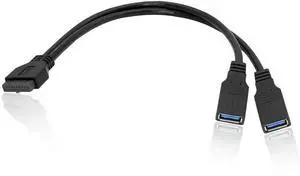
Aomoproing 2 Port USB 3.0 A to 20 Pin Motherboard Header Cable, Y Splitter Dual Port USB 3.0 A to 20 Pin Female Motherboard Header Adapter, 25cm - Black
Limited time offer, ends 10/09
- Model #: Aomoproing-wyx548
- $17.70 –
- Free Shipping
Quick View
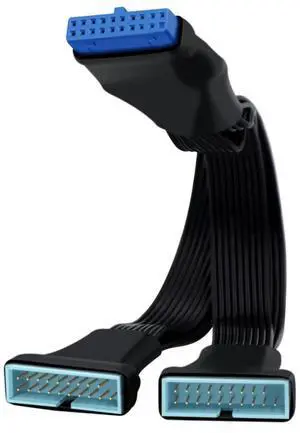
Aomoproing USB 3.0 Header Splitter Extension Cable, Motherboard 19/20 Pin Male to Female Adapter, Mini 1 to 2 Out Internal USB 3.0 Extension Cord 6 Inch
Limited time offer, ends 10/09
- Model #: Aomoproing-wyx102
- $15.70 –
- Free Shipping
Quick View
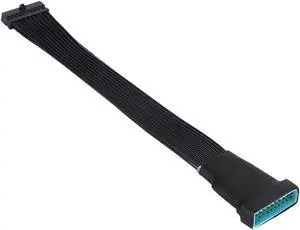
Aomoproing USB 3.0 Header Extension Cable, Low Profile 19/20 Pin Internal USB 3.0 Header Extender, USB 3 Motherboard Adapter, 5.9 Inch
Limited time offer, ends 10/09
- Model #: Aomoproing-wyx490
- $19.30 –
- Free Shipping
Quick View
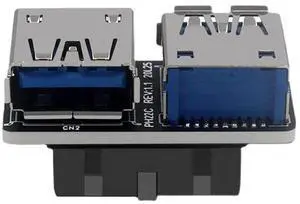
Dual USB 3.0 A Female to Motherboard 19/20 Pin Header Adapter, Flat PCBA Type Internal Slot Converter for PC Case
Limited time offer, ends 10/09
- Model #: C472-L7101
- $13.20 –
- Free Shipping
Quick View
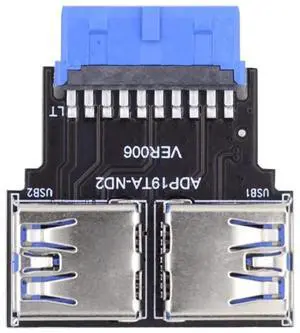
Right Angled USB 3.0 20/19 Pin Female to Motherboard Header Slot Adapter, Horizontal PCBA Type 5Gbps
Limited time offer, ends 10/09
- Model #: C472-L7058
- $13.20 –
- Free Shipping
Quick View
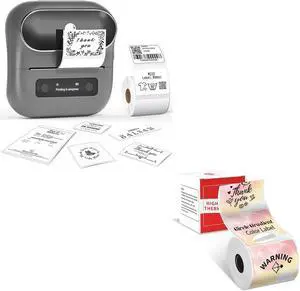
Phomemo M220 Label Maker & 1 Roll Thermal Round Gradient Rainbow + 1 Roll Labels, Label Makers Upgrade,3.14 Inch Portable Thermal Printer Support 20-80mm Width Label
- Model #: ENGEB0D49DH26B
- $114.99 –
- Free Shipping
Quick View
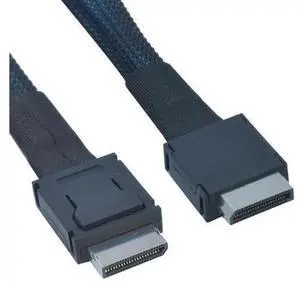
Oculink Cable PCIe 4.0 SFF-8611 4i Male Extension Cable for Oculink eGPU onexGPU Mini PC SSD, 0.6 feet (20 cm)
Limited time offer, ends 10/07
- Model #: YC7FW0709-oys-146
- $24.67 –
- Free Shipping
Quick View
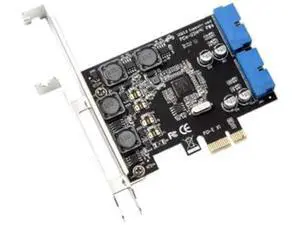
PCI-E X1 to 2 Ports 19 Pin USB 3.0 Header PCI Express to Dual 20 Pin USB 3.0 Card
Limited time offer, ends 10/07
- Model #: YC7FW0709-oys-42
- $45.97 –
- Free Shipping
Quick View
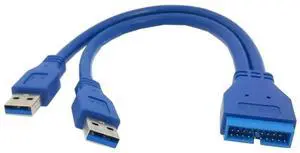
Aomoproing Dual Port USB 3.0 A Male to 20 Pin Male Motherboard Extension Cable Adapter, 5Gbps High Speed Data Transfer Cable for PC Computer Motherboard
Limited time offer, ends 10/09
- Model #: Aomoproing-wyx431
- $16.70 –
- Free Shipping
Quick View
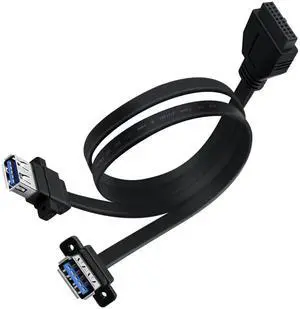
Aomoproing USB 3.0 Front Panel Extension Cable, 5Gbps High-Speed 19/20 Pin Header Cable with Panel Mount Holes, 50cm
Limited time offer, ends 10/09
- Model #: Aomoproing-wyx376
- $17.70 –
- Free Shipping
Quick View
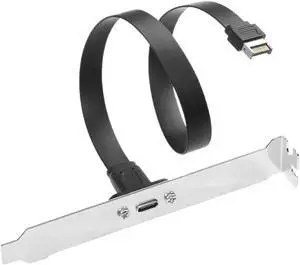
USB Type C Extension Adapter 20Gbps USB3 2 Gen2x2 20Pin Motherboard to Type C Flat with Full Profile PCIe Bracket 0 5M
- Model #: TOLKB0H365LLZS
- $55.99 –
- Free Shipping
Quick View
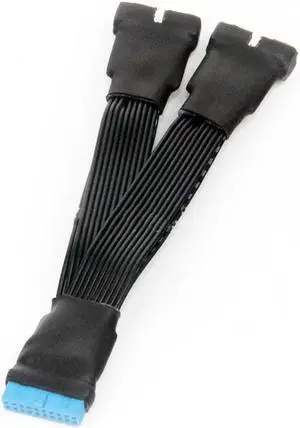
Aomoproing USB 3.0 19Pin/20Pin Female to Male Y Splitter Motherboard Extension Flat Cable
Limited time offer, ends 10/09
- Model #: C472-C30
- $30.44 –
- Free Shipping
Quick View
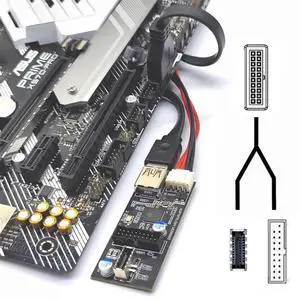
Aomoproing 5Gbps 19/20Pin Header to USB 3.0 20Pin & Type-E Dual Ports Female PCBA Adapter Splitter 1 to 2 HUB
Limited time offer, ends 10/09
- Model #: C472-C39
- $27.54 –
- Free Shipping
Quick View
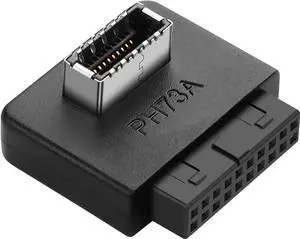
Aomoproing USB 3.0 Front Panel Header Adapter, USB 3.0 19/20Pin Female to Type-E Female Connector Converter for Motherboard
Limited time offer, ends 10/09
- Model #: C472-C54
- $18.70 –
- Free Shipping
Quick View
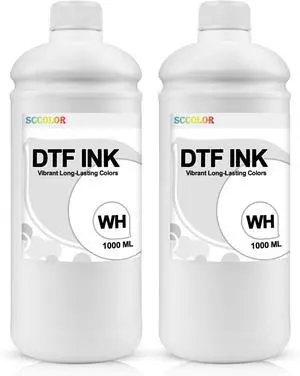
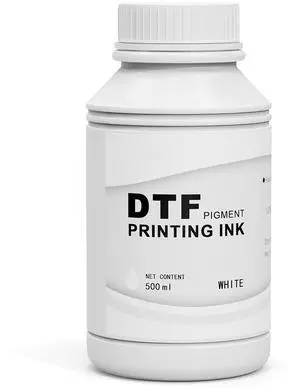
DTF Ink White, Premium Transfer Printer Ink for Printhead ET-8550, L1800, L805, R2400, P400, P800, XP15000 Professional DTF Printers Direct to Film Heat Transfer Printing (W, 500ml)
Limited time offer, ends 10/05
- Model #: 431481648786
- $89.24 –
- Free Shipping
Quick View
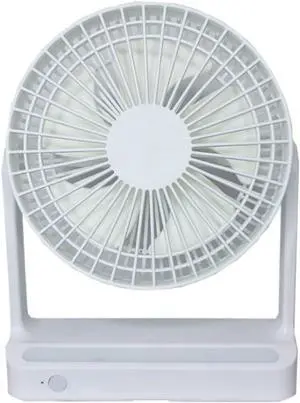
Quiet Performance Adjustable Speeds Small Fan USB Charging Oscillating Desk 3 In 1 Lightweight And Portable Wall Easy to Carry
- Model #: TOLKB0H5WMJ2FB
- $115.99 –
- Free Shipping
Quick View
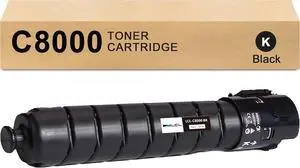
Versalink C8000 Black High Yield Toner Cartridge Replacement for 106R04049 Toner Cartridge for Xerox Versalink C8000 C8000DT C8000DTM Color Printer (1-Pack)
- Model #: DARKB0DJ8MTLRQ
- $142.99 –
- Free Shipping
Quick View
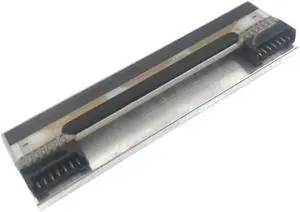
Thermal Printhead Compatible with TSC 225 TDP225 TDP-225 TDP-225W 203dpi X Japan KD2002-CAFWO
- Model #: ENGEB0GR1T6L4T
- $123.99 –
- Free Shipping
Quick View
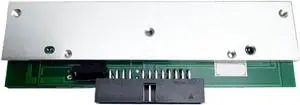
Thermal Printhead Compatible with TSC TTP-243E PRO Plus 244ME D200 Barcode Label Printer
- Model #: ENGEB0GXMSTRFW
- $188.99 –
- Free Shipping
Choosing the Right Printer for Your Office Needs
When it comes to office solutions, printers and scanners are essential tools for any business. Whether you need to print important documents, scan invoices, or create professional-quality marketing materials, having the right equipment is crucial. In this article, we will explore the different types of printers and scanners available in the market and provide tips on how to choose the best one for your office.
All-in-One Printers: Versatility and Convenience
all-in-one printers, also known as multifunction printers, are a popular choice for offices. These devices combine the functionality of a printer, scanner, copier, and sometimes even a fax machine into a single unit. They offer versatility and convenience, allowing you to perform multiple tasks without the need for separate devices. All-in-one printers are available in both inkjet and laser options, catering to different printing needs and budgets.
Specialized Printers for Specific Tasks
In addition to all-in-one printers, there are specialized printers designed for specific tasks. For example, 3D printers are ideal for creating prototypes or intricate models, while barcode and label printers are perfect for businesses that require efficient inventory management. laser printers are known for their fast printing speeds and high-quality output, making them suitable for offices with high-volume printing needs. inkjet printers, on the other hand, are more cost-effective and can produce vibrant color prints.
Choosing the Right Supplies
Once you have selected the right printer for your office, it is important to choose the right supplies to ensure optimal performance and longevity. When it comes to inkjet printers, using high-quality ink cartridges is essential to achieve the best print quality and prevent clogging. For laser printers, it is important to choose the right type of toner cartridges that are compatible with your printer model. Additionally, investing in high-quality paper can make a significant difference in the final print results.
FAQs: Common Questions about Printers and Scanners
| Q: How often should I replace the ink cartridges? | A: The frequency of replacing ink cartridges depends on your printing volume. However, it is recommended to replace them when the print quality starts to degrade. |
|---|---|
| Q: Can I use third-party ink cartridges with my printer? | A: While it is possible to use third-party ink cartridges, it is important to ensure compatibility with your printer model. Using incompatible cartridges may result in poor print quality or damage to the printer. |
| Q: How do I clean the scanner glass? | A: To clean the scanner glass, use a soft, lint-free cloth slightly dampened with glass cleaner. Gently wipe the glass surface to remove any smudges or debris. |
| Q: What is the difference between optical and interpolated resolution in scanners? | A: Optical resolution refers to the actual hardware resolution of the scanner, while interpolated resolution is achieved through software enhancements. Optical resolution provides more accurate and detailed scans. |
| Q: How can I improve the scanning speed? | A: To improve scanning speed, reduce the scanning resolution, use black and white mode instead of color, and ensure that the scanner is connected to a high-speed USB port. |