here!
here!
I’m your shopping assistant for PC builds, upgrades, and everything tech.
Got questions? Ask away!
Start a conversation
here!
I’m your shopping assistant for PC builds, upgrades, and everything tech.
Got questions? Ask away!
Start a conversation






Any questions? Ask CelesteSM will help you find out quickly.
If you find that KH120M headset microphone has no sound after pair KH120M to a computer via USB port, please follow the steps below:
1. Make sure the headset and port are paired successfully(port display light is fixed blue)
If pairing is not successful, please try the steps below:
1) Reset the headset (please refer to the reset section of the manual).
2) Unplug the port and plug it into another USB port.
2. After the headset and port are paired successfully, please follow the steps below:
1) Right-click the Speakers icon at the bottom right, then click "Open Sound settings".
2) Make sure that [KH120M port] has been selected as both the output and input device. Then close Settings.
If there is still no sound, the microphone of the headset may be disabled or [KH120M port] is not set as the default device on your computer.
1) Right-click the Speakers icon at the bottom right, then click "Sound ".
2) Click "Recording"and "Playback", then set [KH120M port] as default device and make sure it is enabled.
3. Make sure apps have access to the microphone.
If your microphone isn't detected, you may need to give your apps permission to use it. (Take windows 10 as example)
1) To let apps access the microphone, select Start, then select Settings> Privacy> Microphone. Select Change, then turn on Allow apps to access your microphone.
2) After allowing access to the microphone, you can choose which Microsoft Store apps can access these features under Choose which Microsoft Store apps can access your microphone, and give access to non-Microsoft-Store desktop apps by ensuring that the switch beneath Allow desktop apps to access your microphone is set to On.
Package Contents:
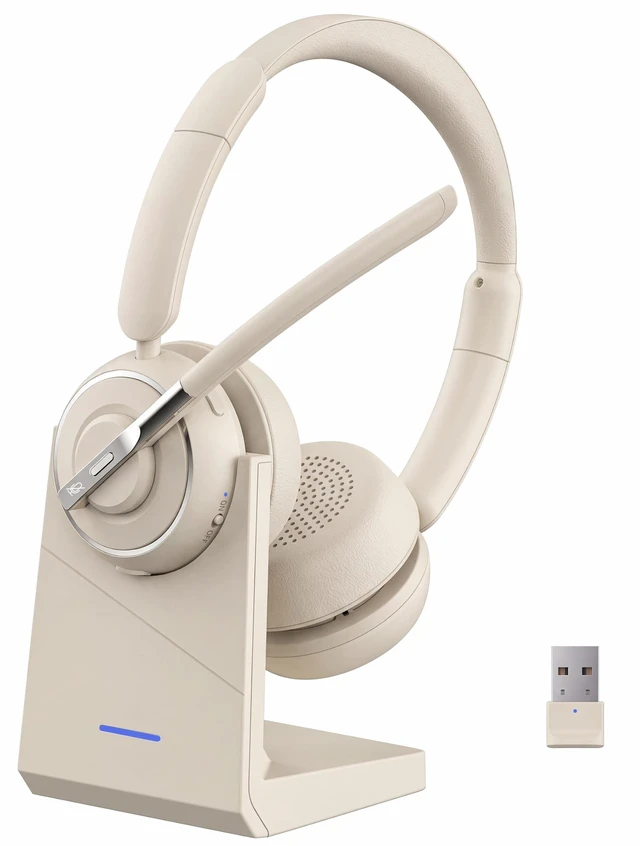
1 x Bluetooth Headphones KH120M
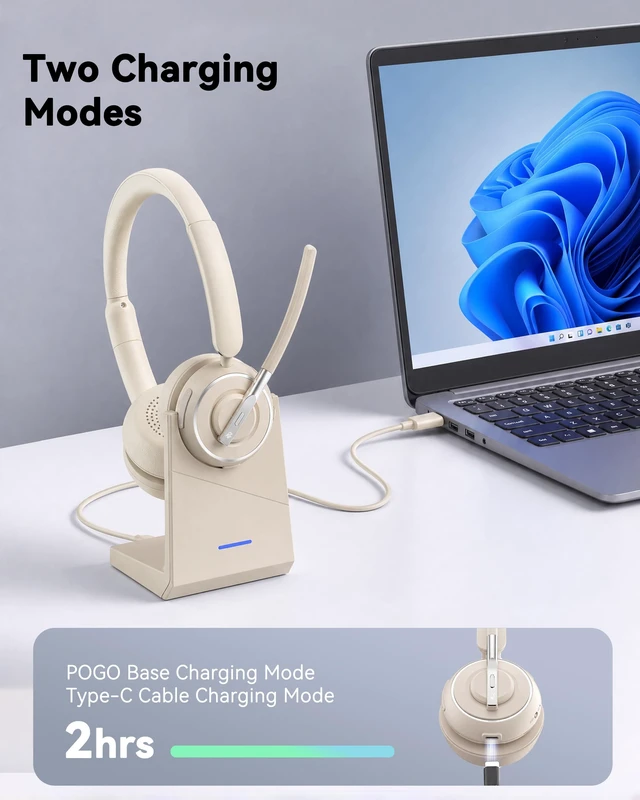
1 x Type-C Charging Cable
1x User Manual
1x Charging Base
1x USB Dongle