



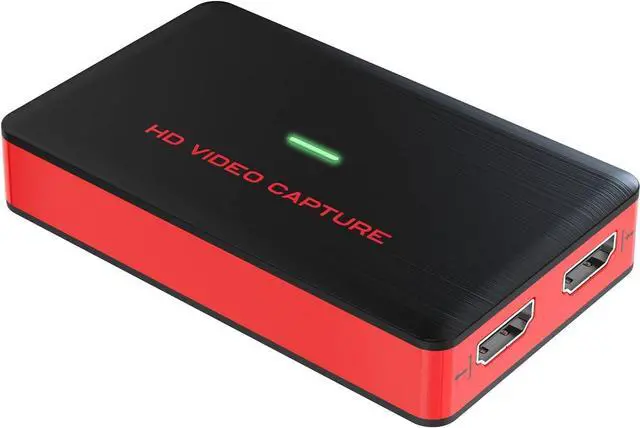
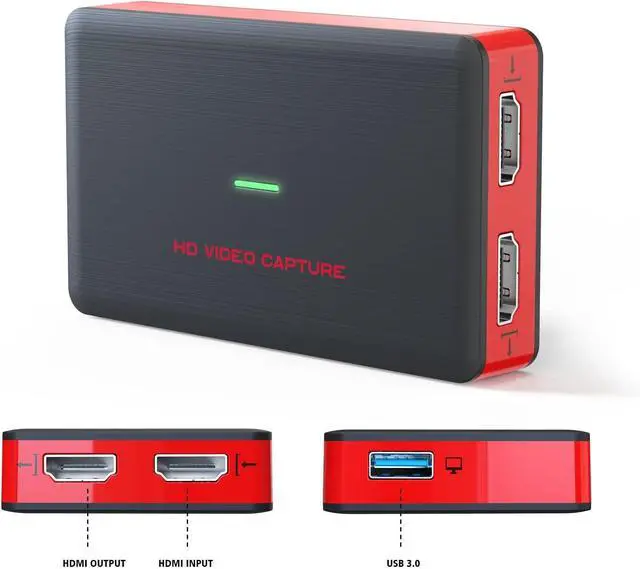
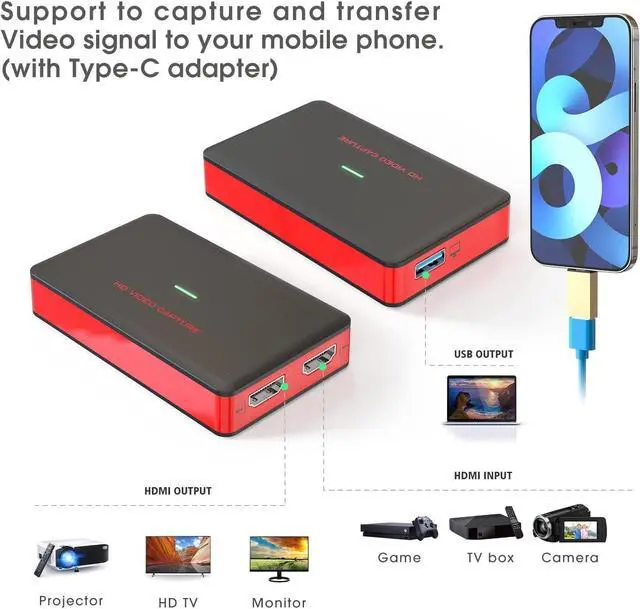
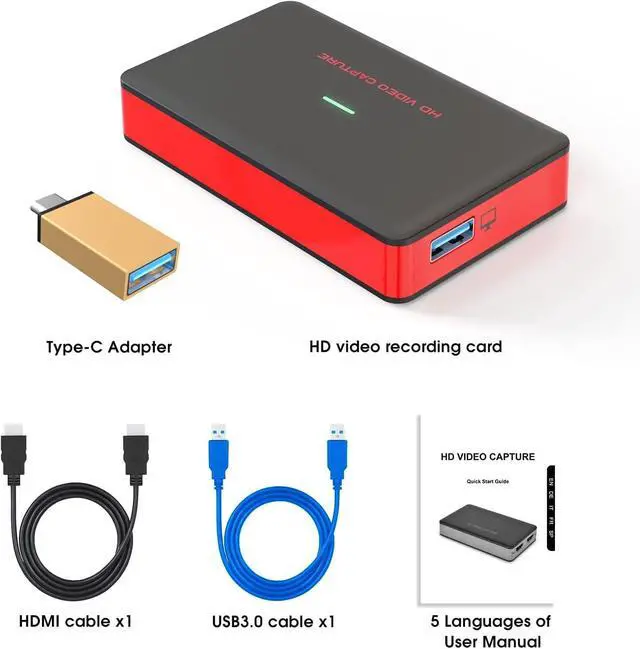
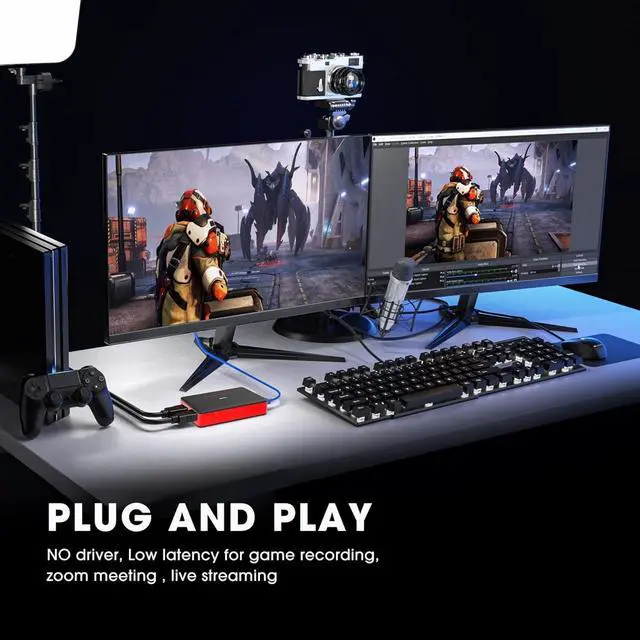


Plug and Play and No Driver needed

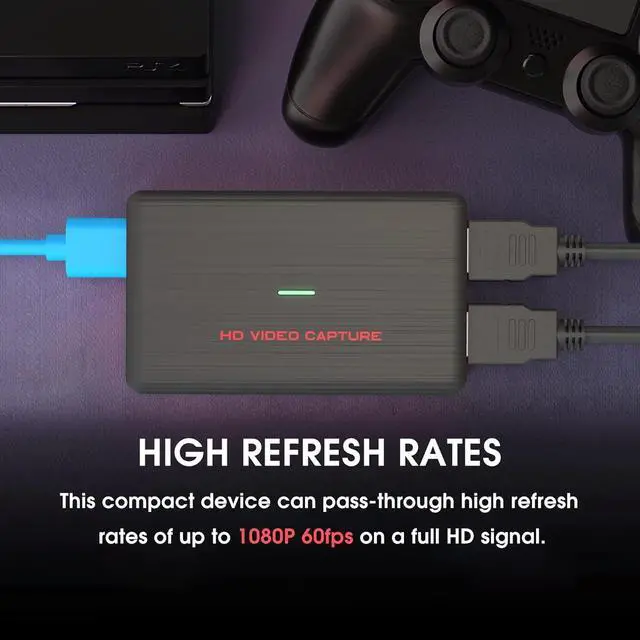
1080P 60FPS HD Quality

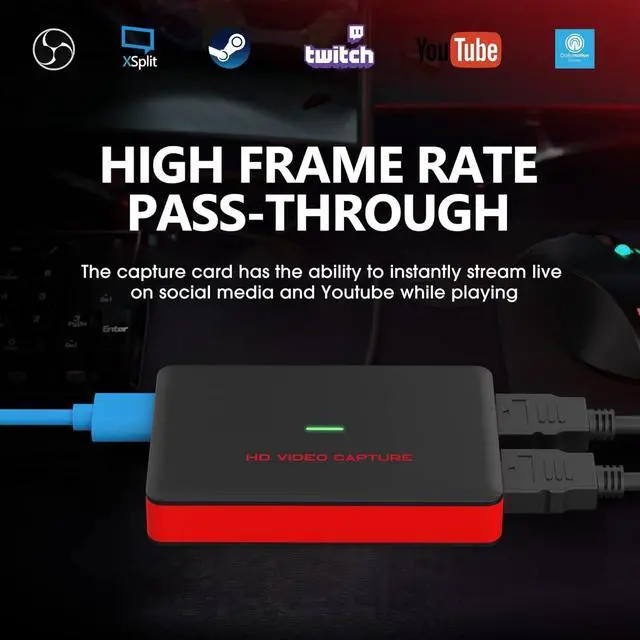
Stronger Compatibility

How to Use: (Work with OBS studio:)

Step I:
1. Download OBS Studio according to your computer’s operating system, and install it on your computer.Windows will install the driver automatically, and you will see “FHD Webcamera” in device manager.
2. Run OBS Studio, Click “+” icon under “Sources” window, and select “Video Capture Device”, then select “FHD Webcamera” in the drop box next to “Device”.

Step ?:
3. Set the video latency for make the audio and video synchronized:
(3.1) Right click “Video Capture Device” then click “Filters”:
(3.2)Click to add “Video Delay (Async)”
(3.3) Set it to 470ms (You can adjust it smaller or bigger uttil you found the audio and video synchronized):

Step ?:
Then you can recording or streaming video.
(Attention: Work with other applications(e.g. VLC, Media encoder, Protplayer…):
Just run the application then choose capture device to “FHD Webcamera”.)
Specifications


VIXLW: Connecting Infinite Possibilities
Users usually encounter problems such as image delays and impaired image quality during video transmission and conversion. To solve these problems, VIXLW was born with a passion for video technology, determined to create the ultimate experience of video capture cards and converters.
Choosing VIXLW means choosing quality and professionalism to start a wonderful video journey together.
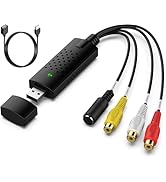
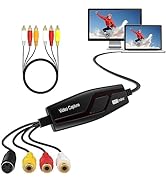
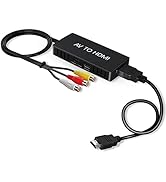
Video Converter
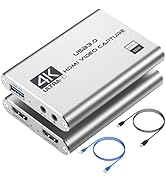
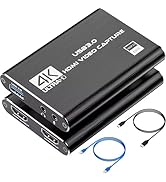
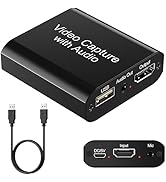
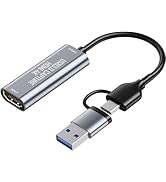
Capture Card
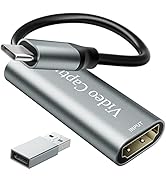
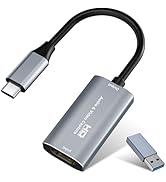
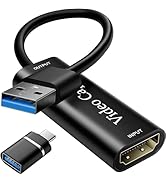
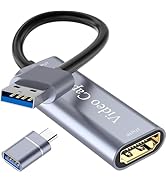
Video Capture Card
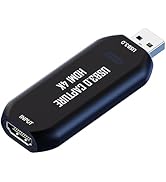
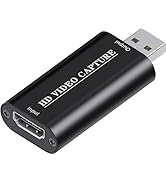
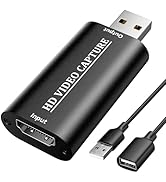
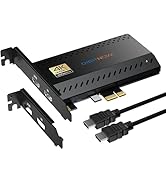
Cam Link 4K
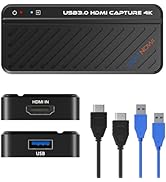
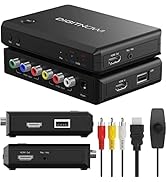
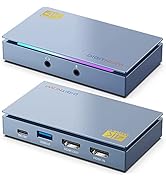
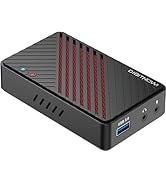
HDMI Capture Card
Plug and Play and No Driver needed
1080P 60FPS HD Quality
Stronger Compatibility
How to Use: (Work with OBS studio:)
Step I:
1. Download OBS Studio according to your computer’s operating system, and install it on your computer.Windows will install the driver automatically, and you will see “FHD Webcamera” in device manager.
2. Run OBS Studio, Click “+” icon under “Sources” window, and select “Video Capture Device”, then select “FHD Webcamera” in the drop box next to “Device”.
Step ?:
3. Set the video latency for make the audio and video synchronized:
(3.1) Right click “Video Capture Device” then click “Filters”:
(3.2)Click to add “Video Delay (Async)”
(3.3) Set it to 470ms (You can adjust it smaller or bigger uttil you found the audio and video synchronized):
Step ?:
Then you can recording or streaming video.
(Attention: Work with other applications(e.g. VLC, Media encoder, Protplayer…):
Just run the application then choose capture device to “FHD Webcamera”.)
Specifications
| Interface | USB 3.0 |
| Video/Audio Input | HDMI |
| Video/Audio Output | HDMI |
| System Requirement | Windows 7,8,10, OS X 10.9 or later, Linux. PC: Intel Core i5-3400 + NVIDIA GT630, NB: Intel Core i7- 3537U 2.0 GHz + NVIDIA GT735, Mac: i5 quad- core or above, VGA card supporting DirectX 10, Sound card ,4GB RAM, Powered USB 3.0 port: Intel chipset with native USB 3.0 host controller (Renesas, Fresco…) |
| Resolution | 720 x 480 (60p),720 x 576 (50p), 1280 x 720p (50p), 1280 x720p (60p), 1920 x 1080 (50i), 1920 x 1080 (60i), 1920 x 1080 (24p), 1920 x 1080 (25p), 1920 x 1080 (30p), 1920 x 1080 (50p), 1920 x 1080 (60p) |
| Software compatibility | OBS Studio (windows, OS X); Windows Media Encoder (Windows); Adobe Flash Media Live – Encoder (windows, OS X); Real Producer Plus (windows); VLC (windows, OS X, Linux); Quick Time Broadcaster (OS X); Quick Time Player (OS X); Wirecast (windows, OS X) vMix (Windows); Potplayer (Windows) and etc. |
| Interface compatibility | DirectShow (Windows), DirectSound (Windows), V4L2 (Linux), ALSA (Linux) OS X (Quick Time) |
| Record Quality | Max 1080p 60fps |
| Package Content | Video Capture Device, Type-C Adapter, HDMI Cable, USB 3.0 Cable, User Manual |
VIXLW: Connecting Infinite Possibilities
Users usually encounter problems such as image delays and impaired image quality during video transmission and conversion. To solve these problems, VIXLW was born with a passion for video technology, determined to create the ultimate experience of video capture cards and converters.
Choosing VIXLW means choosing quality and professionalism to start a wonderful video journey together.
Video Converter
Capture Card
Video Capture Card
Cam Link 4K
HDMI Capture Card