




 here!
I’m your shopping assistant for PC builds, upgrades, and everything tech.
Got questions? Ask away!
Start a conversation
here!
I’m your shopping assistant for PC builds, upgrades, and everything tech.
Got questions? Ask away!
Start a conversation
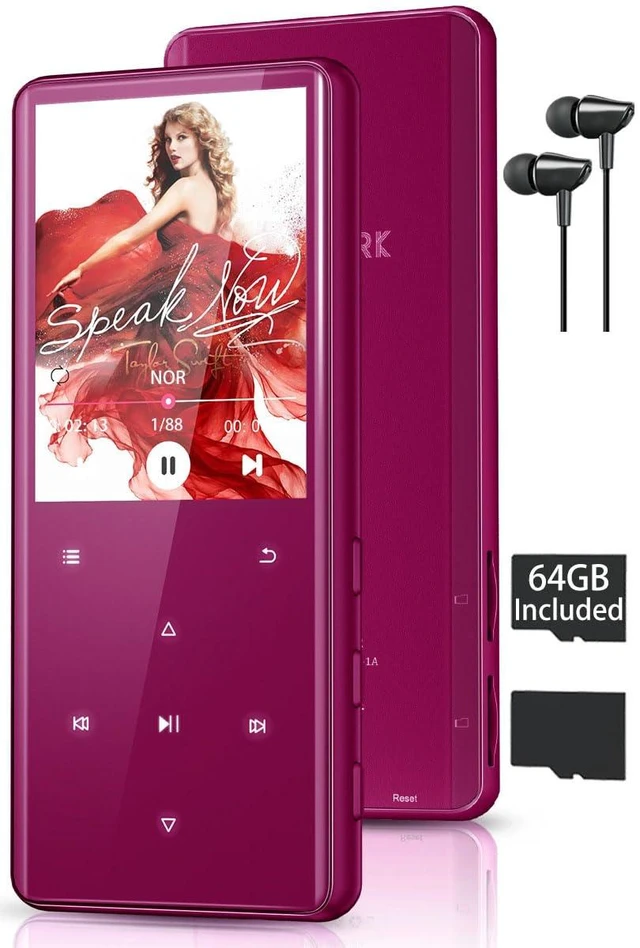
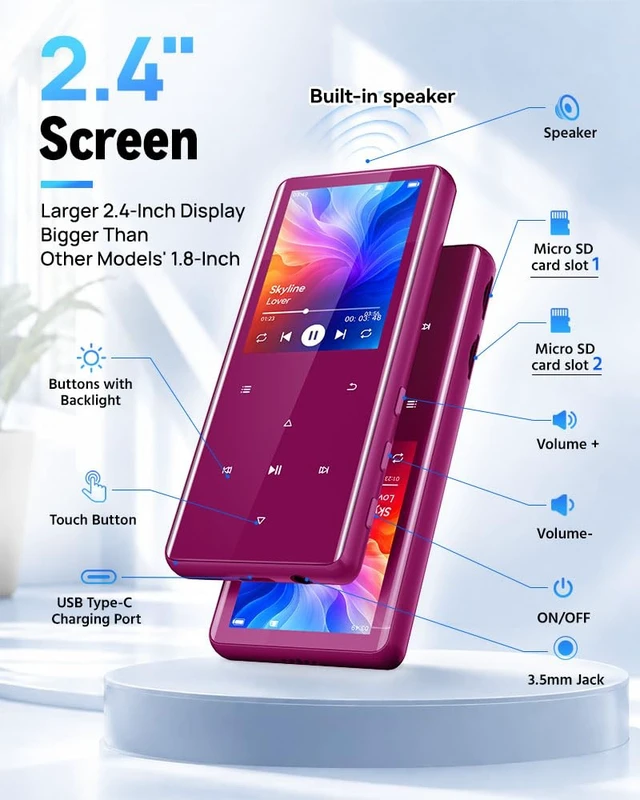
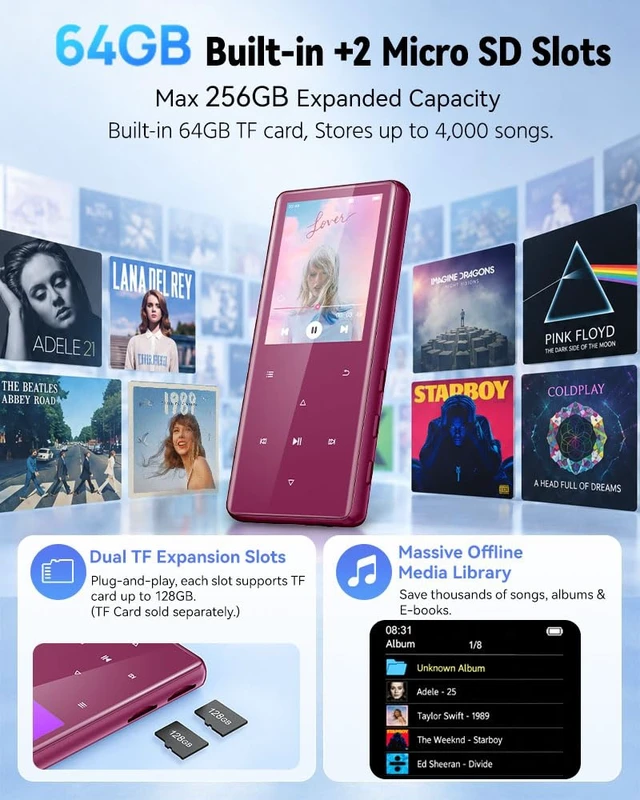
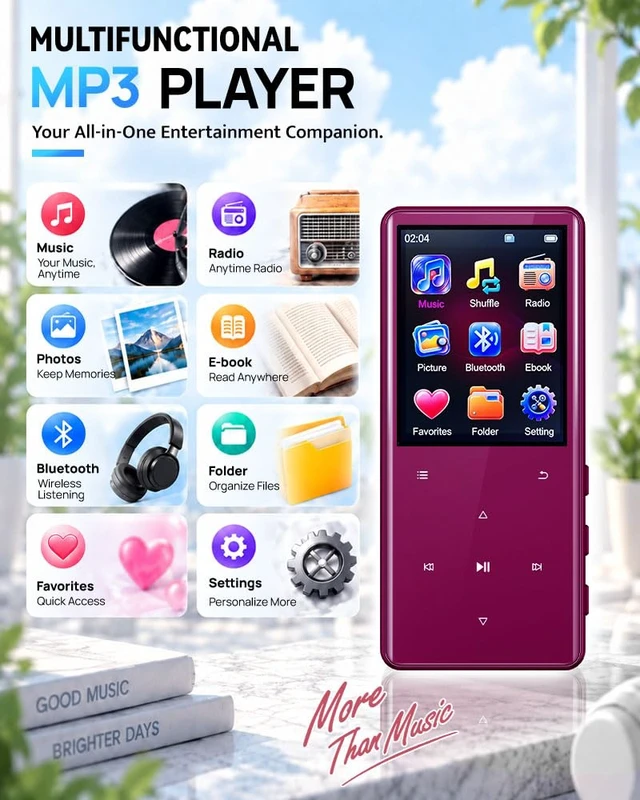



Any questions? Ask CelesteSM will help you find out quickly.
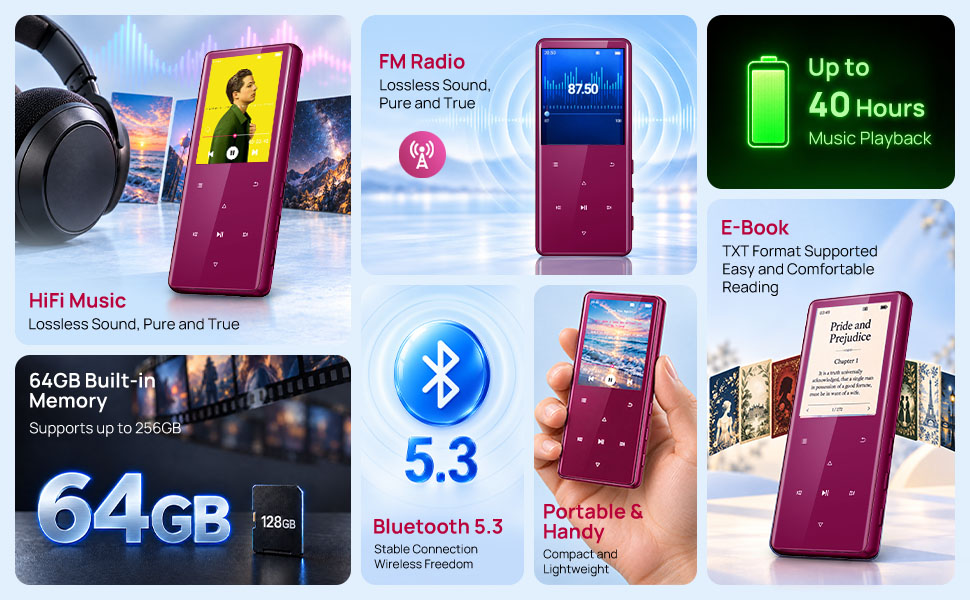
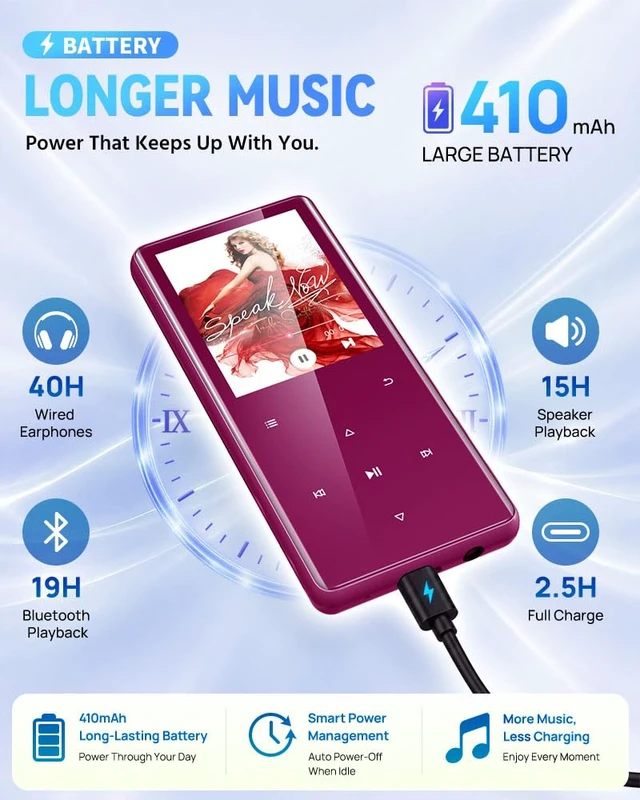
To save battery power, the MP3 player is factory-set to automatically shut down after 3 minutes of inactivity. You can disable this feature in the Settings menu if you prefer to keep the device on longer.
Q1: Why Can't My Computer Recognize the MP3 Player?
A: 1. Use the original USB data cable and make sure the connection between the MP3 player and your computer is secure. Some third-party cables support charging only and cannot transfer data.
2. If prompted, select “File Transfer” mode on the device. Otherwise, the player may only charge without appearing on your computer.
3. If the device is still not recognized, try another USB port or restart the player and computer.
Q2: How Do I Transfer Music to My MP3 Player? What If the Transfer Is Slow?
A: 1. Connect the MP3 player to your computer using a USB data cable. Open the device's storage drive on your computer, then drag and drop your music files into the appropriate folder.
2. For smoother transfers, we recommend transferring files in batches of no more than 1 GB at a time. Transfer speeds may vary depending on file size, cable quality, USB port, and computer performance.
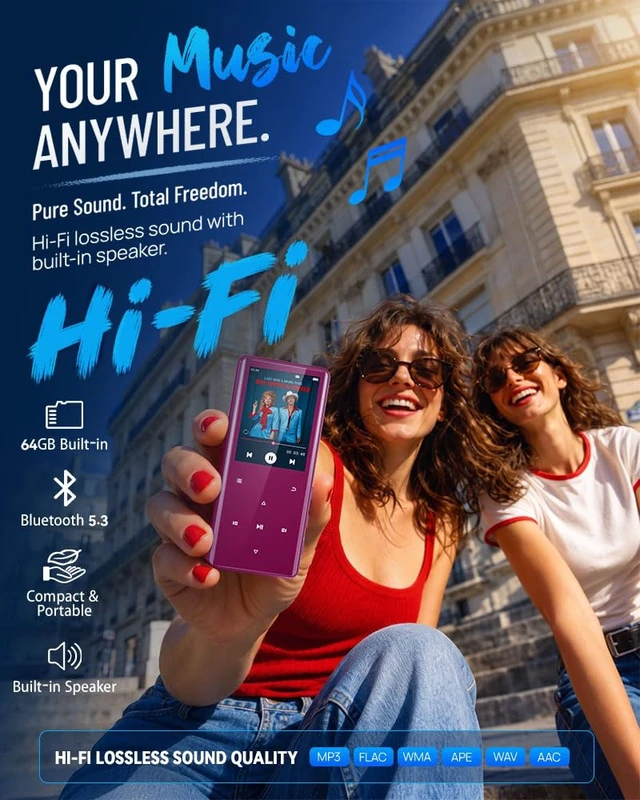
Q3: Why Can't I Play Some Music Files?
A: Some files may be in an unsupported format or may be corrupted. Please check that the files are compatible with the player and transfer them again if necessary. DRM-protected music files, including some downloads from streaming services, may not be supported.
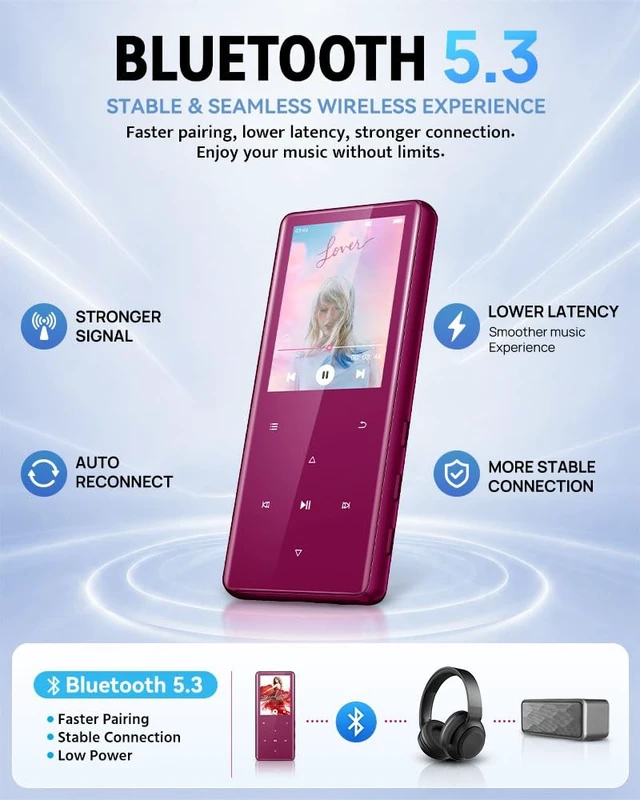
Q4: Can I connect this MP3 player to my car stereo via Bluetooth?
A: No, this MP3 player cannot connect directly to your car stereo via Bluetooth. To play music through your car stereo, you can connect the player using an AUX cable (sold separately), provided your car stereo has an AUX input.
To save battery power, the MP3 player is factory-set to automatically shut down after 3 minutes of inactivity. You can disable this feature in the Settings menu if you prefer to keep the device on longer.
Q1: Why Can't My Computer Recognize the MP3 Player?
A: 1. Use the original USB data cable and make sure the connection between the MP3 player and your computer is secure. Some third-party cables support charging only and cannot transfer data.
2. If prompted, select “File Transfer” mode on the device. Otherwise, the player may only charge without appearing on your computer.
3. If the device is still not recognized, try another USB port or restart the player and computer.
Q2: How Do I Transfer Music to My MP3 Player? What If the Transfer Is Slow?
A: 1. Connect the MP3 player to your computer using a USB data cable. Open the device's storage drive on your computer, then drag and drop your music files into the appropriate folder.
2. For smoother transfers, we recommend transferring files in batches of no more than 1 GB at a time. Transfer speeds may vary depending on file size, cable quality, USB port, and computer performance.
Q3: Why Can't I Play Some Music Files?
A: Some files may be in an unsupported format or may be corrupted. Please check that the files are compatible with the player and transfer them again if necessary. DRM-protected music files, including some downloads from streaming services, may not be supported.
Q4: Can I connect this MP3 player to my car stereo via Bluetooth?
A: No, this MP3 player cannot connect directly to your car stereo via Bluetooth. To play music through your car stereo, you can connect the player using an AUX cable (sold separately), provided your car stereo has an AUX input.


