









-

Focuses on trading high-quality electronic products. We primarily sell display solutions such as TFT LCD, OLED, and AMOLED panels.
Our experienced sourcing and quality control teams work closely with international suppliers to deliver dependable products and responsive service.
-
-
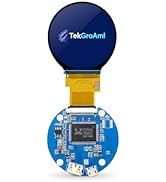
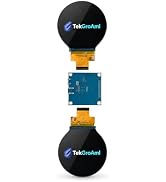
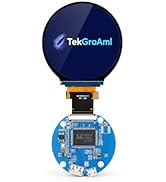
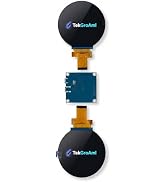
mini round screen
-
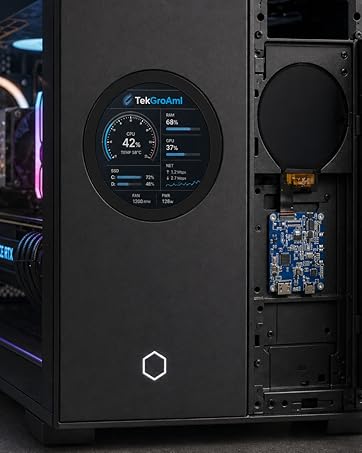
-
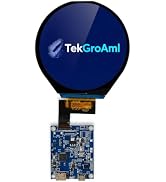
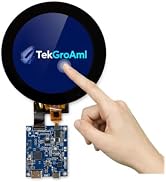
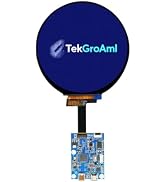

mini round screen
-
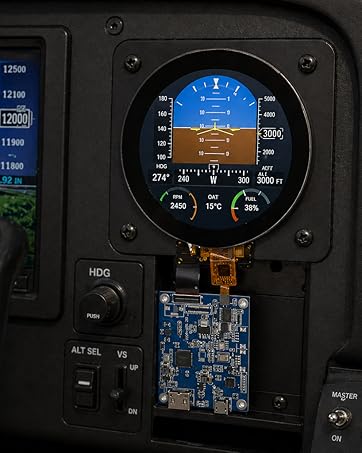
-
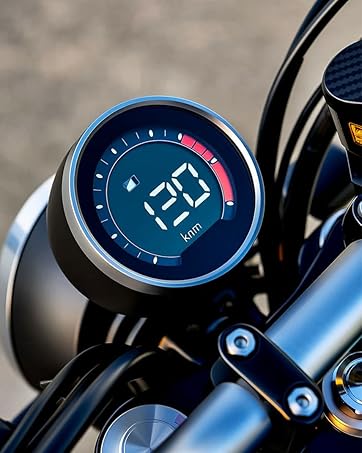
-
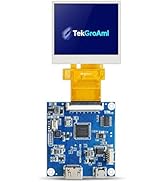
mini square screen
-
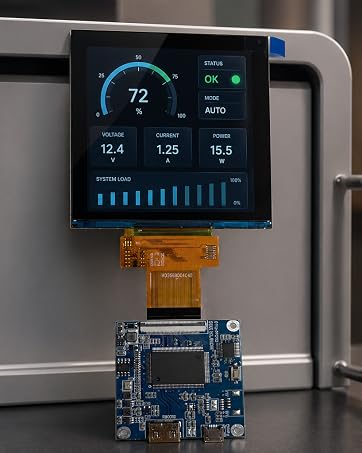
-
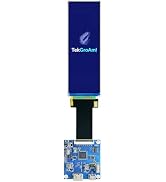
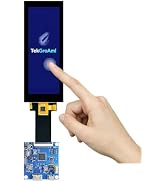
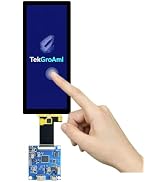
Long Strip Screen with board
-
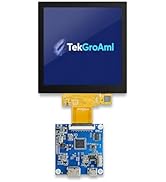
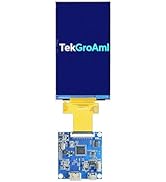
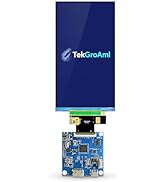
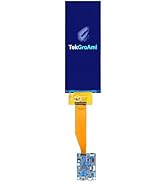
mini square screen with board
-
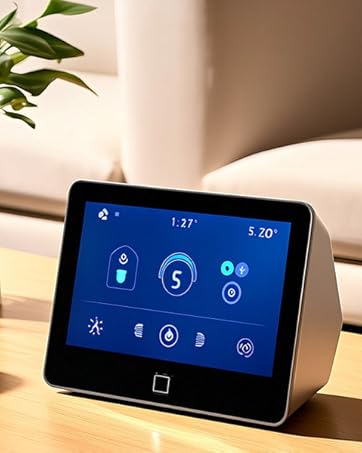
-
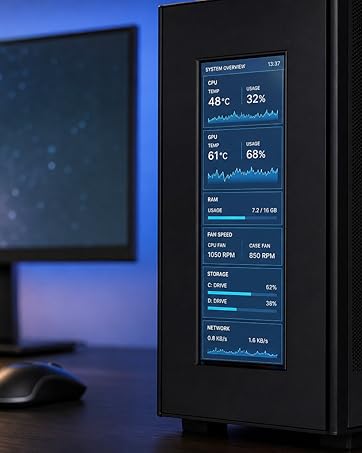
6.2 inch PC Case Display
-
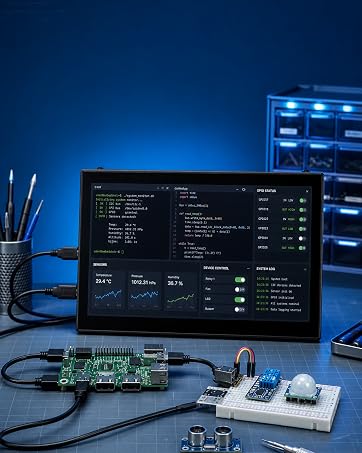
7 inch 1280x800 Touch Monitor
-
Portable LCD monitors
-
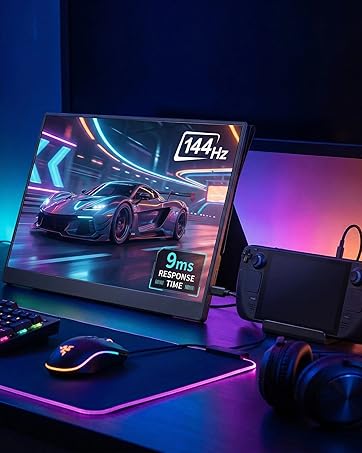
16 inch 144HZ 2K IPS Monitor
-
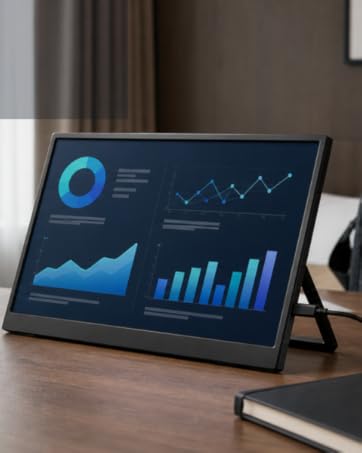
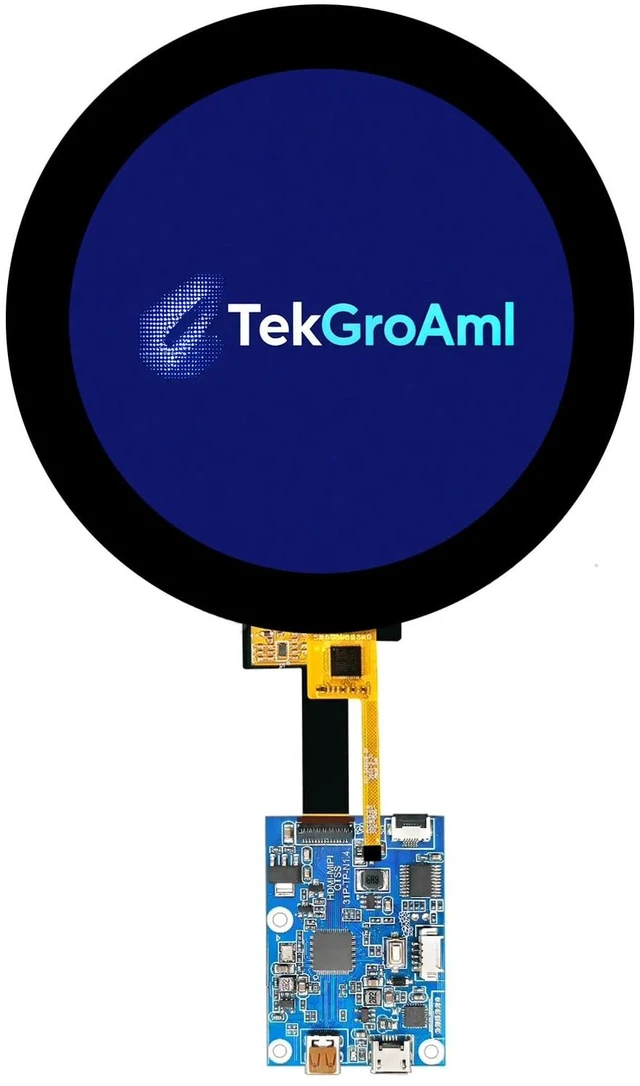
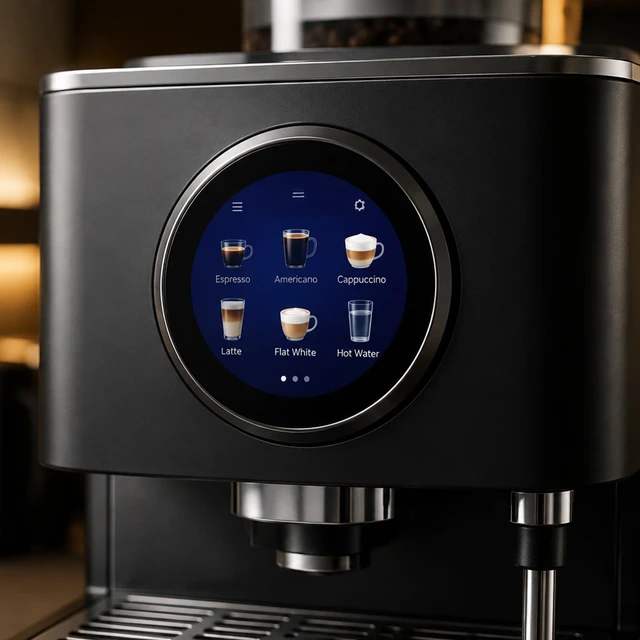
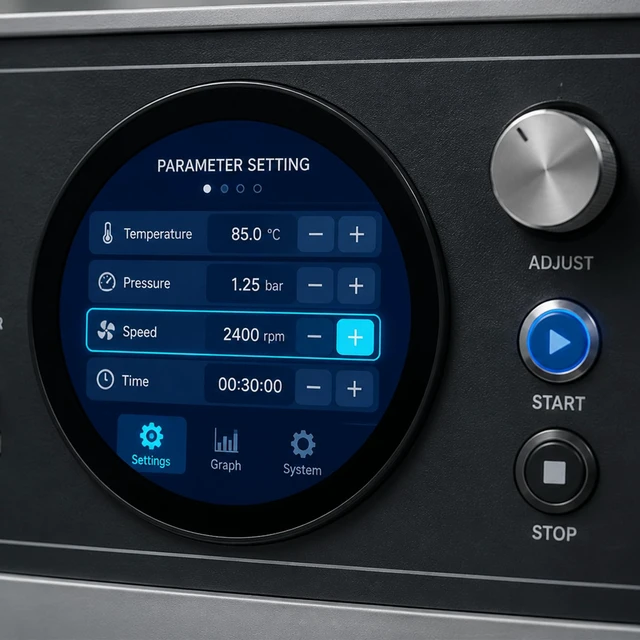
4.0 Inch 720x720 IPS Round Touchscreen with HDMI Control Board

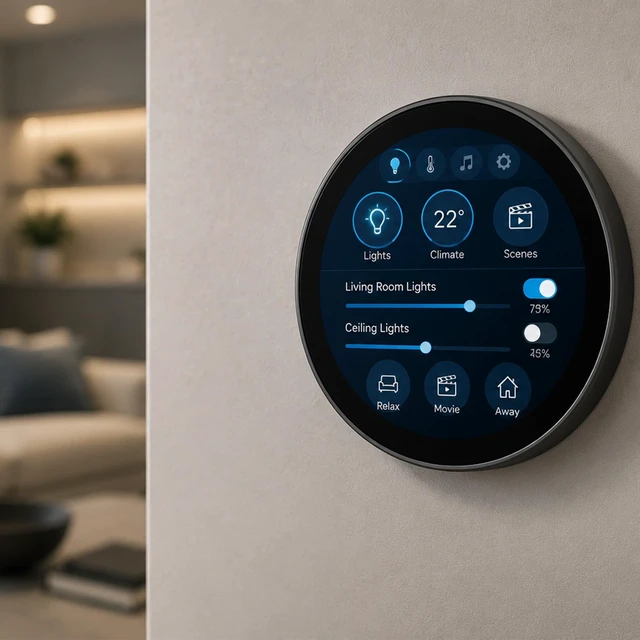
Wide Applications
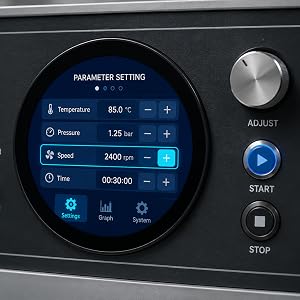
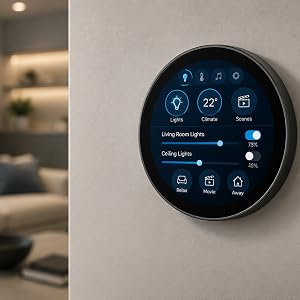
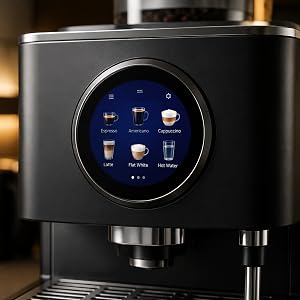


TekGroAml 2.1 inch 480x480 400 nits Round LCD Display and Mini H/D Board | fo...
|

TekGroAml 2.8 inch Mini IPS PC Case LCD Round Display,480x480 330 nits | Circ...
|

3.4 Inch Round 330nit LCD Display & HDMI Board, 800x800 IPS Circular Screen |...
|

TekGroAml 4 Inch Round LCD Display with Micro H/D Controller Board 720x720 | ...
|
|
|---|---|---|---|---|
| Customer Reviews | — | — | — |
—
|
| Price | — | — | — | — |
| Screen size | 2.1 inch | 2.8 inch | 3.4 inch | 4 inch |
| Video input | mini HDMI | mini HDMI | mini HDMI | micro HDMI |
| Brightness | 300 nits | 330 nits | 330 nits | 300 nits |
| Resolution | 480x480 | 480x480 | 800x800 | 720x720 |
Windows Quick Setup
- Display detection:Connect the module as a secondary monitor and open Windows display settings.
- Resolution reference:Use 720 x 720 for 4-inch models.
- Refresh rate:Set the refresh rate to 60Hz.
- Screen arrangement:Place the round display beside the main monitor to avoid mouse cursor conflicts.
- Custom mode If the native resolution is not detected automatically, create a custom mode at the selected model's native resolution and 60Hz in the graphics control panel.
- Application use:Move the compatible dashboard, monitoring interface, control UI, or simulator panel to the round secondary display after activation.
Single-Board-Computer Setup Notes
- Compatibility note:Suitable for compatible single-board-computer projects that support custom video output.
- Recommended target:Use the selected model's native resolution at 60Hz when supported by the platform.
- Resolution reference:Use 720 x 720 for 4-inch models.
- Setup method :Use platform display settings or a supported custom output method to set the required output mode.
- Reboot note:Reboot the system after saving the display configuration if required by the platform.
- Check items:Display output should be validated first. For touch variants, confirm the host-side touch connection method independently from the video setup before release.
4.0 Inch 720x720 IPS Round Touchscreen with HDMI Control Board
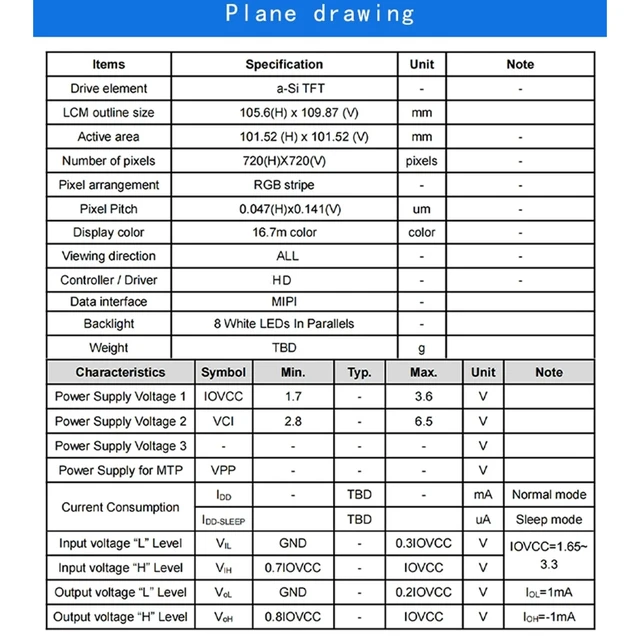
| Screen size | 4 inch |
| Video Input | Micro H/D |
| Power Port | Micro USB Port |
| Dimension | 132.6 x 132.6 x 4(W×H×D)mm |
| Display Area | 101.52x 101.52(W×H)mm |
| Brightness | 300 cd/m² |
| Viewing Angle | 85/85/85/85 |
| Signal Interface | Mipi (1ch, 8-bit) , 31 pins |
| Feature | With Touch Function |
Wide Applications
|
TekGroAml 2.1 inch 480x480 400 nits Round LCD Display and Mini H/D Board | fo...
|
TekGroAml 2.8 inch Mini IPS PC Case LCD Round Display,480x480 330 nits | Circ...
|
3.4 Inch Round 330nit LCD Display & HDMI Board, 800x800 IPS Circular Screen |...
|
TekGroAml 4 Inch Round LCD Display with Micro H/D Controller Board 720x720 | ...
|
|
|---|---|---|---|---|
| Customer Reviews | — | — | — |
—
|
| Price | — | — | — | — |
| Screen size | 2.1 inch | 2.8 inch | 3.4 inch | 4 inch |
| Video input | mini HDMI | mini HDMI | mini HDMI | micro HDMI |
| Brightness | 300 nits | 330 nits | 330 nits | 300 nits |
| Resolution | 480x480 | 480x480 | 800x800 | 720x720 |
Windows Quick Setup
- Display detection:Connect the module as a secondary monitor and open Windows display settings.
- Resolution reference:Use 720 x 720 for 4-inch models.
- Refresh rate:Set the refresh rate to 60Hz.
- Screen arrangement:Place the round display beside the main monitor to avoid mouse cursor conflicts.
- Custom mode If the native resolution is not detected automatically, create a custom mode at the selected model's native resolution and 60Hz in the graphics control panel.
- Application use:Move the compatible dashboard, monitoring interface, control UI, or simulator panel to the round secondary display after activation.
Single-Board-Computer Setup Notes
- Compatibility note:Suitable for compatible single-board-computer projects that support custom video output.
- Recommended target:Use the selected model's native resolution at 60Hz when supported by the platform.
- Resolution reference:Use 720 x 720 for 4-inch models.
- Setup method :Use platform display settings or a supported custom output method to set the required output mode.
- Reboot note:Reboot the system after saving the display configuration if required by the platform.
- Check items:Display output should be validated first. For touch variants, confirm the host-side touch connection method independently from the video setup before release.
-
Focuses on trading high-quality electronic products. We primarily sell display solutions such as TFT LCD, OLED, and AMOLED panels.
Our experienced sourcing and quality control teams work closely with international suppliers to deliver dependable products and responsive service.
-
-
mini round screen
-
-
mini round screen
-
-
-
mini square screen
-
-
Long Strip Screen with board
-
mini square screen with board
-
-
6.2 inch PC Case Display
-
7 inch 1280x800 Touch Monitor
-
Portable LCD monitors
-
16 inch 144HZ 2K IPS Monitor
-