




 here!
here!
I’m your shopping assistant for PC builds, upgrades, and everything tech.
Got questions? Ask away!
Start a conversation
here!
I’m your shopping assistant for PC builds, upgrades, and everything tech.
Got questions? Ask away!
Start a conversation


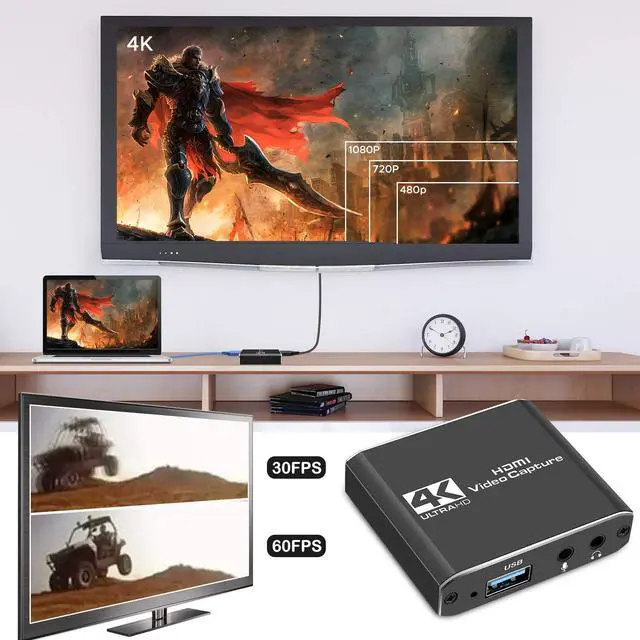



Any questions? Ask CelesteSM will help you find out quickly.
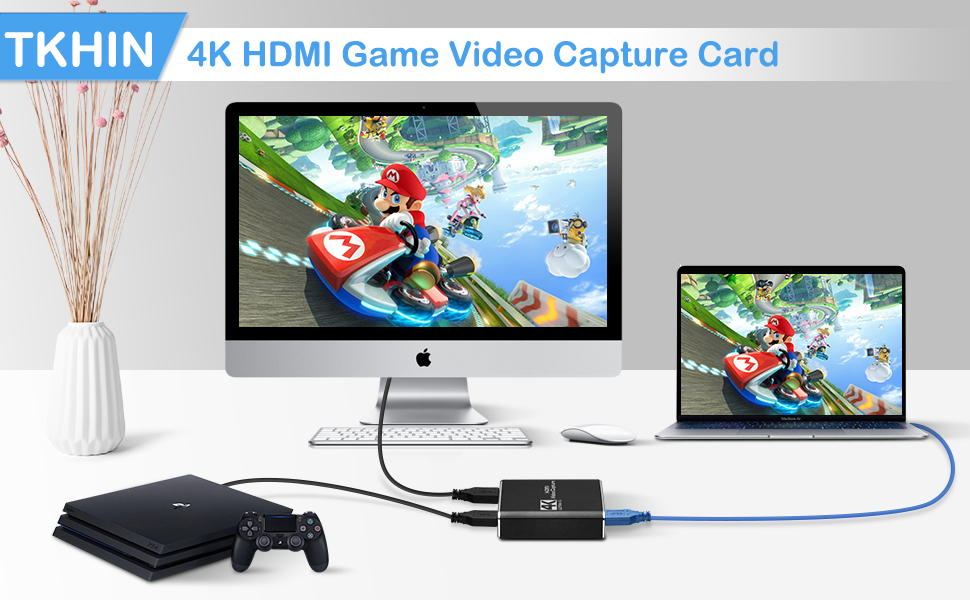
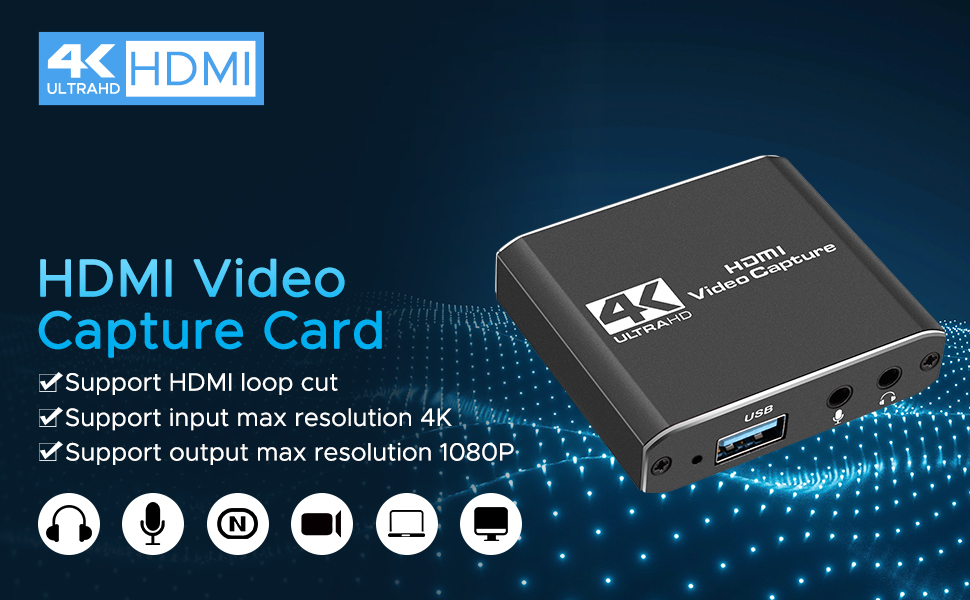
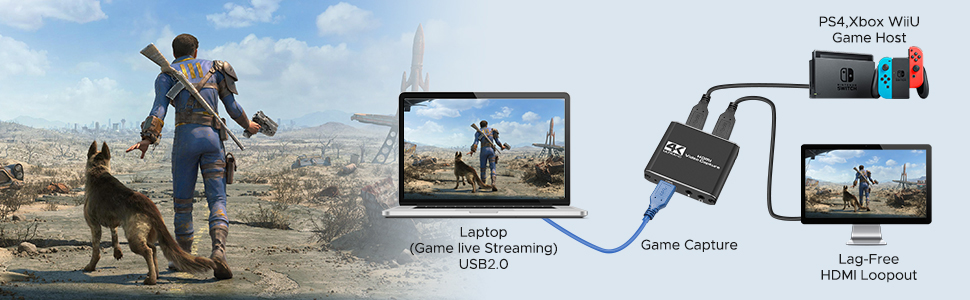
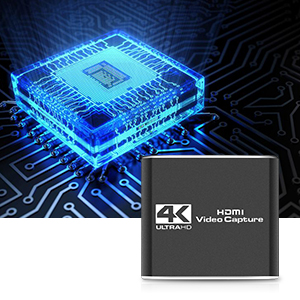
Super Performance Chip makes video conferencing, game live broadcasting, etc. clearer and smoother. No delay, no blue screen 1
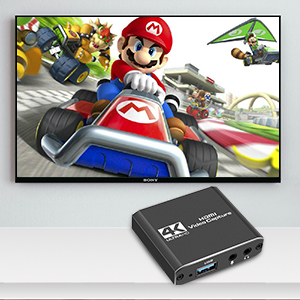
Full HD 1080P video capture, 60Fps video recording and live broadcast.
High-intensity reproduction of video delicate colors, clear, vivid picture quality
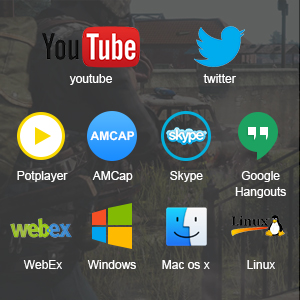
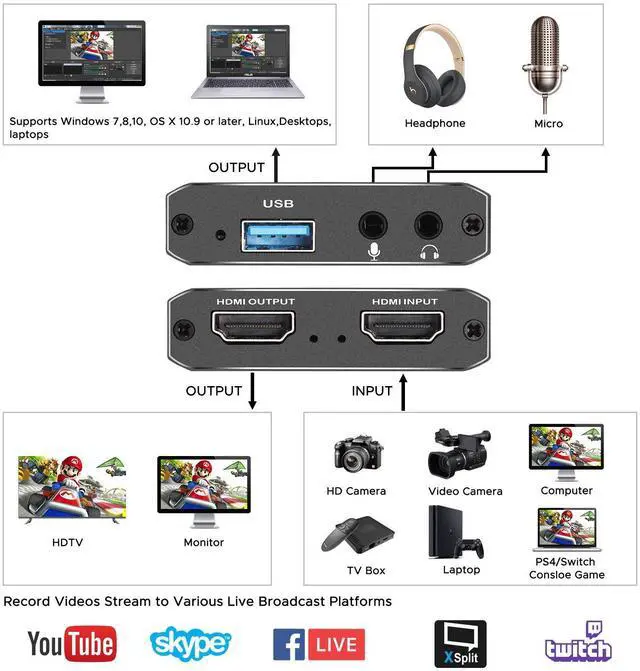
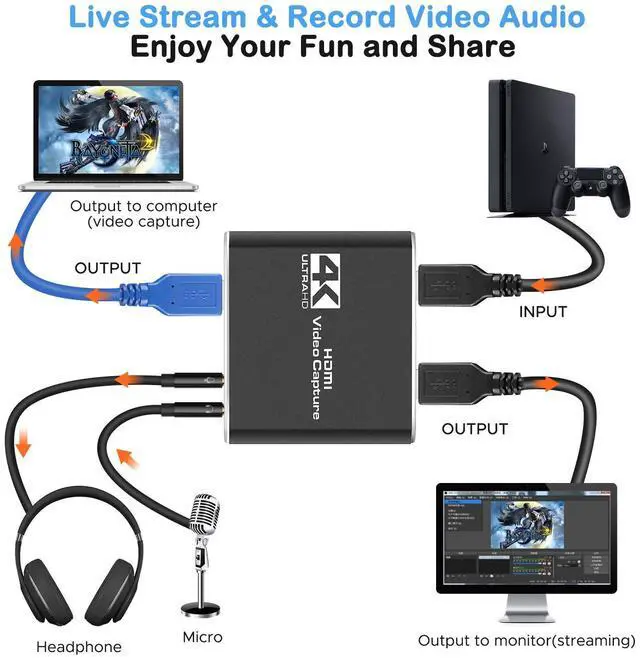
Works well with most mainstream game consoles, Camera, DSLR; OBS Studio, QuickTime Broadcaster (OS X), etc.
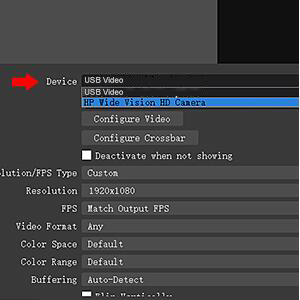
In the red arrow column, select "USB Video" and the current audio and video capture. As shown in Figure 1-1
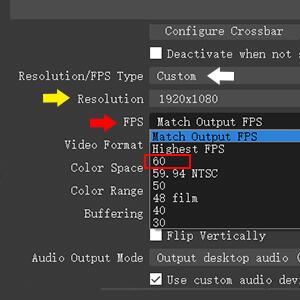
A. Custom Resolution: The Resolution/FPS Type column is set to custom. As shown by the white arrow in Figure 2-1.
B. Set Resolution: Select the appropriate resolution at the up and down arrows on the far right of this column. As shown by the yellow arrow in Figure 2-1.
C. Set FPS : Select the appropriate frame rate at the up and down arrows on the far right of this column. As shown by the red arrow in Figure 2-1.
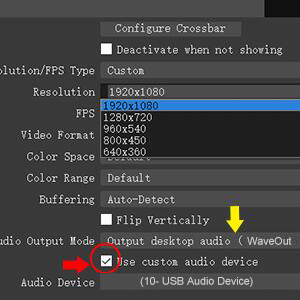
A. Select the "Output Desktop Audio" item at the up and down arrows on the far right of the "Audio Output Mode" column.As shown by the red arrow in Figure 3-1.
B. Mark the "v" in the red box. As shown below:
C. Select the MIC input of the collector at the up and down arrows on the far right of the "Audio Device" column. As shown by the yellow arrow in Figure 3-1.
The OBS is set up and it can be used normally.
FQA:
1. Q: Is this capture card USB 2.0 or 3.0?
-- A: It is USB 2.0. All other brands capture cards under 50 USD are USB2.0, though their fake advertising USB3.0.
2. Q: How to get 1080P 60FPS video recording?
-- A: It need to confirm your PC support 1080P@60FPS, and set OBS to 1080P@60FPS correctly.
3. Q: What should I do when there is flickering green screen?
-- A: Re-plug the USB and HDMI cables properly, issue is caused by bad connecting.
4. Q: What to do "there was no sound coming through"?
-- A: Add Sources "Audio Input Capture" to get property "Microphone/Aux", unless your PC has "Desktop Audio".
5. Q: How to deal with buzzing sound
-- A: Some low voltage USB panels would cause static buzzing sound, change a proper USB panel or rise enough voltage.
6. Q: Can I use a headphone/microphone combo in one cord instead of two separate things?
-- A: It won't transmit your voice unless you add a splitter.
7. Q: When problems happen?
-- A: Please contact our rep for further assistance. We are always ready to help you address issues.
Super Performance Chip makes video conferencing, game live broadcasting, etc. clearer and smoother. No delay, no blue screen 1
Full HD 1080P video capture, 60Fps video recording and live broadcast.
High-intensity reproduction of video delicate colors, clear, vivid picture quality
Works well with most mainstream game consoles, Camera, DSLR; OBS Studio, QuickTime Broadcaster (OS X), etc.
In the red arrow column, select "USB Video" and the current audio and video capture. As shown in Figure 1-1
A. Custom Resolution: The Resolution/FPS Type column is set to custom. As shown by the white arrow in Figure 2-1.
B. Set Resolution: Select the appropriate resolution at the up and down arrows on the far right of this column. As shown by the yellow arrow in Figure 2-1.
C. Set FPS : Select the appropriate frame rate at the up and down arrows on the far right of this column. As shown by the red arrow in Figure 2-1.
A. Select the "Output Desktop Audio" item at the up and down arrows on the far right of the "Audio Output Mode" column.As shown by the red arrow in Figure 3-1.
B. Mark the "v" in the red box. As shown below:
C. Select the MIC input of the collector at the up and down arrows on the far right of the "Audio Device" column. As shown by the yellow arrow in Figure 3-1.
The OBS is set up and it can be used normally.
FQA:
1. Q: Is this capture card USB 2.0 or 3.0?
-- A: It is USB 2.0. All other brands capture cards under 50 USD are USB2.0, though their fake advertising USB3.0.
2. Q: How to get 1080P 60FPS video recording?
-- A: It need to confirm your PC support 1080P@60FPS, and set OBS to 1080P@60FPS correctly.
3. Q: What should I do when there is flickering green screen?
-- A: Re-plug the USB and HDMI cables properly, issue is caused by bad connecting.
4. Q: What to do "there was no sound coming through"?
-- A: Add Sources "Audio Input Capture" to get property "Microphone/Aux", unless your PC has "Desktop Audio".
5. Q: How to deal with buzzing sound
-- A: Some low voltage USB panels would cause static buzzing sound, change a proper USB panel or rise enough voltage.
6. Q: Can I use a headphone/microphone combo in one cord instead of two separate things?
-- A: It won't transmit your voice unless you add a splitter.
7. Q: When problems happen?
-- A: Please contact our rep for further assistance. We are always ready to help you address issues.
KEHIPI Capture Card, Audio Video Capture Card with Microphone 4K HDMI Loop-Out, 1080p 60fps Video Recorder for Gaming/Live Streaming/Video Conference, Works for Nintendo Switch/PS4/OBS/Camera/PC


