





 QIACHIP 2.4G Smart Remote Control Light Socket E26 E27 Bulb Socket Adapter, e... | 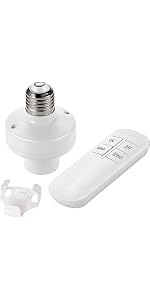 QIACHIP Remote Control Light Lamp Socket E26 E27 Bulb Base Holder, Wireless L... |  QIACHIP Wi-Fi Smart 2.4G Remote Control Light Socket E26 E27 Bulb Socket Adap... | 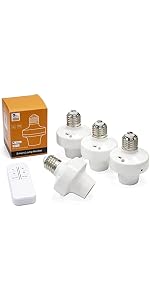 QIACHIP Wi-Fi Smart 2.4G Remote Control Light Socket E26 E27 Bulb Socket Adap... | 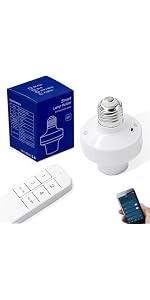 QIACHIP Remote Control Light Socket E26 E27 Bulb Socket Adapter, ZigBee Smart... | 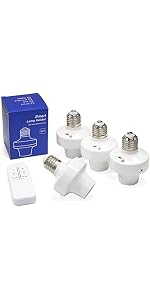 QIACHIP Remote Control Light Socket E26 E27 Bulb Socket Adapter, ZigBee Smart... | |
|---|---|---|---|---|---|---|
| Customer Reviews | — | — | — | — | — | — |
| Price | — | — | — | — | — | — |
| Style | 1 Bluetooth Socket + 1 Transmitter | 1 RF Socket + 1 Remote(with timer) | 1 WiFi Socket + 1 Transmitter | 4 WiFi Sockets + 1 Transmitter | 1 Zigbee Socket + 1 Transmitter | 4 Zigbee Sockets + 1 Transmitter |
Features
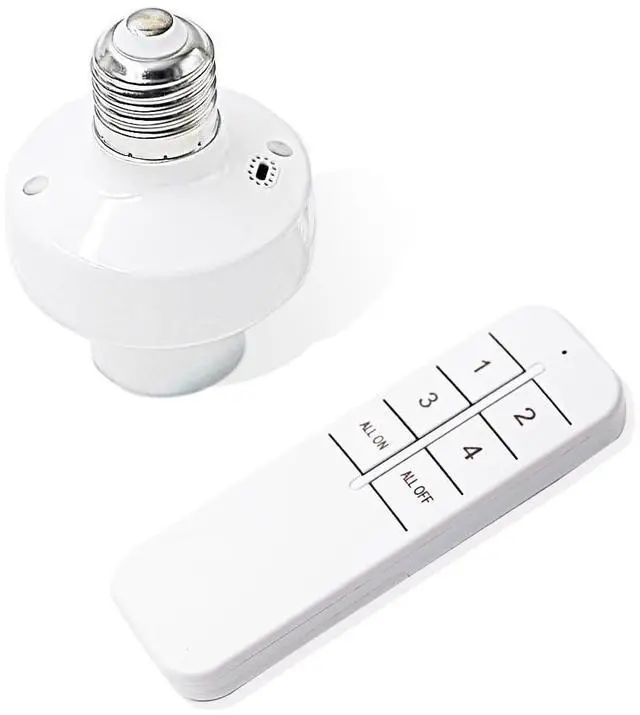
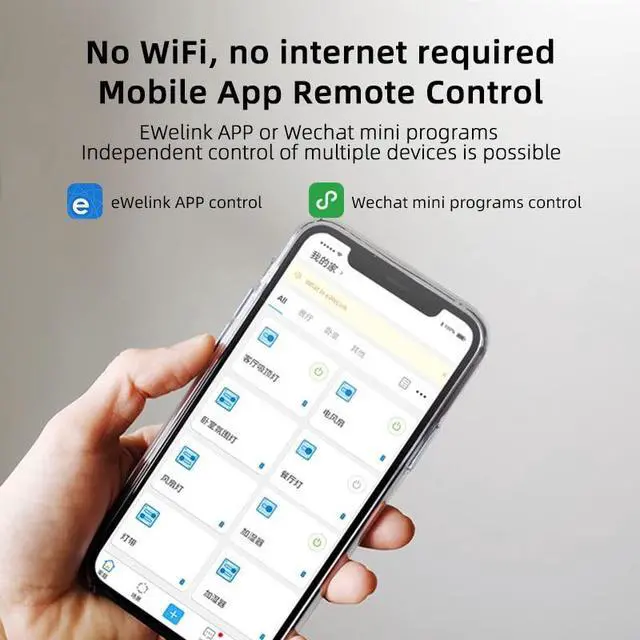
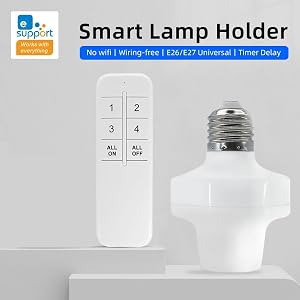
The device is a eWeLink-Remote smart lamp holder that supports app control and 2.4Ghz remote controller.You can also create schedules and scenes in the app.2.4GHz radio frequency or mobile phone Bluetooth control, no Wi-Fi required.
[Easy to install,Smart Living]
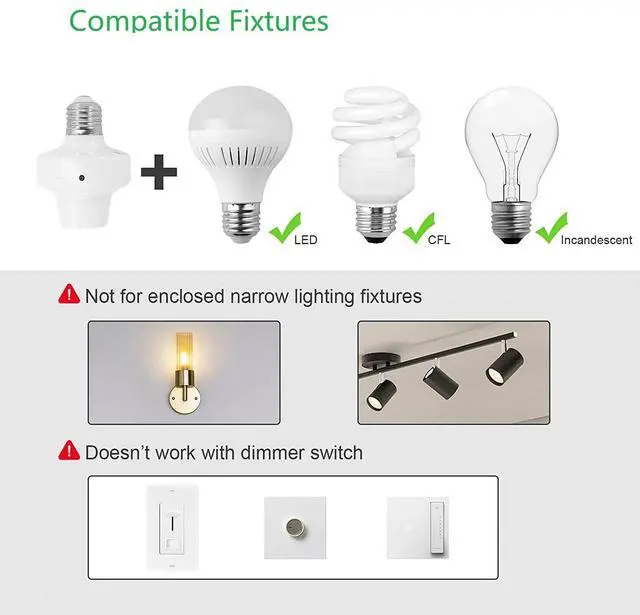
Ordinary lamp holder + Smart lamp holder + Bulb
Realize intelligent remote control
[Timer and Delay]
The delay can be set from 5 minutes to 20 hours.
e.g. Set the light to turn off after a 5-minute delay.
[No schedule on/off function]
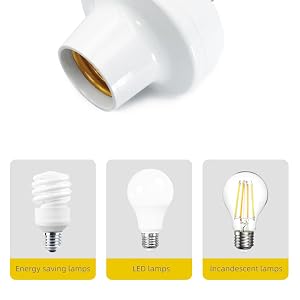
Max. Load
LED lamps = 60 W;
Energy Saving Lamp /Incandescent Lamp = 100W;
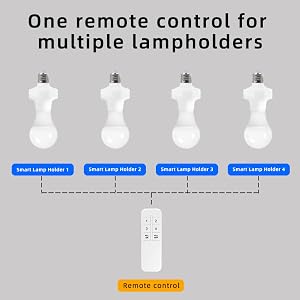
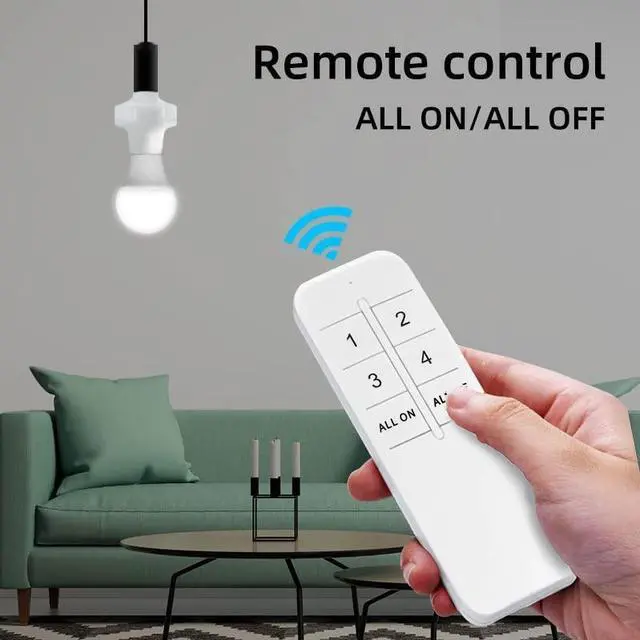
Remote Control ALL ON/ALL OFF
One remote control for multiple lampholders.
The two buttons at the bottom named 'All ON' and 'All OFF' allow you to turn on or off all the buttons above and they cannot learn any other functions.
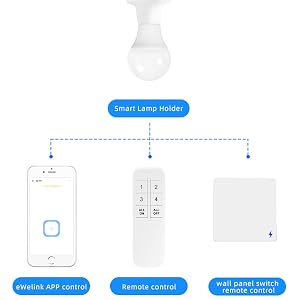
Multiple Remote Control Method
eWeLink APP/WeChat mini program control;
Remote control;
Wall panel switch remote control.
The device can add 4 remote controllers at most (include APP button and RM remote controller),and the fifth remote controller data will automatically cover the first one.
?
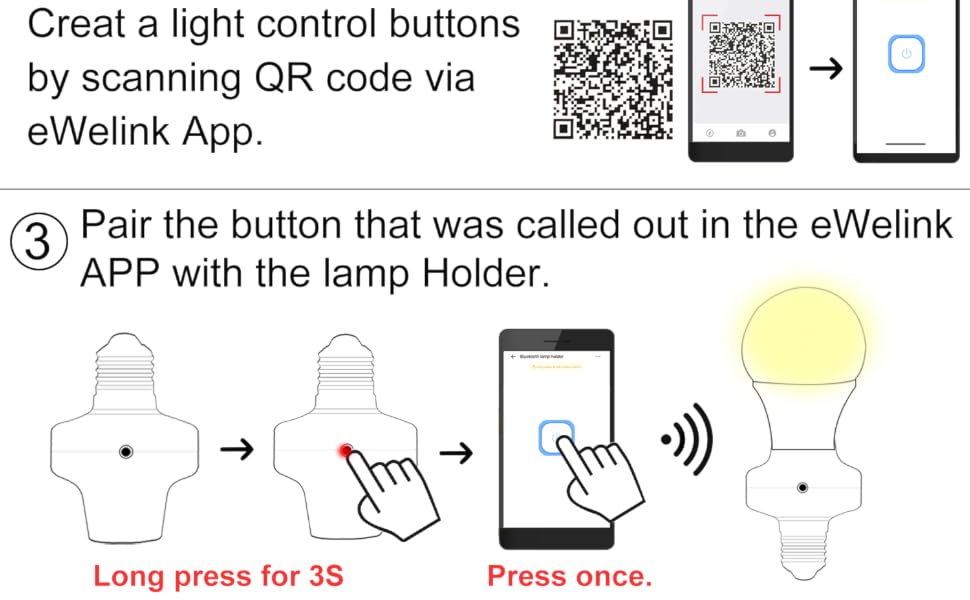
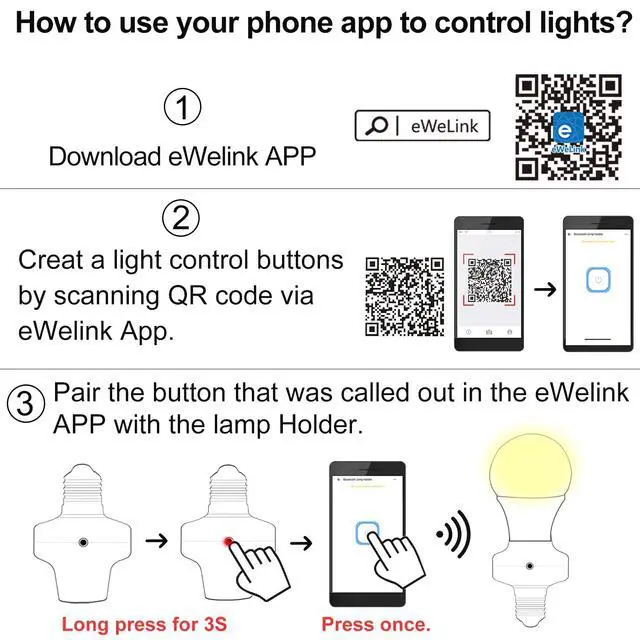
How do I add a lampholder to the Ewelink app?
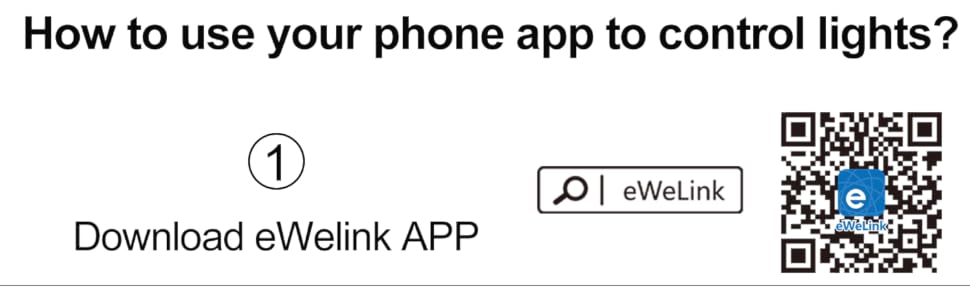
Step 1: download 'Ewelink' APP.
Step 2: Open the ewelink app, tap the “+” icon on the home screen, and select “Scan” to create a button.The QR-code can be found on the box and in the manual.
Note: Once added, it only generates the operating interface, the app cannot control the lampholder at this point, you need to take the next step.
Step 3: Press and hold the lampholder learning button for about 3 seconds until the indicator light flashes, then press the control button on the app interface to add the device successfully.
How do I add a remote control?
A: Press and hold the lampholder learning button for about 3 seconds until the inner light flashes, then press the remote control button to pair it.
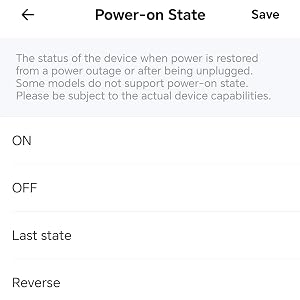
Power-On State Customizable via Ewelink App
This smart lampholder supports custom power-on state after power failure, which can be freely set in the Ewelink APP. You can choose to keep the last power-off state, always on, or always off as needed. The default factory setting is "Power On", and you can change it to "Memory/Keep Previous State" in device settings to avoid automatic turn-on after power restoration.
FAQ
1. Q: Is this a Wi-Fi light socket?
A: No! This is a 2.4GHz Bluetooth light socket that does not require a Wi-Fi connection. It supports control via the eWeLink APP via Bluetooth, as well as operation with a 2.4GHz remote control/wireless switch, It only has a delay function and does not support scheduling.
2. Q: Why are the buttons in the app not working?
A: Most likely, the button is not paired with the light socket yet.
The simple solution is: first, put the light socket into pairing mode by long-pressing, then tap the corresponding button interface in the app to complete the pairing. Once paired successfully, the button will work normally to control the light socket.
3.Q: Does the lamp base have a scheduling feature?
A: Sorry, it does not currently have a daily scheduling feature.If you need a scheduling feature, please purchase our Wi-Fi lamp base(B0B38XB7JQ)
QIACHIP 2.4G Smart Remote Control Light Socket E26 E27 Bulb Socket Adapter, e... | QIACHIP Remote Control Light Lamp Socket E26 E27 Bulb Base Holder, Wireless L... | QIACHIP Wi-Fi Smart 2.4G Remote Control Light Socket E26 E27 Bulb Socket Adap... | QIACHIP Wi-Fi Smart 2.4G Remote Control Light Socket E26 E27 Bulb Socket Adap... | QIACHIP Remote Control Light Socket E26 E27 Bulb Socket Adapter, ZigBee Smart... | QIACHIP Remote Control Light Socket E26 E27 Bulb Socket Adapter, ZigBee Smart... | |
|---|---|---|---|---|---|---|
| Customer Reviews | — | — | — | — | — | — |
| Price | — | — | — | — | — | — |
| Style | 1 Bluetooth Socket + 1 Transmitter | 1 RF Socket + 1 Remote(with timer) | 1 WiFi Socket + 1 Transmitter | 4 WiFi Sockets + 1 Transmitter | 1 Zigbee Socket + 1 Transmitter | 4 Zigbee Sockets + 1 Transmitter |
Features
The device is a eWeLink-Remote smart lamp holder that supports app control and 2.4Ghz remote controller.You can also create schedules and scenes in the app.2.4GHz radio frequency or mobile phone Bluetooth control, no Wi-Fi required.
[Easy to install,Smart Living]
Ordinary lamp holder + Smart lamp holder + Bulb
Realize intelligent remote control
[Timer and Delay]
The delay can be set from 5 minutes to 20 hours.
e.g. Set the light to turn off after a 5-minute delay.
[No schedule on/off function]
Max. Load
LED lamps = 60 W;
Energy Saving Lamp /Incandescent Lamp = 100W;
Remote Control ALL ON/ALL OFF
One remote control for multiple lampholders.
The two buttons at the bottom named 'All ON' and 'All OFF' allow you to turn on or off all the buttons above and they cannot learn any other functions.
Multiple Remote Control Method
eWeLink APP/WeChat mini program control;
Remote control;
Wall panel switch remote control.
The device can add 4 remote controllers at most (include APP button and RM remote controller),and the fifth remote controller data will automatically cover the first one.
?
How do I add a lampholder to the Ewelink app?
Step 1: download 'Ewelink' APP.
Step 2: Open the ewelink app, tap the “+” icon on the home screen, and select “Scan” to create a button.The QR-code can be found on the box and in the manual.
Note: Once added, it only generates the operating interface, the app cannot control the lampholder at this point, you need to take the next step.
Step 3: Press and hold the lampholder learning button for about 3 seconds until the indicator light flashes, then press the control button on the app interface to add the device successfully.
How do I add a remote control?
A: Press and hold the lampholder learning button for about 3 seconds until the inner light flashes, then press the remote control button to pair it.
Power-On State Customizable via Ewelink App
This smart lampholder supports custom power-on state after power failure, which can be freely set in the Ewelink APP. You can choose to keep the last power-off state, always on, or always off as needed. The default factory setting is "Power On", and you can change it to "Memory/Keep Previous State" in device settings to avoid automatic turn-on after power restoration.
FAQ
1. Q: Is this a Wi-Fi light socket?
A: No! This is a 2.4GHz Bluetooth light socket that does not require a Wi-Fi connection. It supports control via the eWeLink APP via Bluetooth, as well as operation with a 2.4GHz remote control/wireless switch, It only has a delay function and does not support scheduling.
2. Q: Why are the buttons in the app not working?
A: Most likely, the button is not paired with the light socket yet.
The simple solution is: first, put the light socket into pairing mode by long-pressing, then tap the corresponding button interface in the app to complete the pairing. Once paired successfully, the button will work normally to control the light socket.
3.Q: Does the lamp base have a scheduling feature?
A: Sorry, it does not currently have a daily scheduling feature.If you need a scheduling feature, please purchase our Wi-Fi lamp base(B0B38XB7JQ)