here!
here!
I’m your shopping assistant for PC builds, upgrades, and everything tech.
Got questions? Ask away!
Start a conversation
here!
I’m your shopping assistant for PC builds, upgrades, and everything tech.
Got questions? Ask away!
Start a conversation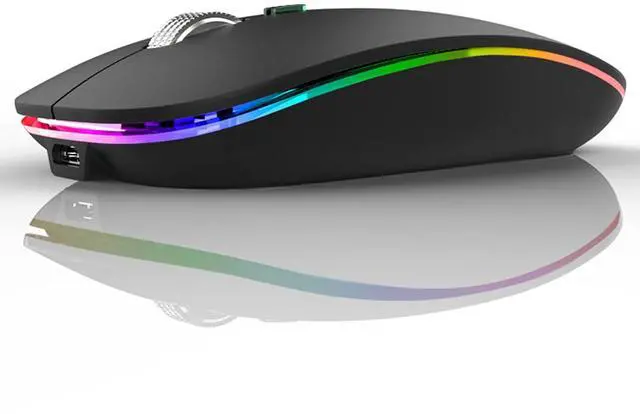



Any questions? Ask CelesteSM will help you find out quickly.
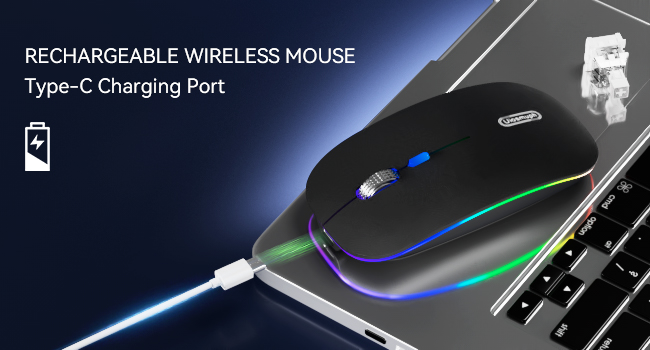
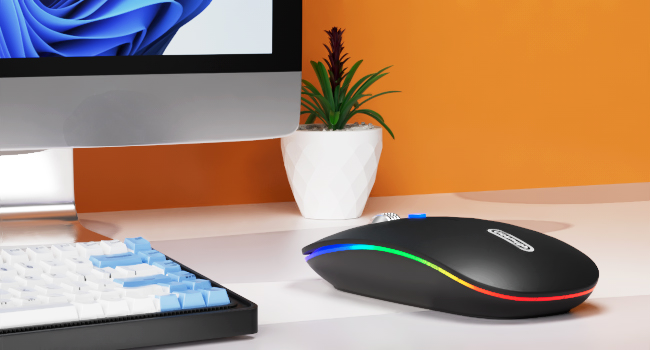
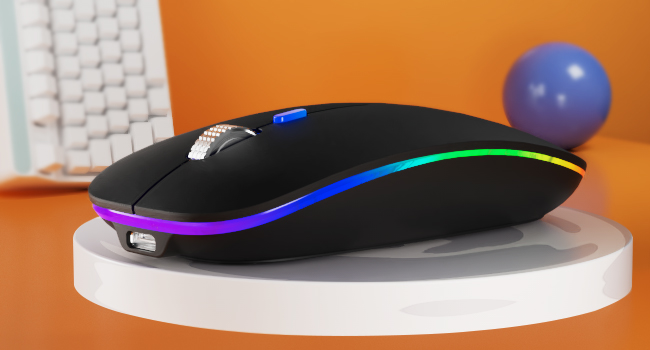
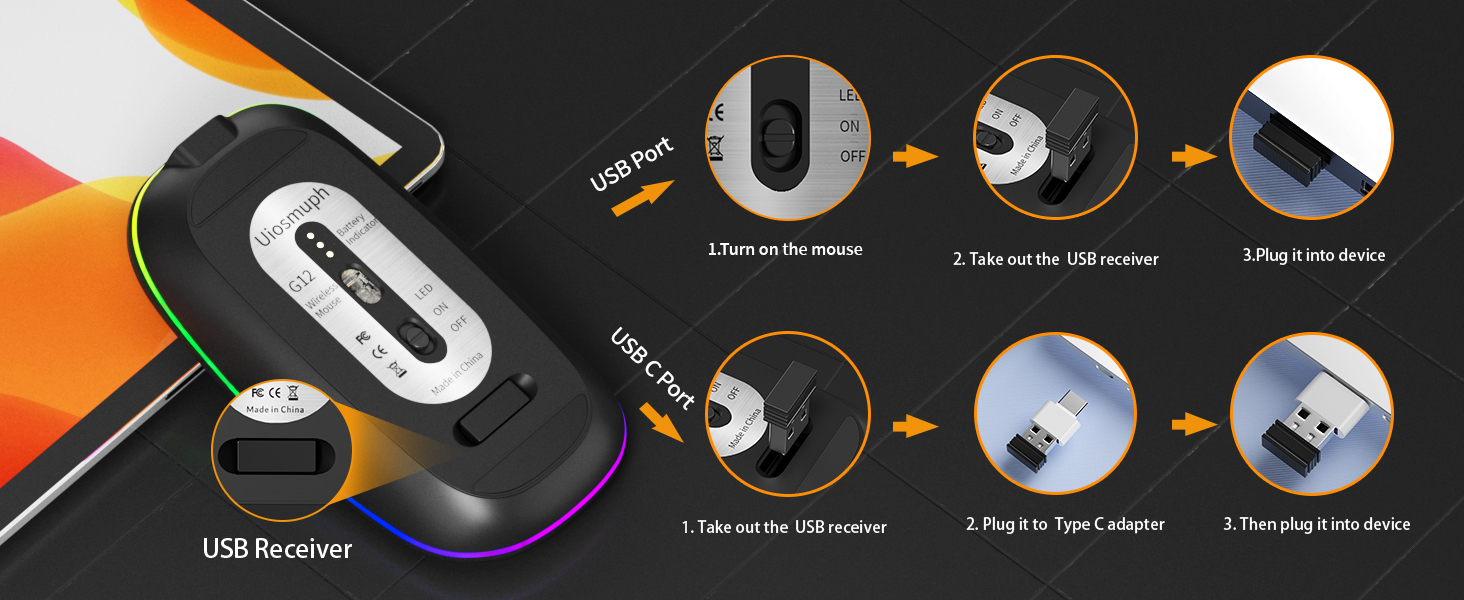
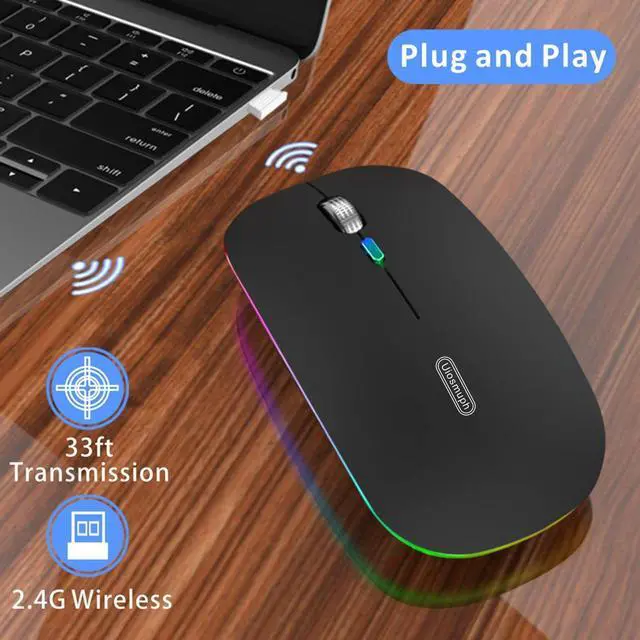
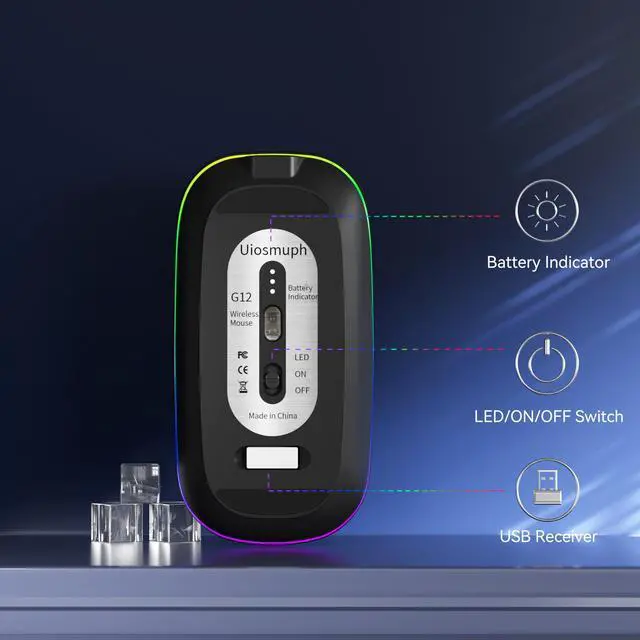
Note: For USB C port, simply plug the USB receiver into the type c adapter, then plug adapter into your device, turn on the power switch and the mouse will work.
Where is the USB receiver?
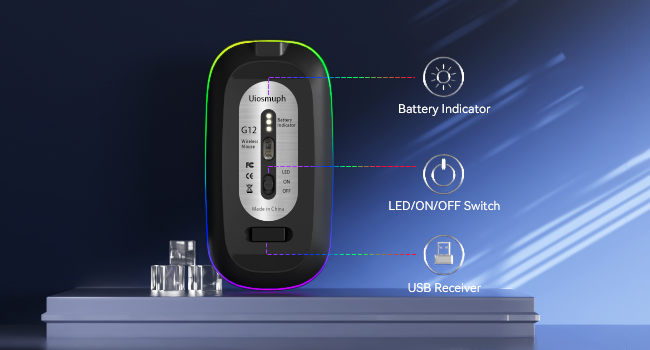
The USB receiver is stored at the bottom of the mouse, you need to take it out.
How to use the mouse on USB C port device?
Simply plug the USB receiver into the type c adapter, then plug adapter into your device, turn on the power switch and the mouse will work. (Type C adapter included)
How to charing the mouse?
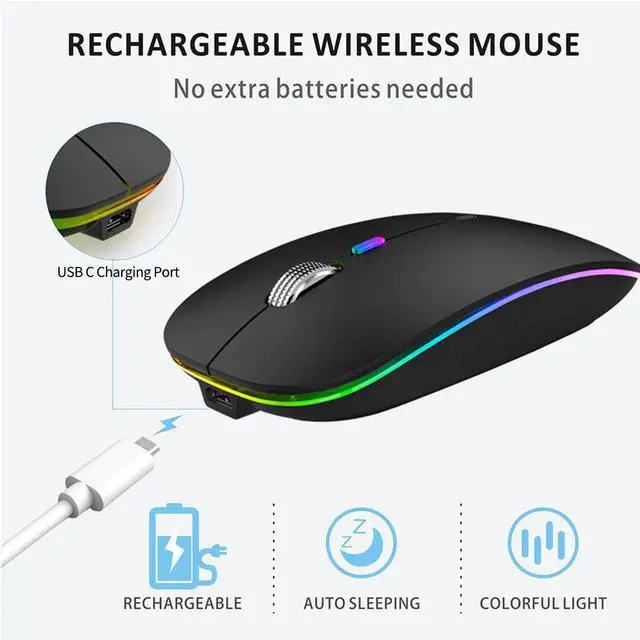
Please use computer's USB interface to charging the wireless mouse. The blue light beside the scroll wheel will be on while charging, and then goes off when the mouse is fully charged.
 G01 Wireless Mouse |  G11 White Wireless Mouse |  Mini Wireless Mouse |  G01 Wireless Mouse | 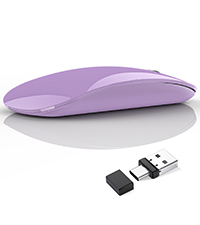 USB C Wireless Mouse | 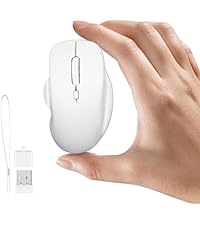 Mini Wireless Mouse | 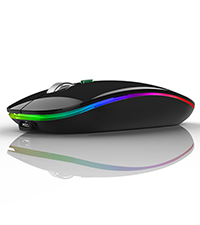 LED Wireless Mouse | |
|---|---|---|---|---|---|---|---|
Customer Reviews | — | — | — | — | — | — | — |
Price | — | — | — | — | — | — | — |
Connection | USB Receiver / Type C Adapter | 2 in 1 USB and USB C Receiver | Dual Bluetooth / USB Receiver | USB Receiver / Type C Adapter | 2 in 1 USB and USB C Receiver | Dual Bluetooth / USB Receiver | USB Receiver / Type C Adapter |
LED Light | No LED Light | No LED Light | No LED Light | No LED Light | No LED Light | No LED Light | 7 color LED Light |
DPI Level | 1000 - 1200 - 1600 | 1000 - 1200 - 1600 | 800 - 1200 - 1600 | 1000 - 1200 - 1600 | 1000 - 1200 - 1600 | 800 - 1200 - 1600 | 1000 - 1200 - 1600 |
USC C Charging | ? | ? | ? | ? | ? | ? | ? |
Home Botton | ? | ? | ? | ? | ? | ? | ? |

Enjoy Wireless Life in Your Hand
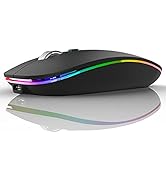
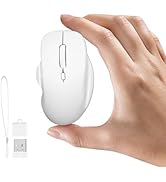
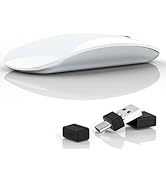
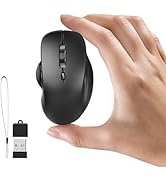
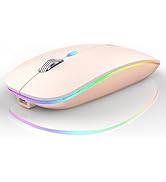
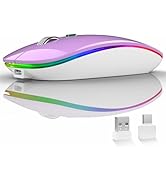
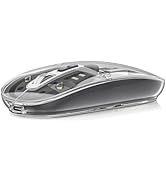
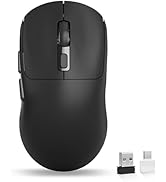

Uiosmuph consistently devote to making quality wireless and Bluetooth mouse with high performance. Our company has always insist on independent research and development, and strictly control the quality of our products. We are always committed to satisfying high-quality products and services for our customers.
Making life easier, simpler, convenient and more enjoyable is mission and original intention!
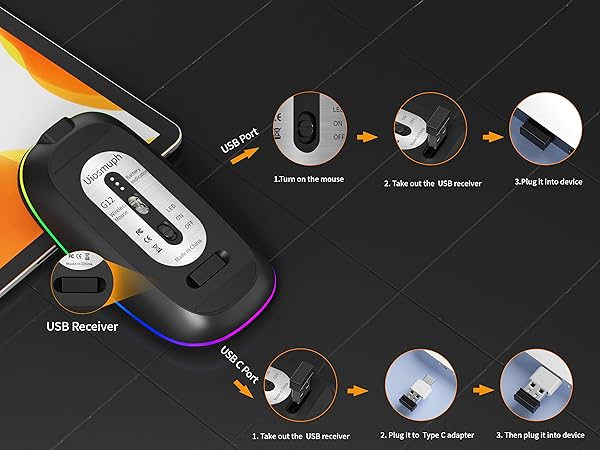
Note: For USB C port, simply plug the USB receiver into the type c adapter, then plug adapter into your device, turn on the power switch and the mouse will work.
Where is the USB receiver?
The USB receiver is stored at the bottom of the mouse, you need to take it out.
How to use the mouse on USB C port device?
Simply plug the USB receiver into the type c adapter, then plug adapter into your device, turn on the power switch and the mouse will work. (Type C adapter included)
How to charing the mouse?
Please use computer's USB interface to charging the wireless mouse. The blue light beside the scroll wheel will be on while charging, and then goes off when the mouse is fully charged.
G01 Wireless Mouse | G11 White Wireless Mouse | Mini Wireless Mouse | G01 Wireless Mouse | USB C Wireless Mouse | Mini Wireless Mouse | LED Wireless Mouse |
|---|---|---|---|---|---|---|
| Customer Reviews | ||||||
| — | — | — | — | — | — | — |
| Price | ||||||
| — | — | — | — | — | — | — |
| Connection | ||||||
| USB Receiver / Type C Adapter | 2 in 1 USB and USB C Receiver | Dual Bluetooth / USB Receiver | USB Receiver / Type C Adapter | 2 in 1 USB and USB C Receiver | Dual Bluetooth / USB Receiver | USB Receiver / Type C Adapter |
| LED Light | ||||||
| No LED Light | No LED Light | No LED Light | No LED Light | No LED Light | No LED Light | 7 color LED Light |
| DPI Level | ||||||
| 1000 - 1200 - 1600 | 1000 - 1200 - 1600 | 800 - 1200 - 1600 | 1000 - 1200 - 1600 | 1000 - 1200 - 1600 | 800 - 1200 - 1600 | 1000 - 1200 - 1600 |
| USC C Charging | ||||||
| ? | ? | ? | ? | ? | ? | ? |
| Home Botton | ||||||
| ? | ? | ? | ? | ? | ? | ? |
Enjoy Wireless Life in Your Hand

Uiosmuph consistently devote to making quality wireless and Bluetooth mouse with high performance. Our company has always insist on independent research and development, and strictly control the quality of our products. We are always committed to satisfying high-quality products and services for our customers.
Making life easier, simpler, convenient and more enjoyable is mission and original intention!
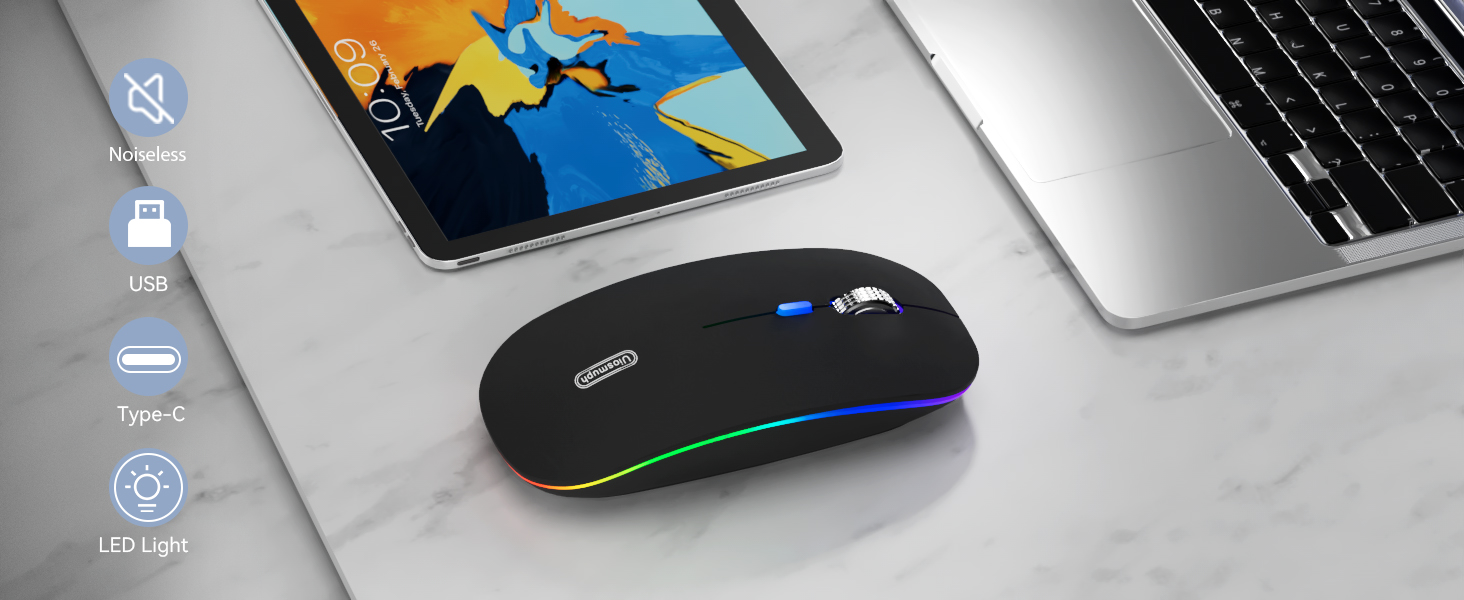
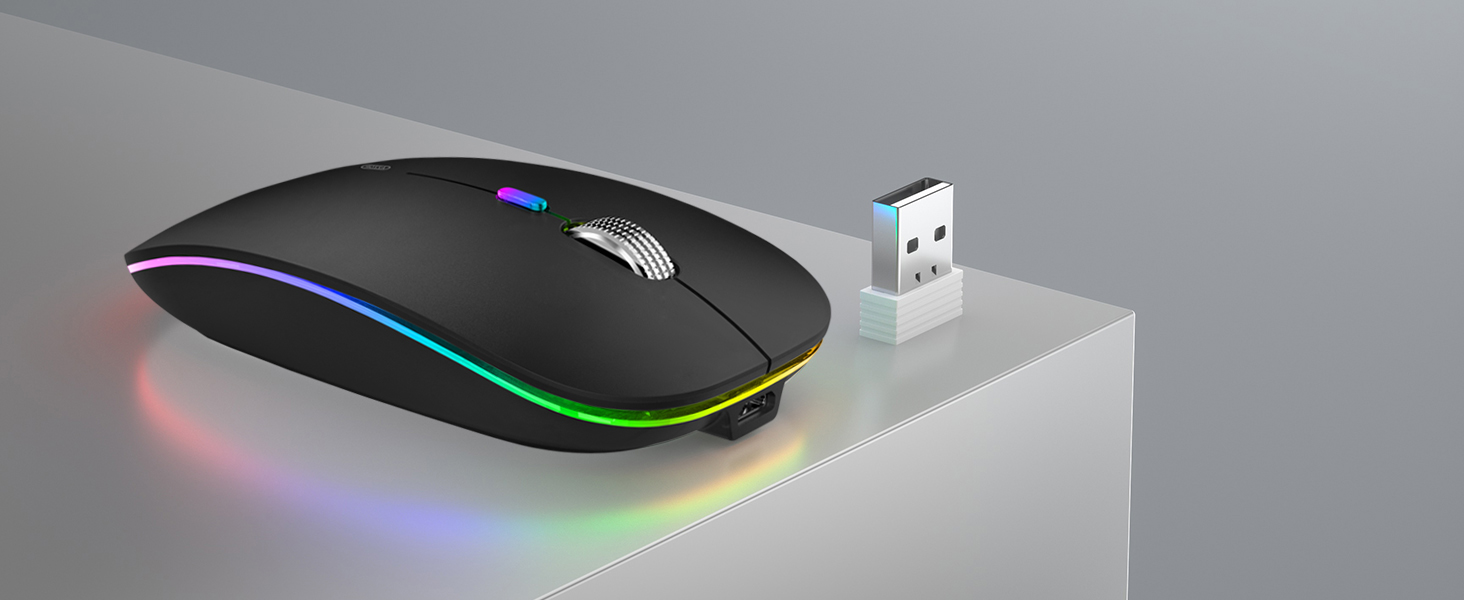
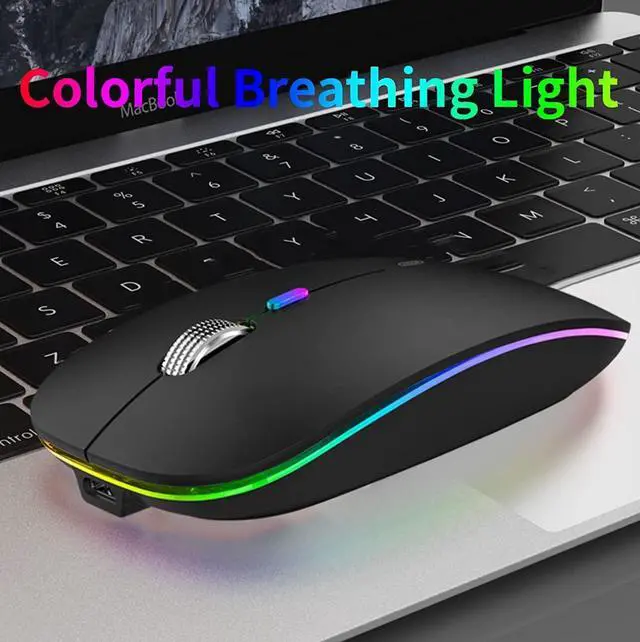
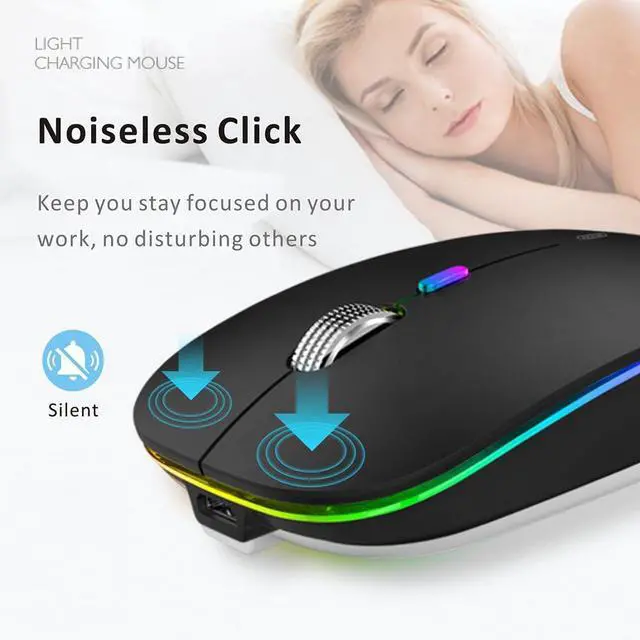
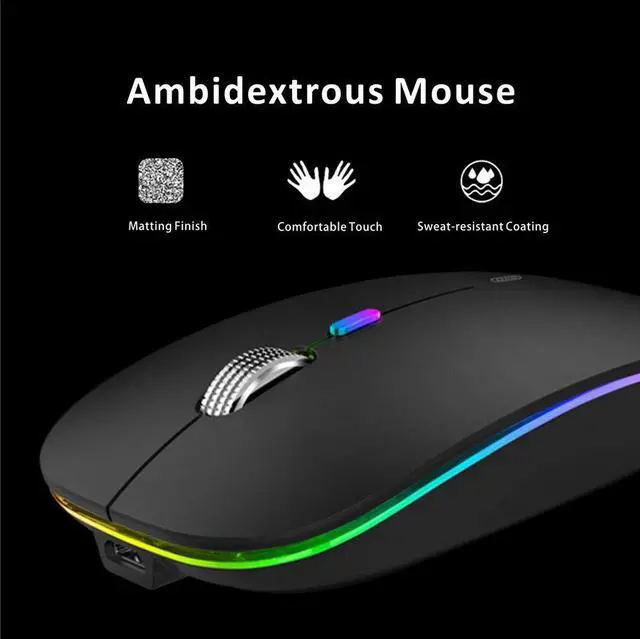
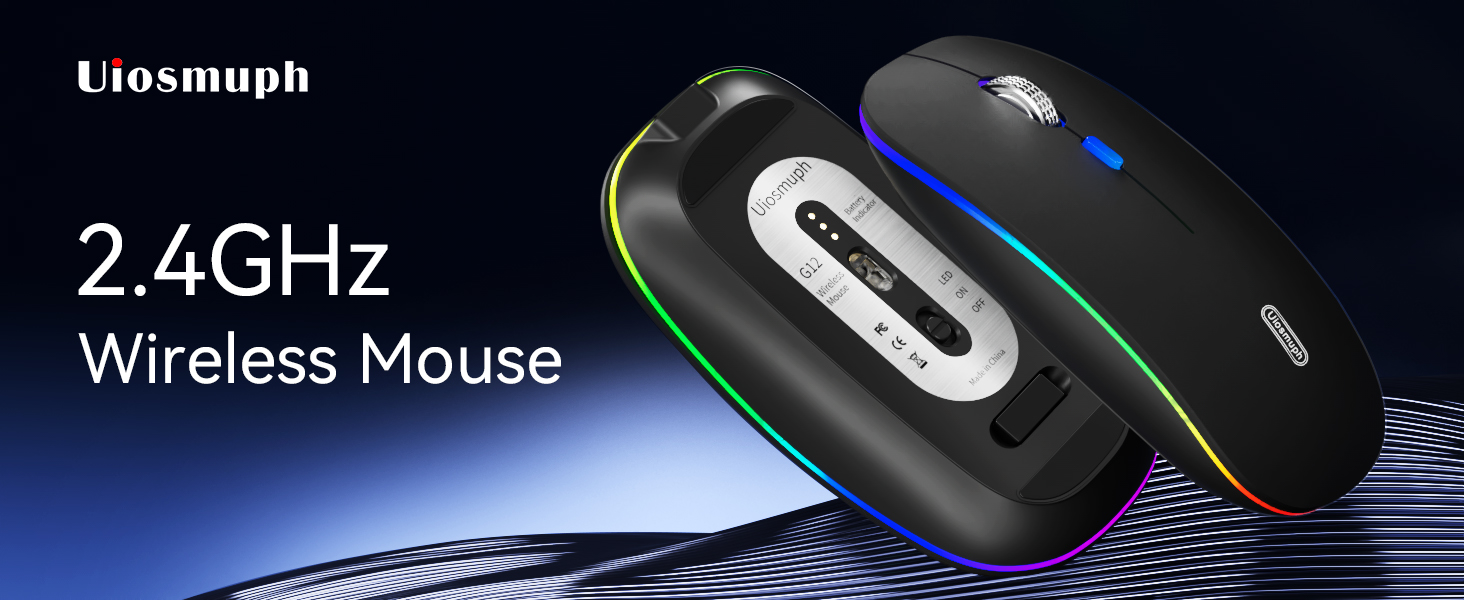
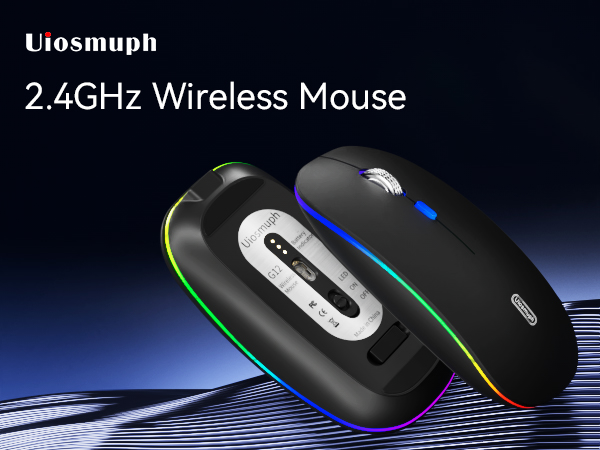
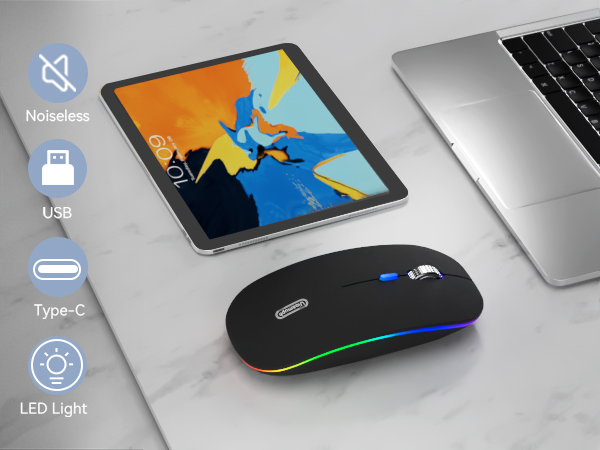
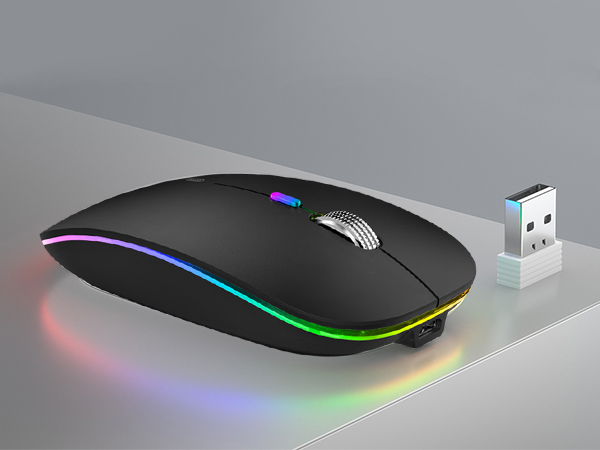
Experience seamless navigation with our Uiosmuph LED Wireless Mouse, G12. This sleek, rechargeable mouse features a modern, matte black design that's perfect for both work and gaming. With a compact size of 4.4 x 2.2 x 0.79 inches, it's incredibly portable, fitting easily into your laptop bag. The mouse boasts a 10-meter range, ensuring uninterrupted use even from a distance. Its 7-color LED light effect creates a soothing atmosphere, while the silent, soundless buttons ensure a disturbance-free environment. The mouse automatically enters sleep mode after 8 minutes of inactivity, conserving power and extending battery life. Compatible with Windows 2000/XP/7/8/10/Vista and Mac, this versatile mouse is an excellent choice for home, office, or travel use.
| Brand | Uiosmuph |
| Color | Matte Black |
| Connectivity Technology | USB |
| Special Feature | LED Lights, Portable, Rechargeable, Soundless, Wireless |
| Movement Detection Technology | Optical |
| Product Dimensions | 4.4 x 2.25 x 0.04 inches |
| Item Weight | 2.4 ounces |
| Manufacturer | Lootech |
| Item model number | G12 |
| Batteries | 1 Product Specific batteries required. (included) |
| Date First Available | January 23, 2020 |