here!
here!
I’m your shopping assistant for PC builds, upgrades, and everything tech.
Got questions? Ask away!
Start a conversation
here!
I’m your shopping assistant for PC builds, upgrades, and everything tech.
Got questions? Ask away!
Start a conversation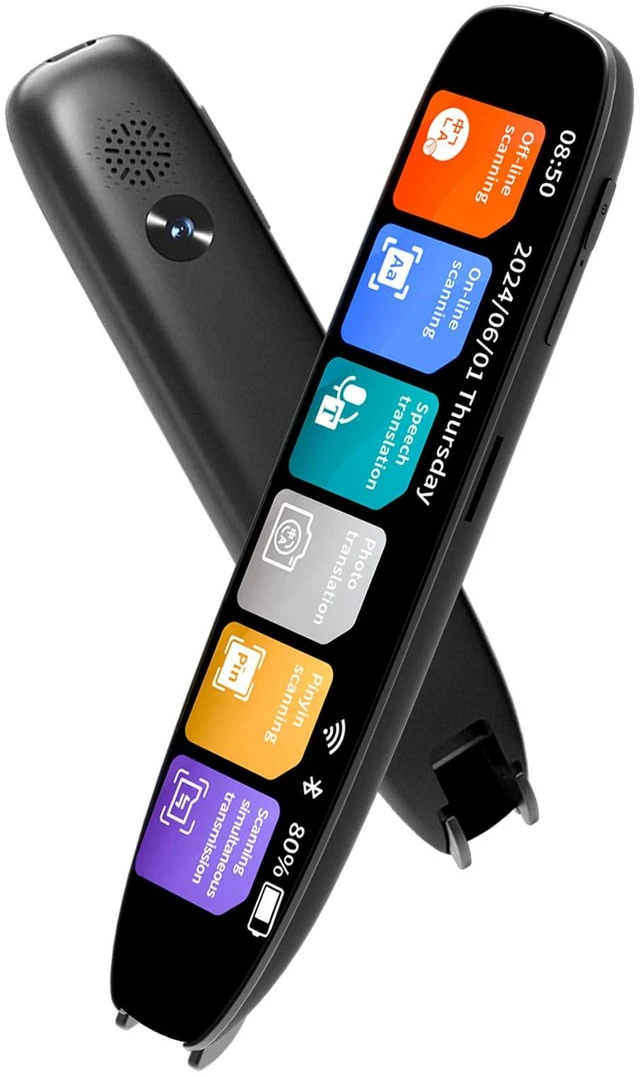




Any questions? Ask CelesteSM will help you find out quickly.

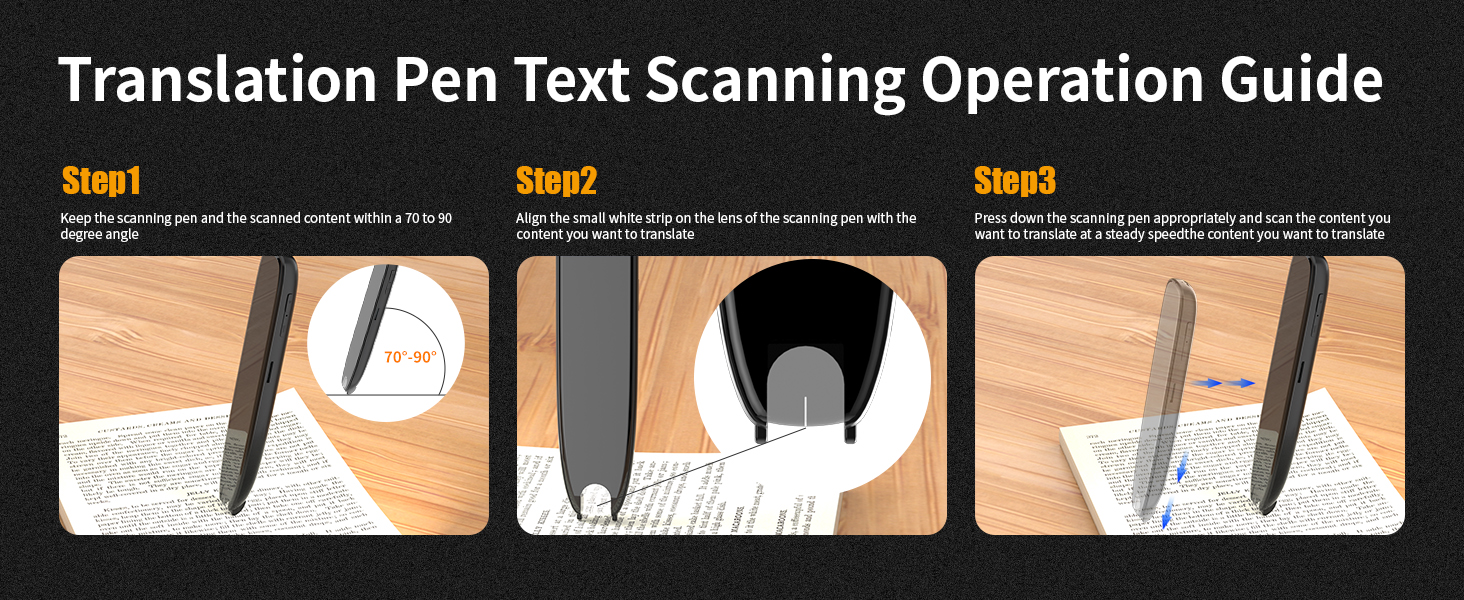
How to use the scanning pen correctly for better recognition?
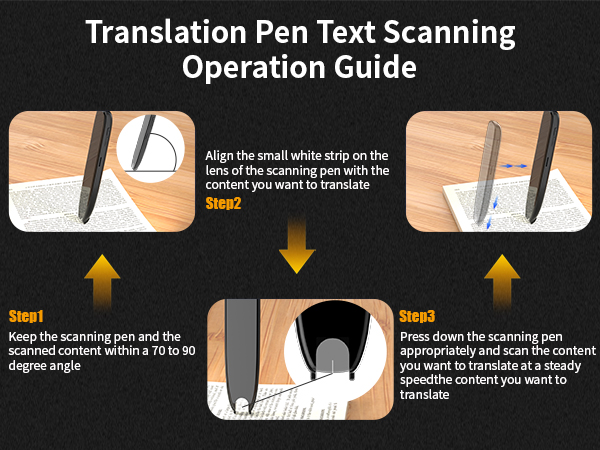
Position the scan pen at 70°-90° to the paper. A vertical angle ensures better recognition. Line up the white line on the pen tip with target text, press the tip to turn on the light, and scan steadily at a constant speed.
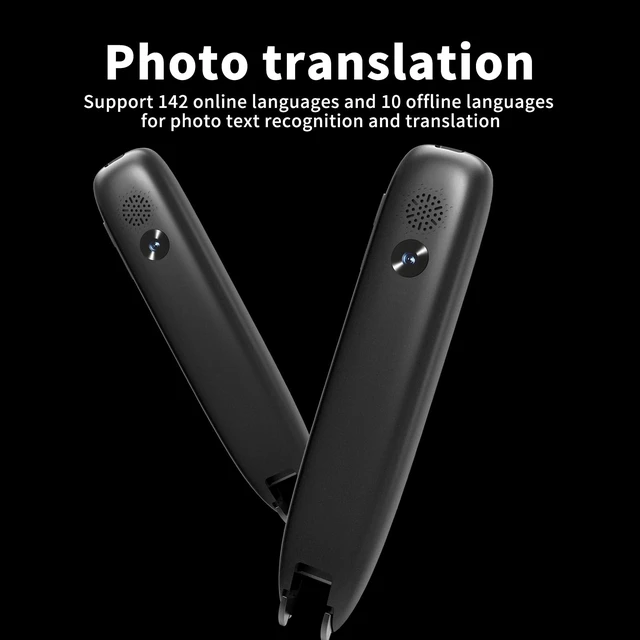
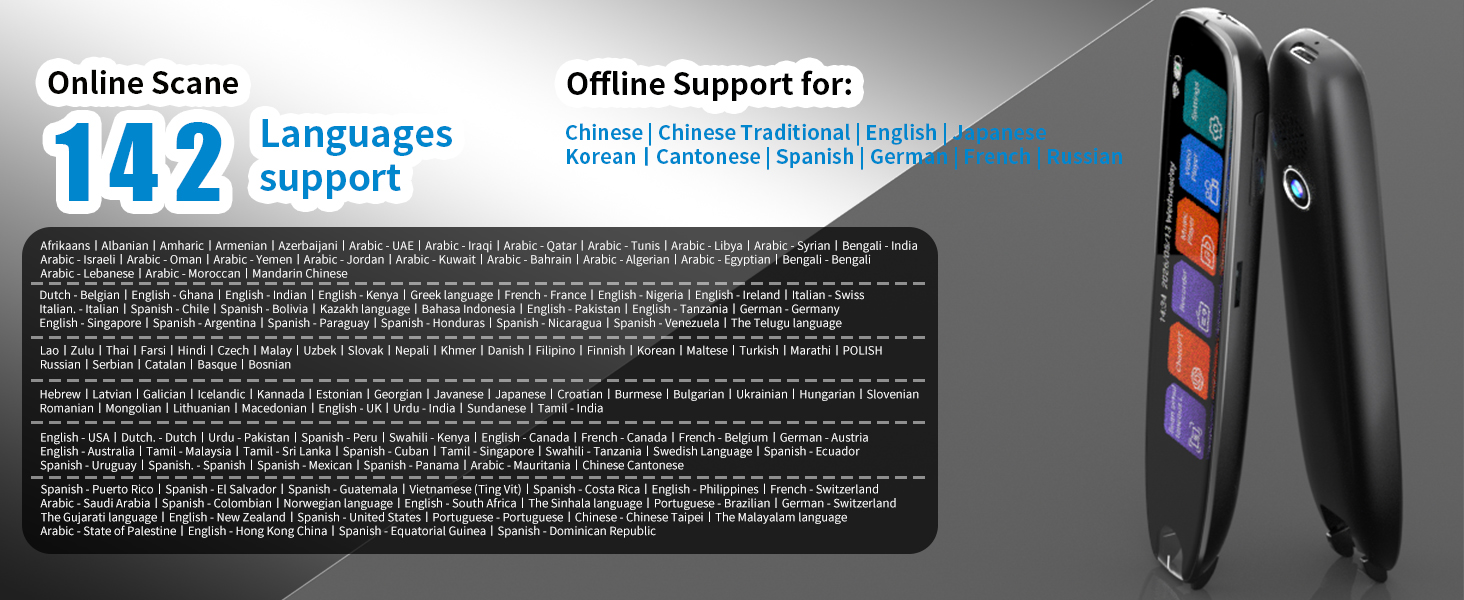
How many languages does this device support for translation?
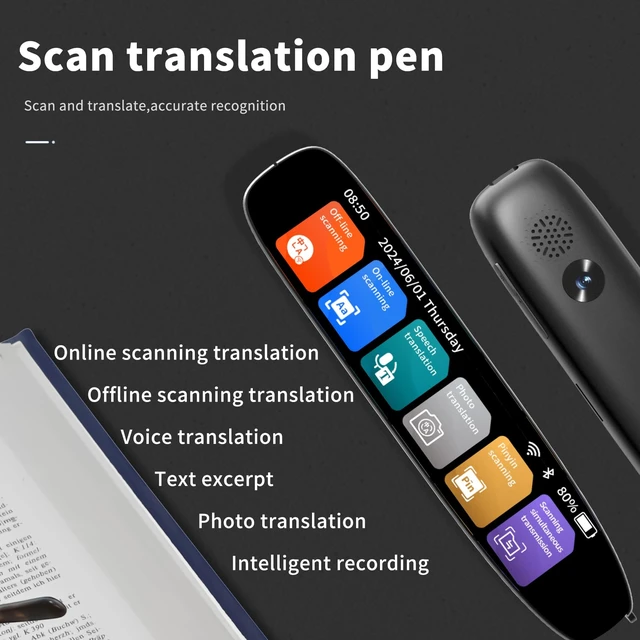
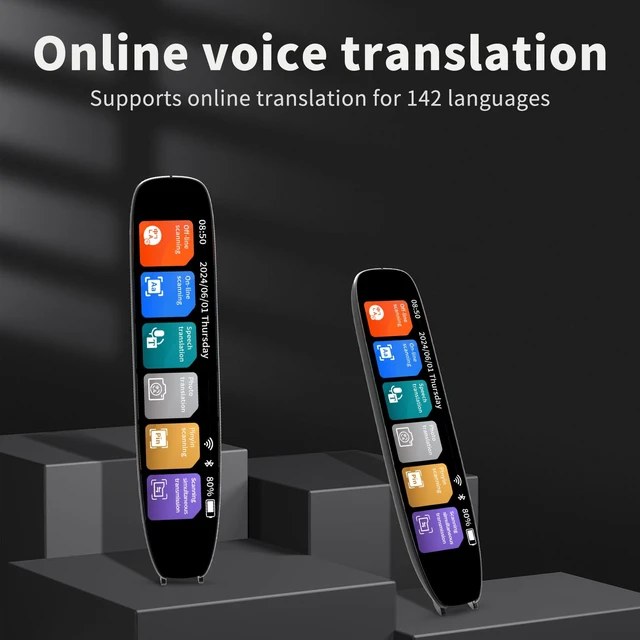
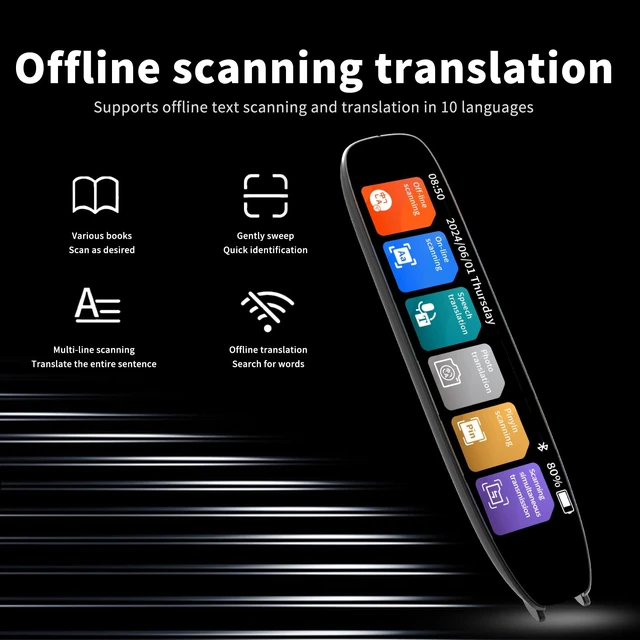
It supports 142 languages for online translation, and 10 languages for offline use, including Chinese, Japanese, Korean, Cantonese, Traditional Chinese, French, German, Russian, Spanish and English.
Is it suitable for kids and students?
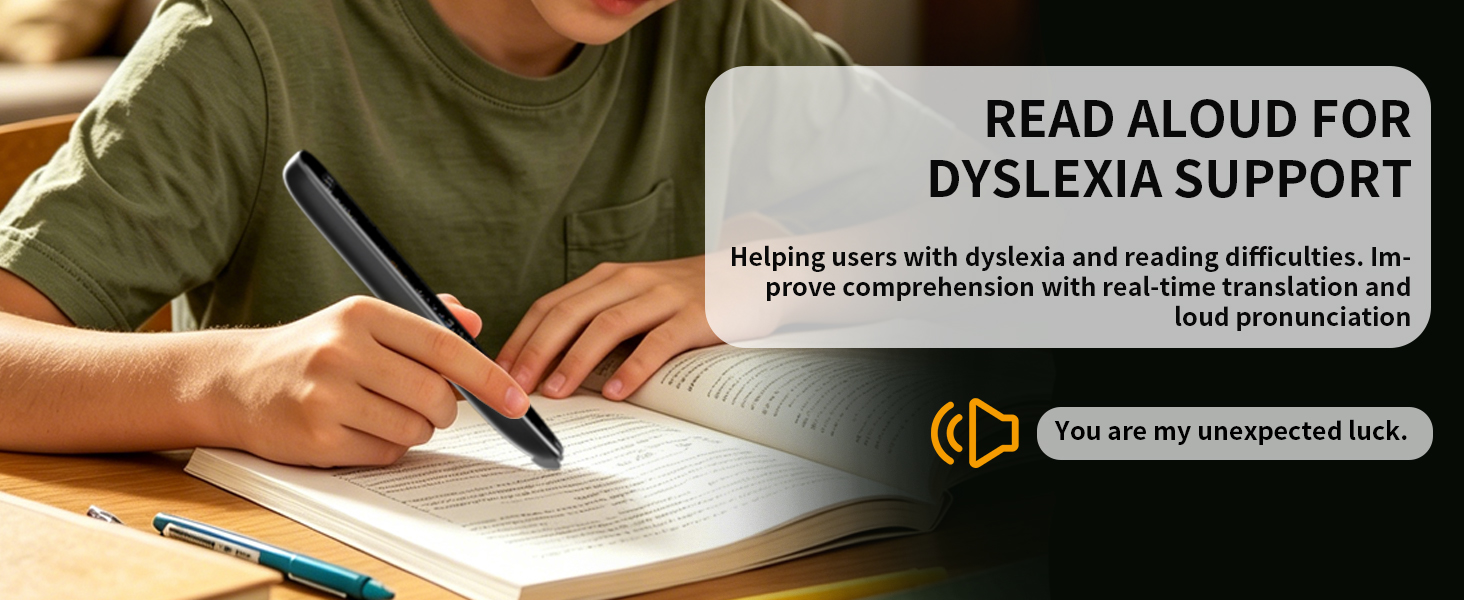
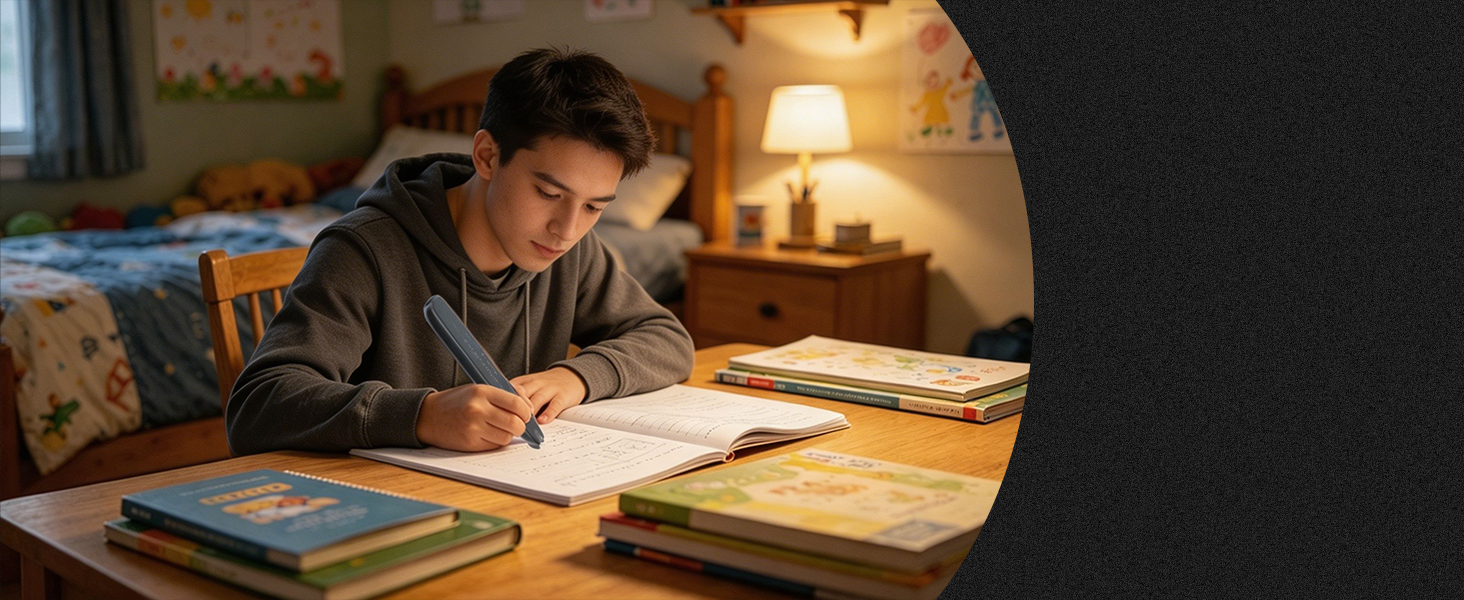
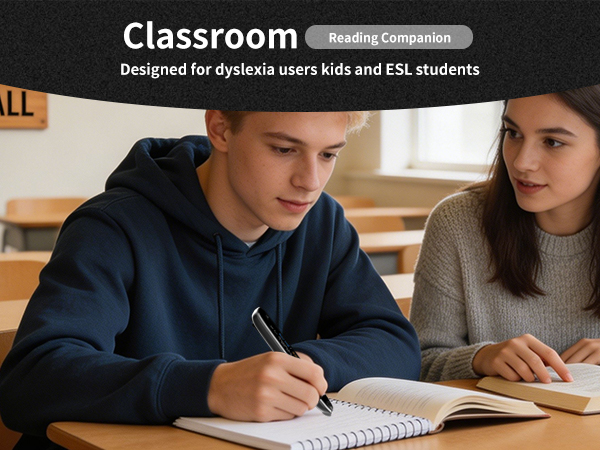
It’s specially designed for young kids, school students, and those with dyslexia or learning English as a second language. Perfect for classroom use, homework practice and self-study.
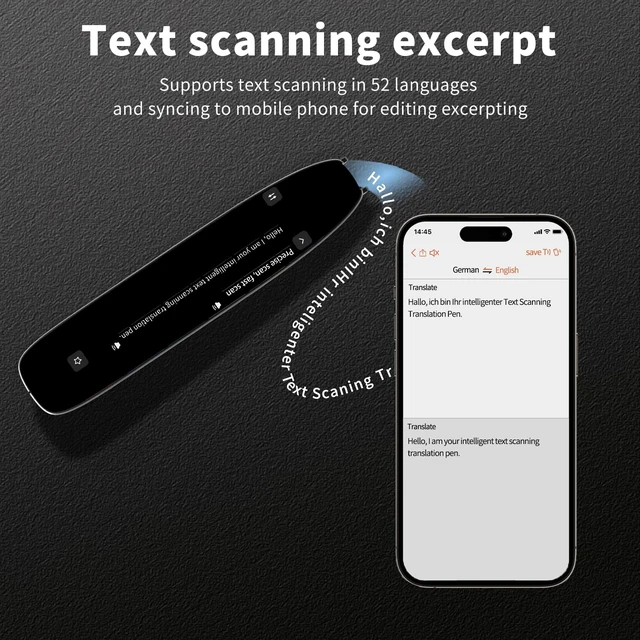
How to use the text extraction function?
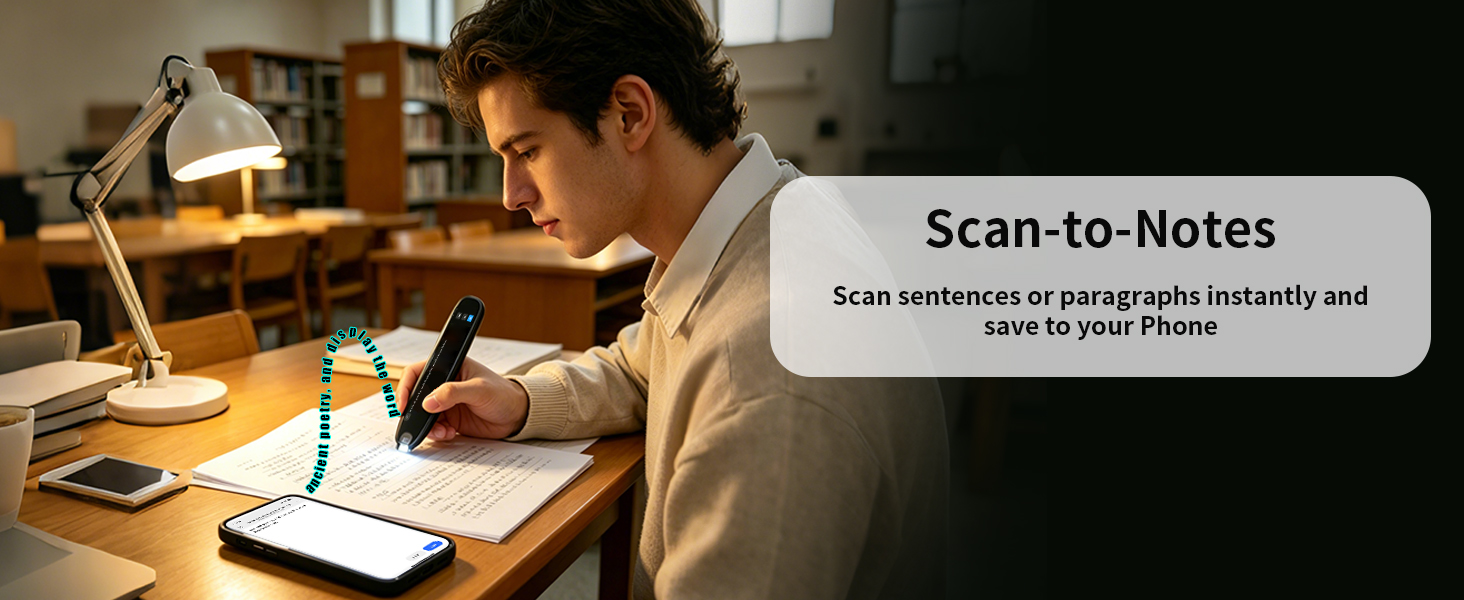
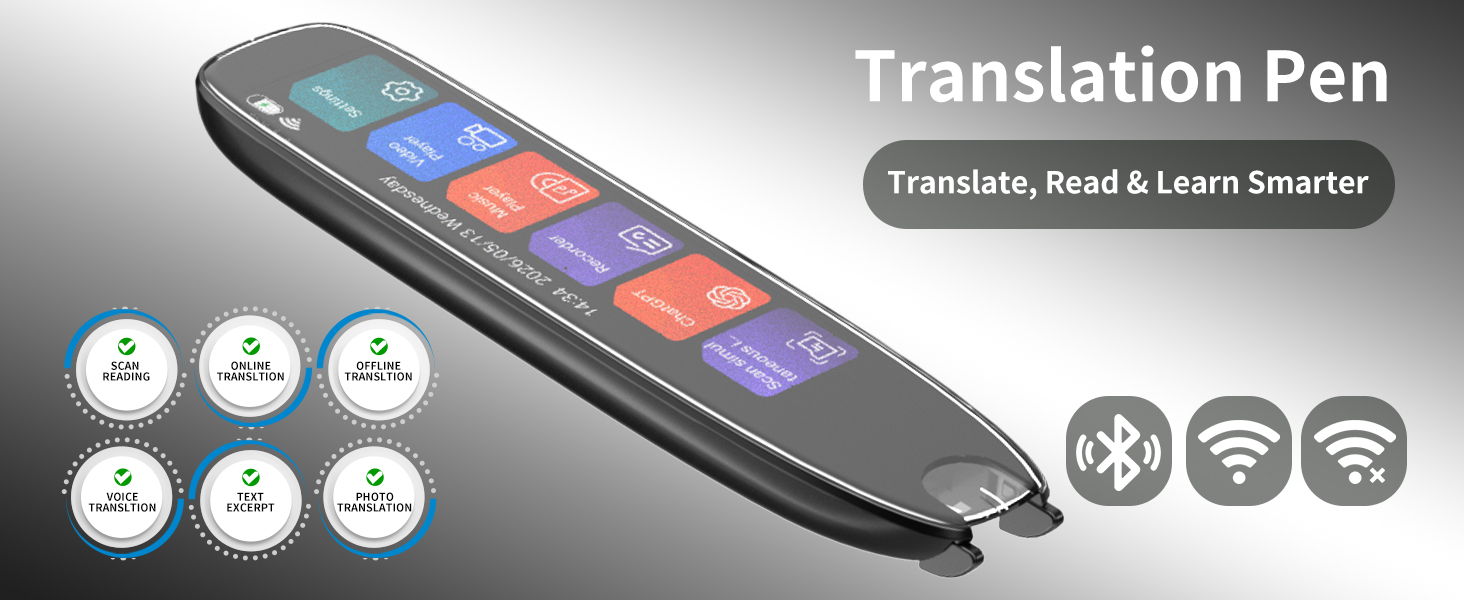
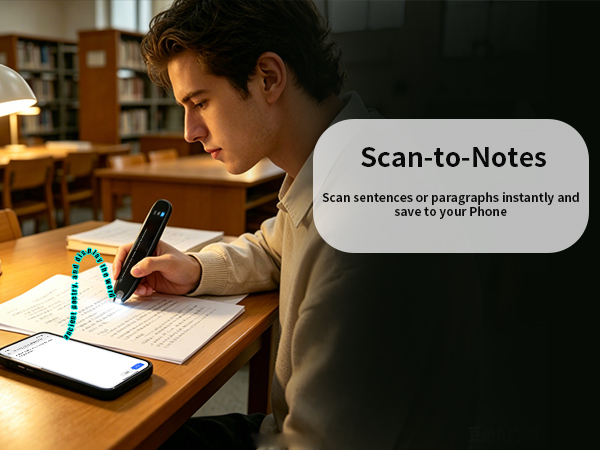
First, please click on "Scan and Simultaneous Translation," Complete device pairing via the exclusive access code. Next, initiate the scanning function and create a new document to capture text content, then you can check the result on your phone.
How do I change the translation language?
When using the scanning feature, the translation language can be changed at the top of the screen. The system language can be changed in the settings.
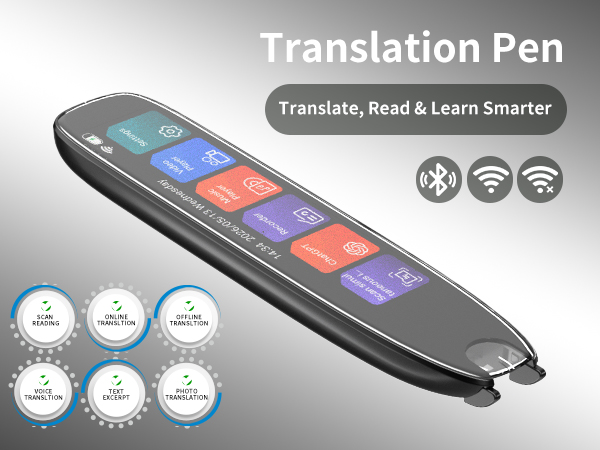



How to use the scanning pen correctly for better recognition?
Position the scan pen at 70°-90° to the paper. A vertical angle ensures better recognition. Line up the white line on the pen tip with target text, press the tip to turn on the light, and scan steadily at a constant speed.
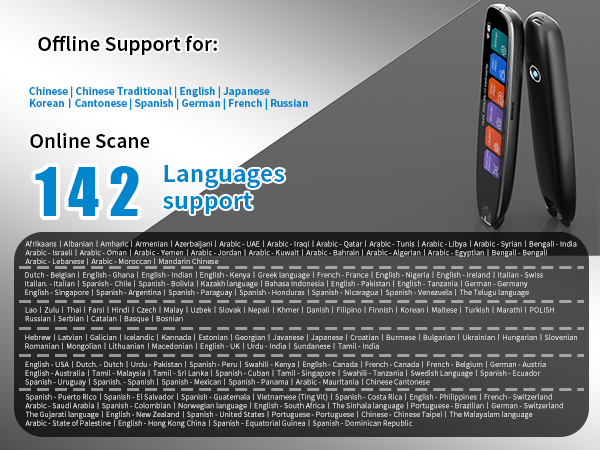
How many languages does this device support for translation?
It supports 142 languages for online translation, and 10 languages for offline use, including Chinese, Japanese, Korean, Cantonese, Traditional Chinese, French, German, Russian, Spanish and English.
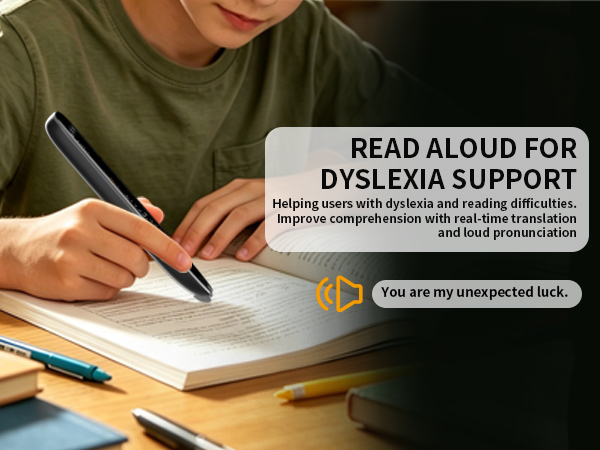
Is it suitable for kids and students?
It’s specially designed for young kids, school students, and those with dyslexia or learning English as a second language. Perfect for classroom use, homework practice and self-study.
How to use the text extraction function?
First, please click on "Scan and Simultaneous Translation," Complete device pairing via the exclusive access code. Next, initiate the scanning function and create a new document to capture text content, then you can check the result on your phone.
How do I change the translation language?
When using the scanning feature, the translation language can be changed at the top of the screen. The system language can be changed in the settings.