here!
here!
I’m your shopping assistant for PC builds, upgrades, and everything tech.
Got questions? Ask away!
Start a conversation
here!
I’m your shopping assistant for PC builds, upgrades, and everything tech.
Got questions? Ask away!
Start a conversation



Any questions? Ask CelesteSM will help you find out quickly.


At Movcle, we are dedicated to enhancing the way people connect and experience the world.
Specializing in high-quality HDMI adapters, wireless earphones, and other premium products, we deliver seamless technology solutions that integrate effortlessly into daily life.
With an independent R&D team, we are committed to continuous innovation, ensuring our products meet the highest standards of performance and reliability.
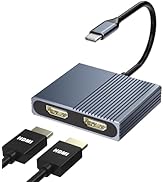
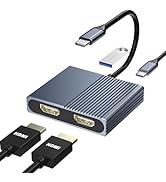
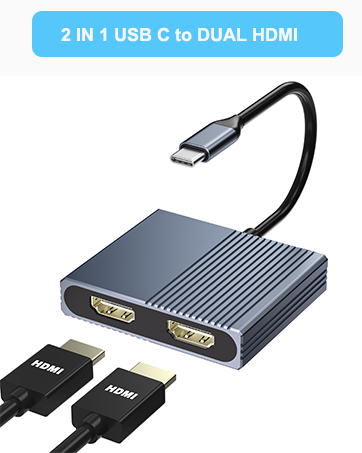
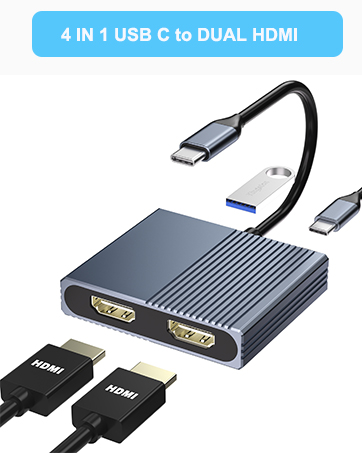
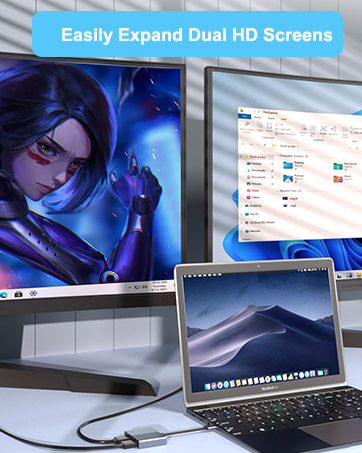

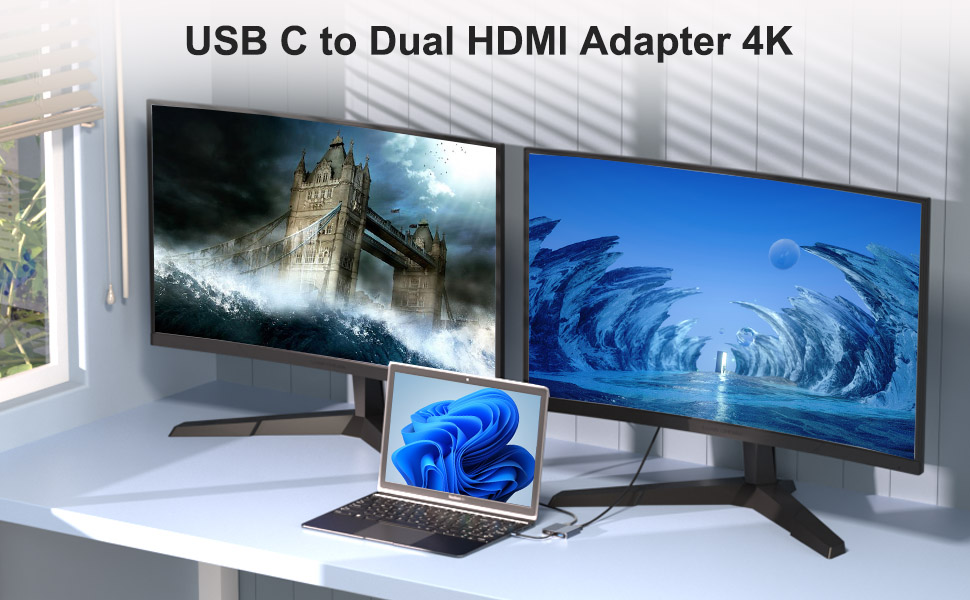
Docking Station for Dual Monitors Extended Display
Laptops today are almost as fast and powerful as desktop computers are, and with more people than ever working on the go, laptops have become an essential part of our work and business lives.
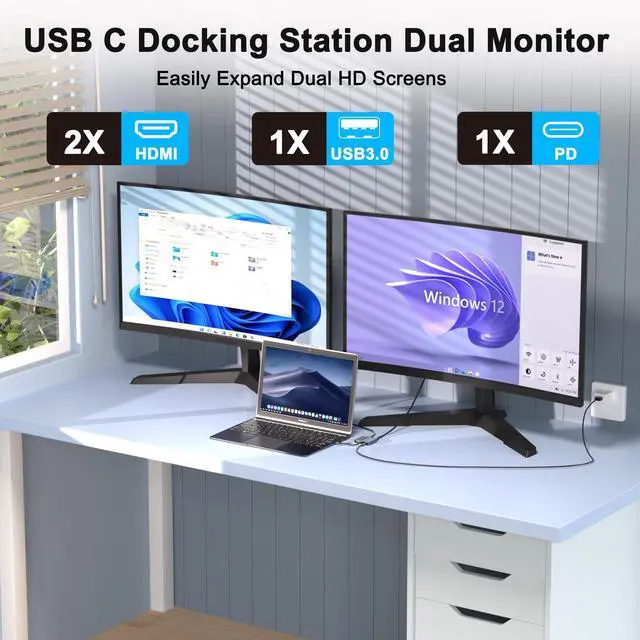
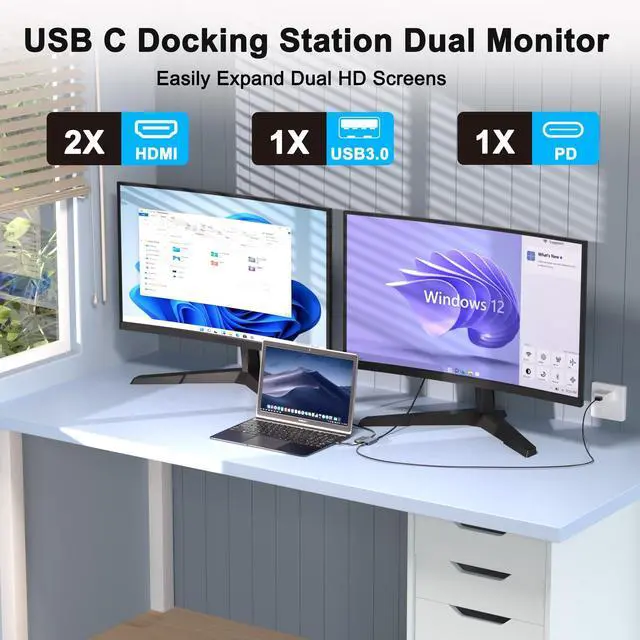
However, one of the things that make laptops so great — their small size and resulting portability — can also be a limiting factor for their use, especially for those who need multiple windows open at the same time. Using multiple windows on a small laptop screen can be frustrating, as it means that the user has to constantly open and close windows and tabs, or shrink some windows until they are almost too small to see. This is where the dual monitor setup comes into play.
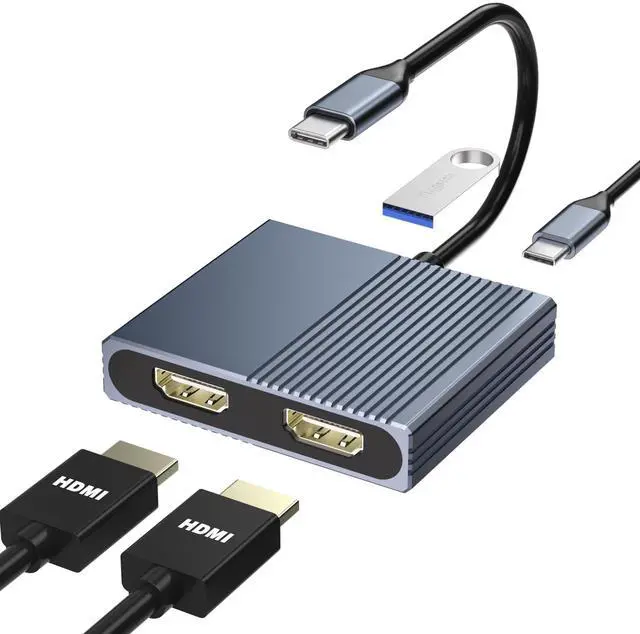
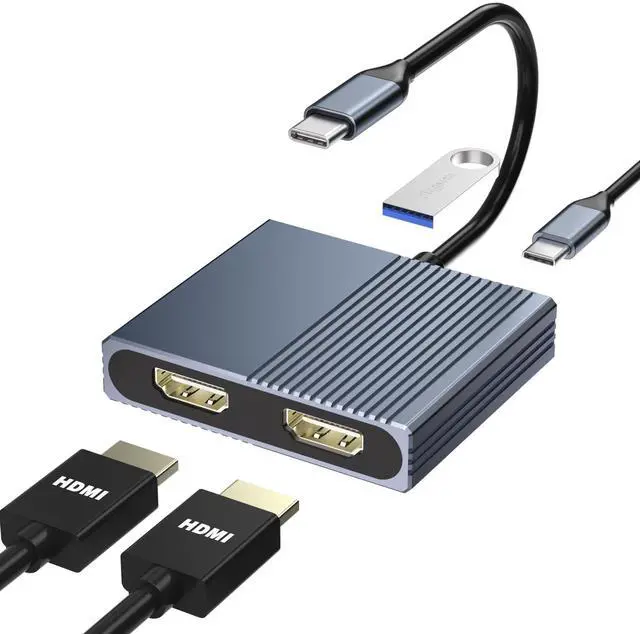
This USB-C to Dual HDMI adapter connects a computer, laptop with the thunderbolt 3/4 USB Type-C port to two monitors with HDMI input. The simple multitasking made available through having multiple displays to keep track of any number of things at one time can be hard to let go of once it's been experienced.
Compact and portable, it's the perfect companion for on-the-go professionals and entertainment enthusiasts alike, offering convenience and versatility wherever you go. Elevate your experience with our USB-C to Dual HDMI Adapter today.
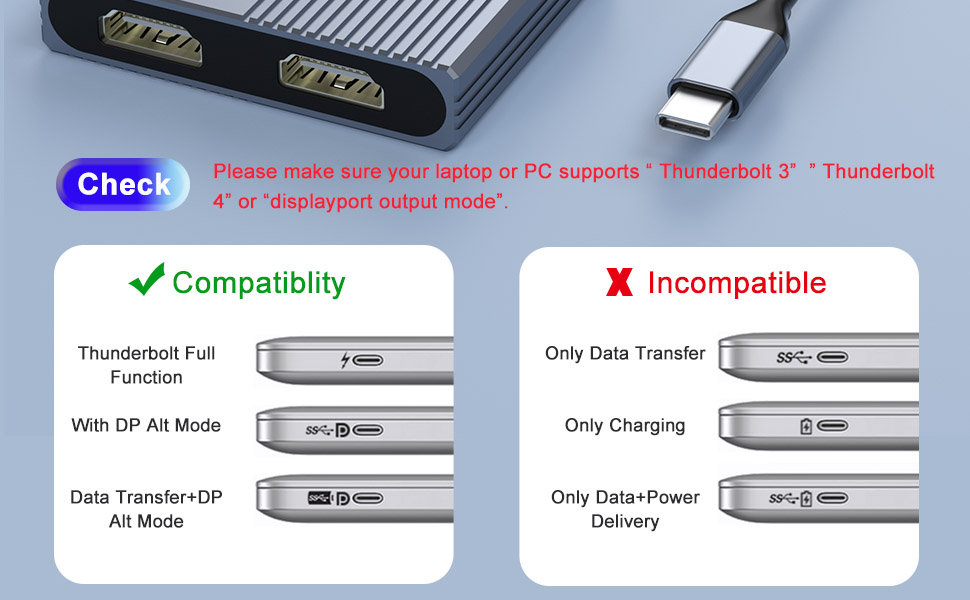
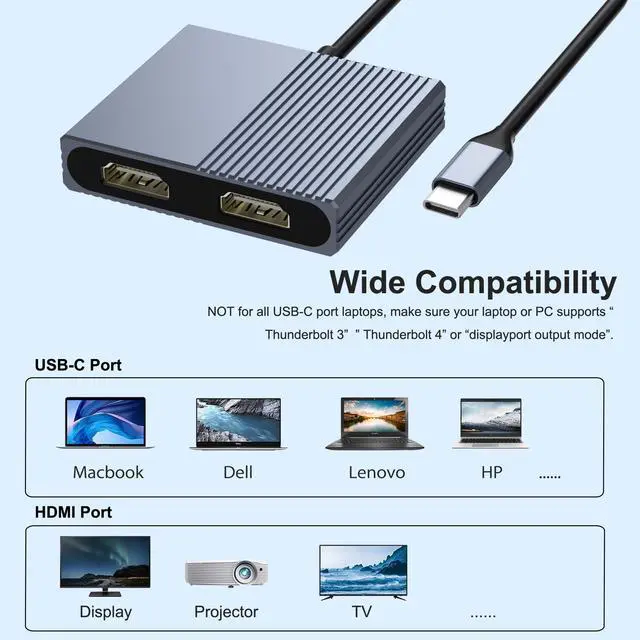
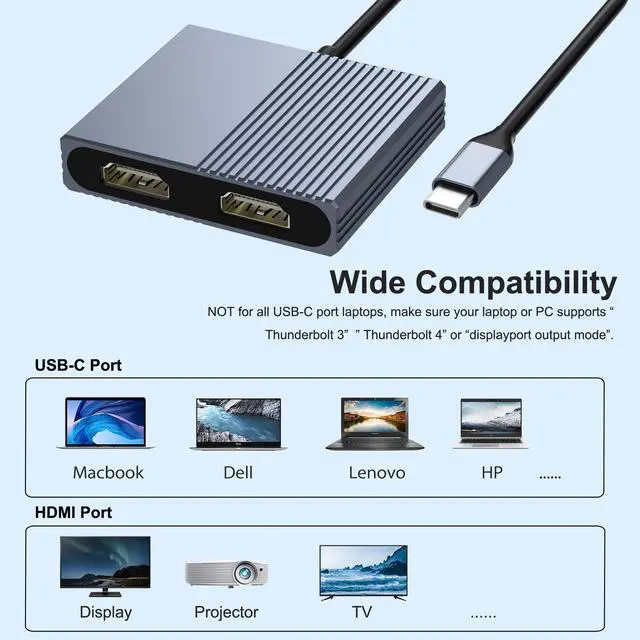
Please Note: NOT for all USB-C port laptops, Make sure your laptop or PC supports ” Thunderbolt 3” ” Thunderbolt 4”or “displayport output mode(DP ALT mode)
DP Alt Mode allows USB-C ports to transfer dataideo via multiple interfaces, including the increasingly popular DisplayPort video interface. USB-C ports capable of transferring DisplayPort signals are either called USB-C DisplayPort or DP Alt Mode. They allow you to connect video sources (e.g. PCs, Blu-Ray players, etc.) and display devices (e.g. TVs, projectors, etc.) that support DisplayPort to each other via their USB-C ports to broadcast high-definition video.
But now not all USB-C ports feature DisplayPort Alt Mode functionality.
The best method to decipher whether your device supports DisplayPort over USB-C is to check either the product specs on the manufacturer’s official website or to check websites with in-depth product reviews and/or information. Within those sites you’ll be able to find detailed breakdowns of each port on the device.
Basically, Thunderbolt 3, Thunderbolt 4, and USB C 3.1 Gen 2 (or above) support video output. If you are not sure, you are welcome to ask us for a device compatibility check before purchase.
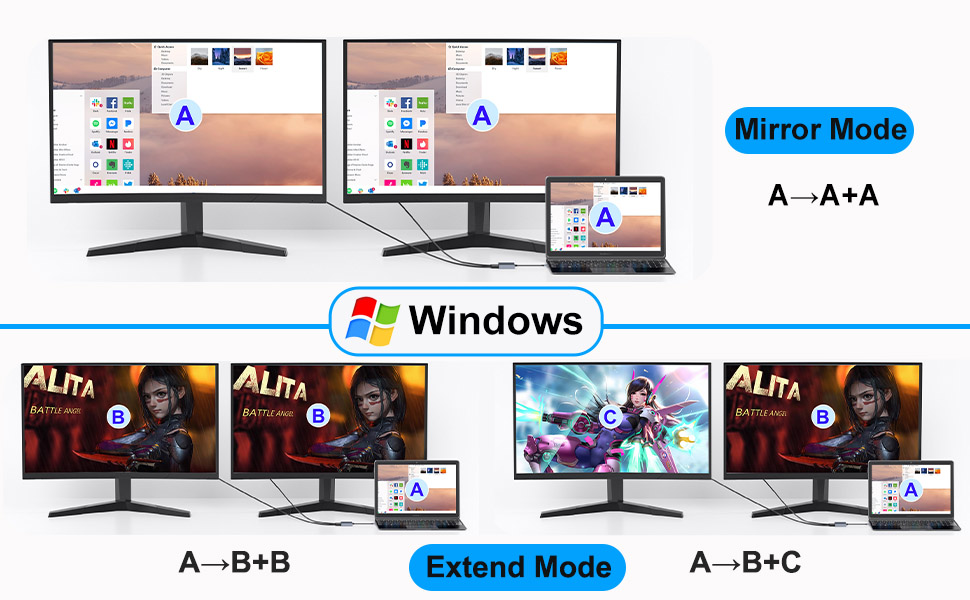
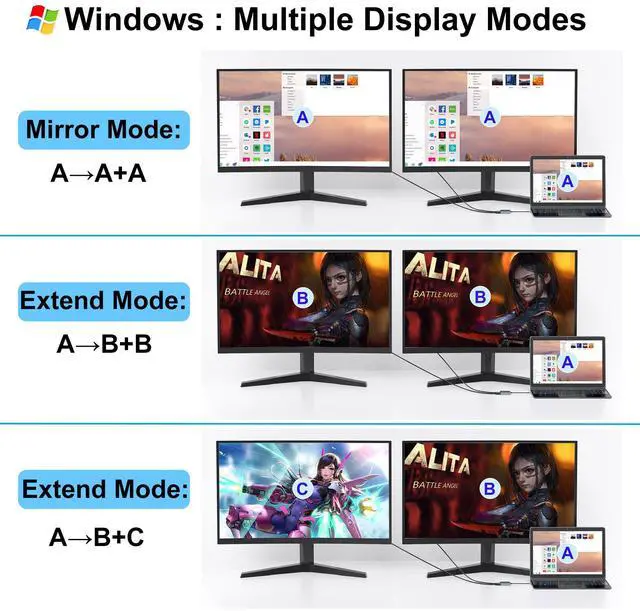
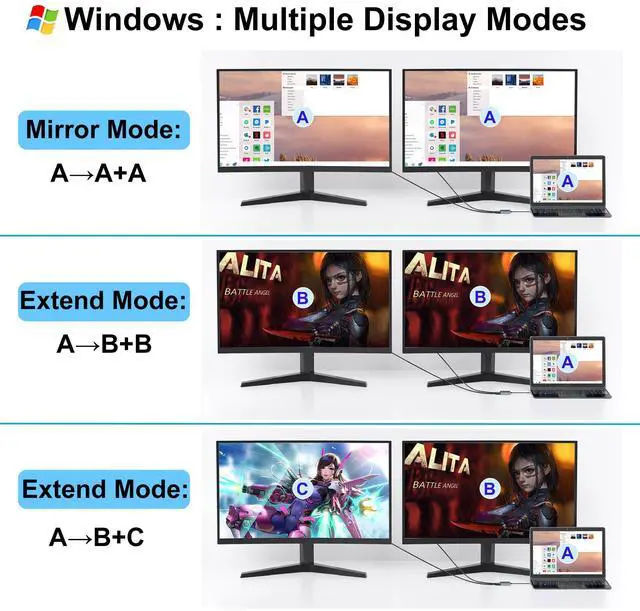
Windows System-Multiple Display Mode-Mirror Mode & Extend Mode:
Mirror Mode (AAA Mode): Laptop shows same images with external two displays.
Extend Mode (ABB and ABC Mode): Laptop shows different images with external two displays.
How to extend monitor on Windows: When the adapter is connected to the laptop and connected to the display with an HDMI cable, you can use the shortcut key combination Win+P to select other modes such as expansion and copy, and support multiple expansion combinations such as ABC. In Windows Settings-System-Screen Settings, you can select the display order and resolution of the secondary screen through the settings, and you can change the refresh rate of the secondary screen in advanced display settings.
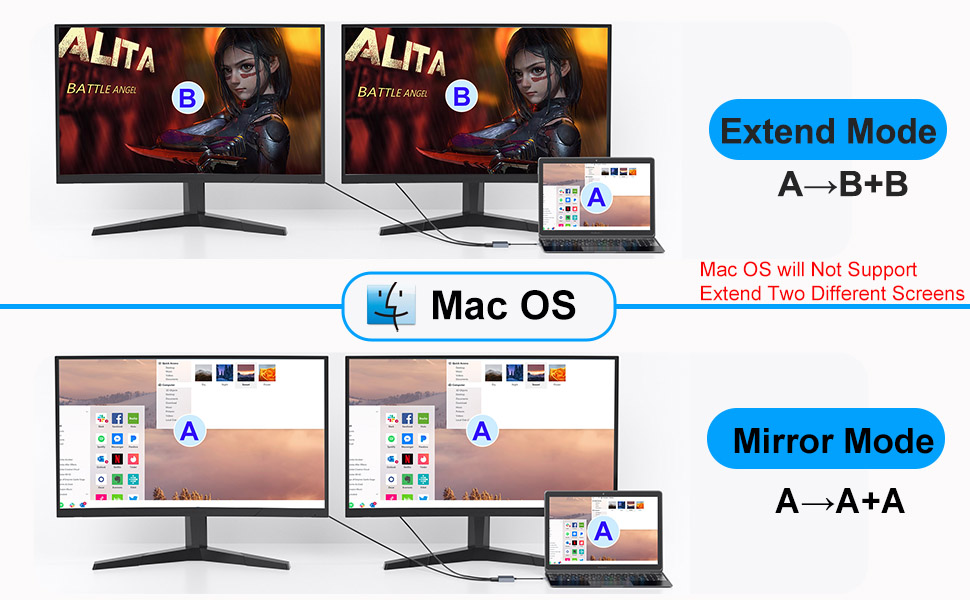
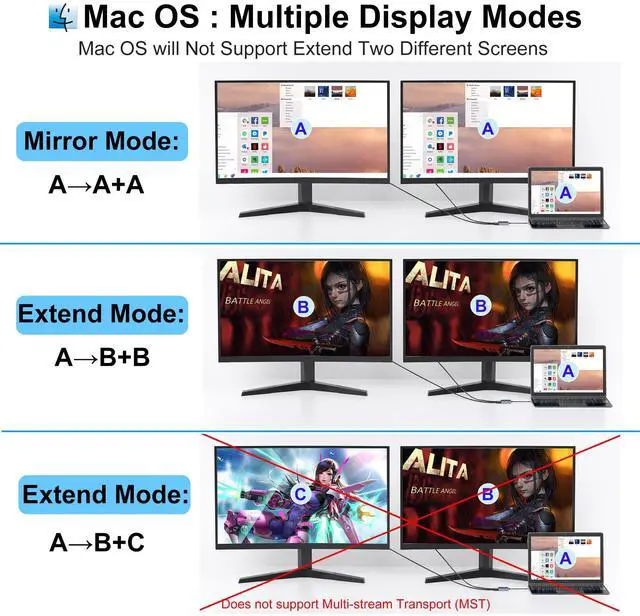
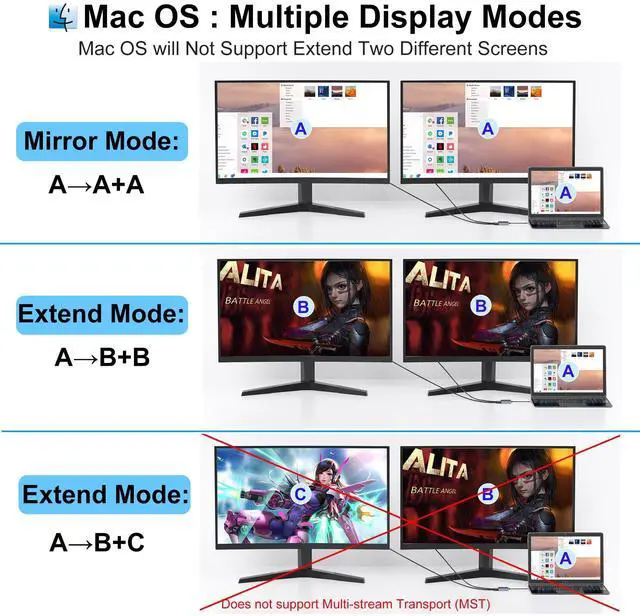
MacOS System -Mirror Mode & Extend Mode -Only SST Supported:
Mirror Mode (AAAMode): Laptop shows same images with external two displays.
Extend Mode (ABB Mode): Two external screen display same images but different with laptop.
Note: ON MacOS only SST mode (AAA and ABB mode) supported due to MacOS limitation.
How to extend monitor on Mac: When the adapter is connected to the laptop and connected to the display with an HDMI cable, you can change the resolution, refresh rate, mirroring and extension mode of the secondary screen in System Preferences-Display Settings, and support ABB’s extension mode and AAA’s copy mode.
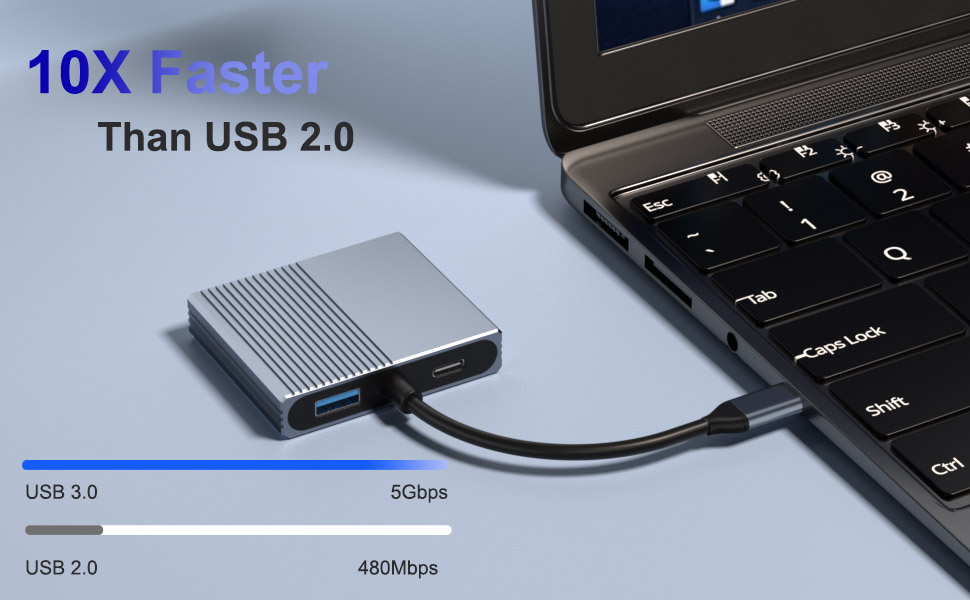
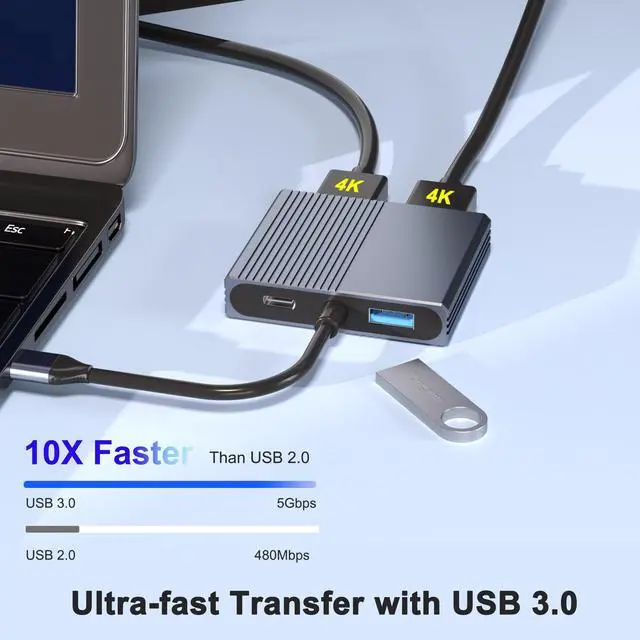
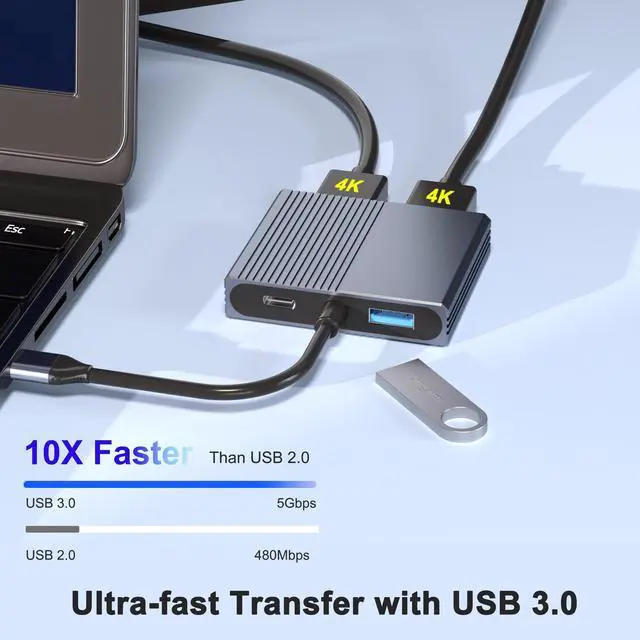
Data Transfer Rates up to 5 Gbps
1x USB A 3.0 port ensure instant sync and file transfer at 5Gbps transfer speed accordingly, and easily connect smartphones, tablet, hard drives, keyboard or mouse.
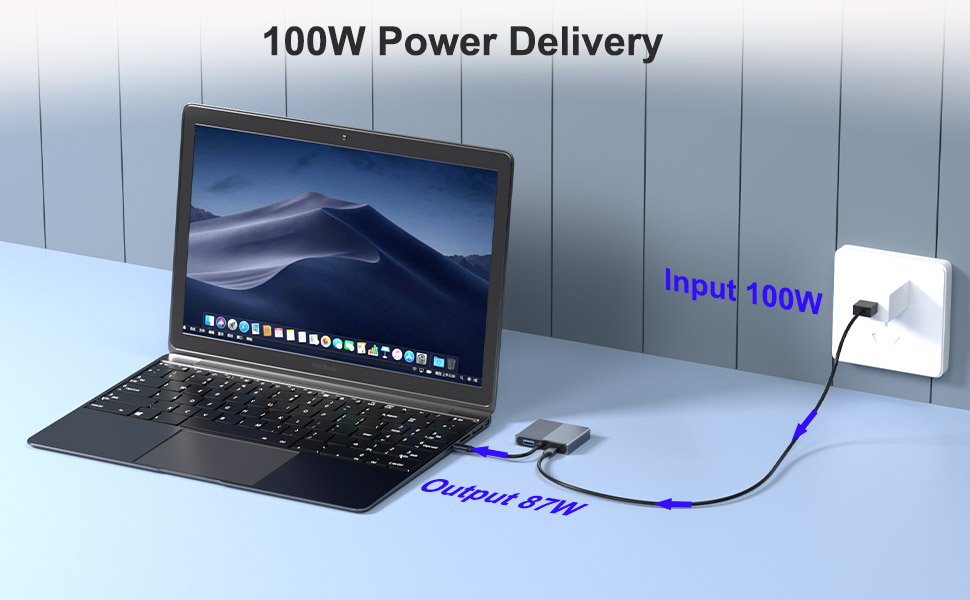
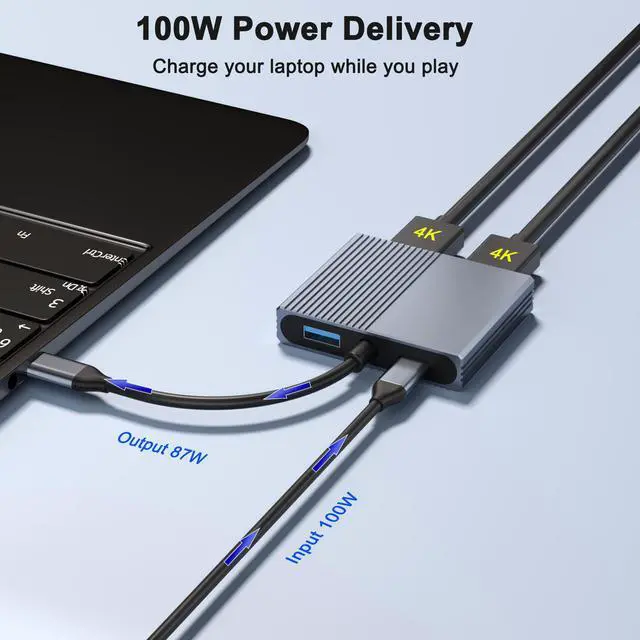
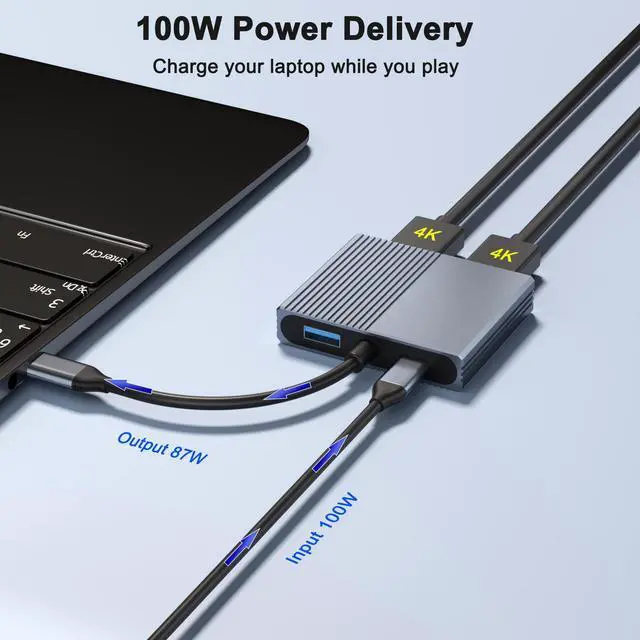
100W Power Delivery
Provide 100W Power Delivery for your laptops. Use your laptop while charging without worrying about the laptop running out of power.
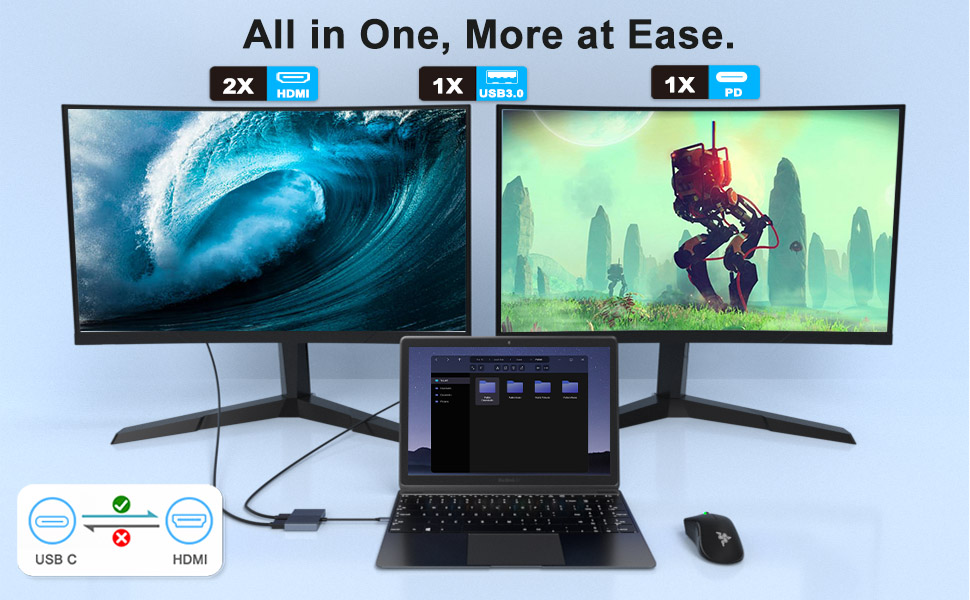
Please Note:
FAQ
Q1.If the screen flickering or going black?
A1. Insufficient Power Supply. (Some devices may have a weaker power supply capacity for the docking station, which can lead to insufficient power and screen flickering. Therefore, it is necessary to connect the charger for power supply when using it.)
A2. Check HDMI Port Connection. (Due to the nature of HDMI interfaces, they do not have locking nuts like DVI interfaces, nor do they have locking mechanisms like DP interfaces. Therefore, poor contact can easily lead to screen flickering.)
A3. HDMI Cable Quality: Avoid using HDMI cables longer than 5 meters; Avoid using HDMI to VGA and HDMI to DP cables. (Longer cable lengths can result in more significant signal attenuation, primarily due to impedance and insufficient shielding. Additionally, using other adapter cables can affect transmission power, which constitutes a secondary conversion and can greatly impact stability.)
A4. Display Compatibility Issues. (You can try replacing the display to see if the flickering issue persists, as some displays with weaker signal reception may exhibit flickering.)
Q2. What should you do if your laptop fails to recognize the HDMI display?
A1. Ensure that your laptop's USB C port supports DisplayPort/video output.
A2.Right-click desktop > Graphics Settings > Select One or More Active Displays.
A3. Check your HDMI cable and monitor. (Try connecting the monitor directly to the laptop to see if it works.)
Docking Station for Dual Monitors Extended Display
Laptops today are almost as fast and powerful as desktop computers are, and with more people than ever working on the go, laptops have become an essential part of our work and business lives.
However, one of the things that make laptops so great — their small size and resulting portability — can also be a limiting factor for their use, especially for those who need multiple windows open at the same time. Using multiple windows on a small laptop screen can be frustrating, as it means that the user has to constantly open and close windows and tabs, or shrink some windows until they are almost too small to see. This is where the dual monitor setup comes into play.
This USB-C to Dual HDMI adapter connects a computer, laptop with the thunderbolt 3/4 USB Type-C port to two monitors with HDMI input. The simple multitasking made available through having multiple displays to keep track of any number of things at one time can be hard to let go of once it's been experienced.
Compact and portable, it's the perfect companion for on-the-go professionals and entertainment enthusiasts alike, offering convenience and versatility wherever you go. Elevate your experience with our USB-C to Dual HDMI Adapter today.
Please Note: NOT for all USB-C port laptops, Make sure your laptop or PC supports ” Thunderbolt 3” ” Thunderbolt 4”or “displayport output mode(DP ALT mode)
DP Alt Mode allows USB-C ports to transfer dataideo via multiple interfaces, including the increasingly popular DisplayPort video interface. USB-C ports capable of transferring DisplayPort signals are either called USB-C DisplayPort or DP Alt Mode. They allow you to connect video sources (e.g. PCs, Blu-Ray players, etc.) and display devices (e.g. TVs, projectors, etc.) that support DisplayPort to each other via their USB-C ports to broadcast high-definition video.
But now not all USB-C ports feature DisplayPort Alt Mode functionality.
The best method to decipher whether your device supports DisplayPort over USB-C is to check either the product specs on the manufacturer’s official website or to check websites with in-depth product reviews and/or information. Within those sites you’ll be able to find detailed breakdowns of each port on the device.
Basically, Thunderbolt 3, Thunderbolt 4, and USB C 3.1 Gen 2 (or above) support video output. If you are not sure, you are welcome to ask us for a device compatibility check before purchase.
Windows System-Multiple Display Mode-Mirror Mode & Extend Mode:
Mirror Mode (AAA Mode): Laptop shows same images with external two displays.
Extend Mode (ABB and ABC Mode): Laptop shows different images with external two displays.
How to extend monitor on Windows: When the adapter is connected to the laptop and connected to the display with an HDMI cable, you can use the shortcut key combination Win+P to select other modes such as expansion and copy, and support multiple expansion combinations such as ABC. In Windows Settings-System-Screen Settings, you can select the display order and resolution of the secondary screen through the settings, and you can change the refresh rate of the secondary screen in advanced display settings.
MacOS System -Mirror Mode & Extend Mode -Only SST Supported:
Mirror Mode (AAAMode): Laptop shows same images with external two displays.
Extend Mode (ABB Mode): Two external screen display same images but different with laptop.
Note: ON MacOS only SST mode (AAA and ABB mode) supported due to MacOS limitation.
How to extend monitor on Mac: When the adapter is connected to the laptop and connected to the display with an HDMI cable, you can change the resolution, refresh rate, mirroring and extension mode of the secondary screen in System Preferences-Display Settings, and support ABB’s extension mode and AAA’s copy mode.
Data Transfer Rates up to 5 Gbps
1x USB A 3.0 port ensure instant sync and file transfer at 5Gbps transfer speed accordingly, and easily connect smartphones, tablet, hard drives, keyboard or mouse.
100W Power Delivery
Provide 100W Power Delivery for your laptops. Use your laptop while charging without worrying about the laptop running out of power.
Please Note:
FAQ
Q1.If the screen flickering or going black?
A1. Insufficient Power Supply. (Some devices may have a weaker power supply capacity for the docking station, which can lead to insufficient power and screen flickering. Therefore, it is necessary to connect the charger for power supply when using it.)
A2. Check HDMI Port Connection. (Due to the nature of HDMI interfaces, they do not have locking nuts like DVI interfaces, nor do they have locking mechanisms like DP interfaces. Therefore, poor contact can easily lead to screen flickering.)
A3. HDMI Cable Quality: Avoid using HDMI cables longer than 5 meters; Avoid using HDMI to VGA and HDMI to DP cables. (Longer cable lengths can result in more significant signal attenuation, primarily due to impedance and insufficient shielding. Additionally, using other adapter cables can affect transmission power, which constitutes a secondary conversion and can greatly impact stability.)
A4. Display Compatibility Issues. (You can try replacing the display to see if the flickering issue persists, as some displays with weaker signal reception may exhibit flickering.)
Q2. What should you do if your laptop fails to recognize the HDMI display?
A1. Ensure that your laptop's USB C port supports DisplayPort/video output.
A2.Right-click desktop > Graphics Settings > Select One or More Active Displays.
A3. Check your HDMI cable and monitor. (Try connecting the monitor directly to the laptop to see if it works.)
At Movcle, we are dedicated to enhancing the way people connect and experience the world.
Specializing in high-quality HDMI adapters, wireless earphones, and other premium products, we deliver seamless technology solutions that integrate effortlessly into daily life.
With an independent R&D team, we are committed to continuous innovation, ensuring our products meet the highest standards of performance and reliability.