
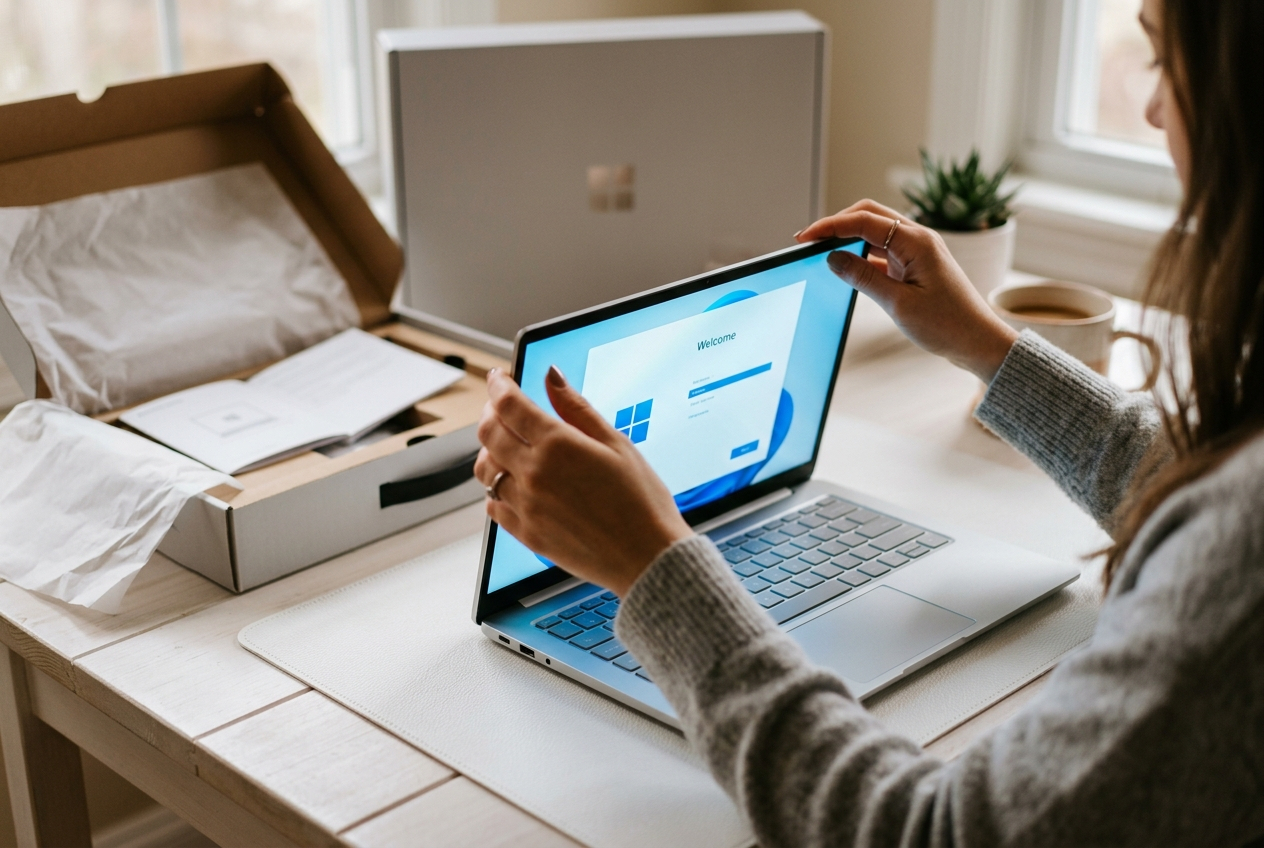
There’s something genuinely exciting about opening a new laptop for the first time. But once that initial thrill passes, a common question surfaces: How do I set up a new laptop after unboxing it?
In 2026, the out-of-box experience is more streamlined than ever — particularly on Windows 11 with Copilot+ integration — but there are still meaningful decisions to make during setup that shape your day-to-day experience for years. This guide walks you through every step, in order, so you start off on the right foot.
Before You Power On: What’s in the Box?
Take a moment to check the box contents before anything else:
- Laptop unit
- Power adapter and cable
- Quick-start guide or warranty card
- Optional: stylus (for 2-in-1 convertibles), USB-C hub, or protective sleeve
Keep the box and packaging for at least 30 days in case you need to return or service the device. Register the serial number — found on the bottom of the chassis or inside the box — for warranty purposes.
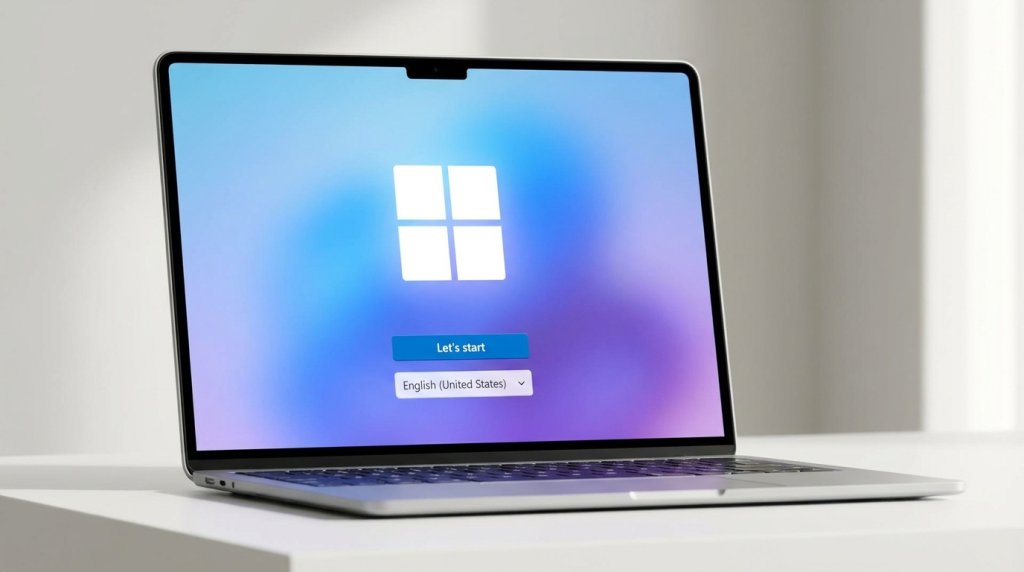
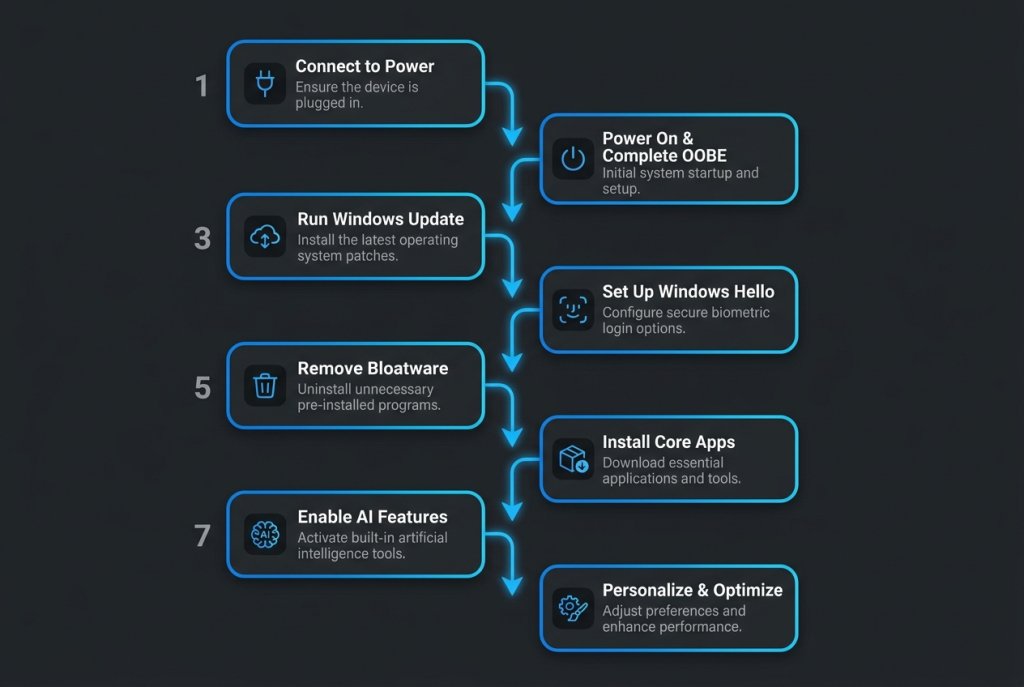
Step 1: Connect to Power
Plug in before powering on. While modern lithium batteries don’t need to be pre-charged to a specific level, starting your initial setup session on AC power means:
- Windows configuration won’t be interrupted by low battery
- First-run updates can download and install without power interruption
- The setup process can be completed without time pressure
Copilot+ PCs on ARM platforms (Snapdragon X Elite, Intel Core Ultra V) are efficient enough to complete setup on battery — but plugged in is always the safer start.
Step 2: Power On and Begin Windows 11 Setup (OOBE)
The Out-of-Box Experience (OOBE) is Windows 11’s guided setup wizard. In 2026, it’s more feature-rich than previous versions. Here’s what to expect and how to navigate it:
Language, Region, and Keyboard Layout
Select your language and region. This affects system defaults for date format, measurement units, and some app localizations.
Connect to Wi-Fi
Connect to your home or office network here. Windows 11 may require internet connectivity to complete account setup for certain configurations.
Microsoft Account Sign-In
You’ll be prompted to sign in with or create a Microsoft account. This is required for full Windows 11 functionality, including:
- OneDrive cloud storage and sync
- Microsoft Store access
- Copilot and AI feature integration
- Device syncing across Microsoft ecosystem
If you prefer a local account (offline), some configurations allow bypassing this step — though functionality will be limited.
Privacy Settings
Windows 11 will present a series of diagnostic and personalization data sharing options. Review each one and configure according to your comfort level. Key settings to pay attention to:
- Diagnostic data — Choose “Required” (minimal) vs “Optional” (full telemetry)
- Inking and typing — Relevant for 2-in-1 stylus users
- Advertising ID — Disable if you prefer less personalized ads in apps
OneDrive Backup
Windows will offer to back up your Desktop, Documents, and Pictures folders to OneDrive. This is highly recommended — especially for a new machine that may not yet have a local backup strategy in place.
Step 3: Complete First-Run Setup for Your Laptop Type
Different laptop categories have manufacturer-specific setup steps that appear after Windows configuration:
| Laptop Type | Common First-Run Steps |
|---|---|
| Gaming Laptop | Install GPU drivers, set up manufacturer performance utility (ASUS Armoury Crate, MSI Center, Lenovo Legion Space) |
| Business Laptop | Configure Windows Hello, join domain or Azure AD, enable BitLocker |
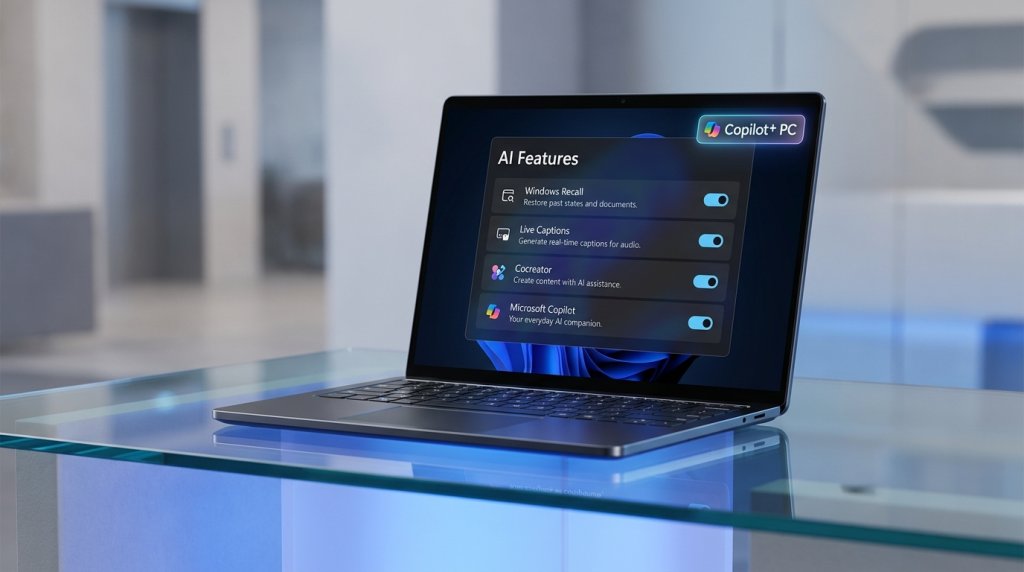
| Copilot+ PC | Review and enable AI features (Recall, Live Captions, Cocreator) |
| Chromebook | Sign in with Google account, sync Chrome profile, install Android apps from Play Store |
Step 4: Run Windows Update — All of It
This is the most important technical step. Before you install any application or move any files, check for Windows updates:
Settings → Windows Update → Check for Updates
In 2026, initial update packages frequently include:
- Critical security patches released after the device shipped
- GPU driver updates (especially important for gaming laptops with RTX 50 Series GPUs)
- NPU firmware for AI feature optimization on Copilot+ devices
- BIOS/UEFI updates that improve thermal management and battery life
Expect multiple rounds of updates and restarts before you’re fully current.
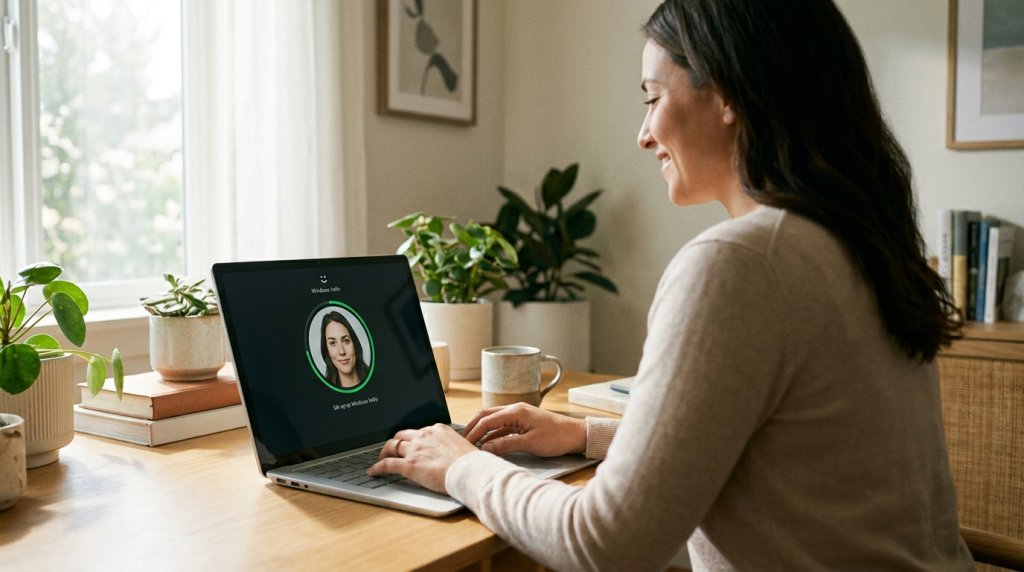
Step 5: Configure Windows Hello Biometric Login
Once updates are installed, set up Windows Hello immediately:
Settings → Accounts → Sign-in Options
- Fingerprint — Available on most modern business and premium consumer laptops
- Face Recognition (IR Camera) — More seamless; logs you in the moment you sit down
- PIN — Minimum recommended; more secure than password for local authentication
For AMD and Intel gaming laptop users, a PIN or password is typically the login method; full biometric suites (IR camera + fingerprint) are more common on business-class machines.
Step 6: Install Essential Applications
With the system updated and secured, install your core software stack. Prioritize:
- Browser — Microsoft Edge is built in with Copilot integration; install Chrome or Firefox if preferred
- Office / Productivity — Microsoft 365, Google Workspace, or alternatives
- Communication — Teams, Zoom, Slack
- Storage and Cloud — OneDrive is built in; consider Google Drive or Dropbox if needed
- Security — Windows Defender is active by default; evaluate whether a third-party VPN is needed
- GPU Utilities — NVIDIA App or AMD Software: Adrenalin Edition for driver management
Keep NVMe SSD storage health in mind as you install — avoid filling above 85% capacity for optimal performance.
Step 7: Set Up Your AI Features (Copilot+ Devices)
If your laptop is Copilot+ certified, take time to configure the AI features that make these devices distinctive in 2026:
- Windows Recall: Review and set privacy filters before enabling
- Live Captions: Test with any video or audio — the NPU handles transcription entirely on-device
- Cocreator in Paint: An on-device AI image generator — no internet or API key required
- Copilot Key (if present): Maps to Microsoft Copilot by default; can be remapped in settings
These features represent a genuine capability leap — especially for users who work with a lot of documents, media, or mixed-language content.
Step 8: Personalize and Optimize
The final setup phase is personal — arranging your workflow for maximum efficiency:
- Set your preferred power mode (Settings → System → Power)
- Pin your most-used apps to the Taskbar
- Configure multiple desktops if you work across contexts (work, personal, creative)
- Adjust display scaling and resolution for your screen size
- Set up external monitors if you use a docking station
For Windows laptops paired with an external hard drive for media storage, map your folders correctly from the start so you don’t end up reorganizing later.
You’re Ready
Setting up a new laptop well takes about an hour — but that hour shapes how the machine performs and feels for its entire lifespan. Whether you’re opening a gaming powerhouse, a sleek business machine, or a Copilot+ AI laptop, following this setup sequence ensures you start fast, stay secure, and get the full value of what you bought.
Still deciding on which laptop to buy? The Newegg Laptop Finder and Newegg Premium Laptop Upgrades are your best starting points.
Related Posts
- Best Gaming Notebooks Under $1000 in 2026
- Best Gaming Laptops Under $1500 in 2026: Power Without Breaking the Bank
- What Should I Do After Buying a New Laptop? The Smart Owner’s Checklist
- ROG Strix vs. Lenovo Legion Pro 5i vs. Razer Blade: Which Gaming Laptop Brand Wins in 2026?
- RTX 4070 Laptop vs. AMD RX 7700S: Which Gaming GPU Delivers Better Value in 2026?