
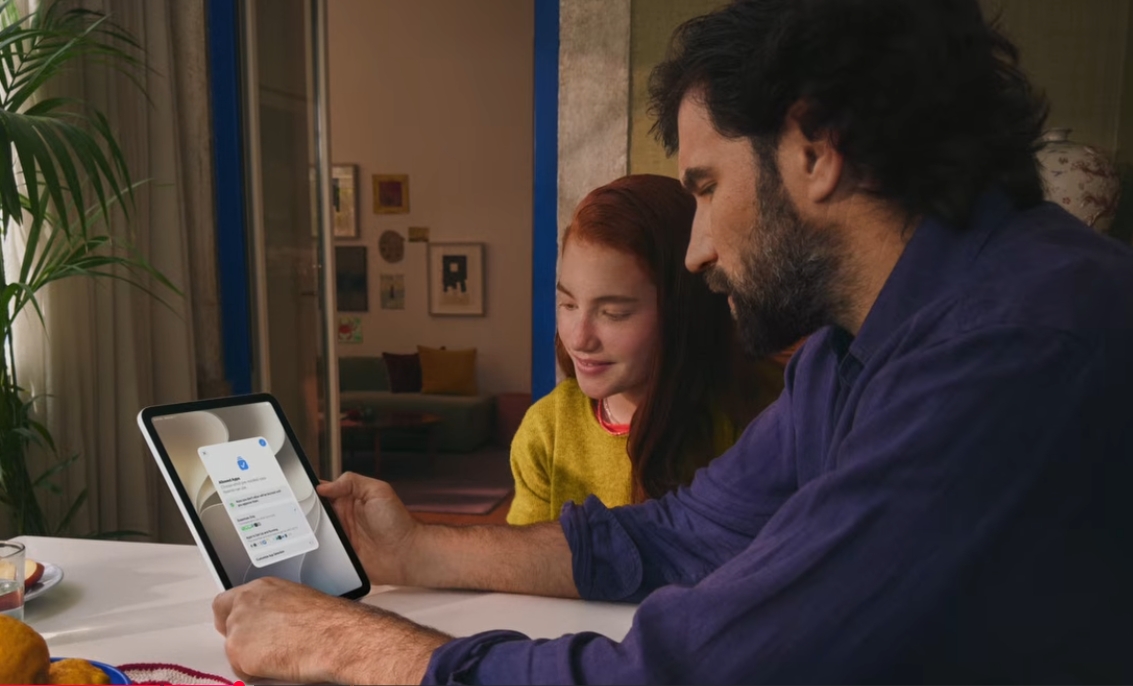
Apple parental controls got a major expansion at WWDC 2026, giving parents more precise ways to manage how children use apps, websites, and messages. At its June 8 keynote, Apple grouped these tools under “trust and safety,” one of the three pillars of the show. This guide explains the new Apple parental controls, how the Child Account works, and what they mean for families shopping for the right device for a kid.
Quick summary: what changed
The core idea is a stronger Child Account. A parent can turn on a Child Account for any young user, then shape that child’s experience across Apple devices. The controls cover app access, screen time, websites, contacts, and message filtering in one place.
Apple also gave developers new Safety APIs. These let apps respect a child’s age and adjust their experience without the parent configuring every app by hand. The changes roll out globally in the coming months, in step with the fall software releases.
Here is the short list of new and improved tools.
- Child Accounts with age and site-access restrictions
- App access and per-app usage limits
- Website whitelisting and contact whitelisting
- Message filtering for unwanted or unsafe content
- Time-of-day scheduling for apps and websites
How the Child Account works
The Child Account is the foundation of the new Apple parental controls. A parent adds a young person to the account, and the device then applies child-appropriate settings automatically. That means a child can use the device safely even before a parent finishes every detail of setup.
This matters for busy households. You no longer need to lock down a dozen separate settings before handing over a device. The defaults do the heavy lifting, and you refine from there.
The account also follows the child across devices. Set a rule once, and it applies whether the child picks up a phone, a tablet, or a shared computer. That consistency removes the gaps that kids often find when rules live on only one device.
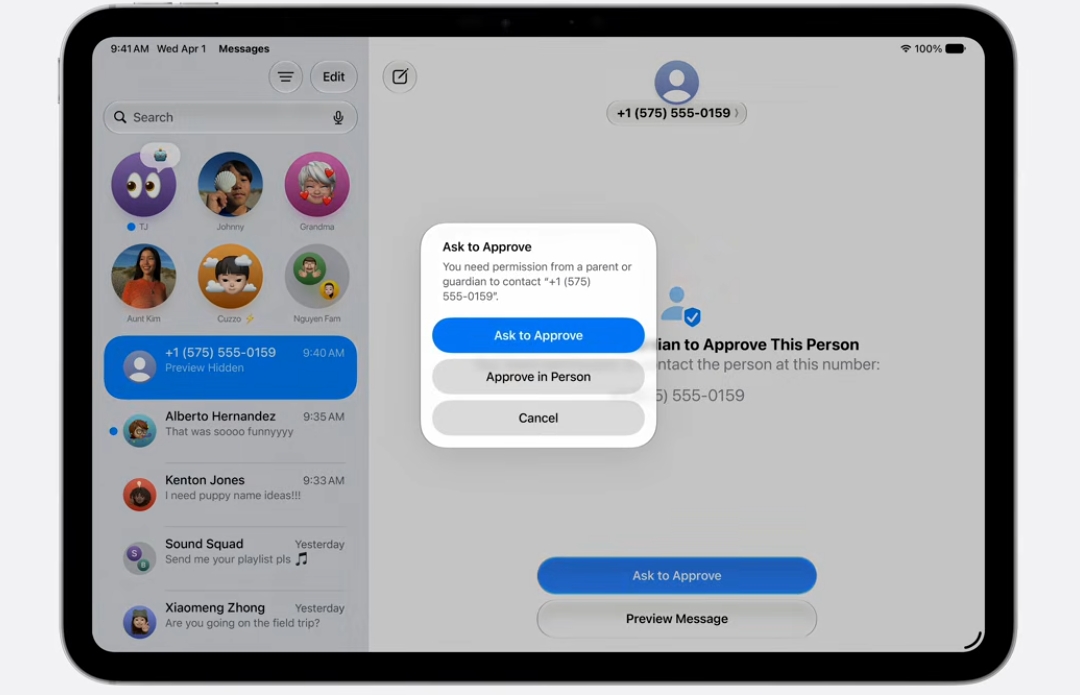
Ask to Browse: smarter web limits
“Ask to Browse” is the new web-safety layer. It requires a parent’s consent before a child can visit certain websites, which puts you in the loop instead of relying on a static block list. Apple also said the system automatically censors specific content such as nudity and gore for children.
This approach balances freedom and safety. A child can still research a school project or explore a hobby site. But sensitive or adult content gets filtered, and risky pages need your approval first.
For families, the win is fewer all-or-nothing choices. Instead of banning the browser outright, you grant access page by page when it makes sense. That builds trust while keeping guardrails in place.
Time Allowance: control when and how long
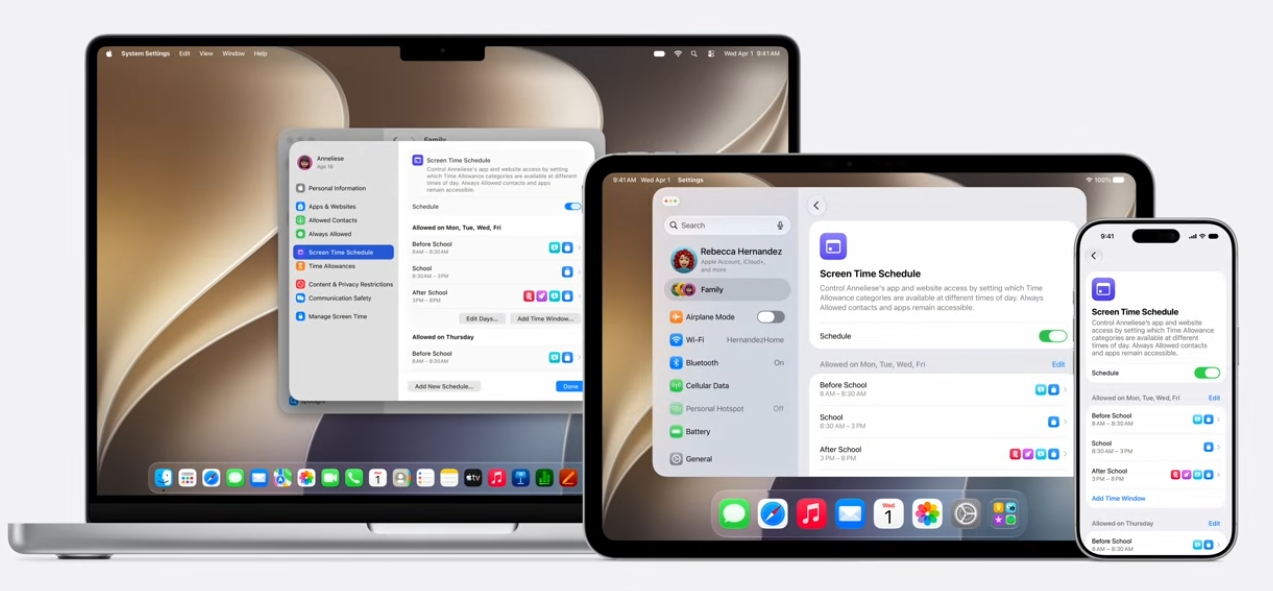
Time Allowance lets parents set exactly how long a child spends in apps, and which apps are available at different times of day. You can also set per-category limits, so games and social apps follow different rules than learning apps.
The time-of-day control is the standout. A parent can keep games locked during school hours and homework time, then open them up in the evening. Educational apps can stay available all day while entertainment waits its turn.
These limits reduce daily friction. Rather than negotiating screen time every afternoon, you set a schedule once and let the device enforce it. Kids learn the rhythm, and parents stop being the timer.
New Safety APIs for app developers
The new Safety APIs extend Apple parental controls beyond Apple’s own apps. Developers can use them to detect a child’s age range and tailor their app’s experience, without collecting a child’s exact birth date. That protects privacy while still adapting the content.
In practice, an app can dial back mature features, simplify its interface, or limit messaging when it knows a young person is using it. The parent does not have to configure each app separately, which closes a common loophole.
This developer support is the quiet but important part of the announcement. Parental controls only work well when third-party apps cooperate. By giving developers standard tools, Apple makes the whole ecosystem safer rather than just its built-in apps.
Choosing the right device for a child
The new Apple parental controls work best when paired with a device that fits the child’s age and needs. A young child may only need a simple tablet for reading and learning. An older student often needs a real keyboard for schoolwork.
For school and homework, a lightweight laptop with a full keyboard usually beats a tablet. Budget-minded families often start with a Chromebook for school use, which keeps costs low and management simple. Families that want one device for both work and play can compare 2-in-1 convertible laptops that switch between tablet and laptop modes.
If several family members will share the machine, a sturdy general-purpose laptop makes sense. You can sort through options with the Newegg Laptop Finder, filtering by price, size, and battery life. For a wider view, browse the full selection of laptops and notebooks to match a device to each child.
Apple’s controls in the wider safety push
Apple’s expanded controls arrive as governments push harder on age verification and child safety online. Several U.S. states now require app stores to confirm a user’s age, and similar rules are spreading. Apple’s age-range tools and Child Accounts line up with that pressure.
This context helps explain the timing. Apple has historically resisted broad age-verification mandates over privacy concerns. The new system tries to thread the needle by sharing age ranges instead of exact birth dates, giving apps enough to adapt without exposing sensitive data.
For parents, the policy debate matters less than the daily result. The tools give you clearer control, and they extend across the apps your child actually uses. That is the practical payoff, whatever the legal backdrop.
Setting up the controls well
A few habits make the new Apple parental controls more effective. First, set up the Child Account early, before handing the device to a young user. The automatic defaults protect the child while you fine-tune.
Second, talk through the rules with your child. Controls work better as a shared agreement than a surprise. Explain why certain sites need approval and why games wait until evening.
Finally, revisit the settings as your child grows. A rule that fits a seven-year-old will frustrate a teenager. The system makes it easy to loosen limits over time, so update them as trust and maturity grow.
Frequently asked questions
What is a Child Account? A Child Account is an Apple account a parent sets up for a young user. It applies age-appropriate defaults automatically and lets parents manage apps, websites, contacts, and screen time.
What does Ask to Browse do? Ask to Browse requires parental consent before a child visits certain websites. It also automatically filters sensitive content like nudity and gore.
Can I limit screen time by time of day? Yes. Time Allowance lets you set how long a child spends in apps and which apps are available at different times, with separate limits per category.
Do third-party apps respect these controls? They can. New Safety APIs let developers detect a child’s age range and adapt their app, without collecting an exact birth date.
When do the new parental controls arrive? Apple said the changes roll out globally in the coming months, alongside the fall software releases.
The bottom line on Apple parental controls
The expanded Apple parental controls give families clearer, more flexible tools than before. The Child Account anchors everything, Ask to Browse handles the web, Time Allowance manages schedules, and new Safety APIs pull third-party apps into the same system. Together they make a child’s device safer without locking it down completely.
The right device makes these tools shine. If you are shopping for a child or a shared family machine, start with the Newegg Laptop Finder to match age and budget, or browse all laptops to compare sizes and prices side by side.
Related Posts
- Apple Intelligence Features at WWDC 2026: The New Siri, Photo Editing, and What Your Device Needs
- iOS 27 Performance Boost: Every Speed and Design Change Apple Showed at WWDC 2026
- Sales Tax Holiday 2026: Save on PC Components, Peripherals, Laptops, Desktops, and Workstations at Newegg
- Intel’s Fastest Gaming Desktop CPUs Are Almost Here: A Complete Look at the Core Ultra 270K/250K/250KF Plus Arrow Lake Refresh
- NVIDIA GTC 2026, Part 3: The OpenClaw Revolution, Self-Driving Ubers, and Jensen’s Annual Tradition of the Perfect Finale