Business laptops like ThinkPads, Latitudes and EliteBooks are often good upgrade candidates. Plenty of them still have a memory slot, and many used and off-lease units ship with 8GB or 16GB and would feel much faster with more.
The catch is that "laptop RAM" isn't one thing. Here's the process I use to find a module that will actually work, step by step.
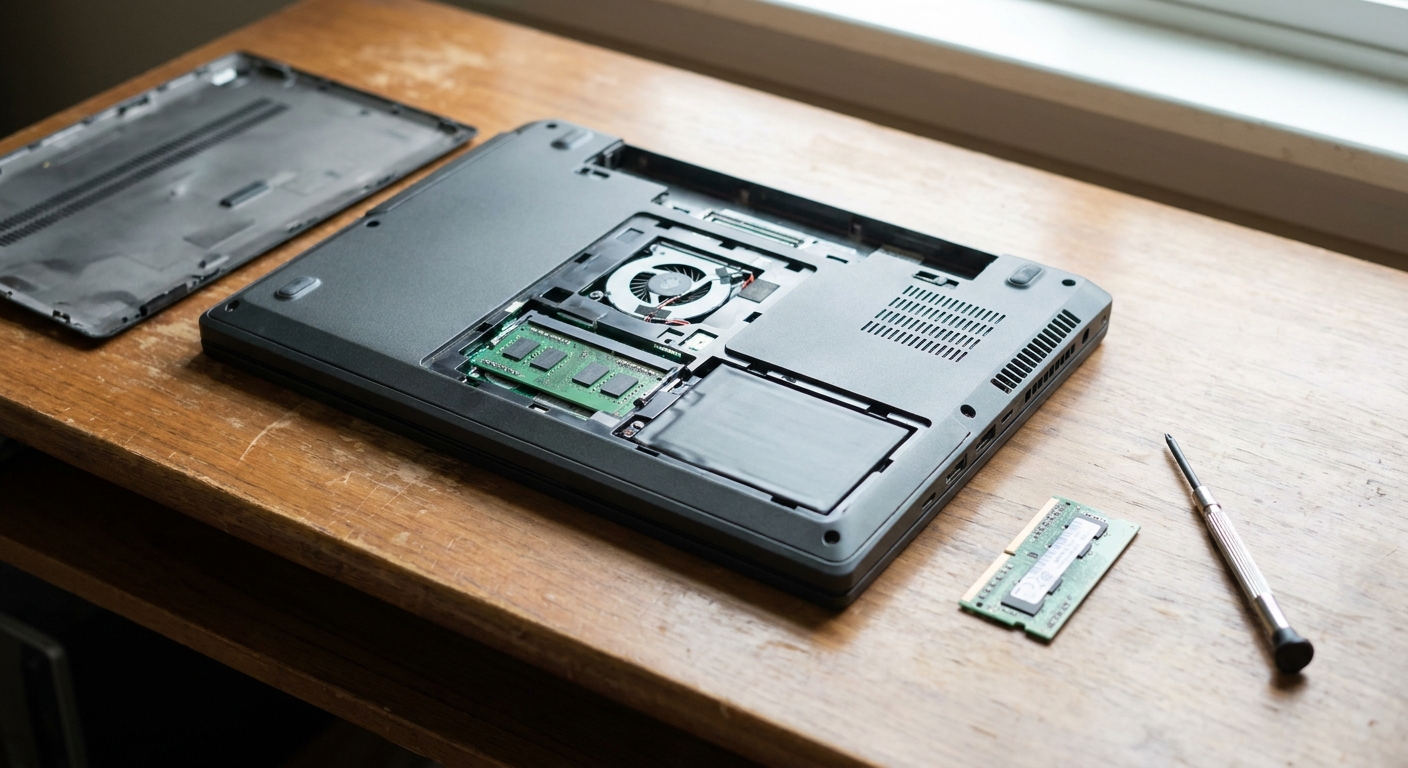
Step 1: Get the exact model, not just the family
"ThinkPad T14" covers several generations with different memory layouts. On a ThinkPad, look for the machine type on the bottom label. On a Dell, use the service tag. On an HP, find the product number. That identifier is what you look up in the next step.
Step 2: Check the official spec document
Lenovo's PSREF, Dell's owner's manual and HP's QuickSpecs all list memory type, speed, number of slots, how much is soldered and the maximum supported capacity. I don't skip this step, because two laptops with the same name can differ.
What you're looking for:
- DDR4 or DDR5, and the speed (for example 3200 or 5600)
- How many SO-DIMM slots, and whether any memory is soldered
- The maximum supported capacity
Step 3: Match the module type exactly
DDR4 SO-DIMMs have 260 pins and DDR5 SO-DIMMs have 262 pins, with notches in different places. They won't fit in each other's slots, so check this first.
The simplest route is a module sold for your specific model. The Total Micro 16GB DDR4-3200 module is listed for the ThinkPad T14, T15 and T15p Gen 1, with Lenovo part number 4X70Z90847. For newer Dells, the Total Micro 32GB DDR5-5600 module is listed for the Latitude 5440, 5450, 5540 and 5550 and Precision 3590 and 3591. HP owners can look at the Total Micro 32GB DDR4-3200 module, listed for the EliteBook 640 G10, 650 G10 and 850 G8 and ProBook 450 G9 and G10.
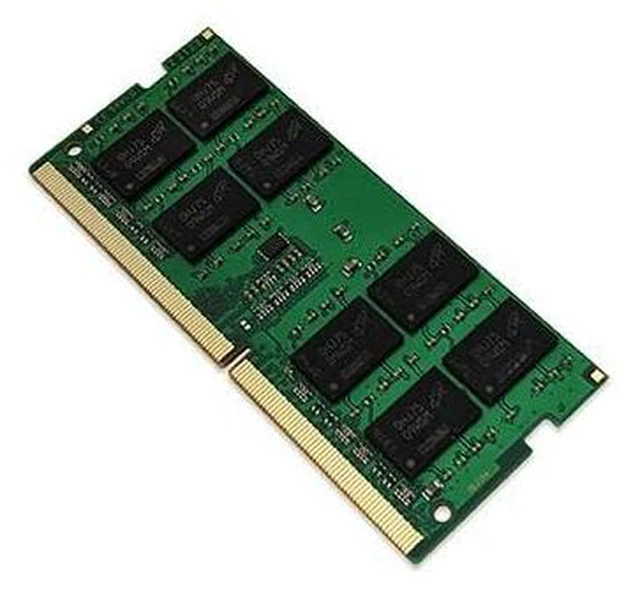
If you have a newer ThinkPad that takes DDR5, the Lenovo-compatible 32GB DDR5-5600 module matches Lenovo part 4X71M23189.
Step 4: Plan around soldered memory
Many business laptops pair soldered memory with one slot. In that case, I try to match the speed of the soldered memory and, if possible, its capacity. Matching capacity gives you the most predictable dual-channel setup. A larger module still works on most systems, but part of it may run in single-channel mode.
Step 5: Check what you actually use
Before buying, open Task Manager on the laptop during a normal workday and look at memory in use. If you regularly sit near the limit, with the system leaning on the page file, more RAM will help right away. If you rarely pass 60% of what you have, the slowdown is probably coming from somewhere else, like an aging SSD or background apps.
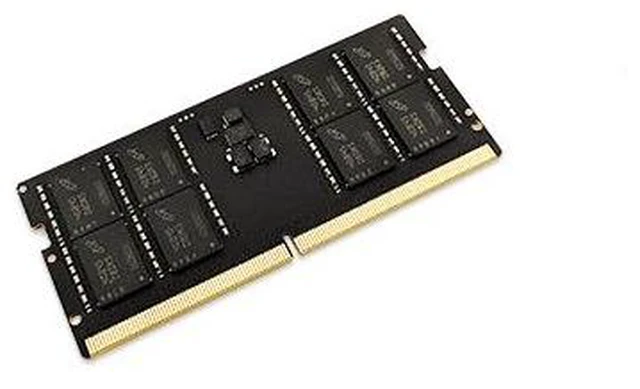
It's also worth noting the module's rank when you're matching. The Kingston 16GB DDR5-5600 module below is single-rank (1Rx8), while the 32GB DDR5 modules are dual-rank (2Rx8). Mixing ranks usually works, but when you're pairing a new module with an existing one, matching the rank as well as the capacity and speed removes one more variable.
Step 6: Choose your capacity
For office work with a lot of browser tabs, 16GB is the floor I'd accept, and 32GB is what I'd aim for if the laptop supports it.
If your laptop has two free slots, a matched kit is the easiest choice. On DDR4 systems, the Crucial 32GB (2 x 16GB) DDR4-3200 kit covers most needs, and the Crucial 16GB DDR4-3200 module works for a single-slot top-up. On DDR5 laptops, the Crucial 64GB (2 x 32GB) DDR5-5600 kit is for heavier work if your model's PSREF or manual lists 64GB as supported. The Kingston 16GB DDR5-5600 module is a single-rank option for a smaller bump.

Step 7: Install it safely
- Shut the laptop down fully. On ThinkPads, you can also disable the built-in battery in the BIOS before opening it.
- Ground yourself before touching the module.
- Remove the bottom cover screws; many are captive and stay in the cover.
- Insert the module at an angle, fully into the slot, then press it down until the clips lock.
Step 8: Confirm it worked
The first boot after a memory change can take longer on DDR5 systems because of memory training. That's normal. Once Windows loads, open Task Manager, go to Performance, then Memory, and check total capacity and speed. If the capacity is wrong, reseat the module before you assume it's faulty.
My take
A memory upgrade is one of the best ways to stretch a good business laptop. The work is mostly research. Find the exact model, read the spec sheet, match the module, and it's usually a ten-minute job.
Frequently Asked Questions
How do I know what RAM my laptop takes? Look up the exact model in the manufacturer's spec documents, such as Lenovo PSREF, the Dell owner's manual or HP QuickSpecs. They list the memory type, speed, number of slots, any soldered memory and the maximum supported capacity.
Can I mix soldered memory with a new SO-DIMM? Many business laptops pair soldered memory with one slot. Matching the speed and, where possible, the capacity of the soldered memory gives the most predictable dual-channel behavior.
Will faster RAM speed up my laptop? Usually not by itself. The laptop runs memory at the speed its platform supports, so a faster module typically runs at the supported speed.
Is DDR4 SO-DIMM compatible with DDR5 laptops? No. DDR4 SO-DIMMs use 260 pins and DDR5 SO-DIMMs use 262 pins, with differently placed notches, so they are not interchangeable.
Why does my laptop take longer to boot after a RAM upgrade? Many DDR5 systems run memory training on the first boot after a change. A longer first boot is normal; later boots should return to normal.
Read More
- Lenovo PSREF (Lenovo): Lenovo's official spec reference, including memory slots, soldered memory and maximums.
- Crucial System Scanner and Advisor (Crucial): Look up compatible memory by laptop model.
- Before You Buy More RAM, Check What's Actually Using It (Newegg Insider): Make sure more memory is the right fix first.
- Soldered vs Upgradeable RAM in Laptops (Newegg Insider): How soldered and slotted memory affect upgrades.
- Best Gaming Laptops for Open-World Games in 2026 (Newegg Insider): Our picks if you're shopping for a new laptop instead.