A lot of people are holding onto gaming laptops longer than they planned. Memory makers have been prioritizing data center demand, Micron even wound down its Crucial consumer business, and new laptops haven't gotten any cheaper. Meanwhile the games keep getting bigger. Call of Duty: Modern Warfare 4 asks for 115GB of SSD space at launch, and if the rumored early-2027 PC release of GTA 6 happens, it's not going to be small either.
That makes a RAM and SSD upgrade one of the most sensible things you can do to a two- or three-year-old gaming laptop. It's also one of the easiest to get wrong if you skip the homework. Here's how I'd approach it.
Background: Know Which Kind of Memory You Have
This is the step that decides everything. Current laptops use one of these approaches:
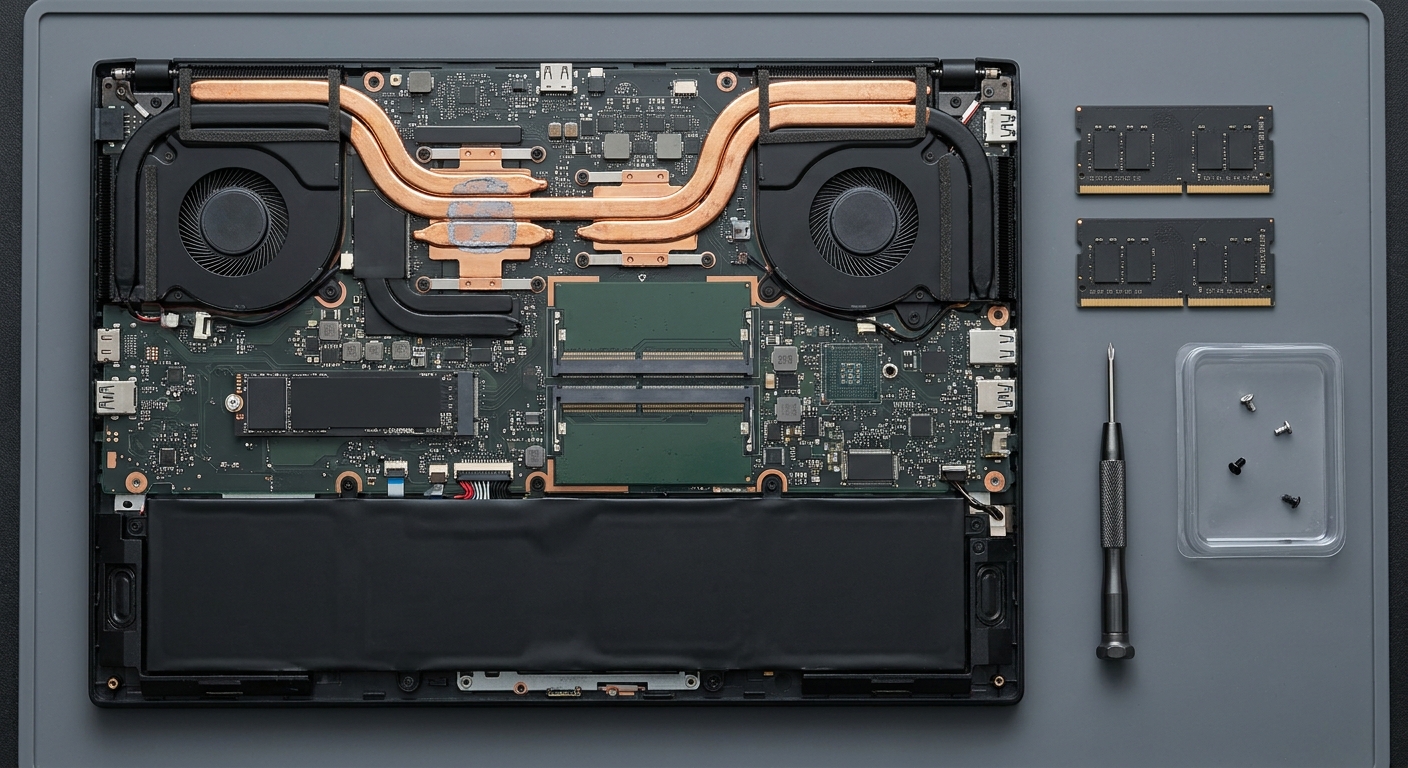
- DDR5 SO-DIMM: removable 262-pin sticks. Many gaming laptops still use these, and they're upgradable.
- Soldered LPDDR5 or LPDDR5X: memory chips attached to the motherboard. Thin-and-light machines often use it, and you can't upgrade it.
- Soldered DDR5 plus one SO-DIMM slot: some memory is fixed and one slot is free. You can add a stick, but a matched pair isn't possible.
- CAMM2: a newer JEDEC module standard with DDR5 and LPDDR5X versions. The LPDDR version, LPCAMM2, makes LPDDR memory removable. Still uncommon.
There's also CSODIMM, a SO-DIMM with a built-in clock driver aimed at Intel's Arrow Lake platforms, such as Core Ultra 200HX laptops. Kingston warns that older chipsets and AMD platforms may not run them or may run them much slower, so I'd only buy CSODIMMs if your laptop maker lists them.
Step 1: Confirm What Your Laptop Supports
Start with the maker's spec sheet or service manual. It should list the memory type, maximum capacity, number of slots and the M.2 slot lengths. Kingston's online configurator flags models whose memory can't be removed, and CPU-Z's SPD tab shows the installed modules, including their size and speed. For storage, check whether you have a free M.2 slot and its length. M.2 drives are all 22mm wide; the last digits give the length, so a 2280 drive is 80mm long and a 2230 is 30mm.
Step 2: Pick a Matched Memory Kit
Buy two identical sticks. Kingston's guidance is that a matched pair runs in dual channel, which effectively doubles memory bandwidth compared with one stick, and that mixing different modules isn't recommended. For most gaming laptops, 32GB of DDR5-5600 is the sweet spot. The Kingston FURY Impact 32GB DDR5-5600 kit runs CL40 at 1.10V, and the CORSAIR Vengeance 32GB DDR5-5600 SO-DIMM kit is a reliable alternative at CL48. If you edit video or run local AI tools alongside games, and your laptop supports it, the G.SKILL Ripjaws 64GB (2 x 32GB) DDR5-5600 kit gets you there in two sticks.

Step 3: Choose an SSD That Fits
Most gaming laptops take M.2 2280 drives, and a PCIe 4.0 drive is plenty. If your laptop only has a PCIe 3.0 slot, a PCIe 4.0 drive still works, just at PCIe 3.0 speeds. A few good 2TB options:
- Samsung 990 EVO Plus 2TB: up to 7,250MB/s reads and a 1,200TBW endurance rating.
- MSI SPATIUM M461 2TB: up to 5,000MB/s reads with a five-year warranty.
- Team Group NV5000 2TB: up to 5,000MB/s reads and a 640TBW rating. It's listed at 3.7mm tall with a heatsink, so confirm clearance in thin laptops.

If your laptop has a short 2230 slot, the Kingston NV3 2230 2TB packs 2TB into that size and is only 2.3mm thick.
Step 4: Plan Your Data Move
If you're adding a second drive, there's nothing to move. If you're replacing your only drive, put the new one in a USB enclosure first and clone the old drive to it. The ORICO tool-free aluminum M.2 NVMe enclosure uses a 10Gbps USB-C connection and doubles as a portable drive for the old SSD afterward.

Step 5: Open It Up Safely
Shut the laptop down fully, unplug the charger and, if the manual says so, disconnect the internal battery. Kingston recommends touching unpainted grounded metal or using an antistatic wrist strap before handling modules. Keep track of screws, since bottom panels often use two lengths.
Step 6: Install, Then Be Patient
Seat the SO-DIMMs at an angle and press them down until the clips lock. Install the SSD with its screw or latch. On the first boot, a DDR5 system can take several minutes to train new memory, and Kingston says a temporary black screen during that process is normal. Leave it alone for at least 10 minutes before assuming something's wrong. Then check in Task Manager that the full capacity and the new drive show up.
A Quick Word on Warranties
In the US, the FTC has repeatedly said that conditioning a warranty on an unbroken "warranty void if removed" sticker is generally prohibited under the Magnuson-Moss Warranty Act, and in 2024 it sent warning letters to several hardware makers over exactly that. Policies still vary by manufacturer, and damage you cause during an upgrade isn't covered, so read your laptop's warranty terms first.
Summary
Check whether your RAM is removable before you buy anything. If it is, a matched 32GB DDR5-5600 kit and a 2TB PCIe 4.0 SSD are the upgrades I'd make first, and they're the kind of upgrade that can buy a capable gaming laptop another couple of years.
Frequently Asked Questions
How do I know if my laptop RAM is upgradable? Check the maker's spec sheet or service manual for removable SO-DIMM or CAMM2 slots. Kingston's configurator flags models whose memory can't be removed, and CPU-Z's SPD tab shows the installed modules. Soldered LPDDR5 or LPDDR5X memory can't be upgraded.
Should I use one RAM stick or two in a laptop? Use two identical sticks. A matched pair runs in dual channel, which Kingston says effectively doubles memory bandwidth compared with a single stick.
What is CSODIMM memory? A CSODIMM is a laptop SO-DIMM with a built-in clock driver, aimed at Intel's Arrow Lake platforms such as Core Ultra 200HX laptops. Kingston warns that older chipsets and AMD platforms may not run them or may run them much slower, so only buy CSODIMMs if your laptop maker lists support for them.
Will a PCIe 4.0 SSD work in a laptop with a PCIe 3.0 slot? Yes. A PCIe 4.0 drive works in a PCIe 3.0 slot at PCIe 3.0 speeds, as long as the slot supports NVMe drives (not SATA only) and its length matches the drive, such as M.2 2280.
Why does my laptop show a black screen after a RAM upgrade? DDR5 systems retrain memory after a change, which can take several minutes. Kingston says a temporary black screen is normal and recommends waiting at least 10 minutes before troubleshooting.
Read More
- Kingston: How to Install Memory in a Laptop PC -- Kingston's official step-by-step laptop memory installation guide.
- Kingston: Understanding CUDIMM, CSODIMM, CAMM2 and MRDIMM -- An explainer on the newer memory module types.
- Tom's Hardware: CAMM2 Standard Ratified by JEDEC -- What CAMM2 and LPCAMM2 mean for removable laptop memory.
- Tom's Hardware: Micron Launches DDR5-6400 CUDIMMs and CSODIMMs -- Background on clocked SO-DIMMs for Intel Core Ultra 200 systems.
- FTC: Warning on Warranty Practices That Harm Right to Repair -- The FTC's 2024 warning letters about warranty-void stickers.