Memory has become the most frustrating part of building or upgrading a PC in late 2026. AI data centers are soaking up supply, and in late October Sam Altman managed to make it worse by calling it "quite terrible" that so much RAM sits in personal PCs. He later walked it back, but the reaction on r/pcmasterrace told you how people feel.
So before anyone pays shortage prices for another kit, I'd spend ten minutes finding out whether you actually need it. Quite often the answer is "not yet."
Why "RAM usage is high" isn't the whole story
Windows is designed to use spare memory. It keeps recently used files cached so things open faster, then releases that cache when an app needs it. A Task Manager graph sitting at 70% doesn't mean you're out of RAM. The numbers that matter are a little further down the page.
Step 1: Read the right numbers in Task Manager
Press Ctrl+Shift+Esc, open Performance, then Memory. I look at four lines:
- In use: what apps are actively holding.
- Committed: shown as two numbers. If the first is regularly close to the second, Windows is leaning hard on the page file, and that's when you feel stutter.
- Speed: if you bought a DDR5-6000 kit and this shows a much lower number, XMP or EXPO isn't turned on in the BIOS.
- Slots used: "1 of 2" or "2 of 4" tells you whether you can add memory or need to replace the kit.
Step 2: Find the apps that are actually responsible
Go back to the Processes tab and sort by Memory. Browsers with dozens of tabs, chat apps and launchers sitting in the tray are the usual suspects. Chat clients built on web technology can use a surprising amount; Discord has reportedly been rebuilding its desktop client partly to bring that down.
If you want more detail, Microsoft's free Process Explorer shows memory per process, and RAMMap shows where physical memory is going at the system level.
Step 3: Trim before you buy
Disable startup apps you don't need under Task Manager's Startup apps page. Turn on your browser's memory saver feature. Close launchers you only open once a week. Then play your heaviest game for an hour with the Memory page open on a second screen.
Step 4: Check that your existing memory is set up properly
Before buying more, make sure you're getting full value from what you have. If Slots used shows "1 of 2" or "1 of 4," you're running a single stick in single-channel mode, which can cost performance in some games. If Speed is well below your kit's rating, enable XMP or EXPO in the BIOS. And if you added a mismatched stick at some point, that alone can force the whole system to run slower.
It also helps to check what's reserved. Systems with integrated graphics set aside part of system memory for the GPU, which shows up as "Hardware reserved" and can make it look like you have less RAM than you paid for.
Step 5: Decide
If committed memory still runs close to its limit during your normal workload, or you see stutter and constant disk activity, more RAM will help. If you have headroom after trimming, I'd wait.
If you do need more, here's what I'd buy
For most DDR5 desktops, a matched 32GB kit is the sweet spot. The CORSAIR Vengeance 32GB DDR5-6000 CL30 supports both XMP 3.0 and EXPO, so it works on AMD and Intel boards. The G.SKILL Flare X5 32GB DDR5-6000 is an AMD EXPO-focused alternative at CL36 and 1.35V.

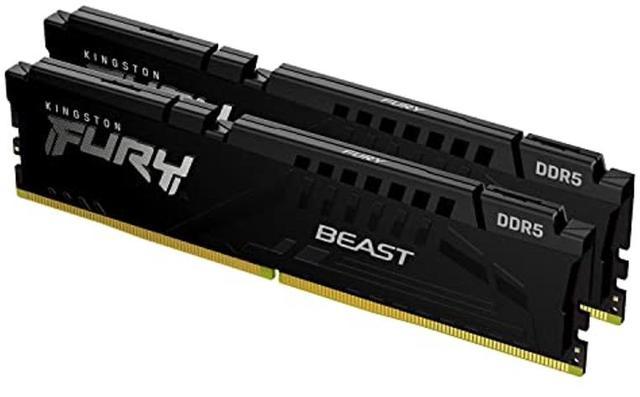
If you run local AI, edit video or keep a lot open while gaming, I'd go straight to 64GB rather than buying 32GB twice. The Kingston FURY Beast 64GB DDR5-6000 CL30 is the kit I'd pick, and the CORSAIR Vengeance RGB 64GB DDR5-6000 is there if you want lighting, though it runs looser CL40 timings.
On older DDR4 platforms such as AM4, a 32GB kit like the G.SKILL Ripjaws V DDR4-3600 CL18 or the CORSAIR Vengeance LPX DDR4-3600 is still a meaningful upgrade from 16GB. For heavier workloads, the G.SKILL Trident Z Neo 64GB DDR4-3200 CL16 makes sense.
For laptops with SO-DIMM slots, the CORSAIR Vengeance 32GB DDR5-5600 SO-DIMM kit is a common upgrade. Check your laptop's maximum supported memory first.

Summary
Check committed memory, speed and slots before you spend anything. Trim what's running in the background, then test with your real workload. If you still run out, buy a matched kit rather than adding a single stick, and size it for what you'll need two years from now, not just for your current needs.
Frequently Asked Questions
How do I check how much RAM I'm using in Windows 11? Open Task Manager with Ctrl+Shift+Esc, go to Performance, then Memory. Look at In use, Committed, Speed and Slots used. Resource Monitor and Sysinternals RAMMap give a deeper breakdown.
Is high RAM usage always a problem? No. Windows uses spare memory as a cache and gives it back when apps need it. The warning signs are a committed value close to its limit, frequent stutter and constant disk activity from paging.
How do I know if my RAM is running at its rated speed? Task Manager shows the current memory speed. If a DDR5-6000 kit shows a much lower number, XMP or EXPO is probably disabled in the BIOS.
Is 16GB of RAM still enough in 2026? For many games and everyday use, 16GB still works, especially with background apps trimmed. If you stream, run many browser tabs, or use local AI or creative apps, 32GB is the more comfortable target.
Can I add one stick to my existing kit? You can, but mixing kits can cause stability issues or force lower speeds. For DDR5 in particular, buying a matched two-module kit is the safer path.
Read More
- RAMMap (Microsoft Sysinternals): A free Microsoft tool that shows exactly how physical memory is being used.
- Process Explorer (Microsoft Sysinternals): A more detailed process view than Task Manager, including memory per process.
- Sam Altman's comments on PC RAM and AI data centers (TechRadar): The news story behind the latest round of RAM shortage frustration.
- How Much RAM for Open-World Games in 2026? (Newegg Insider): Our guide to sizing memory for big open-world games.
- DDR5-6000 vs DDR5-8000 on AM5 (Newegg Insider): Whether faster DDR5 is worth it once you know you need more.