The choice between Chromebooks and Windows laptops has evolved significantly in 2026, with both platforms offering increasingly sophisticated capabilities. As cloud computing matures and AI-powered features like those in Copilot+ PCs transform computing paradigms, understanding the fundamental differences between these platforms has become more nuanced than ever. This comprehensive analysis explores the practical distinctions to help you make an informed decision.
Operating System Philosophy: Cloud vs Local
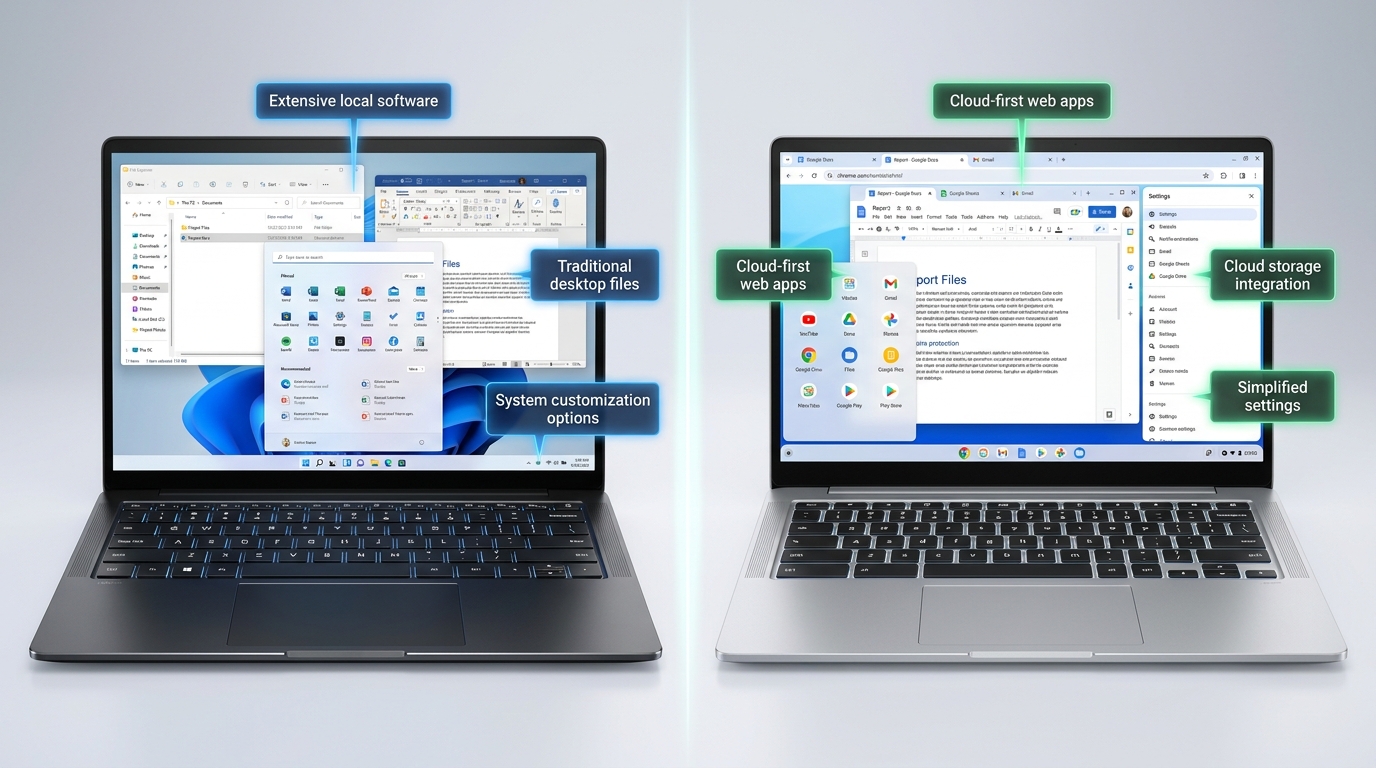
The most fundamental difference between Chromebooks and Windows laptops lies in their operating system philosophy. Chrome OS was designed from the ground up as a cloud-first operating system, assuming constant internet connectivity and storing most data in cloud services. Windows maintains its traditional local-first approach while adding increasing cloud integration.
This philosophical difference cascades through every aspect of the user experience, from application availability to storage management to offline capability. Understanding these implications helps clarify which approach better matches your computing needs and work style.
Application Ecosystems: Web vs Native
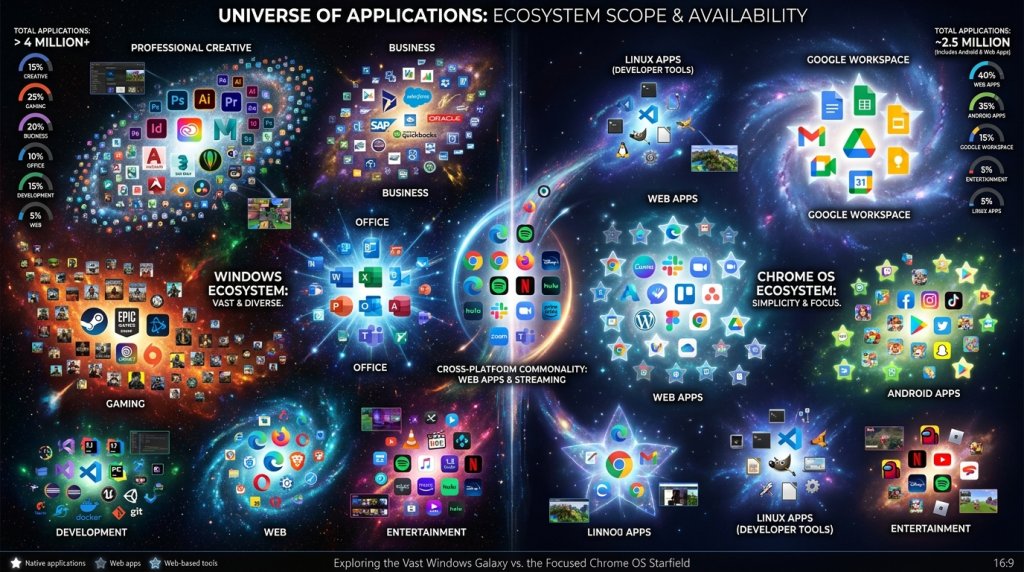
Windows laptops run traditional Windows applications—full desktop software including Adobe Creative Suite, professional CAD programs, advanced development environments, and specialized business applications. This vast software ecosystem, built over decades, represents Windows’ most significant advantage.
Chromebooks primarily run web applications accessed through the Chrome browser, with additional support for Android apps through the Google Play Store and Linux applications for advanced users. While this covers many common use cases, certain professional and specialized software remains unavailable or limited compared to Windows versions.
In 2026, the gap has narrowed considerably. Progressive Web Apps (PWAs) have matured, offering app-like experiences that work excellently on Chromebooks. Major software vendors increasingly offer web-based versions of their tools, making Chrome OS viable for more users than ever before.
Hardware Specifications and Performance
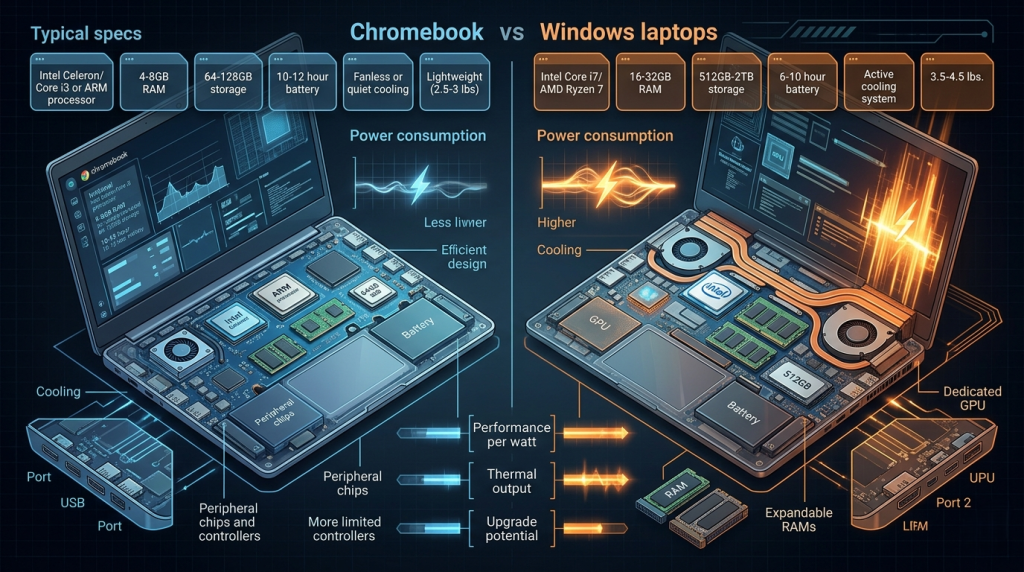
Windows laptops span enormous performance ranges, from budget machines with basic processors to powerhouse gaming laptops featuring NVIDIA GeForce RTX 50 Series GPUs. This flexibility allows Windows systems to handle everything from web browsing to 4K video editing to high-end gaming.
Chromebooks typically feature more modest specifications optimized for web-based computing. Chrome OS’s lightweight architecture requires far less processing power and RAM than Windows, enabling Chromebooks with seemingly modest specifications to deliver responsive, smooth performance for their intended use cases.
A Chromebook with 4GB RAM and a modest processor can feel faster for web browsing and document editing than a Windows laptop with similar specifications struggling under the overhead of Windows itself and traditional desktop applications.
Storage: Local vs Cloud Integration
Windows laptops traditionally emphasize local storage, commonly offering 256GB to 2TB SSD storage or hard drives for users who store large media libraries, game installations, or extensive file collections locally.
Chromebooks typically ship with smaller local storage—often 32GB to 128GB—designed primarily for caching and temporary files. The expectation is that documents, photos, and other user data reside in cloud services like Google Drive, Dropbox, or OneDrive. This cloud-first approach reduces hardware costs but creates dependence on internet connectivity and cloud storage subscriptions.
For users comfortable with cloud storage and streaming services, limited local storage poses few practical limitations. However, users requiring large offline file access or extensive software installations find Windows’ generous local storage essential.
Platform Comparison Matrix
| Factor | Windows Laptops | Chromebooks |
|---|---|---|
| Primary Philosophy | Local-first computing | Cloud-first computing |
| Application Support | Full desktop apps + web apps | Web apps + Android + Linux |
| Offline Capability | Extensive | Limited but improving |
| Hardware Range | Budget to ultra-premium | Budget to mid-range |
| Typical Storage | 256GB to 2TB | 32GB to 256GB |
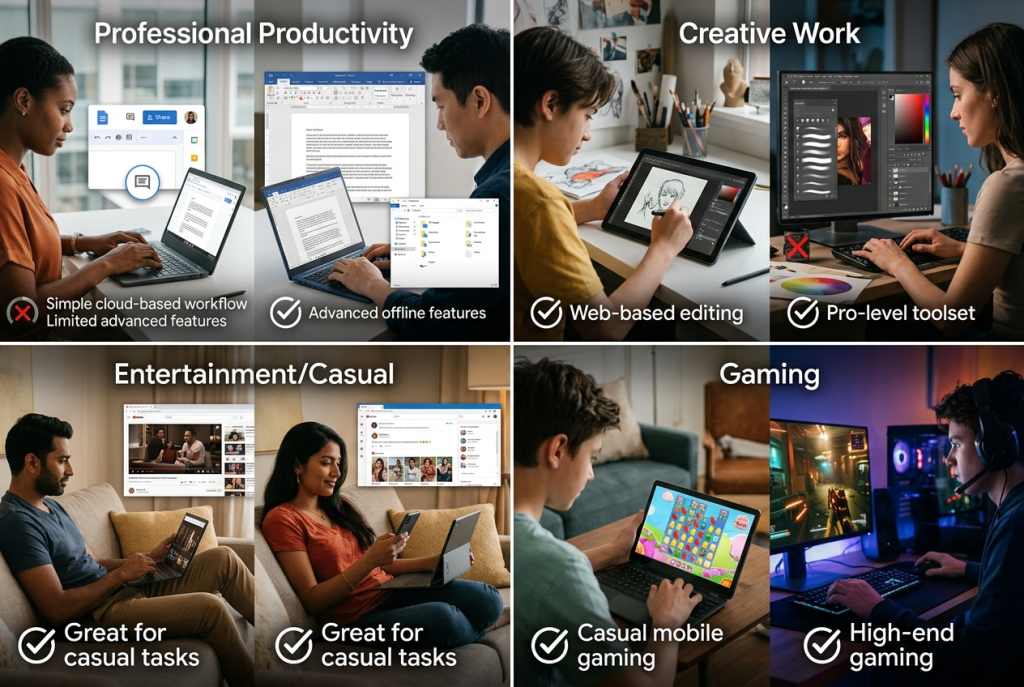
| Gaming Capability | Extensive (dedicated GPUs) | Casual/web games only |
| Professional Software | Full suite availability | Limited/web versions |
| Security Model | Traditional + modern defenses | Sandboxed + auto-updates |
| Boot Time | 10-30 seconds | 5-10 seconds |
| Battery Life | 6-12 hours typical | 8-14 hours typical |
Gaming and Graphics-Intensive Work
Windows laptops dominate gaming and graphics-intensive workloads. Intel gaming laptops and AMD gaming configurations offer dedicated graphics cards, high refresh rate displays, and the full library of PC games.
Chromebooks lack dedicated graphics capabilities and cannot run Windows games. While cloud gaming services like GeForce NOW and Xbox Cloud Gaming work on Chromebooks, they require excellent internet connections and introduce latency unsuitable for competitive gaming. For serious gamers or anyone working with 3D modeling, video editing, or CAD software, Windows remains the only viable choice.
Business and Enterprise Use
Business laptops running Windows integrate seamlessly with enterprise IT infrastructure, Active Directory domains, specialized line-of-business applications, and complex VPN configurations. Many organizations rely on Windows-specific software and management tools that simply don’t exist in Chrome OS equivalents.
However, Chromebooks have gained significant traction in education and certain business environments where web-based workflows dominate. Their simplified management through Google Admin Console, automatic updates, and security model appeal to IT departments supporting large device deployments.
Organizations heavily invested in Google Workspace (Gmail, Docs, Sheets, Drive) find Chromebooks integrate naturally into their workflows. Those requiring Microsoft Office desktop applications, specialized accounting software, or industry-specific tools typically need Windows.
Security and Maintenance
Chromebooks offer inherent security advantages through their architecture. Chrome OS uses verified boot, automatic updates, sandboxing of web applications, and a security model that makes malware infection extremely difficult. Users rarely need antivirus software or manual security maintenance.
Windows laptops require more active security management, though Windows Defender has become quite capable. Users must maintain security awareness, install updates promptly, and exercise caution with downloaded software. However, this openness also enables the power-user capabilities and application flexibility many users require.
Maintenance demands differ significantly. Chromebooks reset to factory condition in minutes and rarely require troubleshooting beyond basic settings adjustments. Windows laptops occasionally need driver updates, registry cleanup, or more involved troubleshooting, though reliability has improved dramatically in recent Windows versions.
Offline Capability in 2026
Chrome OS’s offline capabilities have improved substantially, with many web applications now offering offline modes. Google Docs, Sheets, and Slides work offline with changes syncing when connectivity returns. Many Android apps downloaded from the Play Store function offline.
However, Windows laptops still excel in offline scenarios. Full applications and locally stored files remain accessible regardless of connectivity. For users who frequently work on airplanes, remote locations, or anywhere with unreliable internet, Windows provides more confident offline capability.
Price and Value Proposition
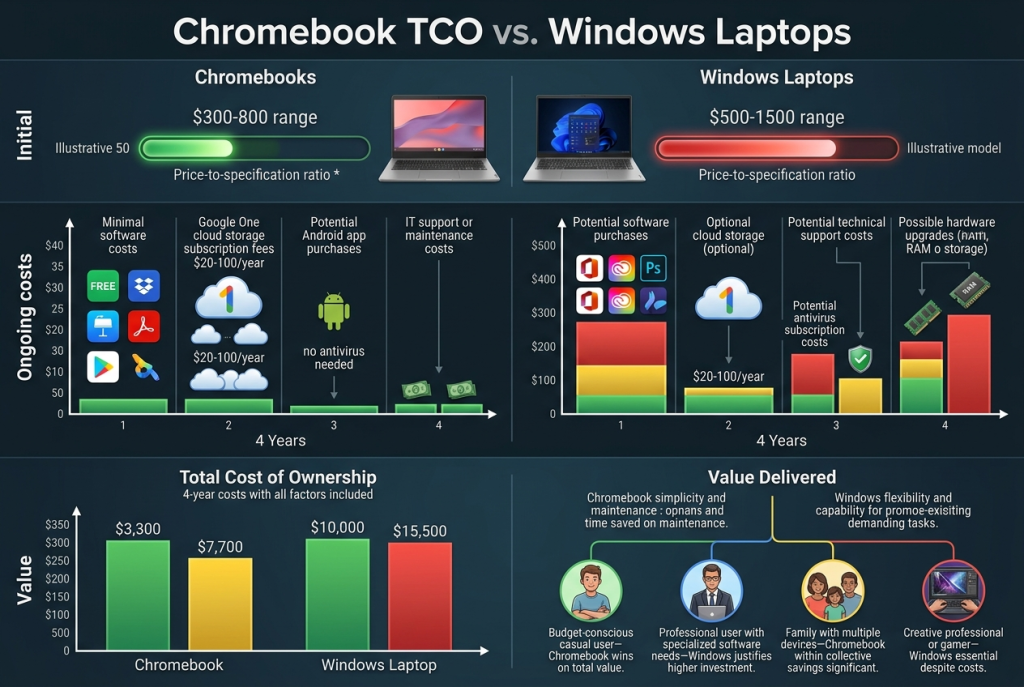
Chromebooks typically cost less than comparably-built Windows laptops due to simpler hardware requirements and lower operating system licensing costs. A $300-400 Chromebook can deliver excellent performance for web-based tasks, while a Windows laptop at that price point often struggles.
However, comparing equivalent build quality—chassis materials, display quality, keyboard feel—reduces the price gap. Premium Chromebooks from Google, HP, and ASUS approach Windows laptop pricing while offering the Chrome OS experience in refined hardware.
When using the Laptop Finder, consider not just initial cost but total value including software needs, cloud storage subscriptions, and how long the device will meet your needs before requiring replacement or upgrades.
2-in-1 and Convertible Options
Both platforms offer 2-in-1 convertible designs with touchscreens and tablet modes. Chromebooks particularly shine in tablet mode due to Chrome OS’s excellent touch optimization and extensive Android app support. The platform was designed with touch in mind, creating natural tablet experiences.
Windows 2-in-1 devices offer powerful tablet functionality but sometimes feel less optimized for pure tablet use. However, they run full Windows applications in tablet mode, enabling workflows impossible on Chromebooks, like running full Adobe Photoshop or CAD software on a detached tablet.
Software Development and Technical Work
Windows laptops dominate software development, particularly for Windows application development, game development, and environments requiring specific tools unavailable on Chrome OS. Full IDEs like Visual Studio, extensive command-line tools, and the ability to run virtual machines make Windows essential for many developers.
Chromebooks have improved for certain development workflows, particularly web development. Linux support through Crostini enables running development tools, IDEs, and programming languages that weren’t previously available. However, resource limitations and Chrome OS’s architecture make Windows more practical for serious development work.
Media Consumption and Casual Use
For users primarily consuming content—streaming video, browsing, email, social media—both platforms work excellently. Chromebooks often deliver better battery life and snappier performance for these lightweight tasks, making them ideal casual computing devices.
Windows laptops handle these tasks equally well while offering additional capabilities when needed. The question becomes whether you value maximum simplicity and battery life (Chromebook) or flexibility and expandability (Windows).
Family and Education Scenarios
Chromebooks excel in family and education environments due to their simplicity, durability, and comprehensive parental controls. The inability to install arbitrary software becomes an advantage, limiting children’s ability to install problematic applications or games.
Educational institutions have embraced Chromebooks for their manageability, affordability, and sufficient capability for educational tasks. Google Classroom integration and the extensive educational Android app ecosystem serve student needs well.
Windows laptops offer more growth potential as students advance to higher education or enter careers requiring professional software, but require more supervision and technical support for younger users.
Making Your Decision in 2026
The Chromebook versus Windows laptop decision depends on honestly assessing your computing requirements and work style.
Choose a Chromebook when:
- Your computing happens primarily in web browsers
- You’re comfortable with cloud storage for your files
- You value simplicity and minimal maintenance
- Battery life and instant-on responsiveness matter most
- You work primarily with Google Workspace or web apps
- You want an affordable secondary or travel computer
- You’re purchasing for students in K-12 education
Choose a Windows laptop when:
- You need specific Windows-only professional software
- Gaming or graphics-intensive work is important
- You require extensive offline capability
- You work with large files stored locally
- Software development is part of your workflow
- You need maximum flexibility and expandability
- Your organization requires Windows integration
- You want a single device that handles all possible computing tasks
For users with straightforward computing needs—email, web browsing, document editing, streaming—Chromebooks offer compelling simplicity and value. The reduced capability becomes largely theoretical when you naturally work within their scope.
For users requiring specialized software, professional workflows, gaming, or who value having every option available, Windows laptops remain the practical choice despite higher cost and complexity.
Interestingly, many users in 2026 find value in owning both: a Windows desktop or laptop for demanding tasks and a lightweight Chromebook for travel and casual use. This combination provides ultimate flexibility while letting each platform excel at its strengths.
When exploring premium laptop upgrade deals, consider whether you need premium Windows hardware or if a mid-range Chromebook would serve your actual daily needs better, potentially freeing budget for other technology investments.
The choice isn’t about which platform is objectively better, but which aligns with your specific needs, budget, and computing philosophy. Both Chromebooks and Windows laptops excel in their intended roles—the key is honest self-assessment of which role matches your requirements.
Related Posts
- Understanding Copilot+ PC: The AI Revolution in Laptop Computing for 2026
- What Screen Size Laptop Should I Buy? The Complete 2026 Guide
- 2-in-1 Laptops vs. Traditional Clamshell Laptops: What’s Really Different in 2026?
- The AI Revolution in Your Laptop: Understanding Copilot+ PCs in 2026
- AI-Enhanced Productivity Laptops: How Intelligent Hardware Is Transforming Modern Computing