
Unboxing a new laptop creates excitement, but the out-of-box software configuration rarely represents the optimal setup. Manufacturers ship systems with months-old drivers and software due to production timelines, while critical security updates and performance improvements accumulate continuously. In 2026, with AI-powered update management and automated optimization becoming standard, properly updating your new laptop ensures security, performance, and stability from day one. This comprehensive guide walks you through every update category, explaining what to update, how to update it, and why it matters.
Why Fresh Updates Matter More Than Ever
New laptops arrive with software frozen at their manufacturing date—potentially months before purchase. During this time, security vulnerabilities are discovered and patched, driver bugs are fixed, performance optimizations are released, and new features become available. Failing to update immediately leaves systems vulnerable and prevents optimal performance.
In 2026, this matters more than ever with sophisticated security threats, AI features requiring latest drivers, and rapid software evolution. Whether you’ve purchased business laptops, gaming systems, or 2-in-1 convertibles, comprehensive initial updates form the foundation for reliable long-term operation.
Windows Update: The Essential First Step
Windows laptops should begin with Windows Update, handling operating system patches, security updates, and Microsoft-supplied hardware drivers.
Running Windows Update Comprehensively:
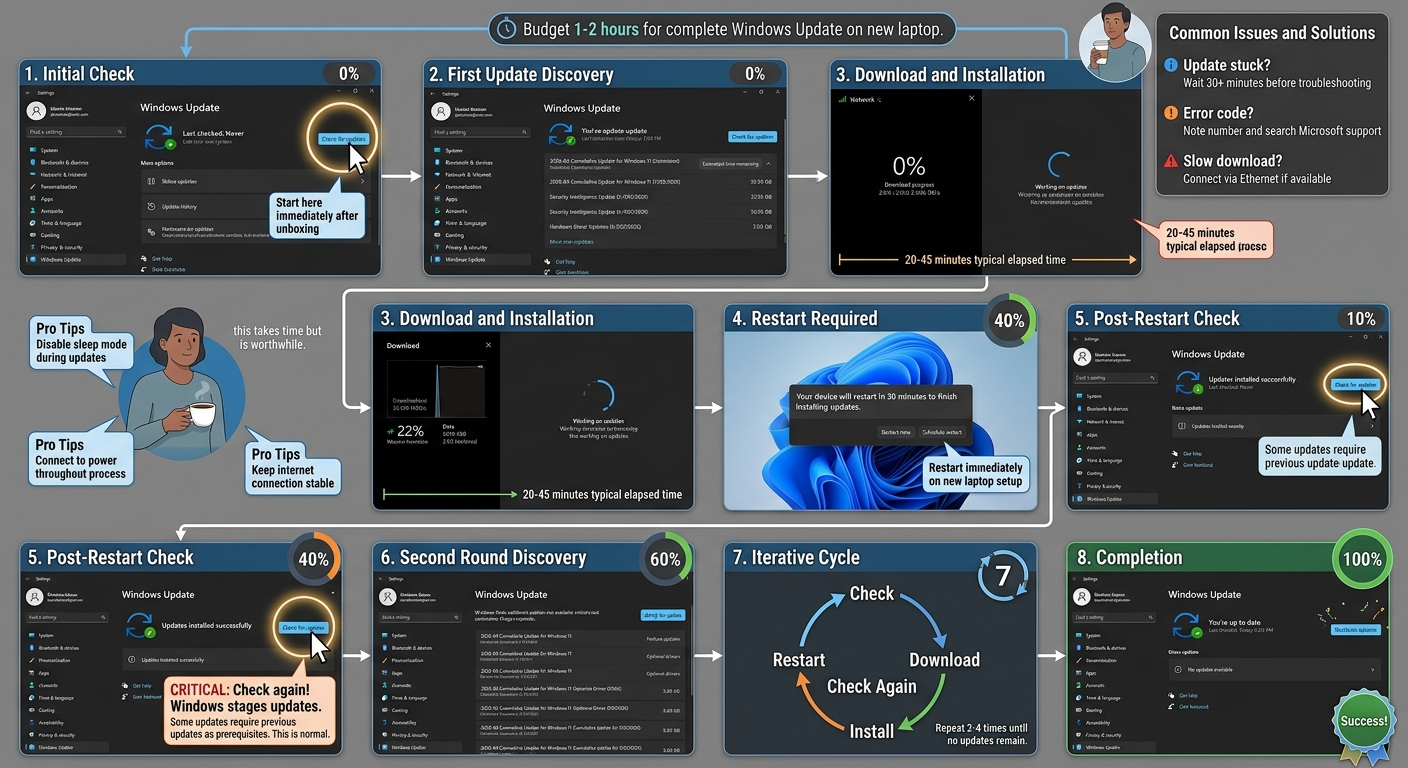
Initial Update: Open Settings → Windows Update → Check for Updates. Windows will discover and queue available updates, often requiring 1-2GB downloads for systems shipped months ago. Install all available updates, restarting when prompted.
Repeated Checking: After the initial update and restart, immediately check for updates again. Windows staggers updates—certain updates only become available after installing prerequisites. Repeat the check-install-restart cycle until Windows reports “You’re up to date” with no additional updates available.
This iterative process typically requires 2-4 cycles for new systems, installing cumulative updates, security patches, feature updates, and driver updates. Budget 1-2 hours for complete Windows Update on a fresh system—worthwhile investment preventing future problems.
Optional Updates: Windows Update now separates critical updates from optional ones. Review optional updates carefully—these often include updated drivers for specific hardware. While optional, they frequently offer improvements worth installing.
AI-Powered Update Management in 2026
Copilot+ PCs and AI-enhanced systems include intelligent update management that optimizes update timing, predicts compatibility issues, and automates routine maintenance. After completing manual initial updates, these AI systems maintain currency automatically.
Windows Copilot can now answer questions about update status, explain what specific updates change, and schedule updates for convenient times based on your usage patterns. This AI assistance reduces update-related disruptions while ensuring security.
Manufacturer-Specific Update Utilities
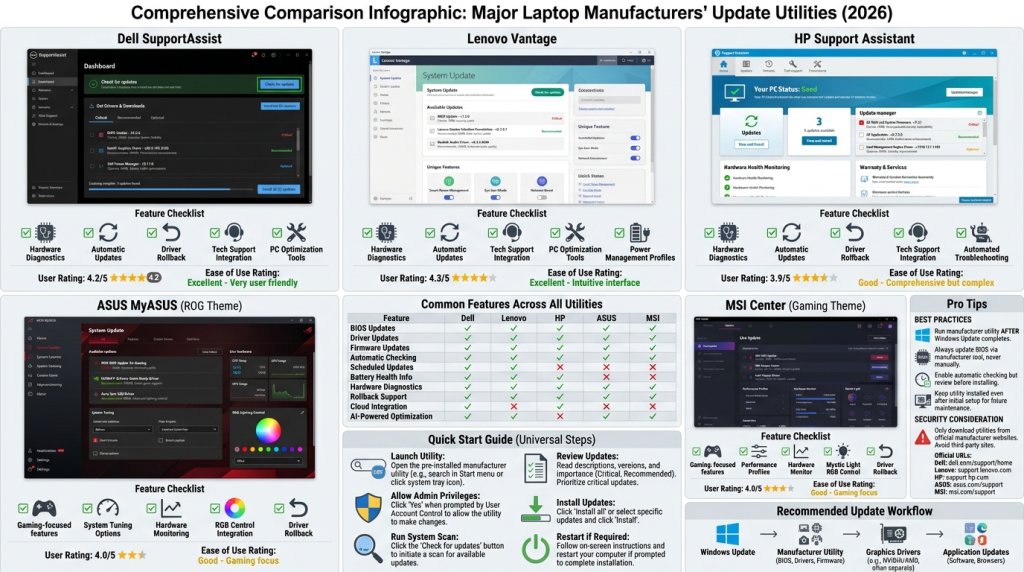
Laptop manufacturers provide their own update utilities delivering firmware updates, proprietary software updates, and optimized drivers unavailable through Windows Update.
Major Manufacturer Update Tools:
Dell SupportAssist: Pre-installed on Dell systems, SupportAssist scans hardware, identifies available updates for BIOS, firmware, and drivers, and facilitates one-click installation. Run immediately on new Dell systems.
Lenovo Vantage: Lenovo’s comprehensive utility manages system updates, including critical BIOS updates and Lenovo-specific drivers. Essential for ThinkPad and IdeaPad users.
HP Support Assistant: HP’s update tool handles firmware and driver updates while monitoring system health. Pre-installed on HP laptops.
ASUS MyASUS: ASUS systems use MyASUS for managing updates, particularly important for firmware and ROG gaming-specific features on gaming laptops.
These manufacturer tools access updates unavailable elsewhere, including critical BIOS updates that improve hardware compatibility, fix bugs, and enhance performance. Run these immediately after Windows Update, installing all recommended updates.
Graphics Driver Updates: Critical for Performance
Graphics drivers significantly impact performance, stability, and feature availability—particularly important for gaming systems with NVIDIA GeForce RTX 50 Series GPUs, Intel integrated graphics, and AMD configurations.
NVIDIA Graphics:
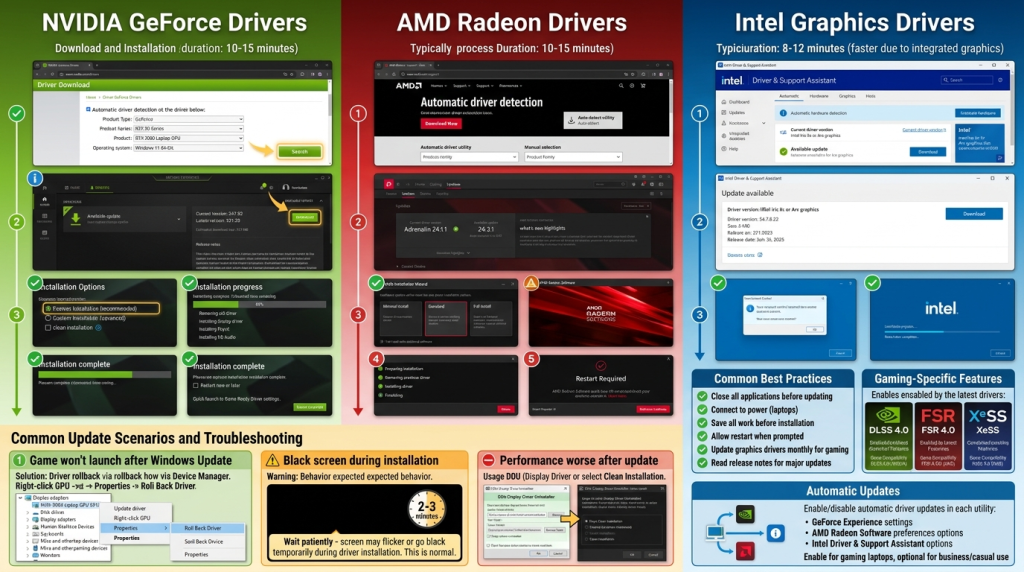
Download GeForce Experience (for gaming GPUs) or NVIDIA Control Panel (for professional GPUs) directly from NVIDIA’s website. These utilities automatically detect your GPU, present available driver updates, and handle installation. NVIDIA releases drivers frequently—often monthly—with game-specific optimizations and bug fixes.
GeForce Experience also enables features like Game Ready Drivers, DLSS updates, and AI-enhanced capabilities requiring latest driver versions.
AMD Graphics:
AMD Radeon Software handles driver updates for AMD GPUs. Download from AMD’s website, install, and use the software to check for and install driver updates. AMD similarly releases frequent updates improving performance and compatibility.
Intel Graphics:
Intel integrated graphics use Intel Driver & Support Assistant, automatically detecting your hardware and presenting available driver updates. While integrated graphics updates are less critical than dedicated GPU updates, they still improve performance and fix compatibility issues.
BIOS and Firmware Updates: Handle with Care
BIOS (Basic Input/Output System) or UEFI firmware updates improve hardware compatibility, fix bugs, enable new features, and sometimes address security vulnerabilities. However, BIOS updates carry risks—interrupted updates can render systems unbootable.
Safe BIOS Update Procedures:
-
Use Manufacturer Tools: Always use official manufacturer update utilities rather than manual BIOS updates when available. Dell SupportAssist, Lenovo Vantage, and HP Support Assistant handle BIOS updates safely.
-
Read Release Notes: Review BIOS update release notes carefully, understanding what the update changes. Only install BIOS updates that address issues you’re experiencing or provide features you need.
-
Ensure Power: Connect laptop to AC power before starting BIOS updates. Battery failure during BIOS update causes severe problems.
-
Avoid Interruption: Don’t interrupt BIOS updates. Even if updates appear stuck, wait patiently—interruption risks bricking the system.
For new laptops, BIOS updates often improve initial stability and compatibility. Review available BIOS updates through manufacturer utilities, installing if release notes indicate improvements relevant to your system.
Chipset and System Component Drivers
Chipset drivers enable proper communication between the CPU and other motherboard components. Modern Windows systems often install adequate chipset drivers automatically, but manufacturer-supplied versions sometimes offer improved compatibility.
Manufacturer update utilities (Dell SupportAssist, etc.) identify and present chipset driver updates. Additionally, Intel and AMD provide chipset driver packages downloadable from their websites. For new systems, installing latest chipset drivers ensures optimal component communication.
Storage Driver and Firmware Updates
SSD storage benefits from firmware updates improving performance, reliability, and compatibility. Major SSD manufacturers provide update utilities:
- Samsung Magician: For Samsung SSDs
- Crucial Storage Executive: For Crucial/Micron drives
- Western Digital Dashboard: For WD drives
- Intel Memory and Storage Tool: For Intel SSDs
These utilities identify your storage device, display current firmware version, and facilitate updates when available. Storage firmware updates are less frequent than driver updates but sometimes provide meaningful improvements.
Network Driver Updates
Wi-Fi and Ethernet drivers affect connection stability and speed. Windows Update typically handles network drivers adequately, but manufacturer utilities sometimes provide newer versions with improved performance.
For systems with Intel Wi-Fi (common in many laptops), Intel Driver & Support Assistant identifies and updates wireless drivers. Manufacturer utilities similarly handle network drivers from other vendors.
Audio Driver Updates
Audio drivers from Realtek, Conexant, or other manufacturers improve sound quality and fix audio issues. Manufacturer update utilities handle audio driver updates, though these are often less critical than graphics or network drivers.
Update Priority Matrix for New Laptops
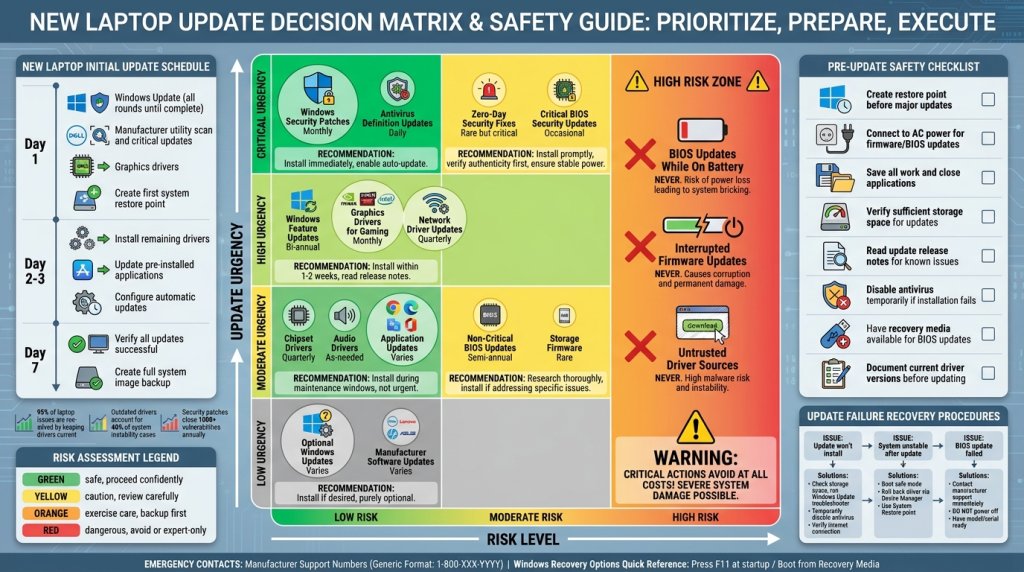
| Update Category | Priority | Frequency | Risk Level | Auto-Update Recommended |
|---|---|---|---|---|
| Windows Update | Critical | Weekly | Low | Yes |
| Security Patches | Critical | Immediate | Low | Yes |
| Graphics Drivers | High | Monthly | Low | Yes (for gaming) |
| Manufacturer Firmware | High | Monthly | Moderate | No (review first) |
| BIOS Updates | Moderate | As needed | High | No (manual only) |
| Chipset Drivers | Moderate | Quarterly | Low | Optional |
| Network Drivers | Moderate | Quarterly | Low | Yes |
| Storage Firmware | Low | Semi-annually | Moderate | No (manual only) |
| Audio Drivers | Low | As needed | Low | Optional |
Automatic Update Configuration
After completing initial manual updates, configure automatic updating for ongoing maintenance:
Windows Update Settings: Settings → Windows Update → Advanced Options → enable automatic updates and restart during off-hours. Configure active hours matching your typical usage to prevent unwanted interruptions.
Graphics Driver Auto-Update: GeForce Experience and AMD Radeon Software offer automatic driver updates—useful for gamers wanting latest optimizations. Disable if you prefer stability over cutting-edge drivers.
Manufacturer Utility Settings: Dell SupportAssist, Lenovo Vantage, and similar tools offer automatic update checking and notification. Enable checking but consider manual installation approval for firmware updates.
Application Software Updates
Beyond system drivers, update installed applications:
Microsoft Office: Office applications include built-in update mechanisms under File → Account → Update Options. Ensure automatic updates are enabled.
Web Browsers: Chrome, Edge, Firefox, and other browsers update automatically. Verify you’re running latest versions after setup.
Security Software: If using third-party antivirus or security suites, ensure definitions and software are current. Most update automatically but verify after initial setup.
Manufacturer Software: Laptops include various manufacturer applications—update these through manufacturer utilities or check individual applications for update options.
Cloud Backup and System Image Creation
After completing all updates and confirming system stability, create a system backup or image. If future issues require system restoration, your backup includes all updates rather than returning to outdated factory state.
Windows includes built-in backup tools under Settings → System → Storage → Advanced Storage Settings → Backup Options. Consider creating full system image after initial setup and updates are complete.
Driver Rollback: When Updates Cause Problems
Occasionally, driver updates introduce new issues. Windows includes driver rollback functionality:
Device Manager → right-click device → Properties → Driver tab → Roll Back Driver.
This returns to the previous driver version if newer ones cause problems. Keep manufacturer update utilities installed even after initial updates—they facilitate future rollback if needed.
Gaming-Specific Update Considerations
Gaming laptops require particular attention to graphics drivers and game-specific optimizations. Install GeForce Experience or AMD Radeon Software immediately, enabling automatic game-ready driver updates.
Additionally, update gaming peripherals’ software and firmware through their manufacturer utilities. Gaming mice, keyboards, and headsets often include software managing settings and firmware—update these for optimal performance.
Business and Enterprise Considerations
Business laptops in enterprise environments may have update policies managed by IT departments. Before running manual updates on business systems, verify with IT whether updates are centrally managed through WSUS, SCCM, or other enterprise tools.
For personal business use, follow the standard update procedures detailed above, paying particular attention to security updates given the sensitive nature of business data.
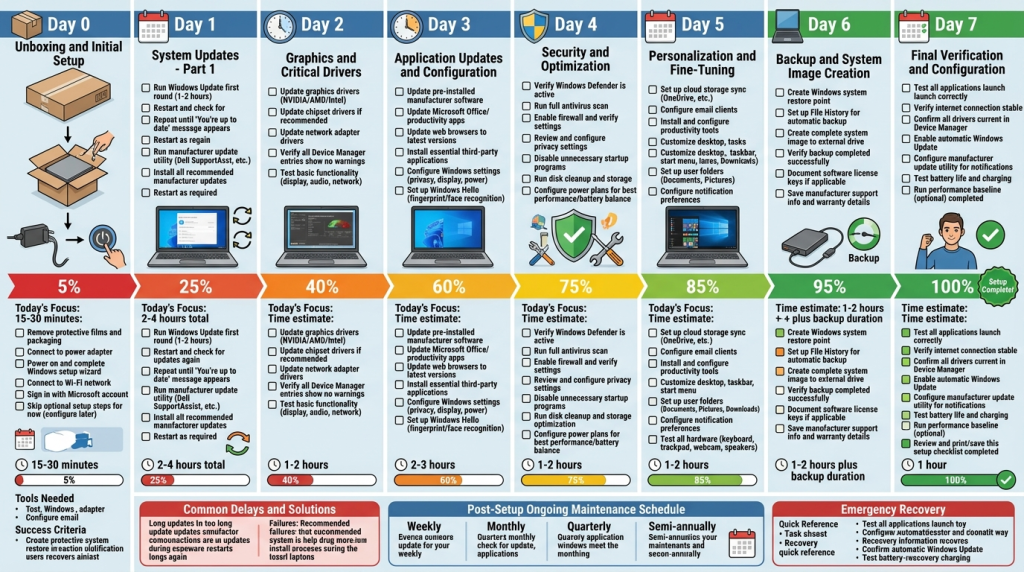
The Complete New Laptop Update Workflow
For systematic new laptop setup:
- Initial Boot: Complete Windows setup wizard, connect to internet
- Windows Update Round 1: Install all available updates, restart
- Windows Update Rounds 2-4: Repeat until no updates remain
- Manufacturer Utility: Install/run manufacturer update tool (Dell SupportAssist, etc.)
- Firmware Updates: Install BIOS and firmware updates via manufacturer tool
- Graphics Drivers: Install latest GPU drivers from NVIDIA/AMD/Intel
- Additional Drivers: Install chipset, network, storage firmware as needed
- Application Updates: Update pre-installed applications
- Configure Auto-Updates: Enable automatic updating for ongoing maintenance
- Create Backup: Make system image of fully-updated, configured system
Budget 2-4 hours for complete initial update process—time well invested for security, stability, and optimal performance.
Using the Laptop Finder for Update-Friendly Systems
When shopping for new laptops through the Laptop Finder, consider manufacturers’ reputations for update support. Brands providing comprehensive update utilities and long-term driver support offer better long-term experiences.
Premium laptop configurations often include enhanced support packages ensuring access to updates and assistance throughout ownership periods.
Properly updating a new laptop establishes the foundation for years of reliable, secure, high-performance operation. While the process requires patience and time, the security, stability, and performance benefits justify the initial investment. In 2026’s rapidly evolving software landscape, maintaining current software stands as one of the most important practices for any laptop owner.
Related Posts
- Best RTX 5090 gaming laptops: who should actually buy one, and which Newegg picks are worth it
- Gaming Laptops That Replace a Workstation for Video Editing: The Best Picks at Newegg
- Gaming Laptops for Engineering and CS Students: The Best Picks at Newegg
- Gaming Laptops That Double as 3D and CAD Workstations: The Best Picks at Newegg
- Your First Gaming Laptop: The Best Picks at Newegg for Someone New to PC Gaming