
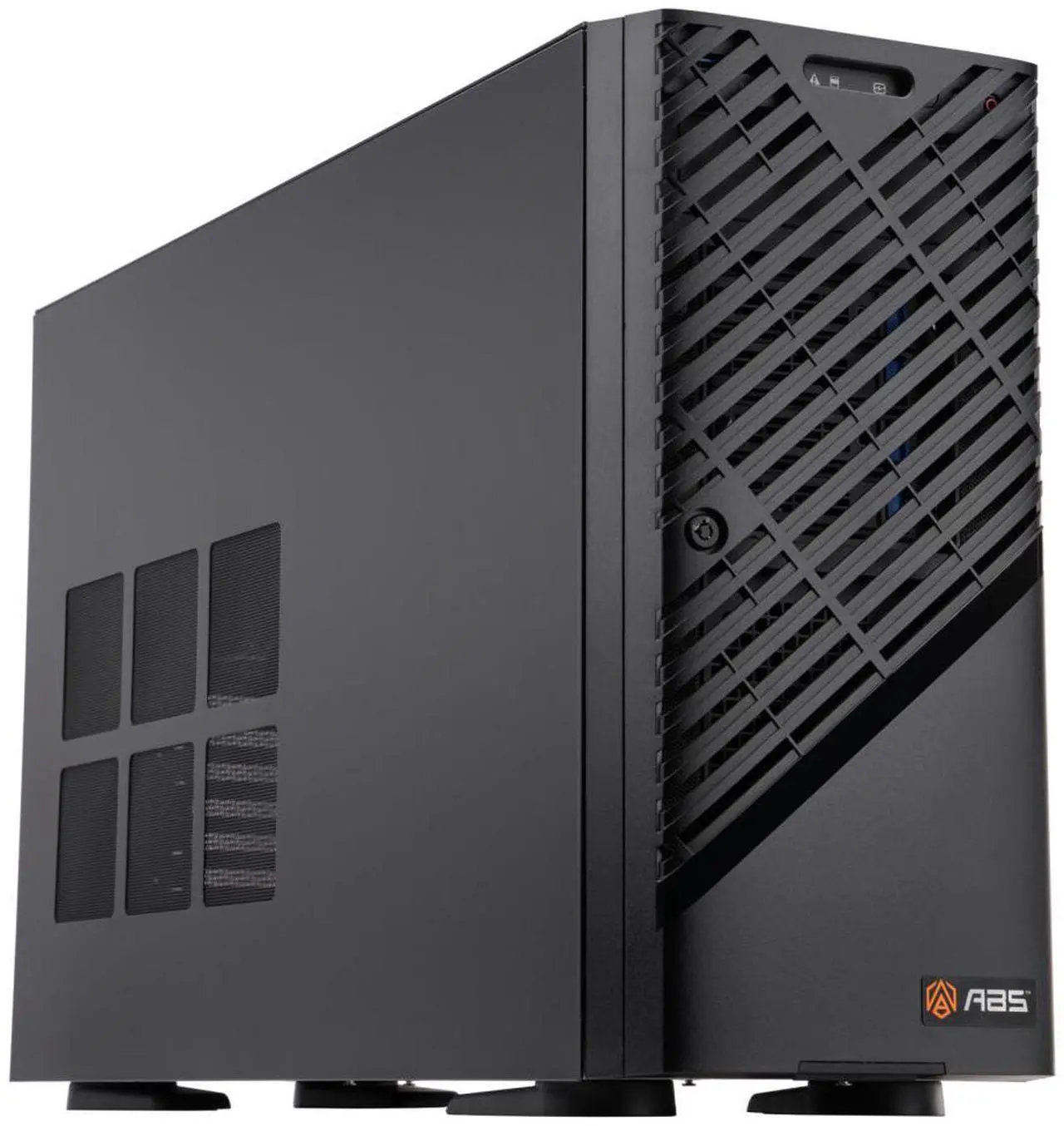
If you’ve spent the last year bumping up against VRAM limits every time you try to run a serious large language model locally, the RTX PRO 6000 Blackwell is the GPU the AI research community has been waiting for. With 96GB of GDDR7 memory — four times the capacity of the most popular consumer AI card — NVIDIA’s professional Blackwell workstation GPU finally brings server-class LLM training and inference to a single desktop slot. This guide breaks down what that means technically, which workloads it unlocks, and how to choose the right RTX PRO 6000 workstation system from the configurations available right now on Newegg.
The VRAM Problem — Why 24GB Isn’t Enough
The arithmetic of large language models is unforgiving. To run a model at full FP16 (16-bit floating point) precision, you need roughly 2 bytes of VRAM per parameter. A 13B parameter model needs about 26GB. A 70B model needs approximately 140GB at FP16, or roughly 40GB at 8-bit quantization (INT8), or around 35GB at FP8. The popular GeForce RTX 4090 tops out at 24GB GDDR6X. That’s enough for a 13B model at FP16, or a 34B model at INT4, but it simply cannot hold a 70B model at any practical precision level that preserves full output quality.
This isn’t just a theoretical limit. It determines whether your workflow requires model sharding across multiple machines, aggressive quantization that degrades accuracy, or continuous context swapping that makes inference painfully slow. ML engineers working with Llama 3 70B, Qwen-72B, Mistral Large, or Mixtral 8x7B all run into the same wall: 24GB forces uncomfortable trade-offs.
The RTX 3090 and RTX 3090 Ti offered 24GB of GDDR6. The GeForce RTX 5090 pushes to 32GB GDDR7, which helps — but still cannot fit a 70B model at INT8 comfortably. The jump from 32GB to 96GB isn’t incremental; it’s a categorical shift in what becomes possible on a single GPU, without a cluster.
RTX PRO 6000 Blackwell: Key Specs Explained
The RTX PRO 6000 Blackwell is built on NVIDIA’s Blackwell GPU architecture, the same generation powering the H100’s successor in the data center. Here are the specifications that matter for AI workloads:
| Spec | RTX PRO 6000 Blackwell | What it means |
|---|---|---|
| VRAM | 96GB GDDR7 | Fits 70B models at INT8; fine-tuning 34B at FP16 |
| Memory bandwidth | ~1.8 TB/s | Faster token generation; less waiting during inference |
| Tensor cores | 5th-generation | Native FP4, FP8, FP16, BF16, INT8, INT4 |
| Structured sparsity | Yes | Up to 2× throughput on sparse weights |
| NVLink | Yes | Dual-GPU pools to 192GB unified VRAM |
| ECC memory | Yes | Error-correcting memory for reliability |
| TDP | 600W (full), ~300W (MaxQ) | Plan for a 1,200W+ PSU in a full-power build |
| PCIe | Gen 5 x16 | Maximum bandwidth to host CPU |
| ISV certification | Yes | Validated for DCC, CAD, and enterprise AI software |
The memory bandwidth figure is critical and often underappreciated. At approximately 1.8 TB/s, the RTX PRO 6000 Blackwell moves data between the GPU’s compute cores and its VRAM at roughly 3× the rate of an RTX 4090 (which delivers around 1 TB/s). For inference workloads — where the bottleneck is almost always the memory system, not compute — this translates directly to faster tokens-per-second generation. A model that generates 15 tokens/second on an RTX 4090 may produce 40+ tokens/second on the RTX PRO 6000 Blackwell, based on relative bandwidth scaling.
The 5th-generation Tensor cores add native FP4 and FP8 precision support, which matters because PyTorch 2.x and inference frameworks like vLLM increasingly use these lower-precision modes to maximize throughput without compromising output quality. Structured sparsity — hardware support for skipping zero-valued weights — can double effective throughput on pruned models.
ECC memory (Error-Correcting Code) is a feature absent from all consumer GeForce cards. For multi-hour training runs, ECC detects and corrects single-bit memory errors that would otherwise produce silent data corruption or hard crashes — exactly the failure mode that ruins an overnight training job.
What AI Workloads 96GB VRAM Unlocks
Here’s what becomes practical at each VRAM tier:
| VRAM | What runs comfortably |
|---|---|
| 24GB (RTX 4090) | 13B FP16, 34B INT4, Stable Diffusion XL, small fine-tunes |
| 48GB (dual 24GB, no NVLink) | 34B FP16, 70B INT4, but no unified addressing |
| 80GB (H100 PCIe/SXM) | 70B FP16, 72B FP16, fine-tuning up to ~34B at FP16 |
| 96GB (RTX PRO 6000 Blackwell) | 70B INT8 or FP8, fine-tuning 34B–70B with QLoRA, multi-modal 72B |
| 192GB (dual RTX PRO 6000 via NVLink) | 70B+ FP16 without quantization, 140B+ models at INT8 |
The practical unlocks at 96GB include:
70B parameter models at INT8 or FP8. Using llama.cpp, Ollama, or vLLM, a 70B model at 8-bit quantization fits within 96GB with headroom for a full context window (up to 128K tokens on some models). With INT4, you can run 140B models.
QLoRA fine-tuning of 34B–70B models. QLoRA (Quantized Low-Rank Adaptation) fine-tuning requires the base model weights plus gradient storage. At 96GB, fine-tuning a 34B model in QLoRA is achievable in a single-GPU setup; fine-tuning 70B models becomes possible with gradient checkpointing.
Multi-modal large models. Vision-language models like LLaVA-34B, InternVL-38B, and similar architectures combine vision encoder and language model weights. These often require 40–70GB just to load, making them impractical on 24GB consumer cards.
Faster inference on models that fit. Even for a 13B model that technically fits in 24GB, the RTX PRO 6000 Blackwell’s memory bandwidth advantage delivers meaningfully faster tokens-per-second throughput.
Current RTX PRO 6000 Workstations on Newegg
Newegg currently lists a wide range of AI workstation systems equipped with the RTX PRO 6000 Blackwell, primarily from ABS and Adamant Custom. Here’s a snapshot of the key configurations available:
| System | CPU | RAM | Storage | Price (sale) |
|---|---|---|---|---|
| ABS Zaurion Ruby (ZRP7975WX-RP60001) | Threadripper PRO 7975WX | 64GB DDR5 | 1TB M.2 + 1.92TB SATA SSD | ~$21,599 |
| ABS Zaurion Ruby (ZRP7975WX-RP60002) | Threadripper PRO 7975WX | 128GB DDR5 | 2TB M.2 + 3.84TB SATA SSD | ~$23,999 |
| ABS Zaurion Aqua (ZAW5-2455X-RP6000) | Intel Xeon W5-2455X | 64GB DDR5 | 1TB M.2 + 1.92TB SATA SSD | ~$18,599 |
| ABS Zaurion Aqua (ZAW9-3575X-RP6000) | Intel Xeon W9-3575X | 128GB DDR5 | 2TB M.2 + 3.84TB SATA SSD | ~$24,599 |
| ABS Zaurion Ruby EPYC (ZRE4565P-RP6000) | AMD EPYC 4565P | 128GB DDR5 | 2×2TB | ~$17,999 |
| Adamant Custom (B120304) | Threadripper 9980X (64-core) | 64GB DDR5 ECC | 10TB NVMe + 10TB HDD | ~$28,999 |
| Adamant Custom (B120217) | Threadripper 9970X (32-core) | 128GB DDR5 ECC | 10TB NVMe + 10TB HDD | ~$27,899 |
| ABS Zaurion Duo Ruby (ZRP7975WX-RP60002M) | Threadripper PRO 7975WX | 128GB DDR5 | 2TB M.2 + 3.84TB SATA SSD | ~$36,599 (2× GPU) |
| ABS Zaurion Duo Aqua (ZAW9-3575X-RP6000MQ) | Intel Xeon W9-3575X | 128GB DDR5 | 2TB M.2 + 3.84TB SATA SSD | ~$37,199 (2× GPU) |
A few notable points from these listings: the ABS Zaurion EPYC mid-tower is the most affordable entry point, pairing an AMD EPYC 4565P with the full 96GB GPU for around $18,000 — lower than equivalently specced Intel Xeon or Threadripper PRO builds. The Adamant Custom configs stand out for their massive NVMe storage (up to 10TB) and ECC RAM, making them better suited to research teams running large dataset pipelines. The dual-GPU configurations (2× RTX PRO 6000 Blackwell MaxQ) pool to 192GB of NVLink-unified VRAM — enough for unquantized 70B inference and serious 70B fine-tuning work.
For storage-intensive workloads — preprocessing large datasets, storing model checkpoints, running multiple model versions simultaneously — pairing any of these systems with a high-capacity NVMe SSD array is strongly recommended. Training datasets for LLMs easily reach 1–10TB.
Professional GPU vs Consumer RTX — Real Differences
It’s a fair question: why not save money with two GeForce RTX 5090s at 32GB each instead of one RTX PRO 6000 at 96GB? There are concrete reasons the professional card is worth the premium for certain workloads.
ECC memory. Consumer GeForce cards have no ECC. For a 72-hour training run on a 30B model, a single undetected bit flip can corrupt your checkpoint silently. Professional cards correct single-bit errors and flag double-bit errors — critical for production AI infrastructure.
ISV certification. The RTX PRO 6000 Blackwell is validated by independent software vendors including Ansys, Autodesk, and NVIDIA’s own enterprise AI stack. If your team uses NVIDIA AI Workbench, enterprise Triton, or ISV-certified ML pipelines, the professional driver cadence matters.
Driver stability. NVIDIA’s professional (Studio and Quadro/RTX PRO) driver branch prioritizes application stability over peak gaming performance. Drivers are qualified for longer periods and receive fewer disruptive updates — important when a training job runs for days.
NVLink on workstation. Consumer GeForce cards since the RTX 3000 series have no NVLink support. The RTX PRO 6000 Blackwell supports NVLink, enabling two-GPU setups to pool memory into a single 192GB address space — something simply unavailable in the consumer lineup.
Power delivery and thermals. Professional cards are designed for sustained 100% load indefinitely. Consumer GPUs throttle under sustained compute workloads longer than a few minutes. If your GPU is running a fine-tune for 12 hours straight, thermal behavior matters.
That said, if your primary workload is running already-quantized models at INT4 for personal use and budget is tight, a high-VRAM consumer GPU may be sufficient. The RTX PRO 6000 Blackwell earns its premium for teams, researchers, and anyone running jobs that can’t fail partway through.
RTX PRO 6000 vs H100: When the Workstation Wins
The H100 is the benchmark that enterprise AI teams compare everything against. Both the PCIe and SXM variants of the H100 ship with 80GB of HBM3 memory. At approximately $2–4 per hour for H100 cloud rental, a 10,000-hour annual inference or training budget runs $20,000–$40,000 per year — every year, indefinitely.
An RTX PRO 6000 Blackwell workstation in the $18,000–$28,000 range breaks even against cloud H100 rental in 6–18 months depending on utilization, after which compute is essentially free (plus power costs). For teams running sustained workloads — not occasional jobs — the TCO (total cost of ownership) argument for on-premises hardware is straightforward.
| Dimension | RTX PRO 6000 Blackwell | H100 PCIe/SXM |
|---|---|---|
| VRAM | 96GB GDDR7 | 80GB HBM3 |
| Memory bandwidth | ~1.8 TB/s | ~2.0 TB/s (PCIe) / ~3.35 TB/s (SXM) |
| FP8 throughput | Very high (5th-gen Tensor) | Very high |
| PCIe vs NVLink | PCIe 5 / NVLink | NVLink (SXM in server chassis) |
| Cost model | One-time purchase | $2–4/hr cloud, or $30K+ card cost |
| ECC | Yes | Yes |
| ISV cert | Yes | Enterprise / data center |
| Desktop-compatible | Yes | No (requires server chassis for SXM) |
The H100 SXM wins on raw memory bandwidth and is required for the very largest model training runs (175B+ parameters at FP16). But the RTX PRO 6000 Blackwell’s 96GB exceeds the H100’s 80GB, and it installs in a standard AI workstation desktop chassis rather than demanding a server rack. For teams that want serious AI compute without a data center budget or cloud dependency, the RTX PRO 6000 Blackwell is the more practical answer.
Software Stack Setup (CUDA, PyTorch, vLLM)
Getting an RTX PRO 6000 Blackwell workstation running for AI work involves a straightforward software stack. Here’s the recommended setup path:
1. Driver and CUDA. Install NVIDIA’s latest RTX PRO (professional) driver from the NVIDIA driver download portal. Ensure CUDA 12.4 or later is installed — this is the minimum version required for full Blackwell architecture support in PyTorch 2.x and most current inference frameworks. Verify with nvidia-smi that the GPU is recognized at full 96GB.
2. PyTorch 2.x. Install via pip with the CUDA 12.4+ wheel:
pip install torch torchvision torchaudio --index-url https://download.pytorch.org/whl/cu124
PyTorch 2.x includes native FP8 support via torch.float8_e4m3fn, which maps directly to the RTX PRO 6000 Blackwell’s 5th-gen Tensor core instructions.
3. vLLM for high-throughput inference. vLLM is the standard production inference engine for LLMs. Install via:
pip install vllm
Launch a 70B model (e.g., Meta Llama 3 70B Instruct) with:
vllm serve meta-llama/Meta-Llama-3-70B-Instruct --dtype bfloat16
At 96GB VRAM, this runs without quantization at BF16, giving full-quality output.
4. Ollama for local model serving. For a simpler local inference setup with automatic model quantization selection, Ollama works out of the box with CUDA:
ollama pull llama3:70b
ollama run llama3:70b
5. llama.cpp for maximum flexibility. llama.cpp supports GGUF format models with GPU offloading:
./llama-cli -m Meta-Llama-3-70B-Instruct-Q8_0.gguf -ngl 99 -c 8192
The -ngl 99 flag offloads all 99 layers to GPU. At 96GB VRAM, a 70B model at Q8_0 (approximately 75GB) fits with context overhead.
6. Hugging Face TGI (Text Generation Inference). For team-facing API endpoints, TGI with CUDA backend is production-grade:
docker run --gpus all ghcr.io/huggingface/text-generation-inference \
  --model-id meta-llama/Meta-Llama-3-70B-Instruct
The system RAM pairing matters here: 128GB DDR5 is the recommended minimum for workstations running 70B+ models, since model loading from disk to GPU passes through system memory. Workstations with 64GB DDR5 may bottleneck on load time for the very largest models.
A fast NVMe SSD is also important for model load times. A 70B GGUF Q8 model weighs roughly 75GB on disk; loading it from a PCIe 4.0 NVMe SSD at 7GB/s takes about 10 seconds, while a spinning HDD would take several minutes. The Adamant Custom configurations’ 10TB NVMe arrays are well-suited to teams keeping multiple large model checkpoints on disk.
Decision Matrix — Is RTX PRO 6000 Right for You?
| Workload / situation | Recommendation |
|---|---|
| Running 70B models locally at full quality | RTX PRO 6000 Blackwell — the only single-GPU desktop option |
| Fine-tuning 34B–70B models with QLoRA | RTX PRO 6000 Blackwell; dual-GPU for unquantized 70B fine-tune |
| Inference on 13B–34B models, budget-limited | RTX 4090 24GB or RTX 5090 32GB are sufficient and cheaper |
| Production team inference server, 24/7 uptime | RTX PRO 6000 Blackwell — ECC, ISV cert, professional drivers |
| Occasional cloud use + on-prem 24GB experiments | Cloud GPU + consumer RTX card (no need for workstation) |
| Need 192GB unified VRAM for 140B+ models | Dual RTX PRO 6000 Blackwell with NVLink bridge |
| Data center scale training, 1,000+ GPU-hours/week | H100/H200 cluster — the workstation TCO advantage disappears at scale |
| CAD/DCC + AI in the same workstation | RTX PRO 6000 Blackwell — ISV certification covers both workloads |
FAQ
Q: Can the RTX PRO 6000 Blackwell run Llama 3 70B without quantization?
At BF16 (brain float 16), a 70B model requires approximately 140GB of VRAM — more than a single 96GB card holds. You can run Llama 3 70B at INT8 (approximately 75GB) on a single card, or at BF16 on two RTX PRO 6000 Blackwell cards connected via NVLink (192GB pooled). For most use cases, INT8 on a single 96GB card delivers output quality essentially indistinguishable from full BF16.
Q: What’s the difference between the full RTX PRO 6000 Blackwell and the MaxQ variant?
The MaxQ designation indicates a lower-power variant of the same GPU, typically drawing around 300W versus the full card’s 600W TDP. This trades peak throughput for lower power consumption and thermal output — useful for mid-tower chassis that can’t handle a 600W GPU. The MaxQ variant has the same 96GB GDDR7 VRAM capacity; throughput is reduced by roughly 20–30% due to lower memory and compute clocks.
Q: Does this GPU work with AMD ROCm for PyTorch?
No. The RTX PRO 6000 Blackwell is an NVIDIA GPU and uses the CUDA software stack. ROCm is AMD’s compute platform, relevant for Radeon PRO and Instinct cards. For PyTorch on NVIDIA Blackwell, CUDA 12.4+ is the correct path.
Q: How much system RAM do I need paired with a 96GB GPU?
128GB of DDR5 system RAM is the recommended minimum for workloads that load 70B models. The model must pass through system RAM during the load from disk to GPU. 64GB DDR5 works but creates a temporary bottleneck during load. If you’re running multiple models or have dataset preprocessing workloads alongside inference, 256GB is more comfortable. The ECC RAM option available in Adamant Custom builds adds memory reliability for 24/7 production workloads.
Q: What storage setup is recommended for an AI workstation of this class?
A minimum of 2TB NVMe for the OS and active model storage, plus a secondary high-capacity drive for datasets and model archives. For teams maintaining a library of large models (10–50 models at 4–75GB each), a 4TB NVMe drive as the primary model store is practical. The Adamant Custom configurations include up to 10TB of NVMe storage, which handles even large research model archives.
Conclusion
The RTX PRO 6000 Blackwell represents a genuine threshold moment for on-premises AI compute. For AI researchers, ML engineers, and enterprise teams who’ve been fighting VRAM limits on 24GB consumer cards, 96GB of GDDR7 finally makes 70B-class models a desktop-class workload — not a cloud dependency. Whether you’re running vLLM endpoints for your team, fine-tuning Llama 3 70B with QLoRA, or building a dual-GPU 192GB NVLink system for unquantized inference at scale, the engineering case is clear.
If your bottleneck is VRAM and your budget allows for a professional workstation, the RTX PRO 6000 Blackwell is the most capable single-slot GPU available for AI work. Browse the full range of NVIDIA professional GPU options and configured AI workstation systems on Newegg to find the configuration that matches your workload. As local AI models keep scaling in capability and context length, having the VRAM headroom to run them without compromise means your workstation investment stays relevant through multiple model generations.