A lot of PC players are about to become console players for a while. GTA 6 is a PS5 and Xbox game on November 19, and plenty of people don't want a second screen in the living room for it. They want the PS5 on the same desk as the PC.
It's easy to do badly: one HDMI cable you keep unplugging, a cheap switch that quietly drops you to 60Hz, a headset that only works with one system. Here's how I'd set it up so it just works.
Background: what each system needs
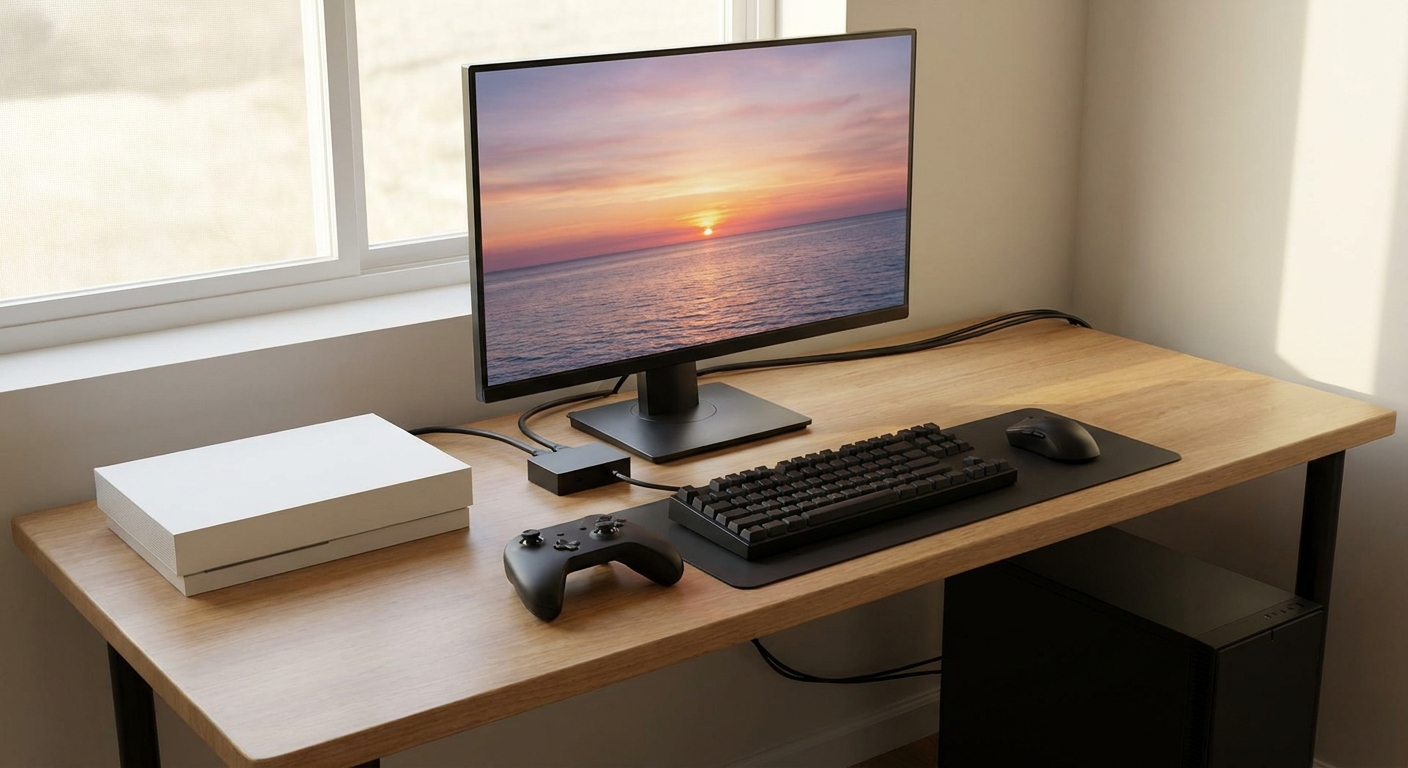
A PS5 outputs over HDMI, and for 4K at 120Hz it needs an HDMI 2.1 input on the display. A modern gaming PC usually connects over DisplayPort, though HDMI 2.1 works too. So the cleanest setup gives each system its own port and lets the monitor do the switching.
Step 1: Pick a monitor with two HDMI 2.1 ports
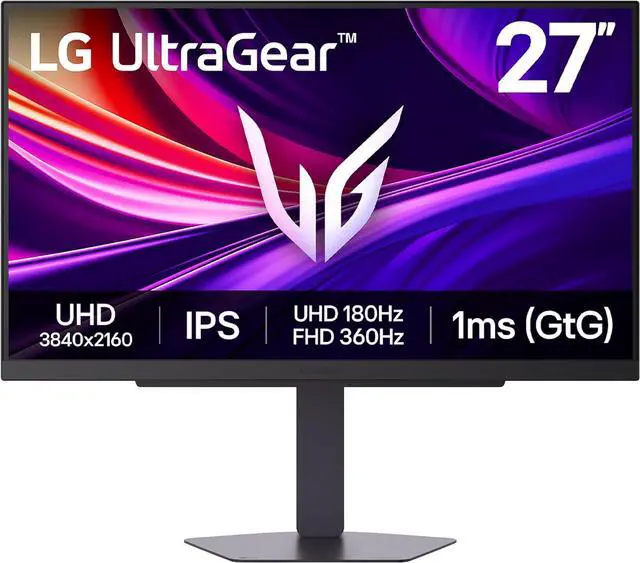
This is the step that saves you from everything else. The LG UltraGear 27G810A has two HDMI 2.1 ports and a DisplayPort 1.4 input, with a 4K 180Hz mode and a 1080p 360Hz dual mode. The PS5 goes into one HDMI port, the PC into DisplayPort, and you still have a spare HDMI for an Xbox or a streaming stick.
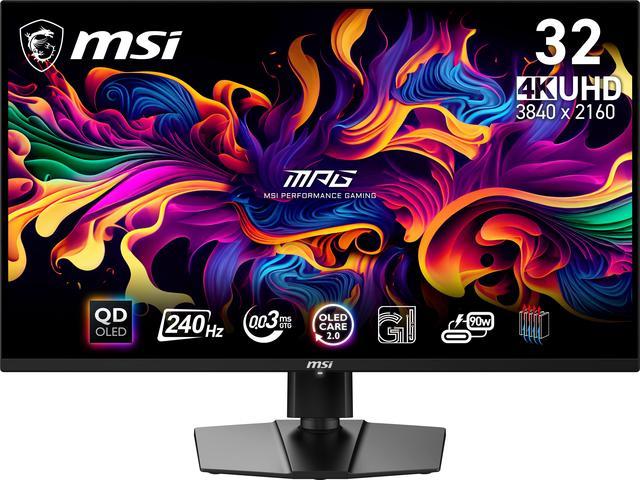
Other options with the same two-HDMI 2.1 layout: the HKC G27M7Pro, a 27-inch 4K 160Hz Mini LED panel that also has USB-C, and the MSI MAG 275UPD E14, a 27-inch 4K 144Hz IPS model. If you want OLED, the MSI MPG 321URX is a 32-inch 4K 240Hz QD-OLED with two HDMI 2.1 ports and a DisplayPort, and the MSI MAG 272UP QD-OLED X24 is the 27-inch 4K 240Hz option.
Step 2: Use cables that can carry the signal
For PS5 at 4K 120Hz, use a certified Ultra High Speed HDMI cable. The one that comes with the PS5 is fine if it reaches. If you need a short replacement, the StarTech 3ft Certified Ultra High Speed HDMI 2.1 cable is rated for 48Gbps and 4K 120Hz.
Step 3: Sort out audio once
Audio is usually the part that gets messy. The cleanest fix I've found on paper is the ASTRO A50X. Its base station has three HDMI 2.1 passthrough ports rated for 40Gbps, plus ALLM and VRR support, so the PS5 and PC can both feed into it and you switch between them without moving the headset. The listing also notes compatibility with 3D Audio on PS5.

If you'd rather keep it simpler, plug a wired headset into the monitor's headphone jack (if your monitor has one) and it'll follow whichever input is active.
Step 4: Only add a KVM if you really need one
A KVM switch makes sense when you want to share one keyboard and mouse between two computers, like a work laptop and a gaming PC. For a PS5 and a PC, monitor input switching is usually enough, and every extra box is another place where 120Hz or VRR can break.
If you do need one, make sure it supports the signal you're actually sending. The AUBEAMTO HDMI 2.1 KVM switch is a 2-in, 1-out unit listed for 4K 120Hz, with push-button and hotkey switching.
Step 5: Plan the physical layout
Put the PS5 where its vents have room, not jammed against the monitor stand or under a shelf. Keep the HDMI run short and avoid tight bends near the ports. If the console sits on the desk, a controller charging spot next to it saves you from hunting for a USB-C cable. And if your monitor is on an arm, leave enough slack in every cable so it can move without pulling on the ports.
Step 6: Check the settings after everything is connected
On the PS5, open the video output information and confirm it shows 4K with 120Hz available. If it doesn't, try the other HDMI port, make sure the monitor input is set to HDMI 2.1 mode if its menu has that option, and swap the cable before you blame anything else. On the PC, set the refresh rate in Windows display settings and turn on adaptive sync in your GPU control panel.
Summary
Buy a monitor with two HDMI 2.1 ports, give each system its own input, and use proper cables. Solve audio once with a headset that handles both systems. Skip the KVM unless you're sharing peripherals between two computers. That gets you GTA 6 on the PS5 and everything else on the PC, at the same desk, without crawling under it every night.
Frequently Asked Questions
Can I connect a PS5 and a gaming PC to the same monitor? Yes. The simplest way is a monitor with HDMI 2.1 for the PS5 and DisplayPort for the PC, then switch inputs from the monitor's menu.
Do I need HDMI 2.1 for PS5 4K 120Hz? Yes. For 4K at 120Hz from a PS5, the display input needs to support HDMI 2.1, and you should use an Ultra High Speed HDMI cable.
Will a KVM switch reduce PS5 or PC performance? A switch that supports the signal you send, for example 4K 120Hz over HDMI 2.1, should pass it through. A switch that does not support it can force a lower refresh rate or break features like VRR.
How can I use one headset with both a PS5 and a PC? Use a headset that supports both platforms at once. The ASTRO A50X base station has three HDMI 2.1 passthrough ports and lets you switch between connected systems.
Is a monitor or a TV better for a desk setup? At a desk, a 27 to 32-inch monitor is usually more comfortable than a TV, and many 4K gaming monitors now include two HDMI 2.1 ports.
Read More
- The Best Monitors for PS5 and PS5 Pro (RTINGS): Lab-tested monitors that handle PS5 4K and 120Hz properly.
- Best Gaming Monitors for PS5 and Xbox Before GTA 6 (Newegg Insider): Our console-focused monitor roundup.
- Grand Theft Auto VI Pre-Load Begins on November 10 (Rockstar Games): Rockstar's official pre-load notice for PS5 and Xbox.
- Dual-Mode Monitors Explained (Newegg Insider): What dual-mode 4K and high-refresh 1080p monitors actually do.
- KVM Switches (Newegg): Browse KVM switches for sharing displays and peripherals.